
Build charts from report data that stay in sync with the table.
Overview
Charts let you visualize any part of a report's Table view without exporting it. Create a chart from cells you select, or build one from scratch in the Charts tab. New charts are live: they update as the report changes until you turn them into a snapshot.
-
Charts are available in the Table view on the Time in Status global page and in the dashboard gadget.
-
Charts are tied to the report's type and scope. Changing either removes all charts in the report.
-
A chart created from selected cells is tied to the selected columns and row positions, not to specific work items. If the table's row order changes, the chart shows whichever work items now occupy those rows.
When to use charts
Use a chart when a pattern is faster to see than to read from rows of numbers:
-
Find outliers: spot work items that spent far longer in a status than the rest.
-
Compare workload: chart time per status by Assignee to see where work piles up.
-
Follow trends: keep a chart live and watch it change as you adjust the report settings.
-
Share the picture: save and share the report, or show its live charts on a Confluence page.
Create a chart from selected cells
-
Open a report in the Table view.
-
Select the cells you want to chart.
-
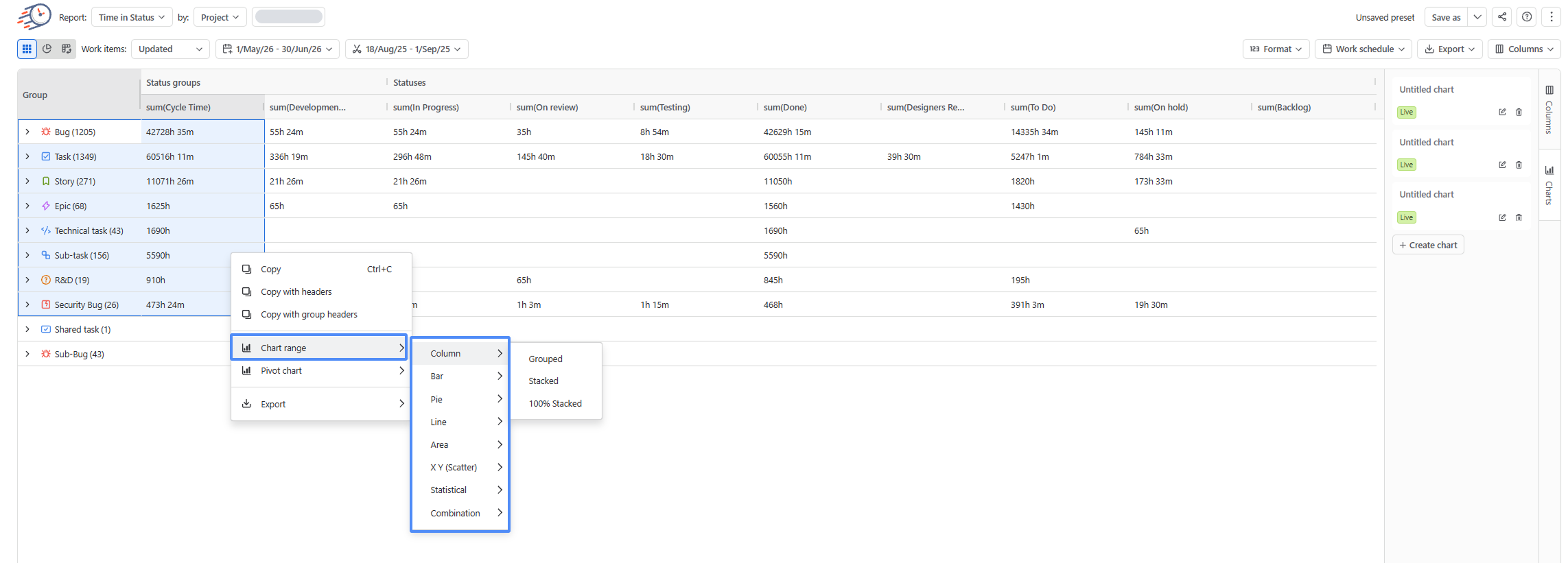
Right-click the selection and select Chart range.
-
Select a chart type, then a variant — for example, Column > Stacked.
The chart opens in its own window. You can move and resize it, and keep several chart windows open at once.
Create a chart from the Charts tab
-
In the Table view sidebar, open the Charts tab.
-
Select + Create chart. The chart window opens with the chart settings panel.
-
Choose a chart type.
-
Add the columns you want to chart.
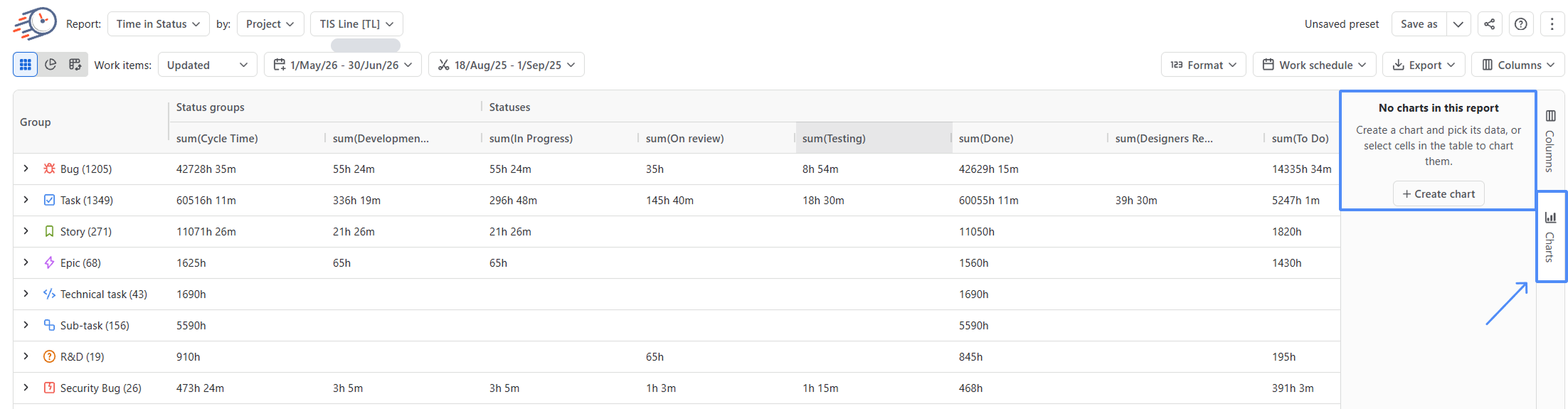
Each column you add is charted across all rows of the report. If the table is grouped, only the grouped values are charted.
Chart settings
The chart settings open automatically when you select + Create chart. To open them for an existing chart, do one of the following:
-
In the chart window, open the menu (⋮) and select Edit Chart.
-
In the Charts tab, select Configure chart on the chart's card.
|
Tab |
What you set |
|---|---|
|
Chart |
The chart type and variant. |
|
Set Up |
Categories, Aggregate, and Series. |
|
Customize |
Chart Style, Titles, Legend, and Series appearance. |
Live and snapshot charts
Every new chart is live and shows a Live badge in the Charts tab. A live chart updates when:
-
the Work items period or the Report period changes;
-
the report's work schedule changes;
-
you remove a column the chart uses — the column is removed from the chart, and if no values remain, the chart shows its empty state.
Columns you add to the table become available in the chart settings of every live chart.
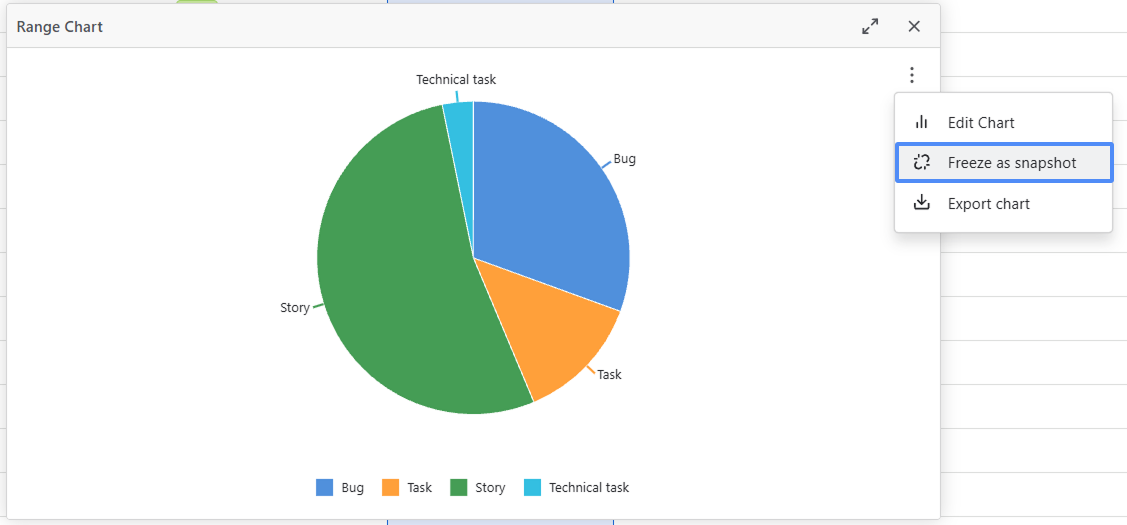
To keep a chart's current values, open the menu (⋮) in the chart window and select Freeze as snapshot. The chart becomes a snapshot: it shows a Snapshot badge and the date and time it was created, in your Jira date format. A snapshot does not change when the table data or the Format setting changes.
To make a snapshot live again, select Resume live updates in the same menu. The chart's data is replaced with the current table data.
Where snapshots appear
Snapshots stay in the saved report where you created them. Elsewhere, they behave differently from live charts:
-
Shared reports: snapshots are left out. People you share the report with see only its live charts, built from their own data.
-
Dashboard gadget: you can't freeze a chart as a snapshot. Charts in the gadget are always live.
-
Confluence macro: only the report's visible live charts are shown. Snapshots don't appear.
Why snapshots aren’t shared. A snapshot stores chart values only, not the work items behind them, so the app can't check whether another person has permission to see that data. Live charts are rebuilt for each viewer from the data their own Jira permissions allow.
Chart types and setup
Every chart combines a chart type, categories, and series:
-
Chart type: how the data is drawn.
-
Categories: the column that labels the data, such as Assignee or Status. Any column can be a category. Date columns are plotted on a time axis. To combine rows that share a category into one value, turn on Aggregate.
-
Series: the columns with the values to chart. Use numeric columns. A non-numeric column becomes available as a series after you group the table and aggregate its values.
Values use the unit selected in Format when the chart's data is generated. Axis labels and tooltips match the table cells.
Aggregate values
Turn on Aggregate under Categories to combine rows that share a category, then select how the series values are combined in the list below the toggle, such as Sum. For example, with Assignee as the category and a status column such as In Progress as the series:
-
Sum adds up the time in that status for each assignee.
-
Min or Max shows the lowest or highest value for each assignee.
-
Count shows how many values each assignee has.
-
Average shows the average value for each assignee.
Chart types
Choose from eight chart types, each with its own variants:
|
Type |
Variants |
Use it to |
|---|---|---|
|
Column |
Grouped, Stacked, 100% Stacked |
Compare values across categories, such as time per status for each assignee. |
|
Bar |
Grouped, Stacked, 100% Stacked |
Compare categories with long labels, such as work item summaries. |
|
Pie |
Pie, Donut |
Show how a total splits into parts, such as each status's share of total time. |
|
Line |
Line, Stacked, 100% Stacked |
Show change across a date category. |
|
Area |
Area, Stacked, 100% Stacked |
Show change across dates and how the parts add up to a total. |
|
X Y (Scatter) |
Scatter, Bubble |
Show how two numeric values relate, such as time in To Do and time in In Progress. |
|
Statistical |
Histogram |
Show how values are distributed, such as how many work items fall into each time range. |
|
Combination |
Column & Line, Area & Column |
Plot two kinds of values on one chart. |
Manage charts
The Charts tab lists every chart in the report, including hidden ones.
-
Rename: type a title in the chart's card. New charts show Untitled chart until you rename them.
-
Hide: select the close (×) control on the chart window. The card shows a Hidden badge, and the chart keeps its settings. To reopen it, select its card. A live chart reopens with current table data.
-
Export: open the menu (⋮) in the chart window and select Export chart.
-
Delete: select Delete chart on the chart's card, then select Delete. The chart and its settings are removed from the report.
Saving and sharing reports
Saving a report preserves each chart’s settings, visibility, size, and position, along with snapshot data. When you reopen the report, only visible charts are displayed in their saved layout.
When sharing a report, live charts are included, and each viewer sees chart data according to their own Jira permissions.
Charts in Pivot mode
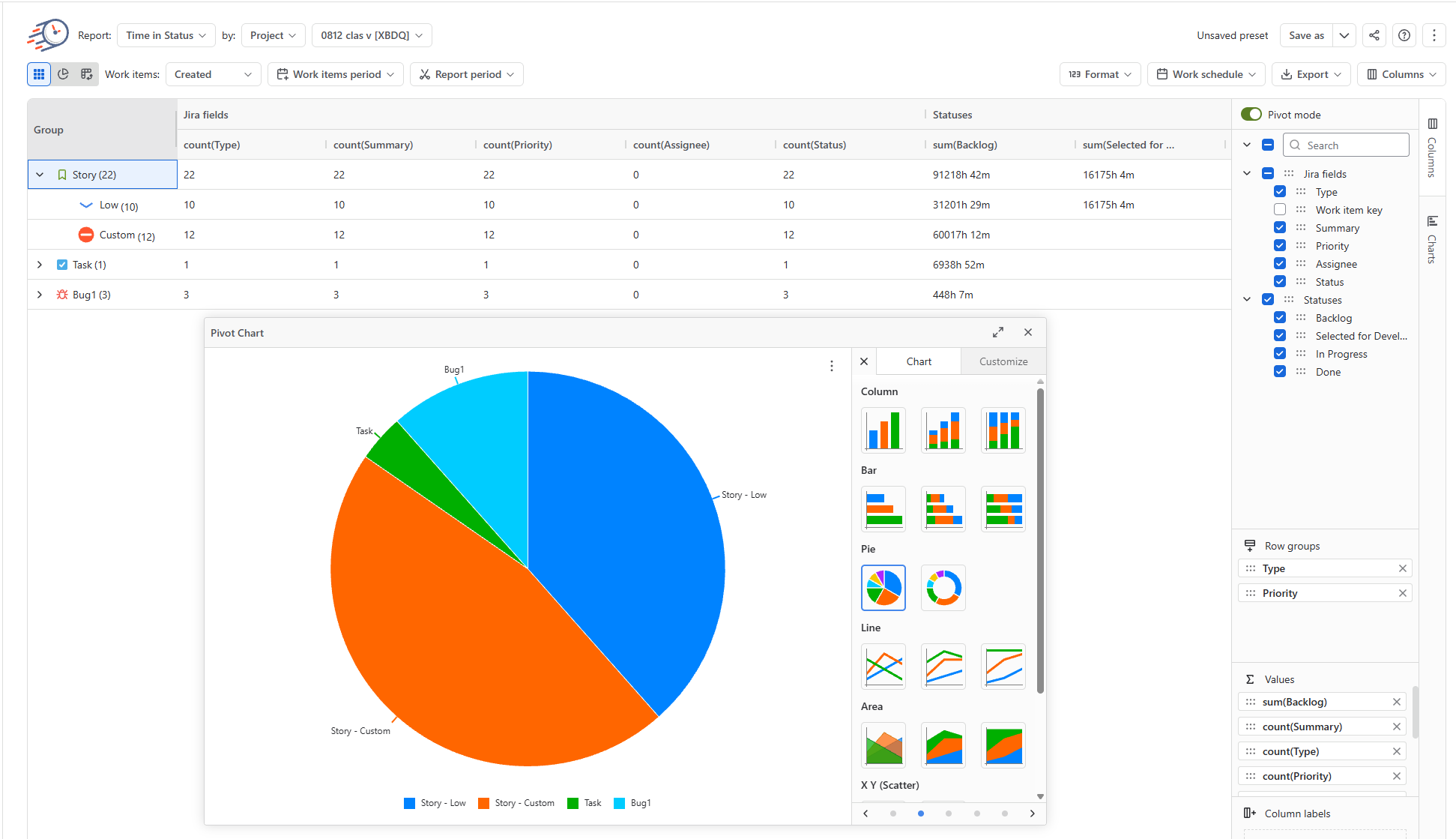
In Pivot mode, + Create chart creates a pivot chart by default. You can also create one from selected cells. A pivot chart has no Set Up tab: it charts the pivot table's Row groups and Values, so change those to change what the chart shows. Charts you created before switching to Pivot mode are kept.
Limitations
-
Freeze as snapshot is unavailable when a chart holds too much data. Chart fewer columns or rows to enable it.
-
The Confluence macro shows a saved report's charts but doesn't let you create or edit them.
-
Charts are not available for the Average time and Time in Status per date reports.
Need help with Time in Status?
Contact SaaSJet Support or email support@saasjet.atlassian.net.
New to Time in Status? Start a free trial on the Atlassian Marketplace or book a demo with our team.