
Customize how report columns are displayed, sorted, sized, pinned, and grouped directly in the Table view.
Column Options let you customize the report table directly from a column header without changing the columns selected in the Columns manager.
You can use them to sort report data, keep important columns visible while scrolling, adjust column widths, group rows for analysis, or restore the table layout.
Before you begin
Column Options are available in Table view on:
-
Global page
-
Dashboard gadgets
-
Confluence macro
Column Options work with the columns currently displayed in your report. To add or remove report columns, use the Columns manager.
Customize a report column
-
Open a Time in Status report in Table view.
-
Find the column you want to configure.
-
Click the (…) icon in the column header.
-
Select the required action.
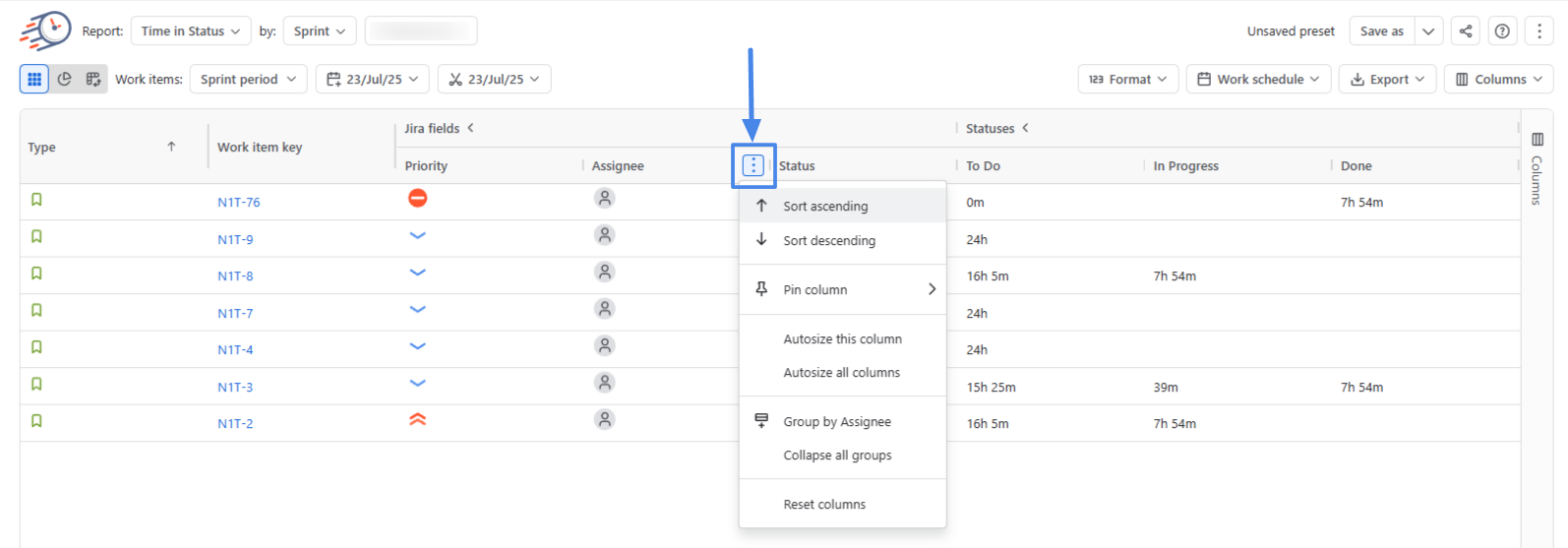
The table updates immediately according to your selection.
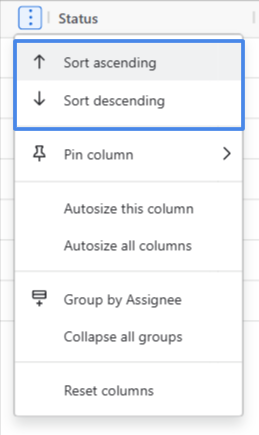
Sort report data
Use sorting to arrange rows according to the values in a selected column.
Depending on the current sorting state, you can:
-
Sort ascending – arrange values from lowest to highest, A to Z, or earliest to latest.
-
Sort descending – arrange values from highest to lowest, Z to A, or latest to earliest.
-
Clear sort – remove sorting from the column.
You can apply sorting to multiple columns when you need a more detailed ordering of report data.
Pin columns
For wide reports, you can keep important columns visible while scrolling horizontally.
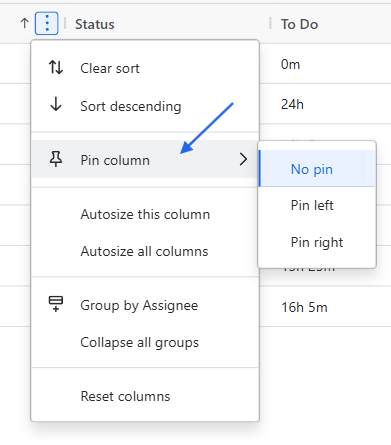
Choose:
-
Pin left – fixes the column to the left side of the table.
-
Pin right – fixes the column to the right side of the table.
This can be useful for columns such as Work Item Key, Assignee, or other fields you want to compare with values further across the report.
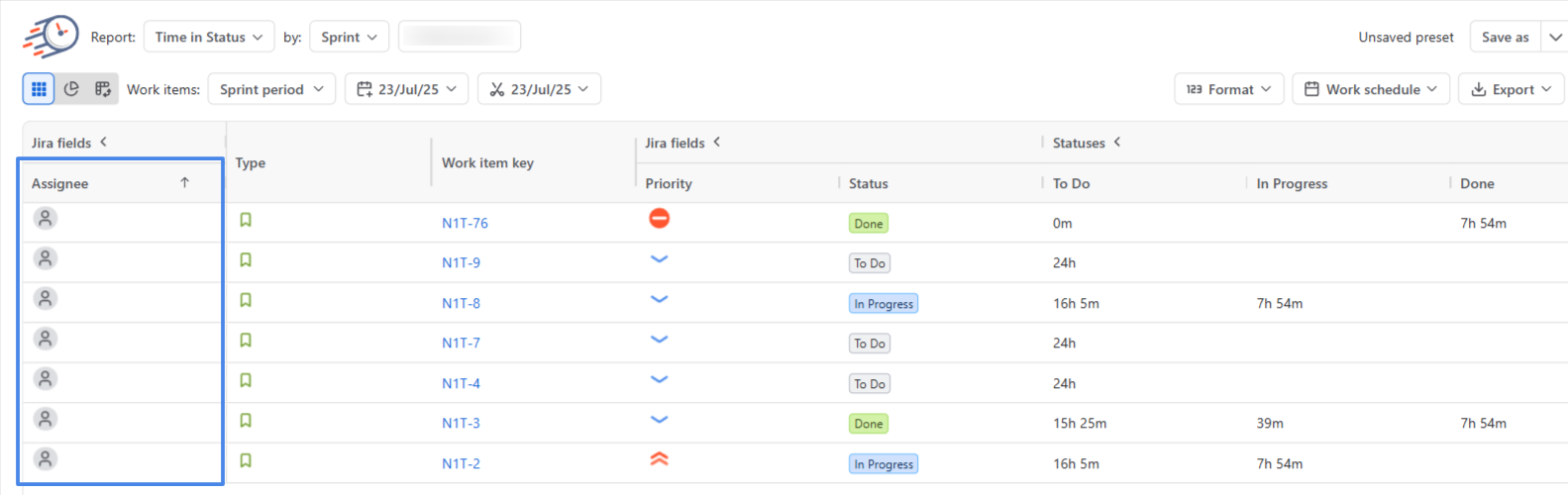
If you pin a column that belongs to a column group, the pinned column can appear separately from the rest of that group. As a result, the group header may be displayed in both the pinned and unpinned areas of the table. This is expected table behavior.
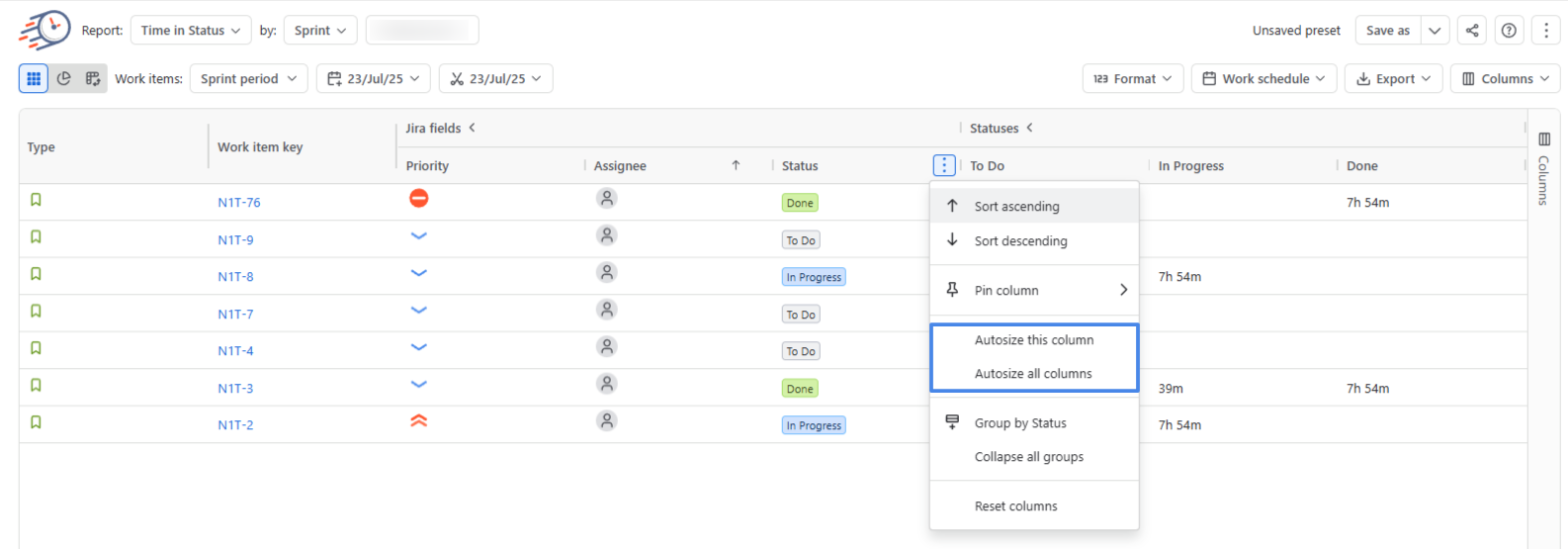
Autosize columns
Adjust column width automatically according to the report content.
You can choose:
-
Autosize this column – adjusts only the selected column.
-
Autosize all columns – adjusts the widths of all columns in the table.
This is useful when some values are truncated or when you want to make a wide report more compact.
Group and ungroup data
Use grouping when you want to organize report rows by values from a selected column.
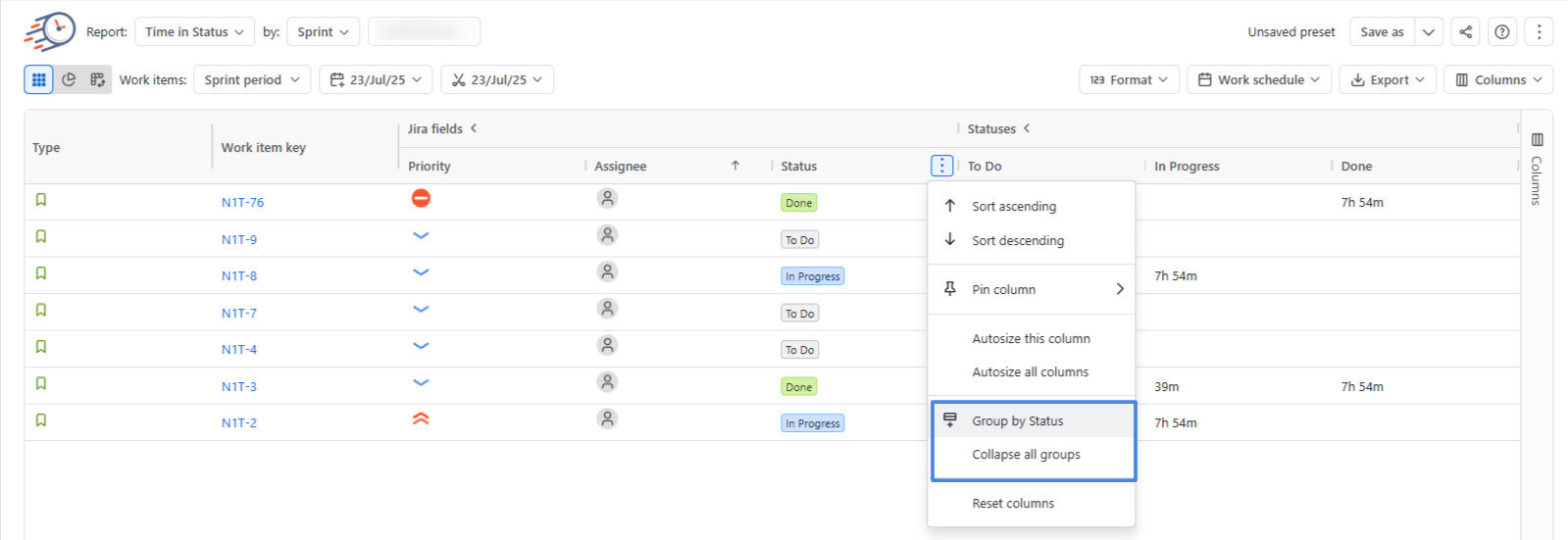
Depending on the current configuration, the menu can include:
-
Group by [column] – groups report data using the selected column.
-
Ungroup – removes the selected column from grouping.
-
Ungroup all – removes all active grouping from the table.
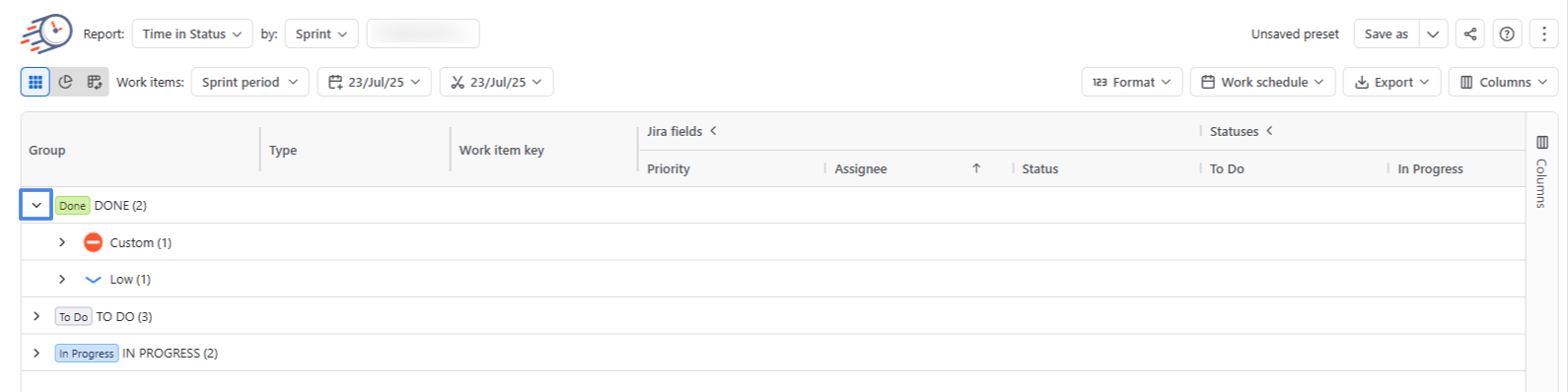
When groups are present, you can also:
-
Expand all groups – display the rows inside all groups.
-
Collapse all groups – show the grouped structure in a compact form.
Group by vs. Column Groups
The Group by option in the Column Options menu groups report rows by the values in a selected column.
For example, grouping by Assignee organizes the report into sections for each assignee.
This is different from Column Groups, which organize related report columns such as Jira fields, Statuses, or Users under shared column headers.
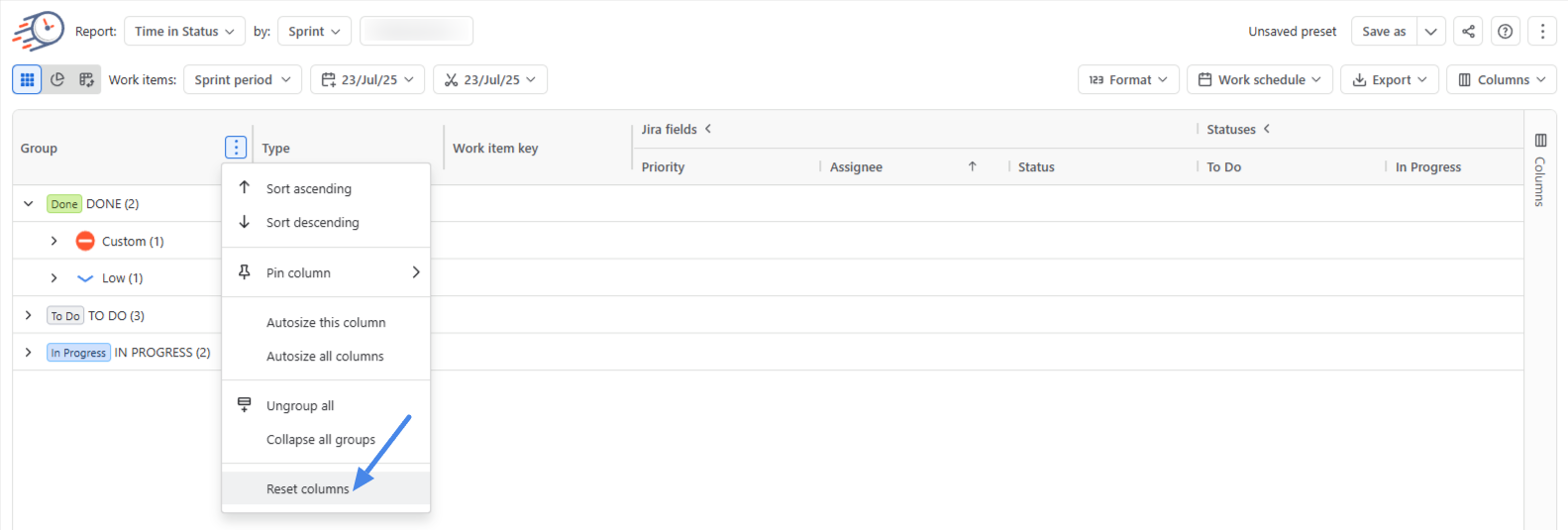
Reset columns
Select Reset columns to return the table columns to their default configuration.
Use this option if you have changed several column settings and want to quickly return to the original report layout.
Behavioral details
-
Column Options change how report data is organized and displayed; they do not change the underlying work items included in the report.
-
Sorting, pinning, resizing, and grouping can be combined in the same table.
-
Expand all groups and Collapse all groups are available when row grouping is applied.
-
Reset columns removes the current manual column adjustments and restores the default column state.
Limitations
Pinning a column that belongs to a Column Group can visually split that group between the pinned and unpinned parts of the table.
Group by controls row grouping only. To add, remove, or configure report columns and Column Groups, use the Columns manager.
If you need help or want to ask questions, please contact SaaSJet Support or email us at support@saasjet.atlassian.net.