
The Migrate data feature helps Jira administrators move Time in Status configuration data from one Jira Cloud site to another. You can use it when your company is moving to a new Jira Cloud site, consolidating instances, testing configurations in a sandbox, or transferring Time in Status setup between environments. With this feature, you can export selected Time in Status data from one site as a JSON file and then import it into another site.
Who can use this feature?
The Migrate data option is available only to Jira administrators. If you do not have Jira administrator permissions, you will not see the migration option. The feature also needs to be enabled for your site (contact SaaSJet Support). If it is not enabled, the Migrate data menu item will not appear.
Where to find Migrate data
Cloud → Cloud migrations can be enabled upon request by contacting our support team.
To open the migration dialog:
-
Open Time in Status.
-
Go to the Reports page.
-
Open the overflow menu ⋯.
-
Select Migrate data.
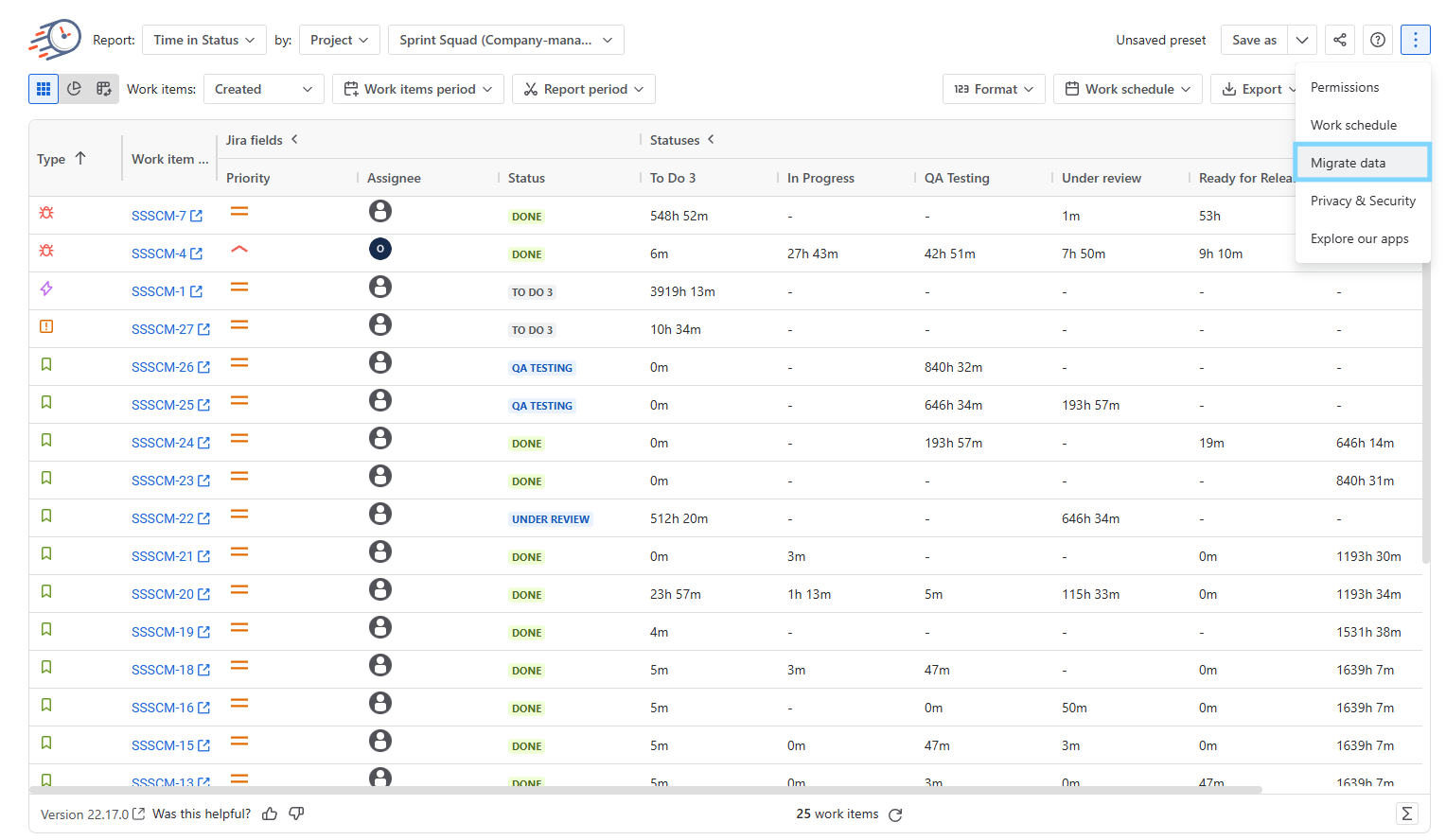
The migration dialog contains three tabs:
-
Export
-
Import
-
Import history
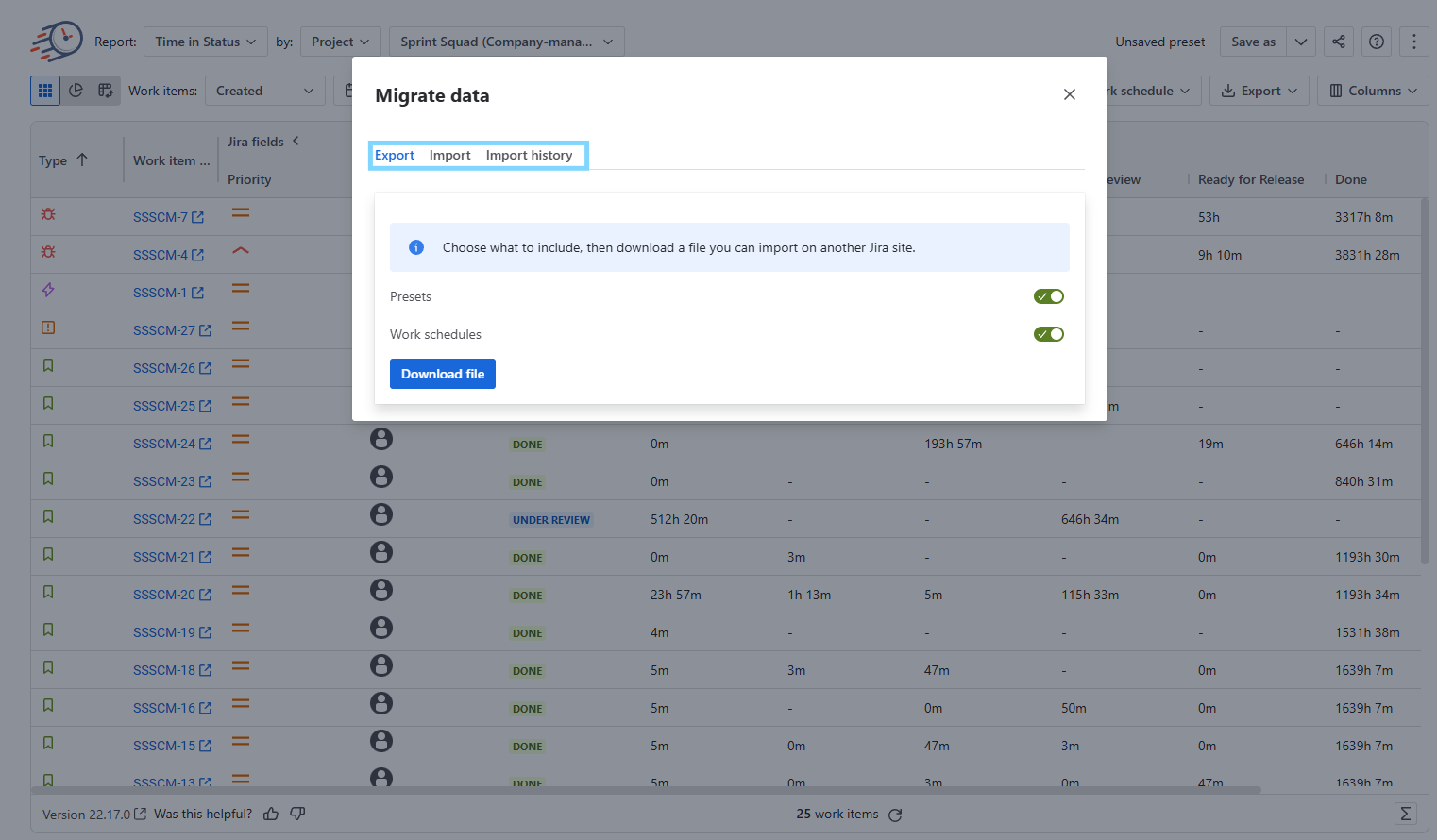
Export Time in Status data
Use the Export tab to download Time in Status configuration data from the current Jira site.
You can export:
-
Presets
-
Work schedules
The export includes selected site-wide data, not only the items created by the administrator who starts the export.
How to export data
-
Open Time in Status.
-
Go to Reports.
-
Open the ⋯ menu.
-
Select Migrate data.
-
Open the Export tab.
-
Choose what you want to export:
-
Presets
-
Work schedules
-
Both
-
-
Confirm the export by clicking the Download file button.
Time in Status will generate a JSON file and download it to your device.
The file name uses the following format:
tis-migration-export-<timestamp>.json
For example:
tis-migration-export-2026-07-03T10-30-00.json
The file also contains the export time, so the target site can record when the exported data was created.
Import Time in Status data
Use the Import tab to upload a Time in Status export file from another Jira Cloud site. The import file must be a valid JSON file previously downloaded from the Export tab in Time in Status.
How to import data
-
Open Time in Status on the target Jira site.
-
Go to Reports.
-
Open the ⋯ menu.
-
Select Migrate data.
-
Open the Import tab.
-
Choose the exported JSON file from your device.
-
Start the import.
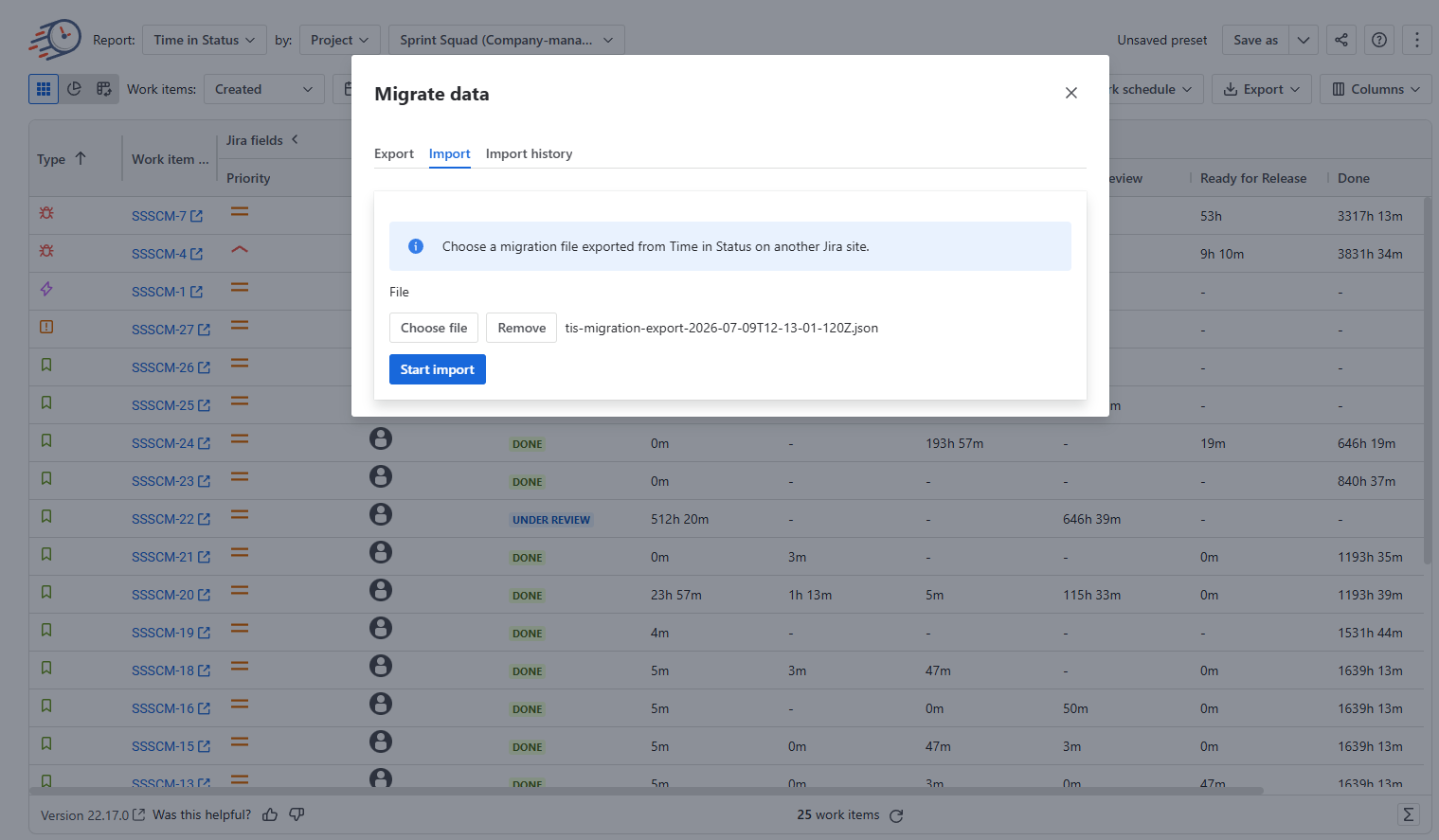
While the import is running, Time in Status shows live progress, for example:
Processed presets 27 / 35, work schedules 0 / 0
When the import is complete, you will see a summary showing the number of items imported and the number that could not be imported.
Example:
Imported 9 preset(s) and 0 work schedule(s). 4 item(s) couldn't be imported.
What happens during import?
For each valid item in the file, Time in Status creates a new site-wide preset or work schedule on the target Jira site.
If one item cannot be imported, the import continues. The whole migration does not stop because of a single failed item.
At the end of the import, Time in Status shows which items were imported, skipped, or failed.
Conflict resolution
Sometimes imported data may conflict with existing data on the target site. Time in Status handles these cases automatically where possible.
Invalid or unsupported file
If the selected file is not a valid Time in Status export file, the import will not start.
You will see this message:
This file isn't a Time in Status export. Choose a file downloaded from the Export tab.
No items will be created.
Existing preset with the same name
If an imported preset matches an existing preset owned by the importing administrator, Time in Status replaces the existing preset.
If the matching existing preset is public or owned by another user, Time in Status will not overwrite it.
You may see a message like:
Preset name: You don't have permission to overwrite the existing preset.
In this case, the preset is recorded as failed.
Missing work schedule
If an imported preset refers to a work schedule that does not exist on the target site, Time in Status assigns the default work schedule to that preset.
This allows the preset to be imported even if the exact original work schedule is not available.
Missing sprint, board, or epic
Some presets may reference Jira data from the source site, such as:
-
Sprint
-
Board
-
Epic
If Time in Status cannot find the referenced Jira item on the target site, the preset will be skipped.
You may see messages such as:
No sprint named "BFBZ Sprint 1"
or
Epic not found for summary …
To import this preset successfully, make sure the required Jira data exists and is accessible on the target site.
No permission to read a board
If the importing administrator does not have permission to read a board referenced by an imported preset, the preset will not be created.
You may see a message such as:
Authentication Required
or
55 board(s) could not be read — check your permissions on the sprint's board
To resolve this, check the administrator’s permissions for the related Jira boards and try again.
Import history
Every completed import creates an import-history record.
Use the Import history tab to review previous migration runs and their results.
Import history is visible to Jira administrators and applies at the site level.
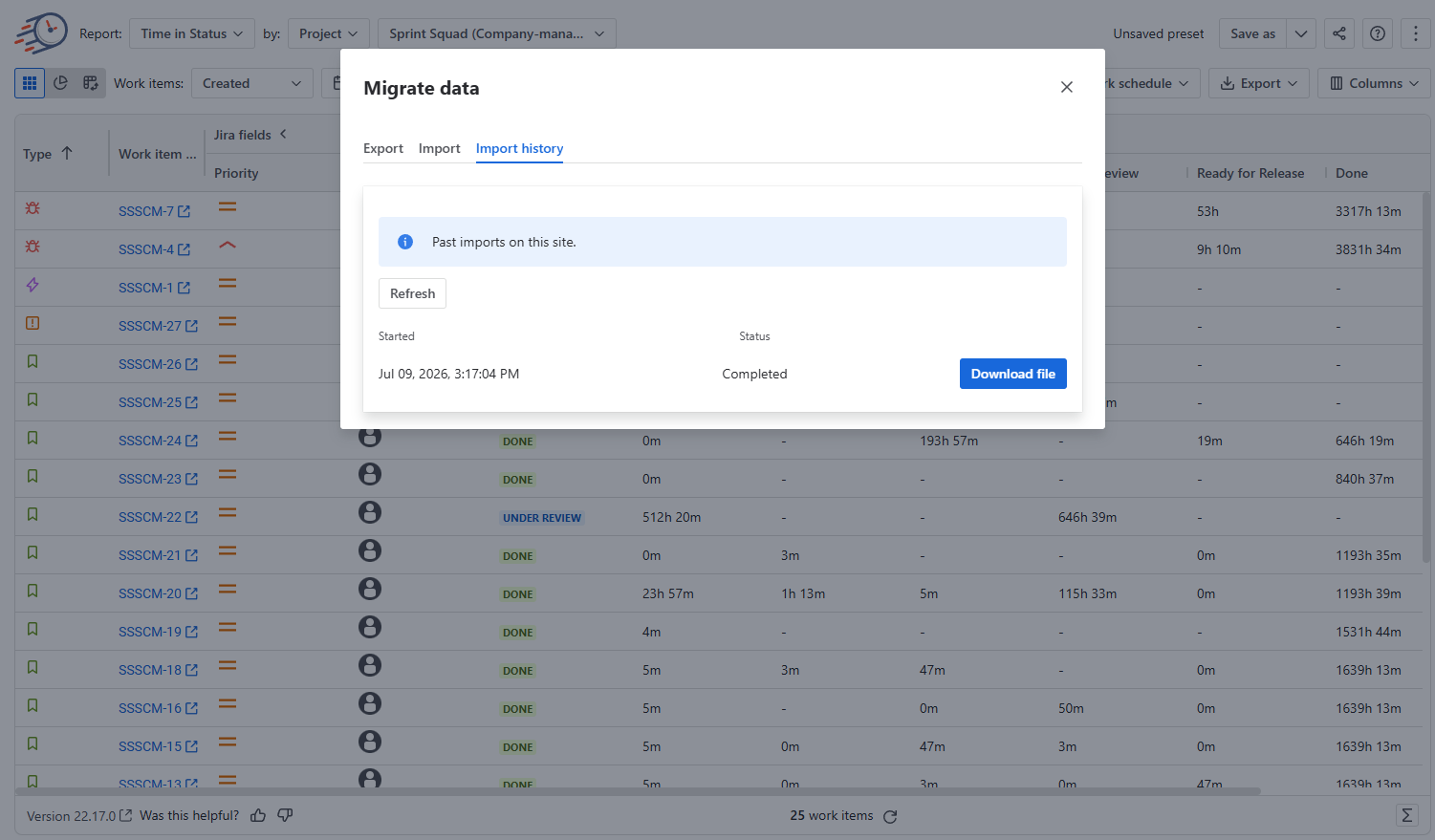
What information is stored in import history?
Each import-history record includes:
-
Import run ID
-
Administrator who started the import
-
Export time from the source file
-
Import start time
-
Import finish time
-
Import status
-
Number of presets created
-
Number of work schedules created
-
Item-level results
For each imported item, Time in Status records:
-
Item ID
-
Item type, such as preset or work schedule
-
Item name
-
Outcome
-
Message, if the item was skipped or failed
This helps administrators review what happened during the migration and identify items that need attention.
Data security and storage
Time in Status migration uses a file-based process.
Exported data is downloaded to the administrator’s device, and imported data is uploaded from that device into the target Jira site.
Time in Status does not send migration data to external services.
App data is stored in Forge storage, and the feature is designed to preserve eligibility for Runs on Atlassian.
Best practices before migration
Before migrating data, we recommend that Jira administrators:
-
Review which presets and work schedules are needed on the target site.
-
Make sure the target site has the required Jira boards, sprints, epics, projects, and permissions.
-
Export both presets and work schedules when you want to preserve report configuration as fully as possible.
-
Keep the exported JSON file in a secure location.
-
Review the Import history after migration to check skipped or failed items.
Common questions
Can I migrate only my own presets?
No. The export includes selected site-wide data, not only the items owned by the administrator who starts the export.
Can I export presets and work schedules separately?
Yes. You can choose to export presets, work schedules, or both.
Can I import a file from any Jira Cloud site?
Yes. The import supports files created by Time in Status export on supported Jira Cloud sites.
What happens if one preset fails during import?
The import continues. Failed or skipped items are recorded and shown in the import summary and Import history.
Can I import a file that was edited manually?
We do not recommend editing the export file manually. If the file is malformed, corrupt, or has an unsupported structure, Time in Status will reject it and no items will be created.
Will imported presets keep all original settings?
Time in Status imports the saved preset configuration where possible. However, some Jira-specific references, such as sprints, boards, or epics, must exist and be accessible on the target site. If they cannot be resolved, the preset may be skipped.
What happens if a referenced work schedule does not exist?
The preset will use the default work schedule on the target site.
Who can see Import history?
Jira administrators can see Import history at the site level.
When to use this feature
Use Migrate data when you need to move Time in Status configuration between Jira Cloud sites.
Common examples include:
-
Moving from one Jira Cloud site to another
-
Preparing a new production site
-
Moving setup from a sandbox to production
-
Recreating reports after a site migration
-
Sharing common report presets and work schedules across environments
If you need help or want to ask questions, please contact SaaSJet Support or email us at support@saasjet.atlassian.net
Haven't used this add-on yet? Try it now!