
Use this page to quickly resolve the most common issues in Time in Status. Each topic includes a clear “why it happens” and what to do next.
The Time in Status app is currently being migrated from Connect to Forge. During this transition, some features may be temporarily unavailable until the app is updated.
For more details please see here: Time in Status on Connect: Deprecation & Migration Timeline to Forge
Install, update, and remove the app
Some features are unavailable (empty state). What should I do?
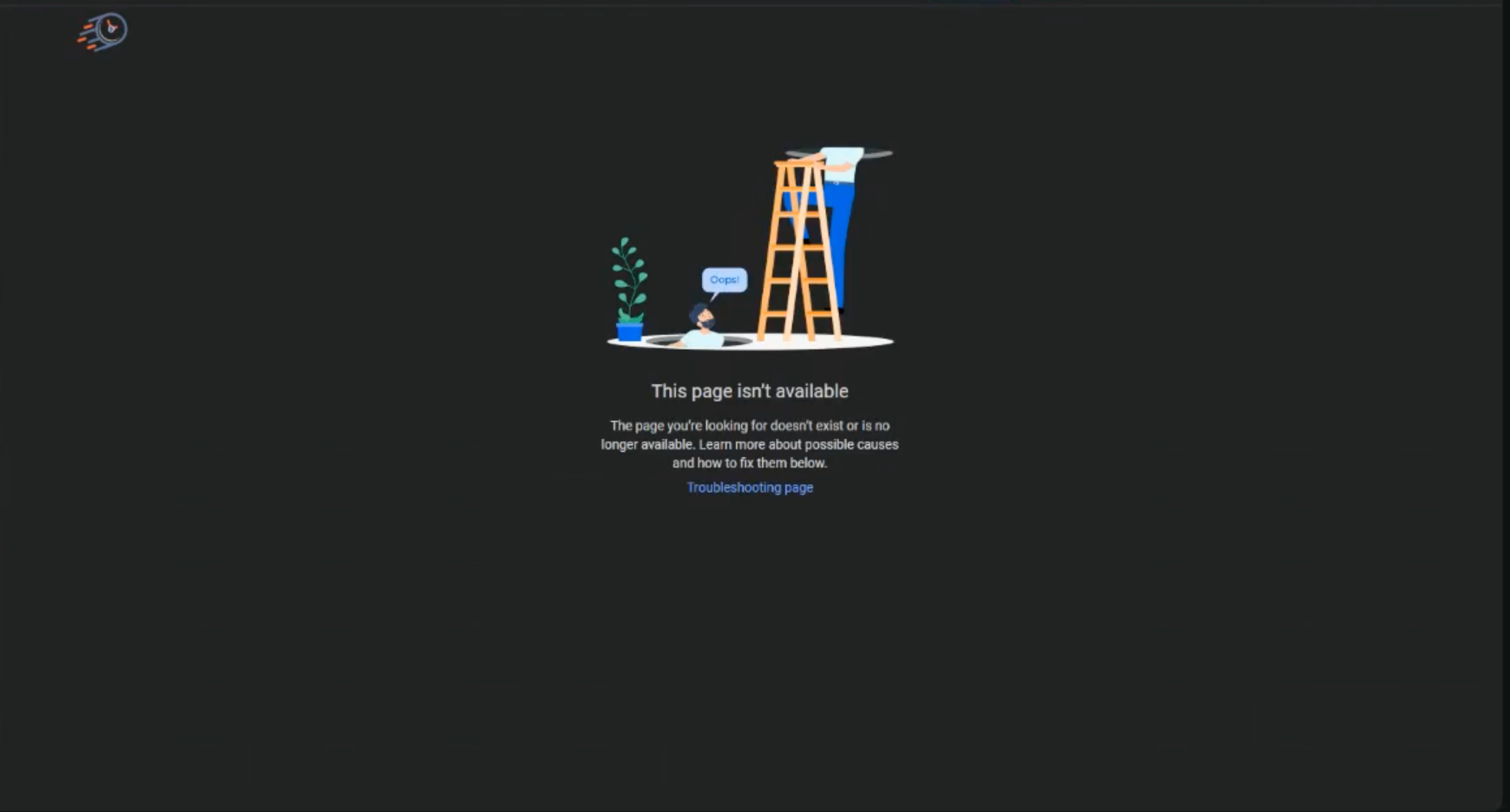
Answer: We’re gradually moving the app from Connect to Forge, and some older modules may be disabled during the transition.
Ask your Jira admin to update the app so you can continue using all features and receive the latest improvements.
Admin guide (Atlassian): https://support.atlassian.com/organization-administration/docs/managing-an-installed-app/
I removed (deleted) the app from Jira, but it’s still visible in the Apps menu. Why didn’t it disappear right away?
Answer: On some Jira Cloud sites (using Atlassian’s unified billing), apps aren’t removed instantly from the Uninstall button. Instead, removal is handled through subscription cancellation, and the app may remain available until the cancellation process completes.
How to uninstall (Cloud)
-
In Manage apps, click Manage subscription for the app.
-
You’ll be redirected to your site’s Billing page.
-
Cancel the subscription for the app.
-
The subscription is canceled and the app is scheduled for deletion after 30 days.
Need it removed immediately?
Contact Atlassian’s billing team and ask them to delete the app subscription right away.
Admin guide (Atlassian): https://support.atlassian.com/organization-administration/docs/managing-an-installed-app/
Links and bookmarks
My bookmarked Sprint report link doesn’t work after updating the app
Answer: Your bookmark may still point to the old Connect module. After an update, that link can become outdated and stop working.
How to fix it
-
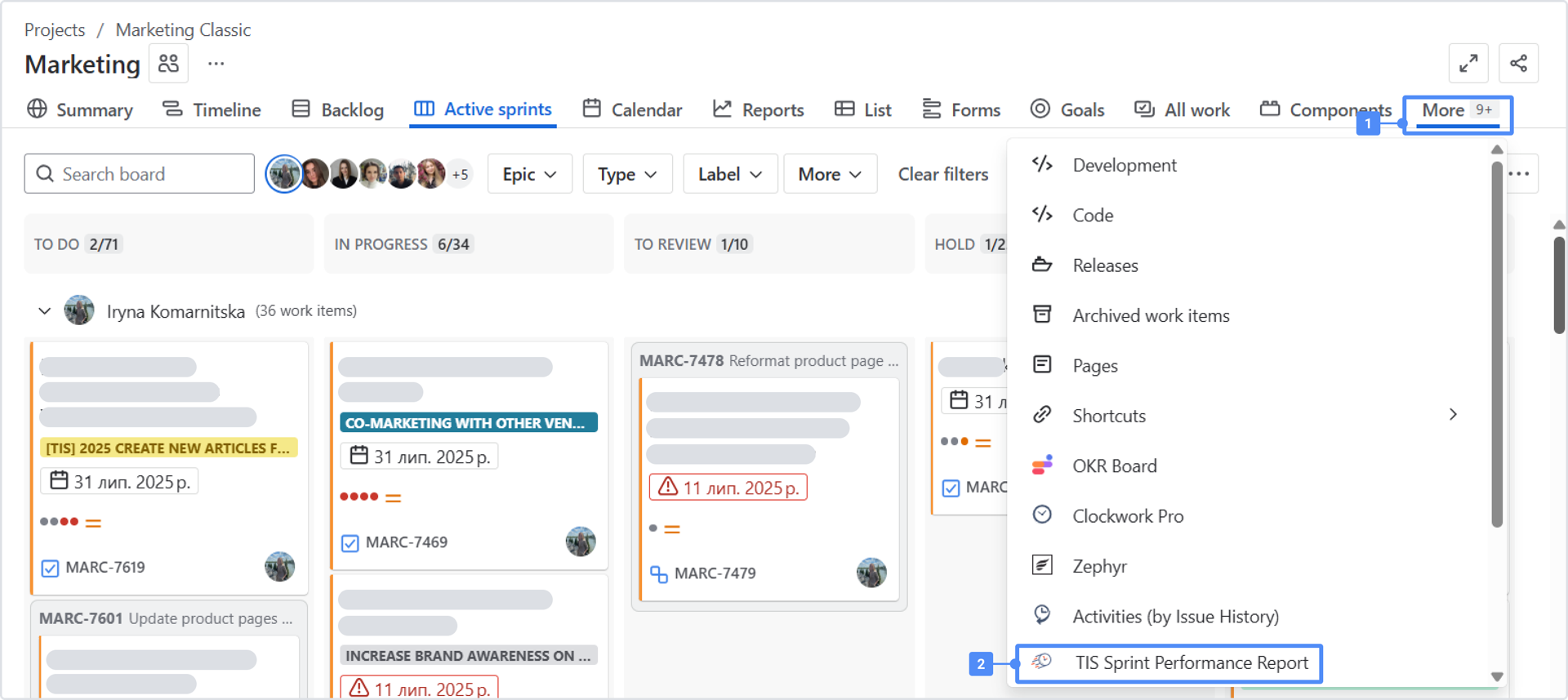
Open the sprint report again from the project board from the More tab.
-
Save the new link as your updated bookmark.
Pay attention to the link structure, this will give you a clear answer as to whether you are using an old version of the report or not.
Old link https://saasjet.atlassian.net/plugins/servlet/ac/time-in-status-report/sprint-report/..... - as you can see, the structure of the application link is preserved, and only after that should information about the board be added.
https://abcsite.atlassian.net/jira/software/projects/LTP1/apps/ac054793-c41a-4e74-89dd-e1927f7d5fb8/77237a3f-7ba0-49d9-94f8-4e93b31f4ead - The new link to Sprint Report immediately contains information about the project, board, etc.
Performance
My report takes a long time to load
Answer: This usually happens when the report scope is very large.
Try this
-
Click Cancel.
-
Reduce the scope a bit (for example: smaller date range, fewer projects, fewer issue types, or more specific JQL).
-
Run the report again.
It could also be caused by an unusually large data sample triggering current rate limits. The larger the sample, the less likely it is to download successfully. That said, we’re doing everything we can to optimize and improve the process.
Learn more: https://developer.atlassian.com/cloud/jira/platform/rate-limiting/
Permissions and visibility
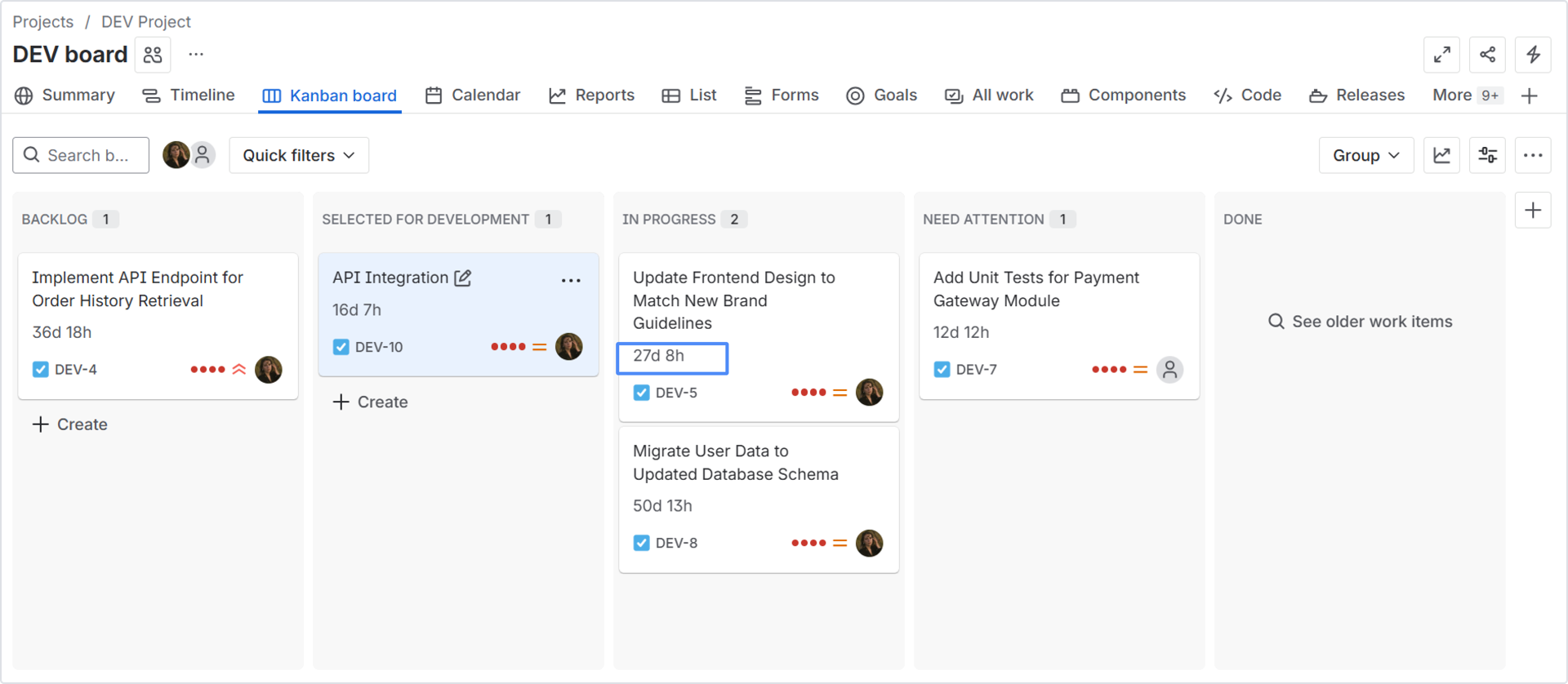
I can’t create Time in Status custom fields. I don’t even see this option.
Answer: Only project administrators can create custom fields for a project.
Please contact your project admin and ask them to create the fields (or grant you the required permissions).
My teammate shared a preset/report, but I see different results (different scope or an empty report). Why?
Answer: Time in Status reports reflect your access permissions.
If your teammate can see work items that you can’t (different projects, security levels, or work item permissions), your results may differ—or be empty.
What to do
-
Confirm you both have access to the same project(s) and work item scope.
-
Make sure you’re using the same filters/JQL and report settings.
Presets and sharing
Shared presets: why your edits don’t update the original
Question: I opened a shared (public) preset and changed a few settings. Why didn’t my changes update the original preset for everyone?
Answer: Shared presets are designed to stay consistent. You can open a public preset and experiment, but your changes won’t overwrite the owner’s preset.
If you want to keep your version, click Save As. This creates a new preset copy that belongs to you.
What happens next
-
The original preset stays unchanged and remains owned by the person who shared it.
-
Your personalized preset is saved as a separate copy and is owned by you.
Why “Save As” exists
If everyone could edit a shared preset directly, results could change unexpectedly and cause confusion. Save As keeps one reliable “source of truth” while still allowing personal variations.
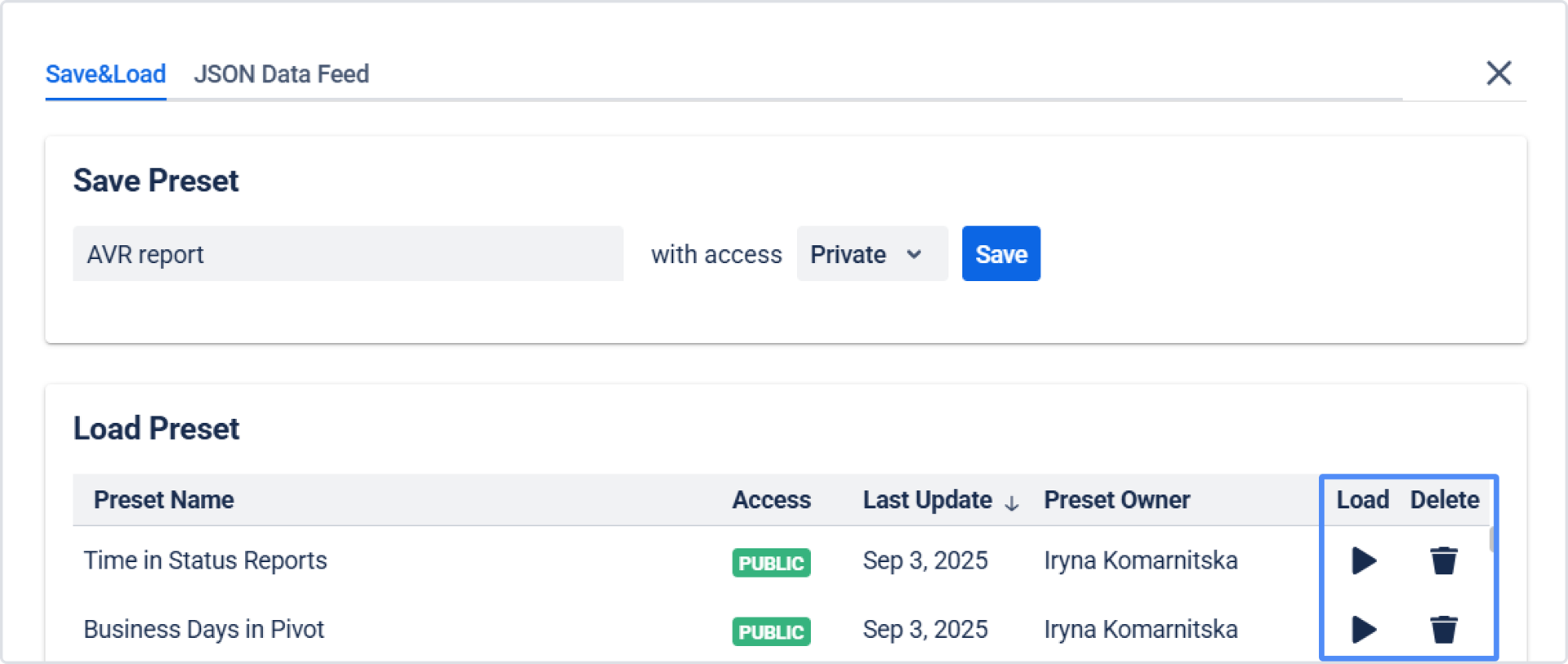
How do I load or delete a preset?
Answer:
-
To load a preset, click the arrow icon next to it.
-
To delete a preset, click the trash bin icon.
Note: You can typically delete only presets you have permission to manage (usually the ones you created).
JQL and custom fields
I’m using JQL with your custom fields, but Jira shows an error
Answer: If you created custom fields before and then upgraded/migrated to Forge, the supported JQL operators may have changed.
What to do
-
Delete the old Time in Status custom fields.
-
Create new custom fields.
-
Update your JQL to use operators supported for the newly created fields.
Calendars and business-time calculations
I set up a work calendar, but reports still look like they ignore it
Answer: To apply a work calendar, you need to do two things:
Checklist
-
Select the correct calendar in the report settings.
-
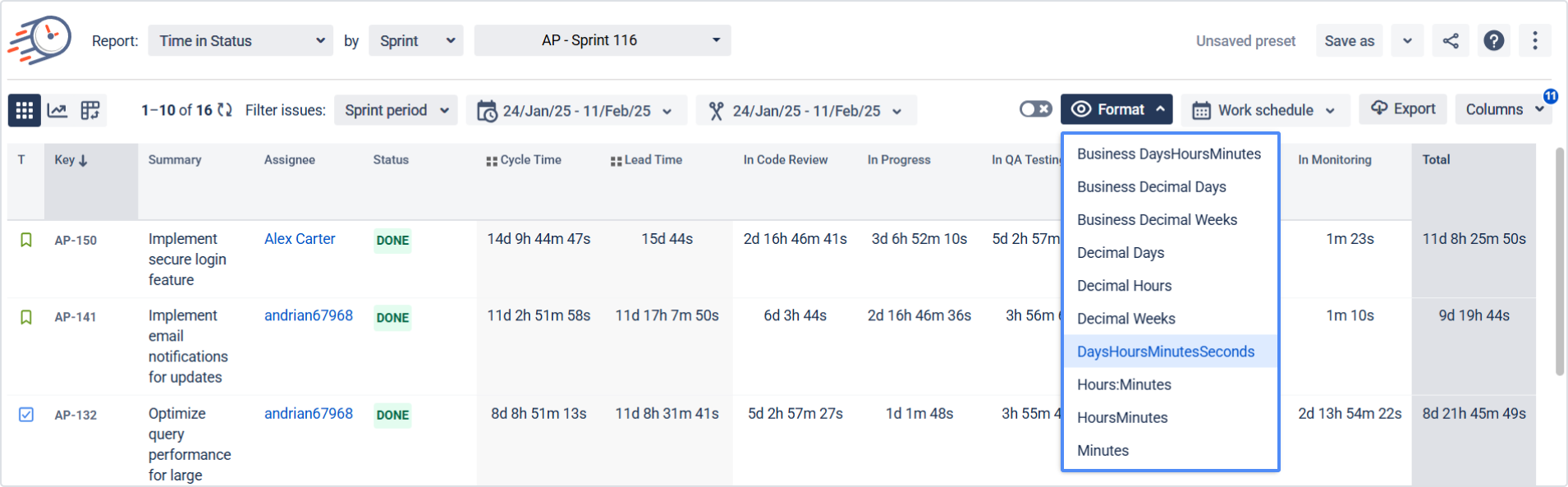
Choose a business-time display format (for example, business hours/days).
Otherwise, the report may continue showing calendar-time calculations.
Date filters and unexpected time ranges
I selected “Resolved time period: last month,” but the report shows values outside that period
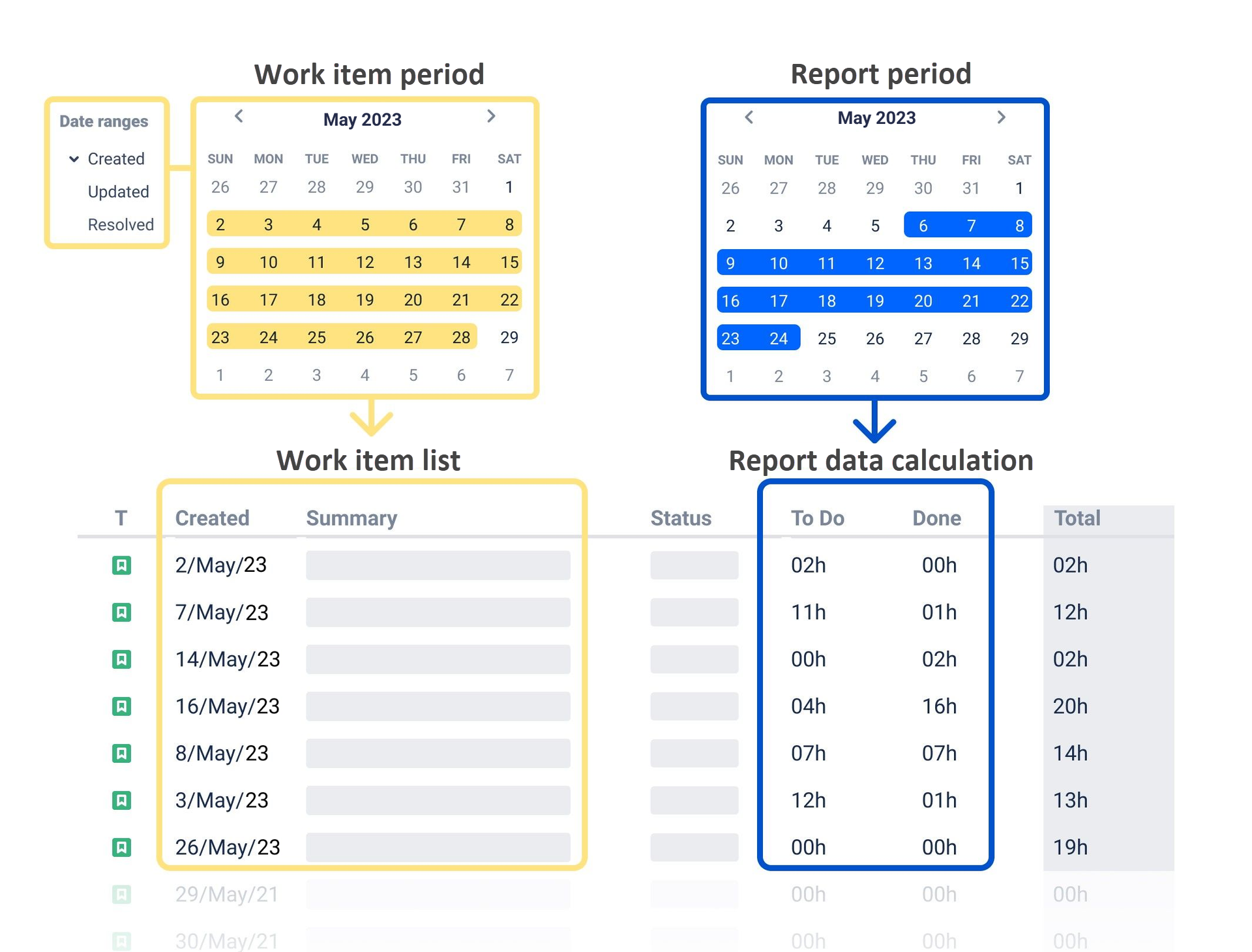
Answer: Time in Status has two separate time filters, and they affect different things:
-
Work items period — selects which issues are included
Examples:
-
issues created/updated/resolved in the last 30 days
-
issues from a specific sprint (adds the sprint period + issues in that sprint)
-
Reports period — selects which dates to calculate within
Example:
-
calculate time in status only for the last 7 days
Example scenario
You can include issues from the last 30 days (work items period) but calculate time in status only for the last week (reports period).
If results look “too old” or “too large,” double-check which filter is driving what you see.
If you need help or want to ask questions, please contact SaaSJet Support or email us at support@saasjet.atlassian.net
Haven’t worked with the add-on yet? Give it a try