
Use historical Time in Status data to estimate how much time unfinished work is expected to spend across selected workflow statuses.
Overview
Forecast uses historical data from comparable completed work items to estimate how much total time unfinished work is expected to spend across selected workflow statuses.
You define which completed work items should be used as reference data, which statuses should be included in the forecast, and which Jira fields should be used to find comparable work. The saved Forecast configuration can then be used in the Forecast by Time in Status dashboard gadget.
Before you begin
-
Forecast is available in Time in Status for Jira Cloud on the Advanced plan.
-
Forecast configurations are created and managed on the Forecasts page in Time in Status.
-
You need completed work items that can be used as historical reference data.
-
Set up a Work Schedule in Time in Status if the forecast should exclude non-working hours, weekends, breaks, or holidays.
-
To compare projected completion with a planned deadline, your work items need a Jira Date or Date/Time field that can be selected as the Target date field.
Create a Forecast
-
Open Time in Status and go to Forecasts.

-
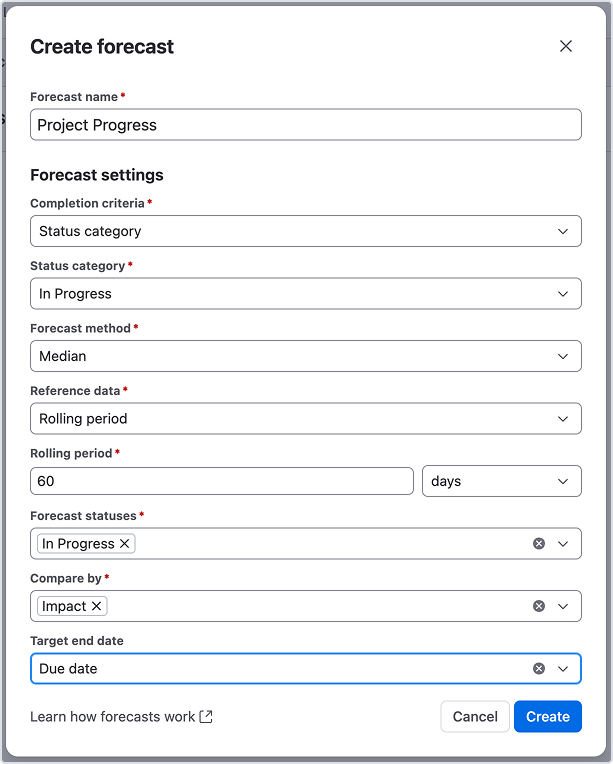
Click Create Forecast to create a new forecast.
Existing forecasts can also be edited, copied, or deleted.
-
Enter a Forecast name.
-
Under Forecast settings, complete the fields described below. All of them are required except Target end date.
-
Select Create. The forecast is listed on the forecasts page, where you can edit, copy, or delete it.
-
To view the forecast results, add and configure the Forecast by Time in Status gadget on your Jira dashboard.
Forecast settings
|
Setting |
What you can select |
What it means / affects |
|---|---|---|
|
Any custom name |
Identifies the saved forecast. Does not affect the calculation. |
|
Status or Status category |
Defines how Time in Status determines whether a work item is completed. |
|
2.1 Status |
A specific workflow status, e.g. |
Used when Completion criteria = Status. Work items currently in the selected status are considered completed. |
|
2.2 Status category |
To Do, In Progress, or Done |
Used when Completion criteria = Status category. Work items whose current status belongs to the selected Jira status category are considered completed. |
|
Median |
Defines how the projected duration is calculated. Time in Status uses the median total duration of comparable completed work items. |
|
JQL or Rolling period |
Defines where the historical completed work used for the forecast comes from. |
|
4.1 Reference JQL |
Any valid JQL query |
Used when Reference data = JQL. Defines the historical population from which completed work items are taken. |
|
4.2 Rolling period |
Number + days / weeks / months |
Used when Reference data = Rolling period. Defines how far back Time in Status looks for recently completed work. |
|
One or more workflow statuses |
Defines which part of the workflow is forecast. Time spent in all selected statuses is summed for each completed work item, and the median of those totals becomes the projected value. |
|
Eligible Jira or custom fields, e.g. Work type |
Defines how Time in Status finds similar historical work items. For example, selecting Work type lets a Bug be compared with completed Bugs instead of all work types together. |
|
A Jira Date or Date/Time field, e.g. |
Defines the planned completion date. It is compared with the Projected end date to identify work items expected to finish late. |
Forecast results
The saved Forecast configuration defines how expected time is calculated. Results are displayed in the Forecast by Time in Status dashboard gadget.
How the projection is calculated
For each open work item, the forecast finds completed items that match it on the Compare by fields, takes the median of their time in the Forecast statuses, and compares that with the time the item has already spent there. The remaining time is projected forward to give the item a projected end date.
Limitations
The initial release supports Table view only. Forecast chart visualization is not included.
-
Simple (median) is the only Forecast method available. Percentile- and Monte Carlo-based forecasting are not supported now.
-
Forecasts are calculated only for Not completed work items.
-
If the selected Target date field is empty for a work item, its Target end date and Overdue values are not available.
-
A forecast can be marked Low confidence or Unavailable when there is insufficient comparable historical data.
-
The Simple (median) method returns a single projected value. It does not provide a forecast range or confidence band.