
View and manage your saved reports.
Overview
The Saved reports page lists reports you have saved or that have been shared with you. Use it to сreate, edit, and manage access permissions.
Before you begin
-
Where to find it: In the Jira sidebar, under Time in Status, select Saved reports.
-
Permissions: Viewer access lets you open and run a saved report. Editor access lets you update its configuration and access settings.
Save a report
-
On Saved reports, select Create report.
-
Configure the report you want to save.
-
Enter a Report name of 1–255 characters.
-
Optional: Enter a Description of up to 4,000 characters.
-
Choose who can open the report in Viewers.
-
Choose who can update the report in Editors.
-
Select Save.
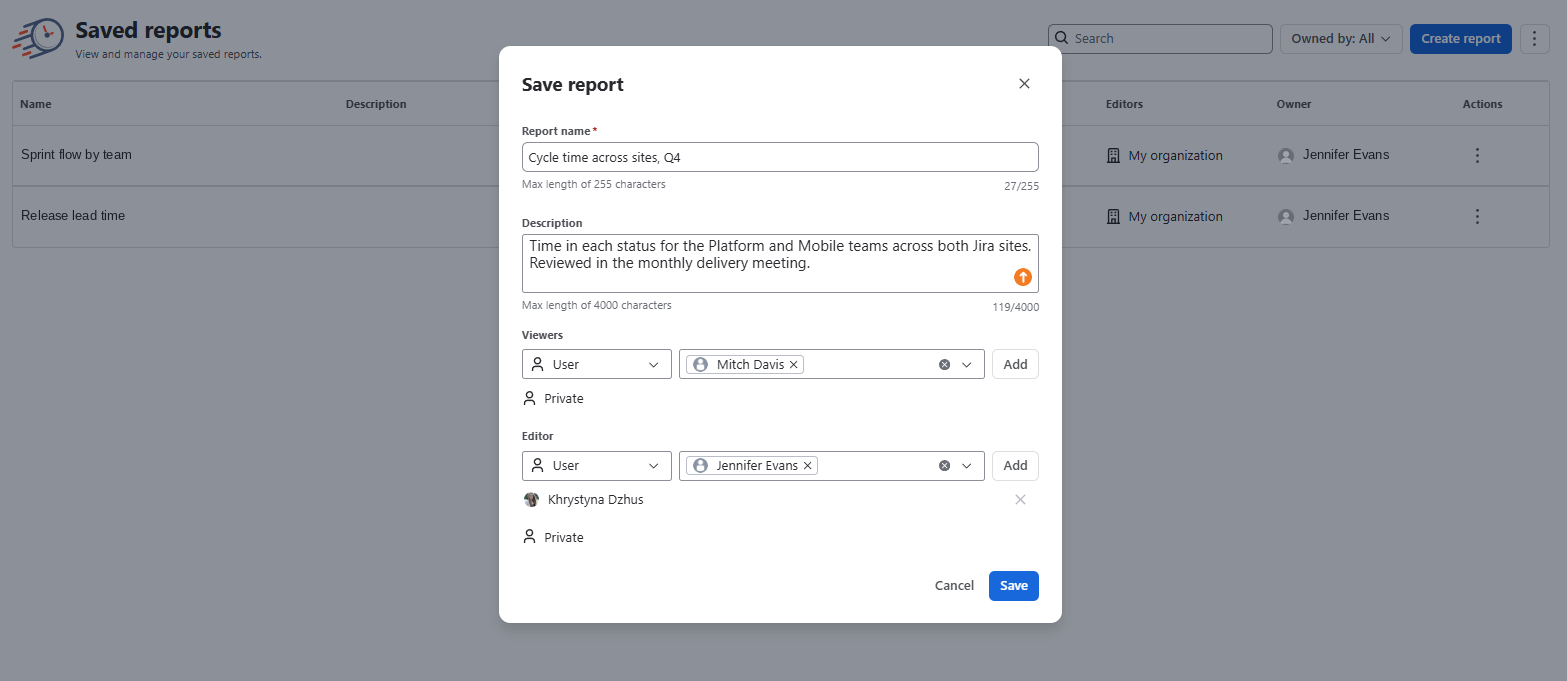
The report is available on the Saved reports page. Its creator always retains editor access.
Find and open a saved report
-
Find the report on the Saved reports page.
-
Optional: Use Search to find a report by text displayed in the table.
-
Optional: Use Owned by to filter reports by their creator.
-
Hover over the report's row and select Open report (↗) next to the report name.

The report opens in a new tab and runs with its saved configuration. You can change controls and export the results. Those changes stay in your session and don't alter the saved report.
Edit or delete a saved report
To change a report's name, description, or access, hover over its row and select the edit icon (✎), or select ⋮ in the Actions column. The creator always stays an editor.
Only the report's creator can delete it. Deleting removes the report for everyone with access.
Access settings
Each saved report has two access lists: Viewers and Editor. Add people to either list as:
|
Option |
Who receives access |
|---|---|
|
User |
The selected user on the current Jira site. |
|
Group |
Members of the selected group on the current Jira site. |
|
My organization |
Users on the current Jira site covered by this access option. |
|
Private |
The user who sets this option. The creator also retains access. |
If someone receives both viewer and editor access, editor permissions apply. The creator cannot be removed from the Editors list.
|
Capability |
Viewer |
Editor |
Creator |
|---|---|---|---|
|
Open, run, and export the report |
Yes |
Yes |
Yes |
|
Change name, description, and access |
No |
Yes |
Yes |
|
Delete the report |
No |
No |
Yes |
Report types
Each report type below adds its own details to the shared fields. Apart from what a type's entry lists, saving, opening, editing, and access work as described above.
Multi-site reports
|
Setting |
Details |
|---|---|
|
What it saves |
The configuration of a report that combines data from several Jira sites through connections. |
|
Where you build it |
On the Multi-site reports page. You can also open this page by selecting Create report on Saved reports. |
|
Available in |
Advanced edition. |
|
Connections column |
Shows how many connections the report uses. Hover over the number to see each connection and its Jira site. A warning icon indicates that one or more connections are unavailable. |
|
Report period column |
Shows the period configured for the report, such as Any dates. |
Behavioral details
-
Direct links: If you follow a link to a report you can't access, you see This report isn't available. The page doesn't confirm whether the report exists.
-
Inactive users: Suspended or deactivated users appear in the access lists with their status. If the owner becomes inactive, viewers and editors keep their access.