
You can connect Claude or ChatGPT to Time in Status in a few minutes, so you can ask questions about your Jira time data in plain language instead of building a report by hand.
The connection uses the Model Context Protocol (MCP), an open standard that lets AI assistants talk to other tools. The assistant works as you. It sees only the Jira data that your own account is allowed to see.
Before you start
You need three things: Time in Status installed on your Jira Cloud site, an Atlassian admin for a one-time switch, and this server URL.
https://mcp.atlassian.com/forge/ac054793-c41a-4e74-89dd-e1927f7d5fb8
|
What you need |
Details |
|---|---|
|
Time in Status |
Installed on your Jira Cloud site |
|
Admin access (one time) |
An Atlassian organization or site admin turns on MCP tools |
|
An AI assistant |
A Claude or ChatGPT account on a plan that supports custom connectors |
|
Rovo |
Not required. The connection works on any site where the app is installed |
External MCP access for Marketplace apps is an Atlassian Preview feature, so screens and names may change.
Step 1: Turn on MCP tools (admin, one time)
MCP tools are off by default. An organization or site admin turns them on once per site.
-
Go to admin.atlassian.com and choose your organization.
-
Select Apps, then Sites, and choose your site.
-
Select Connected apps.
-
Find Time in Status and select View app details.
-
On the Details tab, scroll to Expose tools to MCP-compatible apps and select Enable tools.
To switch it off later, select Disable tools on the same page.
Step 2a: Connect Claude
In Claude, you add Time in Status as a custom connector by pasting the server URL. This works in Claude on the web, Claude Desktop, and Cowork, on Free, Pro, Max, Team, and Enterprise plans. The Free plan allows one custom connector.
Individual plans (Free, Pro, Max)
-
Open Claude and go to Customize, then Connectors (claude.ai/customize/connectors).
-
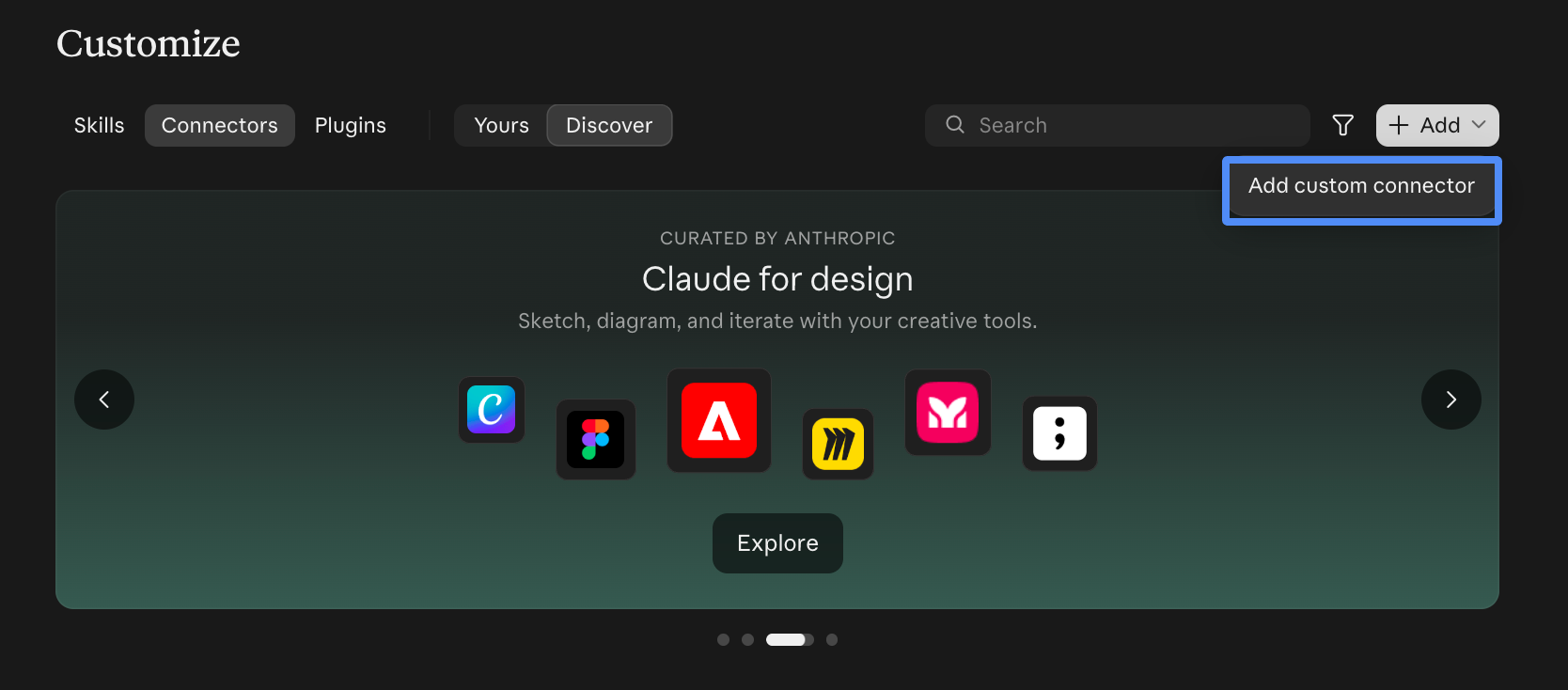
Select + Add, then Add custom connector.
-
Enter a name, for example
Time in Status. -
Paste the server URL:
https://mcp.atlassian.com/forge/ac054793-c41a-4e74-89dd-e1927f7d5fb8 -
Select Continue. Keep the authentication settings Claude detects, then select Add.
-
Select Connect. A browser window opens.
-
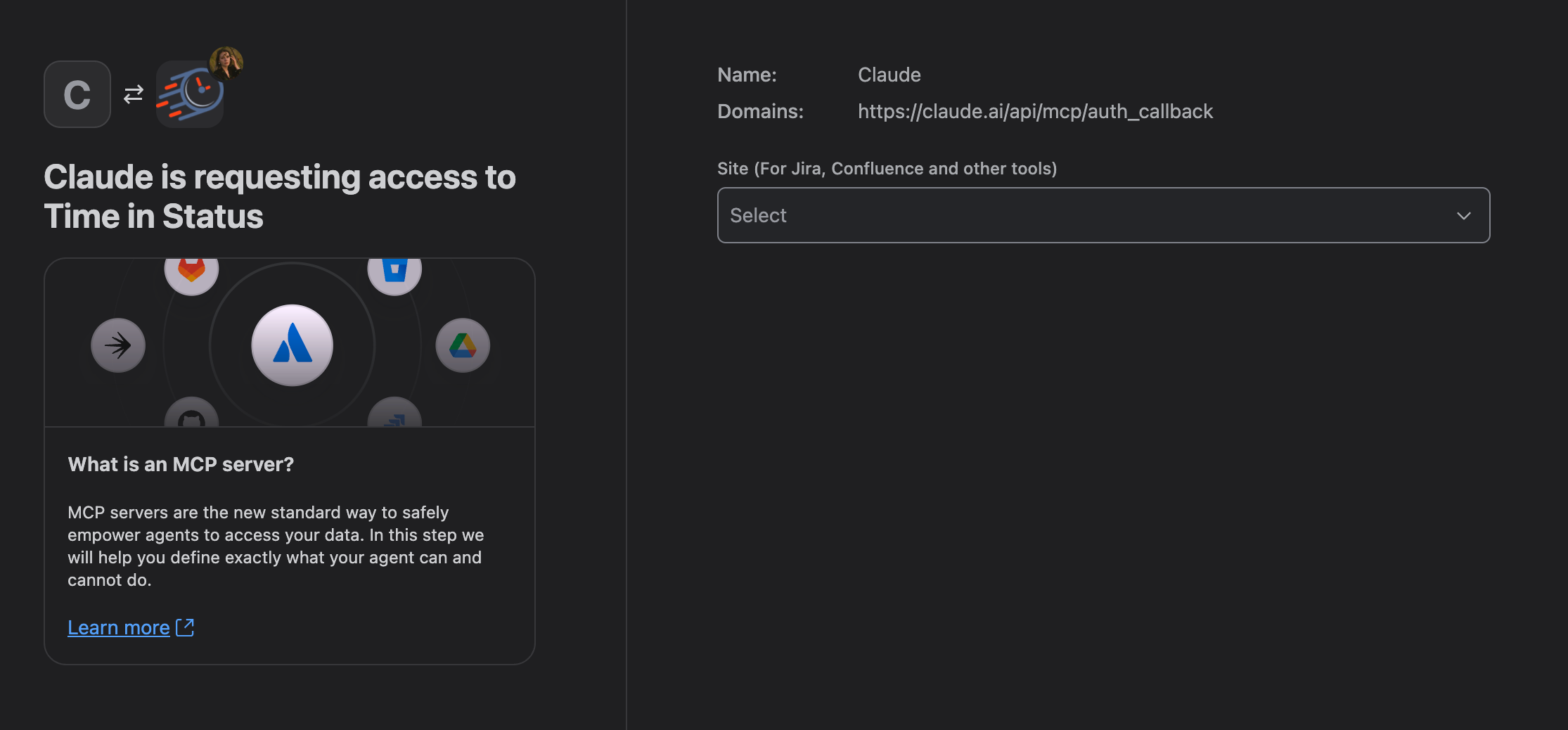
Sign in with your Atlassian account, choose your Jira site, and select Accept.
Team and Enterprise plans
An Owner adds the connector once. After that, each member connects with their own Atlassian account.
Owner:
-
Go to Organization settings, then Connectors.
-
Select Add, hover over Custom, and select Web.
-
Enter the name
Time in Statusand paste the server URL. -
Select Continue, then Add.
Each member:
-
Go to Customize, then Connectors.
-
Find Time in Status in the list. It usually has a Custom label.
-
Select Connect, sign in with your Atlassian account, choose your site, and select Accept.
Because the URL is on an Atlassian domain, Claude may show the connector with Atlassian branding instead of the Custom label. It is still the Time in Status connector.
Step 2b: Connect ChatGPT
In ChatGPT, you add Time in Status as a custom MCP server from the Plugins page. This works in ChatGPT on the web. In the current Plugins experience you do not need to turn on Developer Mode first.
-
Open chatgpt.com/plugins.
-
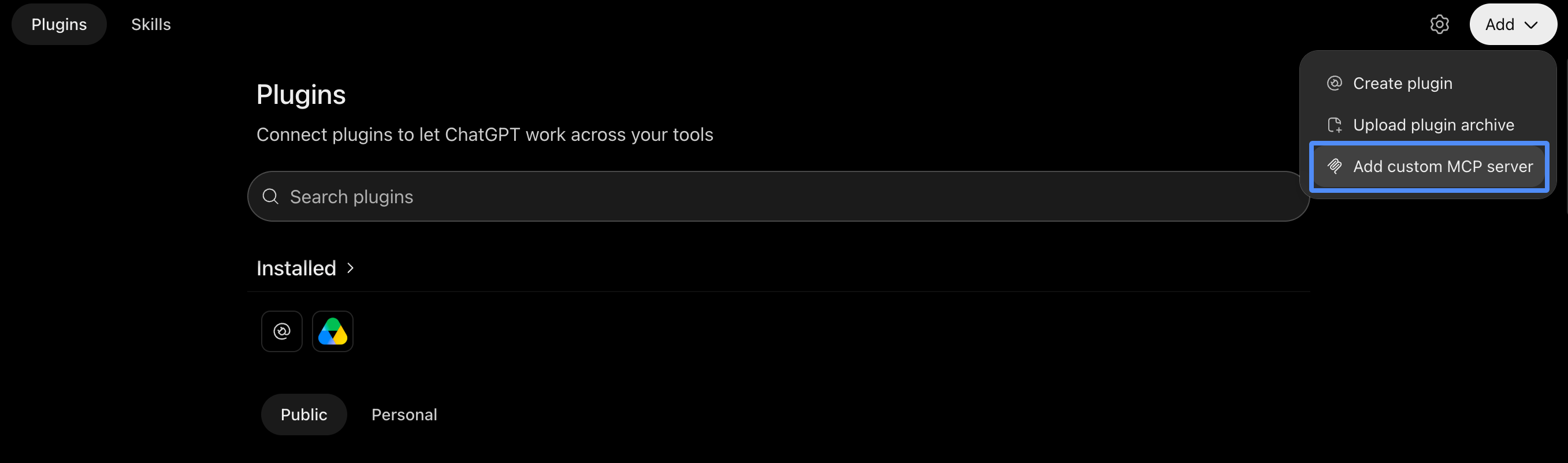
Select the plus button, then Add custom MCP server.
-
Enter a name, for example
Time in Status. A description is optional. -
Under Connection, paste the Server URL:
https://mcp.atlassian.com/forge/ac054793-c41a-4e74-89dd-e1927f7d5fb8 -
For authentication, choose OAuth.
-
Read the risk warning and select I understand and want to continue.
-
Select Create as a plugin.
-
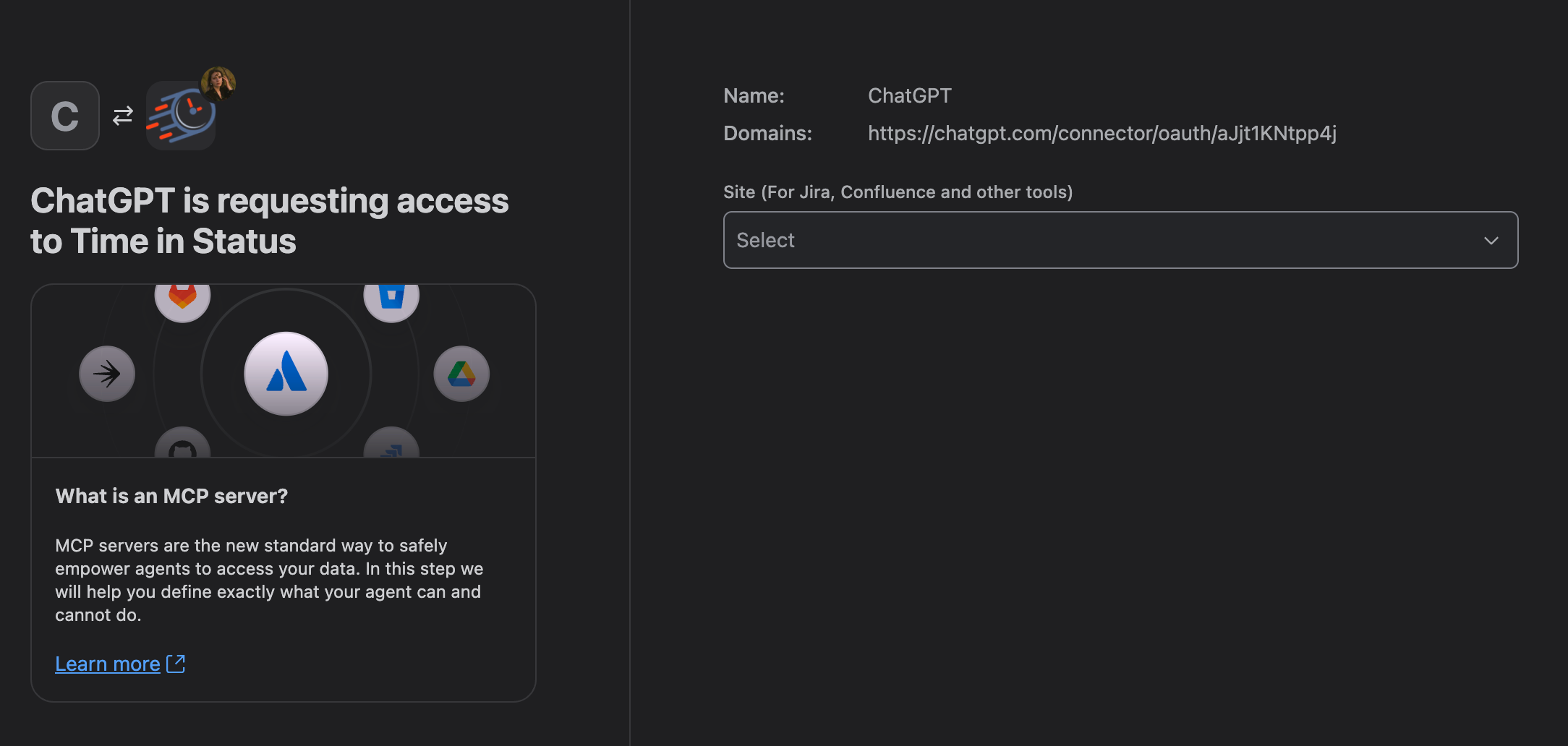
When the browser prompts you, sign in with your Atlassian account, choose your Jira site, and select Accept.
-
Install the new plugin from your personal plugins (or your workspace) before you use it in a chat.
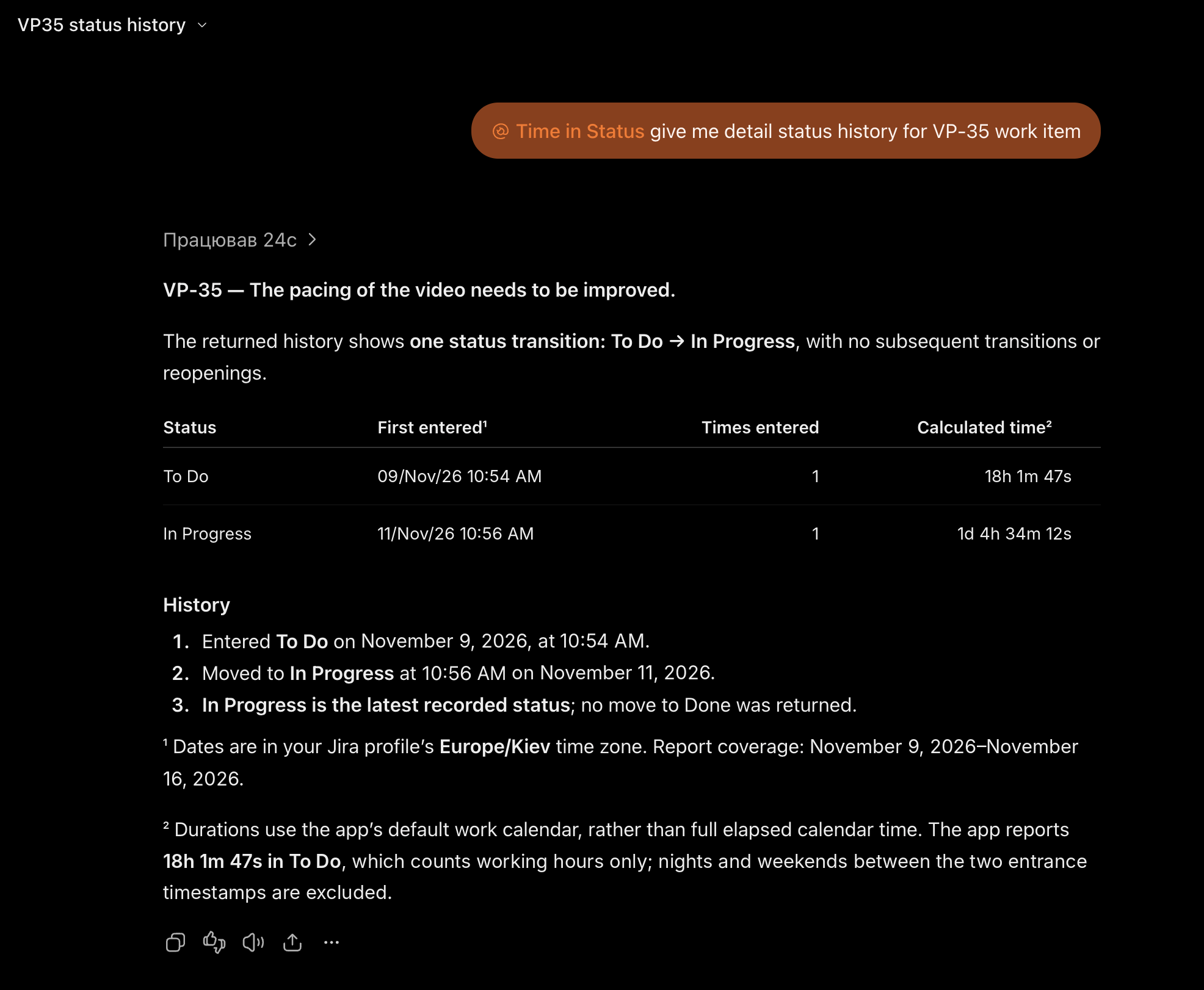
To use it, start a chat, type @ in the prompt box, and select Time in Status.
Plans and workspace permissions
|
Plan |
What to expect |
|---|---|
|
Business, Enterprise, Edu |
Supported. Admins and owners can add and publish custom MCP servers. On Enterprise and Edu, admins grant members permission to add them. |
|
Plus, Pro |
Check in your account. OpenAI sources differ on what individual plans can do, so confirm that Add custom MCP server appears for you. |
|
Free |
Not supported, based on third-party guides. |
If you do not see Add custom MCP server, ask your ChatGPT workspace admin to allow custom MCP servers.
Source: Add custom MCP server (OpenAI) and Developer mode and MCP apps in ChatGPT (OpenAI Help).
Step 3: Check that it works
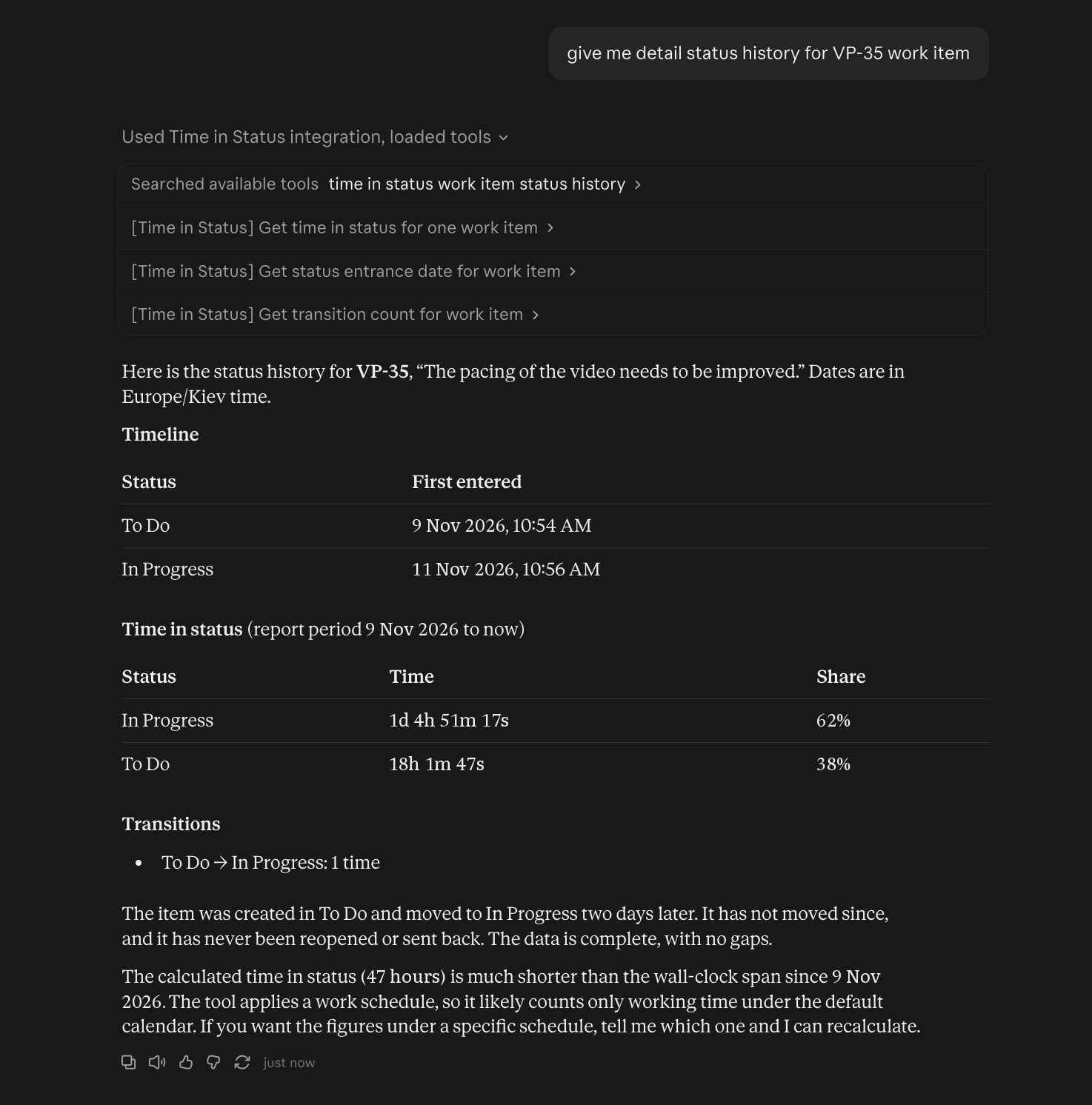
Ask a simple question that names Time in Status, and the assistant should call the connector and answer from your Jira data.
Example prompts:
-
"Using Time in Status, how long did work items in project ABC spend in In Progress last month?"
-
"Show the average cycle time for bugs in project ABC over the last 30 days."
-
"Which work items have been in Review for more than 5 days?"
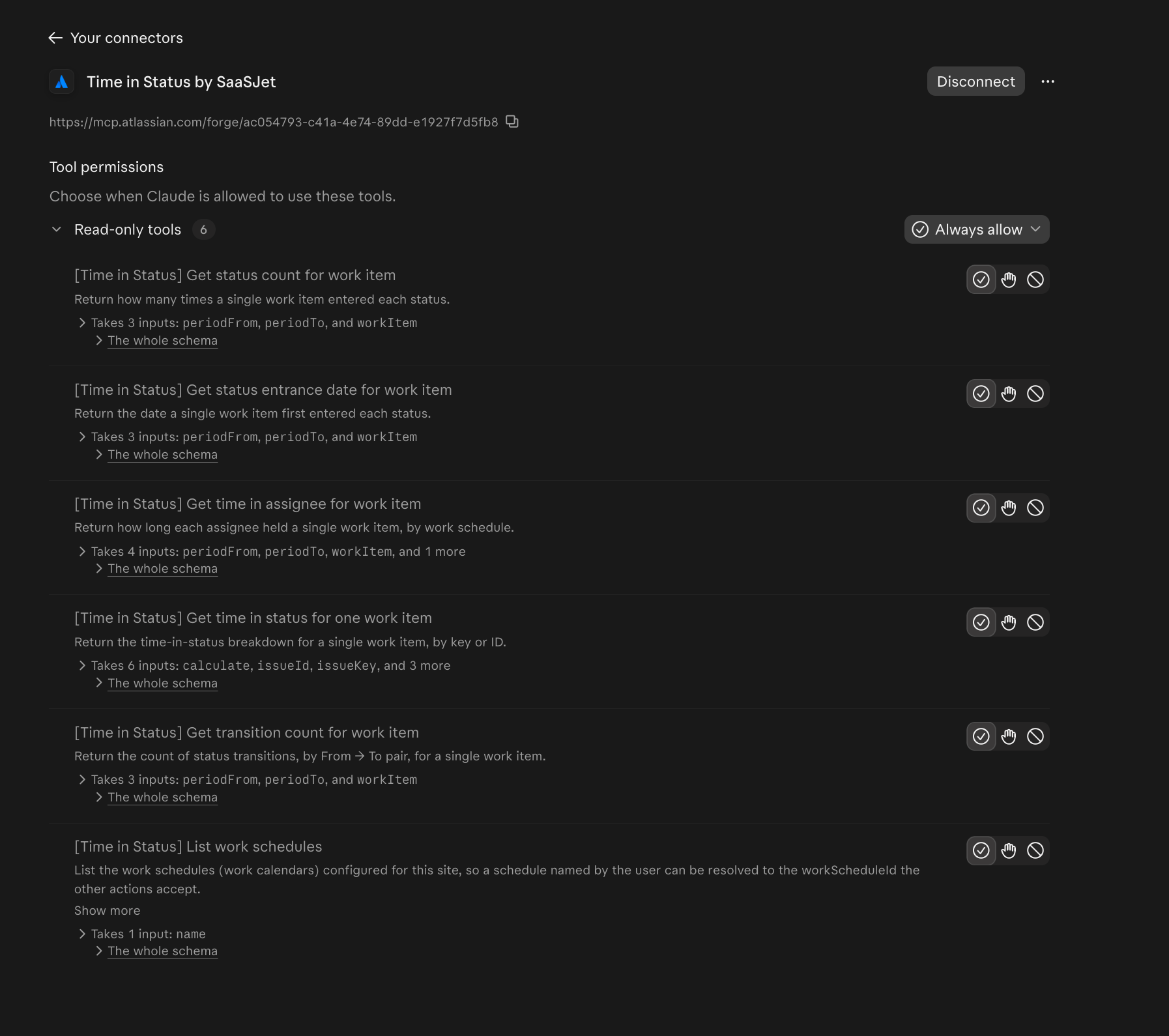
The first time a tool runs, Claude or ChatGPT asks you to approve it. Review the request and allow it.
Troubleshooting
Most connection problems come from the admin switch in Step 1 being off, or from signing in to the wrong Atlassian site.
|
Problem |
What to do |
|---|---|
|
The assistant connects but finds no Time in Status tools |
MCP tools are not turned on for your site. Ask an admin to complete Step 1. |
|
A message says an admin must enable external MCP access |
Same cause. Ask an admin to complete Step 1. |
|
You see no data, or less data than expected |
The assistant uses your own Jira permissions. Check that you can see those projects in Jira. |
|
You picked the wrong Jira site during sign-in |
Disconnect the connector, connect again, and choose the right site. |
|
Sign-in fails or the connection stops working |
Remove the connector and add it again to refresh the sign-in. |
|
Claude: you cannot add a custom connector on Team or Enterprise |
Only an Owner can add it. Ask your Claude Owner to add it in Organization settings. |
|
ChatGPT: Add custom MCP server is missing |
Your plan or workspace does not allow it yet. Ask your ChatGPT workspace admin. |
|
The assistant answers without using Time in Status |
Name it in your prompt, for example "Use Time in Status to...". In ChatGPT, type |