
Find the Data You Actually Need
Column Filters help you narrow results directly inside the table — without changing the report configuration or creating additional Jira filters.
You can use filters to:
-
focus on specific statuses or issue types
-
find items that exceed SLA or cycle time targets
-
identify long-running tasks
-
review work completed during a specific period
-
isolate empty or missing values
Filters work instantly inside the table view and can be combined across multiple columns.
Where Filters Appear
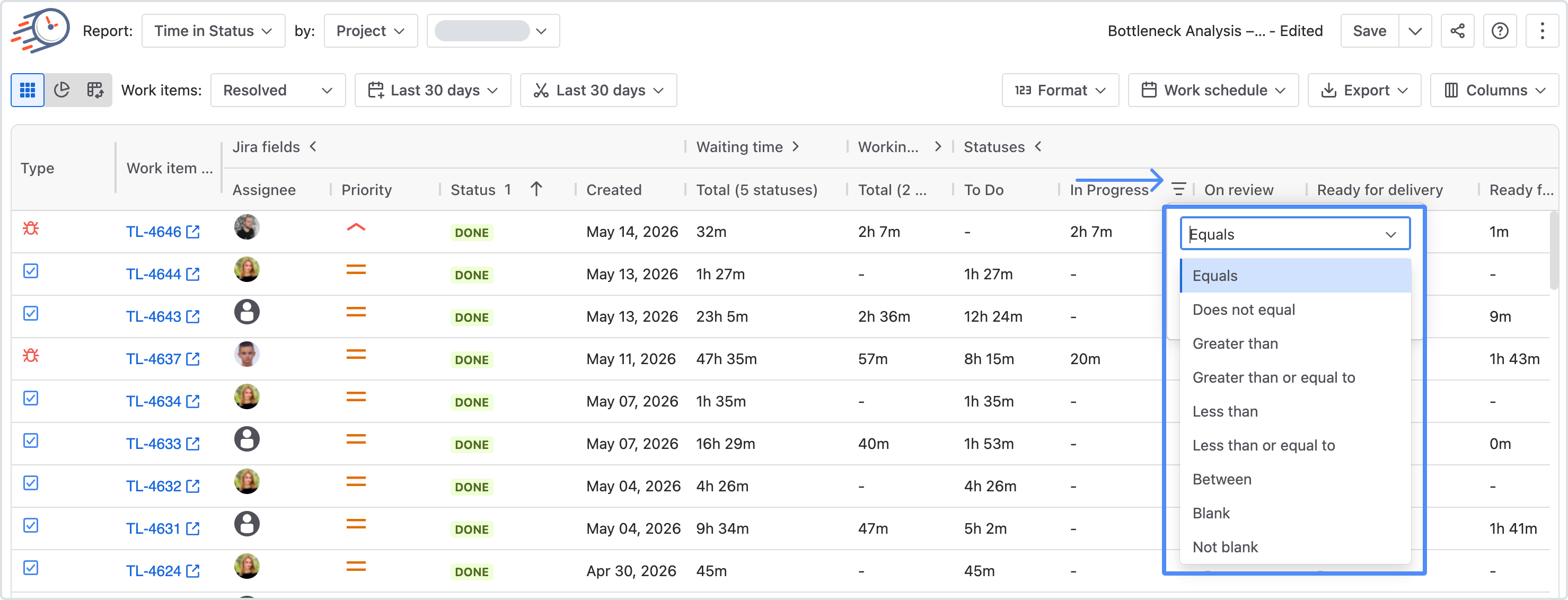
A filter icon is available in supported table columns. Clicking the icon opens a filter panel for that column. The filter icon becomes highlighted when a filter is active.
Filters are available only for calculated report fields.
How Filtering Works
When you apply a filter:
-
The report reloads automatically
-
Only matching rows remain visible
-
Pagination and column layout stay unchanged
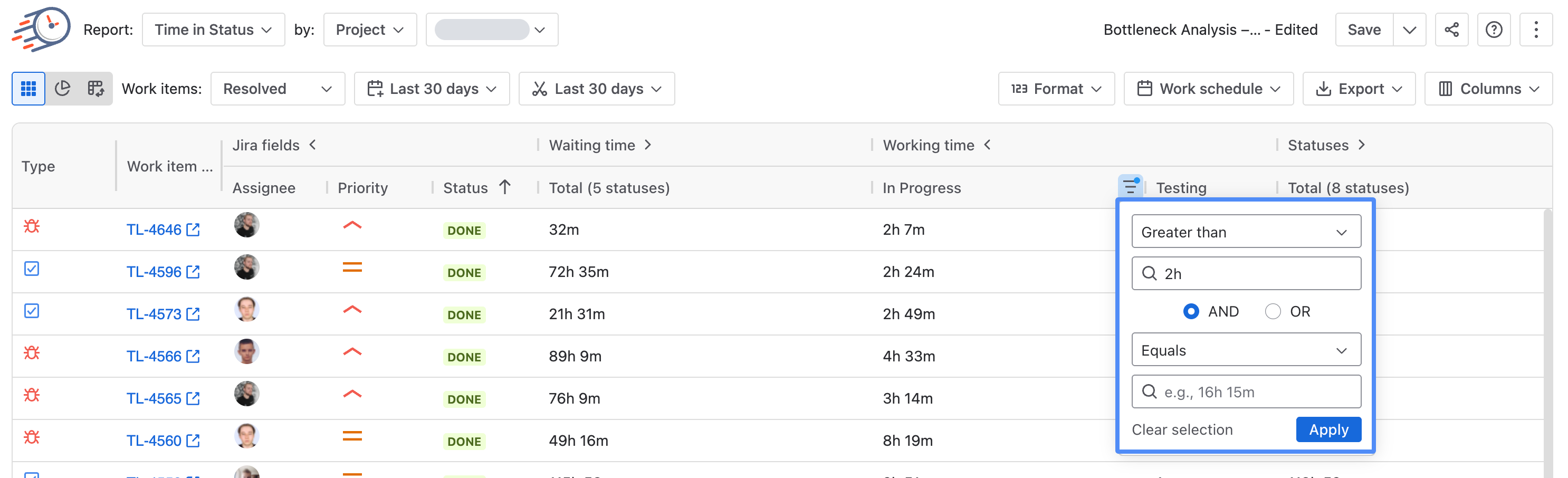
You can apply multiple filters at the same time.
For example:
-
Status = In Progress
-
Time in Status > 2h
Filter Types
Different columns use different filter types depending on the data they contain.
|
Filter Type |
Used For |
Example Input |
Common Actions |
|---|---|---|---|
|
Number |
Counts, numeric metrics |
|
Find high/low values |
|
Date & Time |
Status entrance dates |
|
Filter by period |
|
Duration |
Time in status, Average Time |
|
Find bottlenecks |
Combining Conditions Inside a Filter
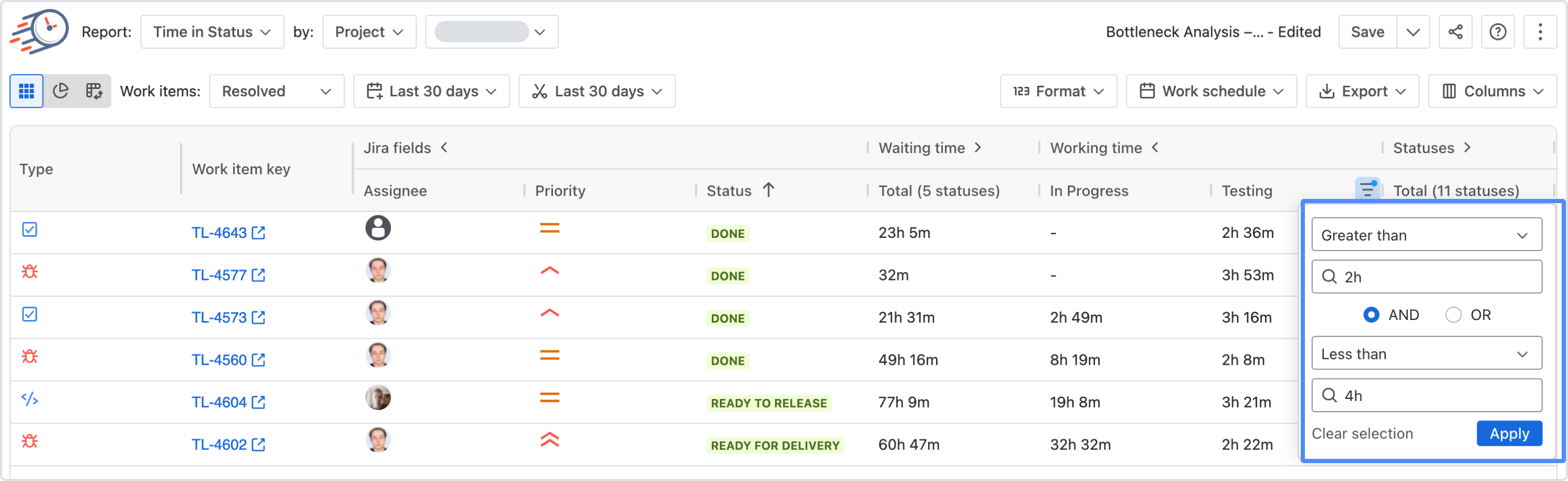
Most filters support two conditions inside the same column.
You can combine them using:
-
AND
-
OR
Example: Narrow a Range
Testing > 2h
AND
Testing < 4h
This returns items that remained in the Testing status for between 2 and 4 hours.
Working with Grouped Columns
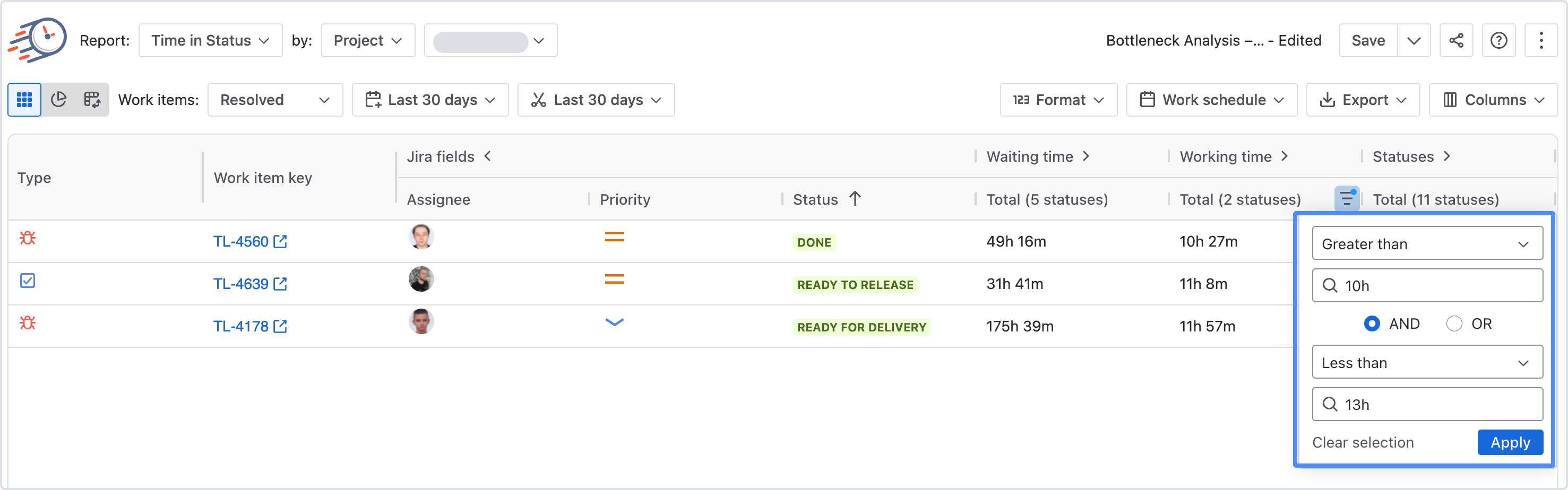
Grouped columns behave differently depending on whether the group is expanded.
Expanded Groups
Filters apply to each individual item.
Collapsed Groups
Filters apply to the aggregated total value. This allows filtering to stay meaningful in both detailed and summarized views.
Good to know
-
Clicking outside a filter closes it without saving changes
-
Invalid values never trigger report reloads
-
Filters from different columns always work together
-
Active filters remain applied until cleared
-
Filters update report data immediately after Apply
-
Column headers and pagination remain visible even when no results match
Example Scenarios
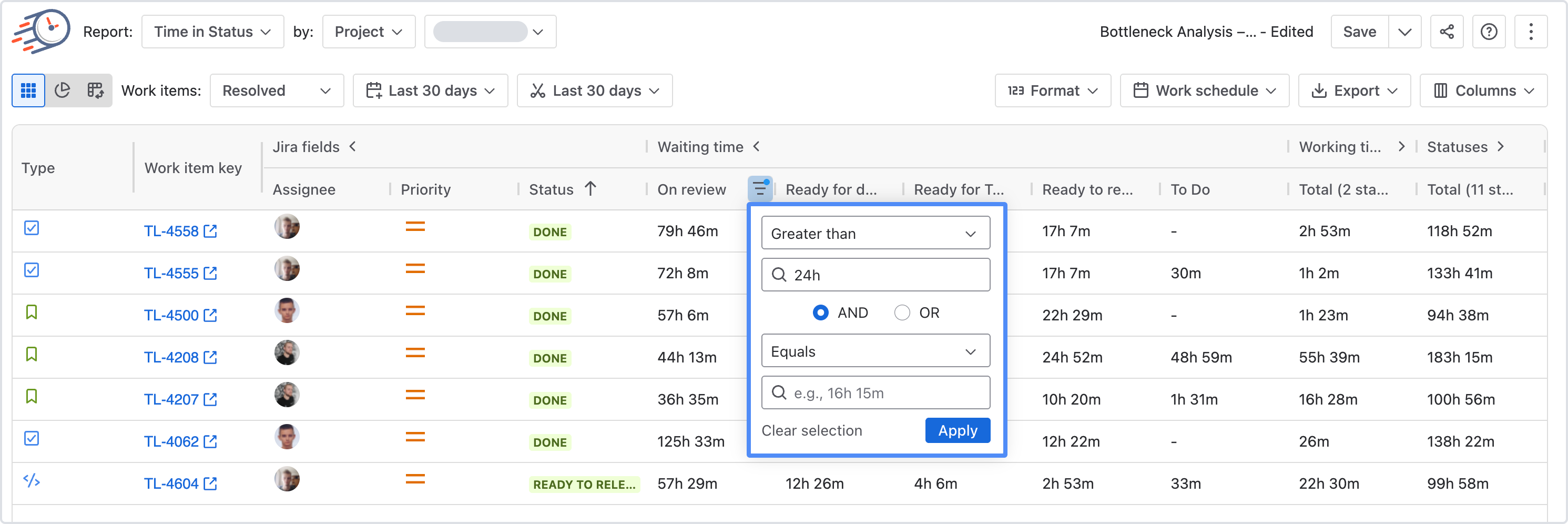
Find Bottlenecks in the Workflow
Goal:
Identify issues spending more than 3 business days in Review.
Suggested filter:
-
Column: status On review
-
Condition: Greater than
-
Value:
1d
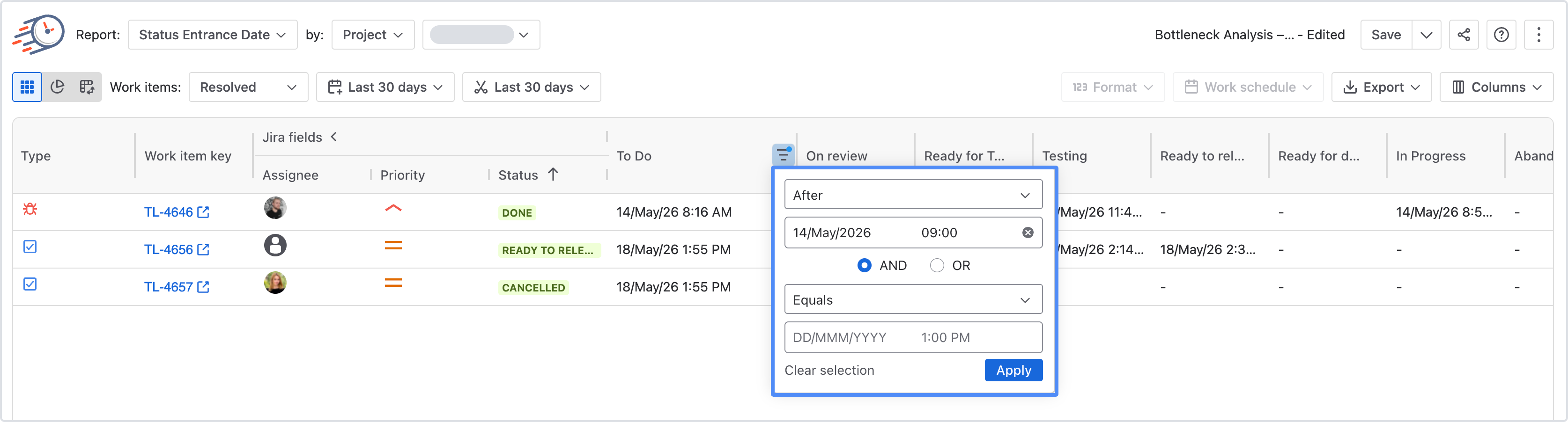
Review Recently Entered Issues
Goal:
See work items that have lately entered status To Do.
Suggested filter:
-
Column: status To Do in Status Entrance Date report
-
Condition: After a specific critical date for you
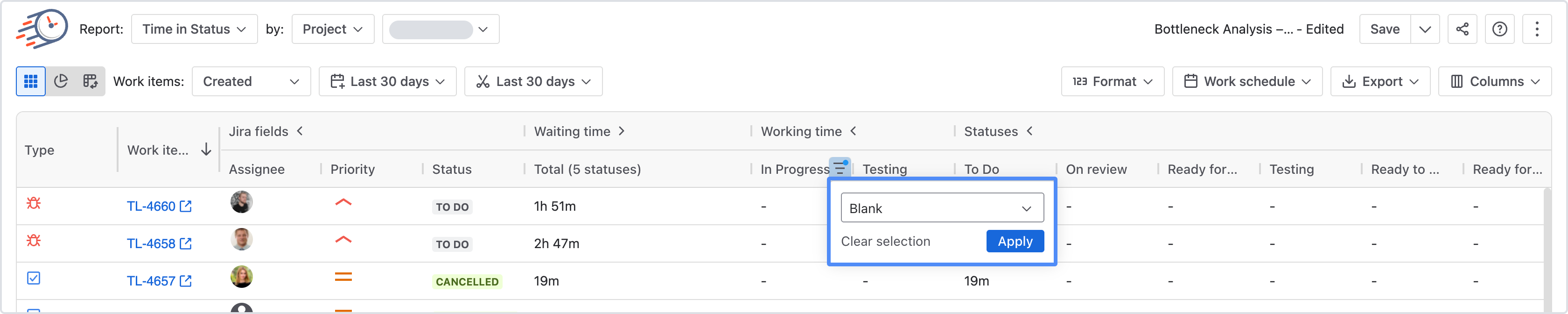
Identify Missing Data
Goal:
Find work items missing an assignee or calculated value.
Suggested filter:
-
Condition: Blank
If you need help or want to ask questions, please contact SaaSJet Support or email us at support@saasjet.atlassian.net
Haven't used this add-on yet? Try it now