
Explore the Rovo agents and skills that read your Time in Status data and answer questions in natural language.
Overview
Time in Status includes Rovo agents and Rovo skills that analyze your data and answer questions in plain language. Use them to see how long issues stay flagged, spot where time accumulates, and turn a sprint into a written retrospective — without building a report by hand.
Each agent has its own step-by-step guide, linked below.
-
Available on: Jira Cloud only.
-
Requires: Rovo enabled as a feature in your Jira instance. No additional Jira permissions are needed.
-
Setup: No configuration. The Sprint report insights agent needs context from the Time in Status Sprint Performance Report to run.
Rovo agents
Two agents are available today. Both appear in the agent list in Chats, and each returns results in the Rovo chat panel. Open the linked guide for full steps.
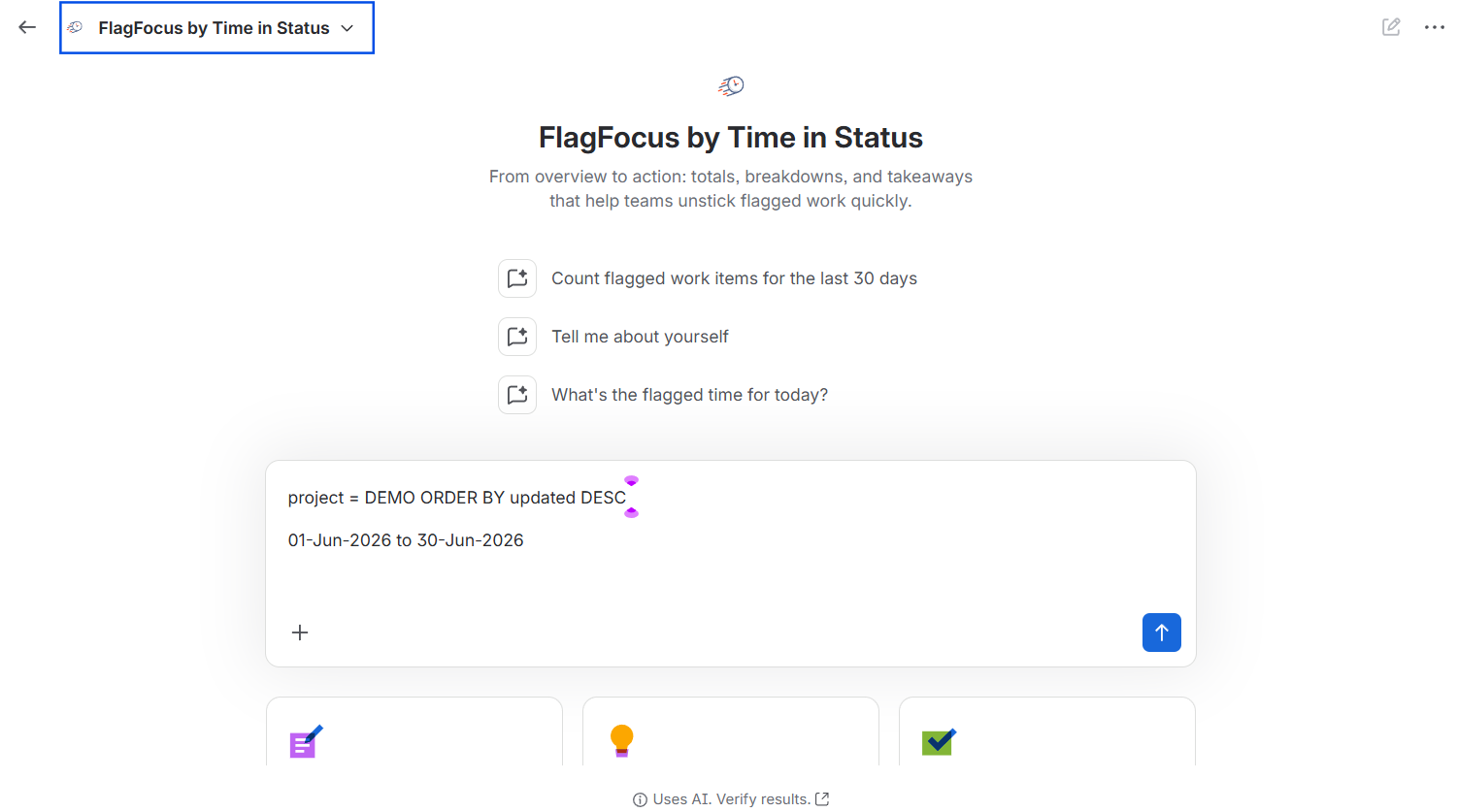
FlagFocus by Time in Status (Jira)
Measures how long issues stay Flagged and where that time builds up, then returns a total, a per-status breakdown, and short takeaways.
Open it: Go to Chats, find FlagFocus by Time in Status (Jira) in the agent list, and run a starter prompt or your own. To generate the tables, give it a JQL filter and a time period.
Sprint report insights
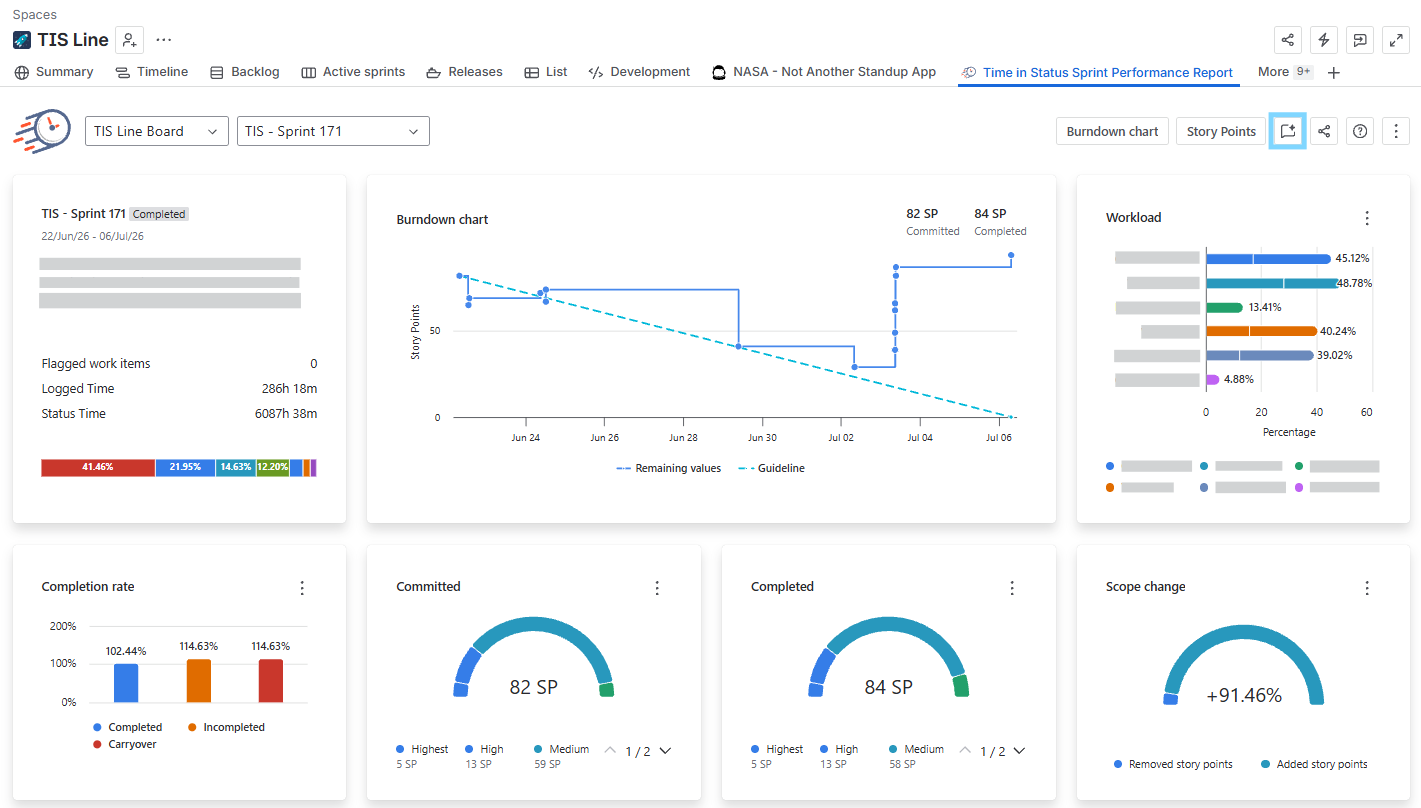
Reads the selected sprint's metrics, compares them against recent sprints, and writes a structured retrospective brief with recommendations for the next sprint.
Open it: Find Sprint report insights in the agent list, or open it from the Time in Status Sprint Performance Report — select a sprint, then select Sprint report insights in the top-right corner.
Rovo tools
Rovo tools are the functions the agents call to retrieve or calculate the data they need. Each tool runs a single action against your Jira data and returns one result; the agent then analyzes what it receives. Time in Status provides eight tools, all carrying.
|
|
Tool |
What it measures |
Category |
|---|---|---|---|
|
1 |
Get status count for work item 🆕 |
How many times a single work item entered each status |
Time in Status |
|
2 |
Get status entrance date for work item 🆕 |
The date a single work item first entered each status |
Time in Status |
|
3 |
Get time in assignee for work item 🆕 |
How long each assignee held a single work item, by work schedule |
Time in Status |
|
4 |
Get transition count for work item 🆕 |
The count of status transitions, by From → To pair |
Time in Status |
|
5 |
Get time in status for one work item |
The time-in-status breakdown for a single work item |
Time in Status + Other |
|
6 |
Get time in status for work items |
Time-in-status data for up to 40 work items from a list of keys |
Other |
|
7 |
Get sprint report metrics |
Sprint metrics for a board sprint, compared with recent sprints |
Other |
|
8 |
Get time in status while flagged |
How long work items spent in each status while flagged |
Other |
Where to find them: In Rovo Studio, go to Browse → Tools and search Time in Status to see every tool this app provides; the newly added ones also appear under Time in Status in Connected apps. Each tool shows as a card you can read or add directly to a new agent; selecting a tool opens its details in a modal.
.png?cb=15405d071849b557a2044be4cbf9153e)
.png?cb=cd14343630a5de50a48eac3892f47575)
For what each tool does and how to ask for it, see the Rovo tools reference.
Good to know
-
Results appear in the Rovo chat panel as tables and written summaries.
-
Tools do not connect to your reports. Each tool runs a function, and the agent works from the result it returns.
-
AI-generated. Agents and tools use AI. Review outputs before you act on them — the product shows a "Uses AI. Verify results." note.
-
Not a full retro. Sprint report insights provide data-backed talking points; it does not replace a team-led retrospective discussion.
-
Previously listed as skills. If you built an agent before this change, the four carried-over capabilities now appear under Tools rather than Skills. No action is needed — your existing agents keep working.