
Build workflow status reports across multiple Jira sites in one place.
Overview
Multi-site reports combine work item status data from your current Jira site and from the Jira sites connected to it into a single report. Use them to build consolidated reports on time in status, status counts, transitions, or status entrance dates across all your sites, instead of reporting on each site separately.
Before you begin
-
Edition: Multi-site reports are available in the Advanced edition of Time in Status only.
-
Permissions: To create a report, you need access under Create multi-site reports in Time in Status permissions. A Jira administrator can grant this access. If creation is restricted, you can still open saved reports shared with you as a viewer or editor.
-
Connections: Set up at least one connection with Connected status before building a report. See Connections for setup instructions. The sharing site controls which work items, fields, and work schedule each connection provides.
Build a multi-site report
-
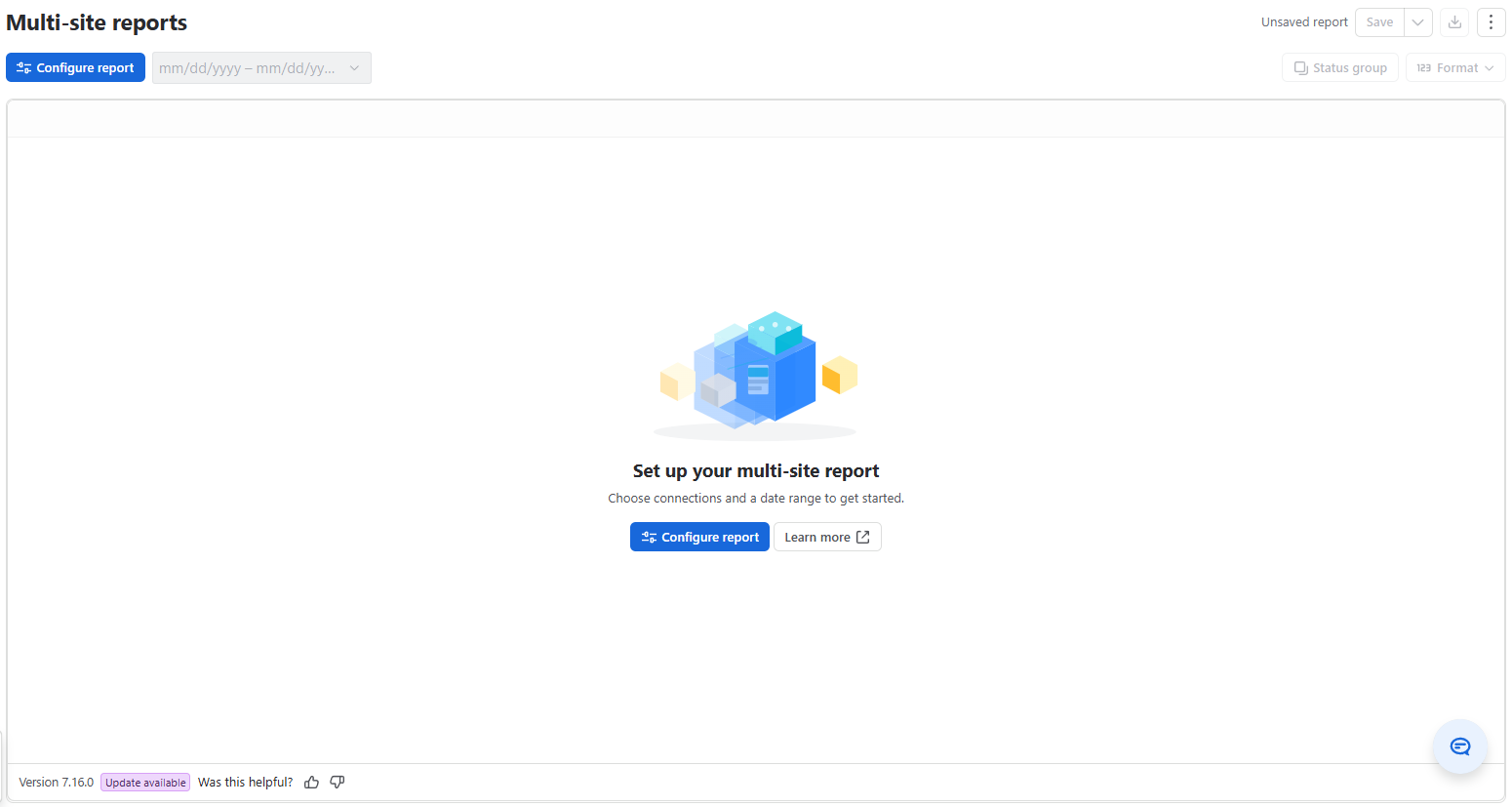
Open Multi-site reports in the Time in Status navigation.
-
Select Configure report.
-
Under Report type, select Time in status, Status count, Transition count, or Status entrance date.
-
To include work items from the site you're on, turn on Include data from this site. Then enter a JQL query and select a Work schedule.
-
Under Choose connected sites, select one or more sites in Connections.
-
Under Choose Jira fields, select the fields to show in Jira fields. Key, Work type, and Status are always included.
-
Select Apply. The Loading report data panel shows each connection's state and the number of work items loaded so far.
-
Wait until every connection shows Loaded. The report renders automatically.
-
Optional: select Report period and choose a range. A new run starts.
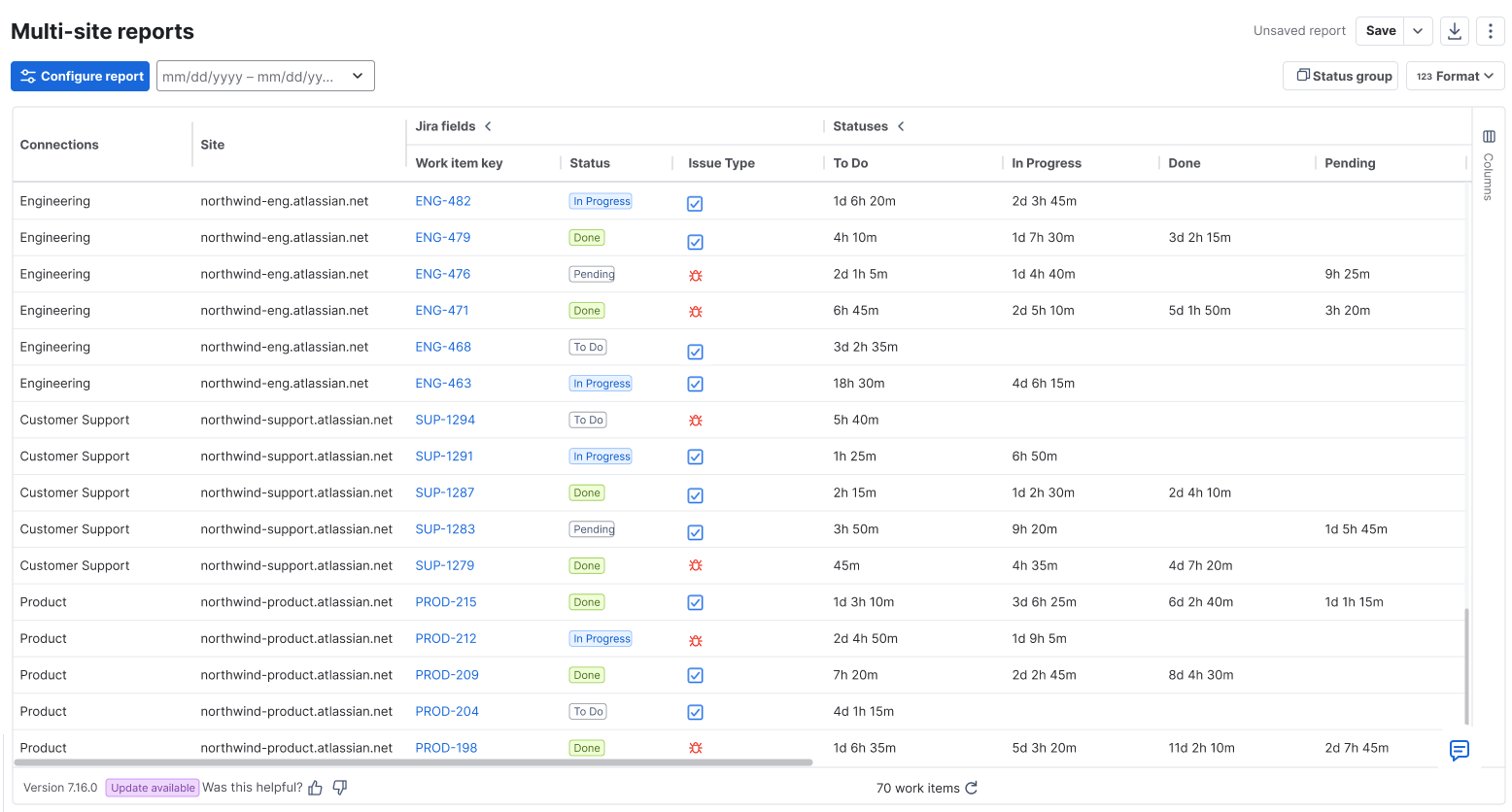
Each work item appears as a separate row. Use the field side panel and column controls to choose visible columns, sort and filter values, group rows, or build a pivot table. Add Connections or Site as a column or row grouping field to identify where work items came from. Work items from your current site use This site in the Connections field.
Combine statuses into a group
For Time in status and Status count, combine statuses into a report column representing a workflow phase.
-
Select Status group.
-
Select + Create group.
-
Enter a Status group name. This name becomes a column in the report.
-
In Statuses, select the statuses to add together. The list shows only statuses that work items in the report have been in; statuses no work item has entered yet don’t appear. Common statuses exist on every selected connection; other statuses are listed under each connection’s name and site URL.
-
Select Create. The group's column appears without reloading data.
You can create multiple groups and edit or delete them from Status group. Statuses outside a group remain separate columns. A status can belong to more than one group, and its value contributes to every group it belongs to. Avoid adding overlapping group totals together, because this counts the same value more than once.