
Arrange report rows into a parent–child tree, such as initiatives, epics, and stories, and see time data rolled up to every parent.
Overview
A hierarchy turns the rows of the Table view into a tree based on each work item’s parent. You choose the levels and the work types on each level. Each parent row then shows values calculated from the work items below it. Use a hierarchy to answer questions such as how long an epic’s stories spent in each status.
Available in the Table view of the app’s report page and of dashboard gadgets.
Create a hierarchy
-
In the Table view, select Hierarchy, then select the create action, and enter a Name.
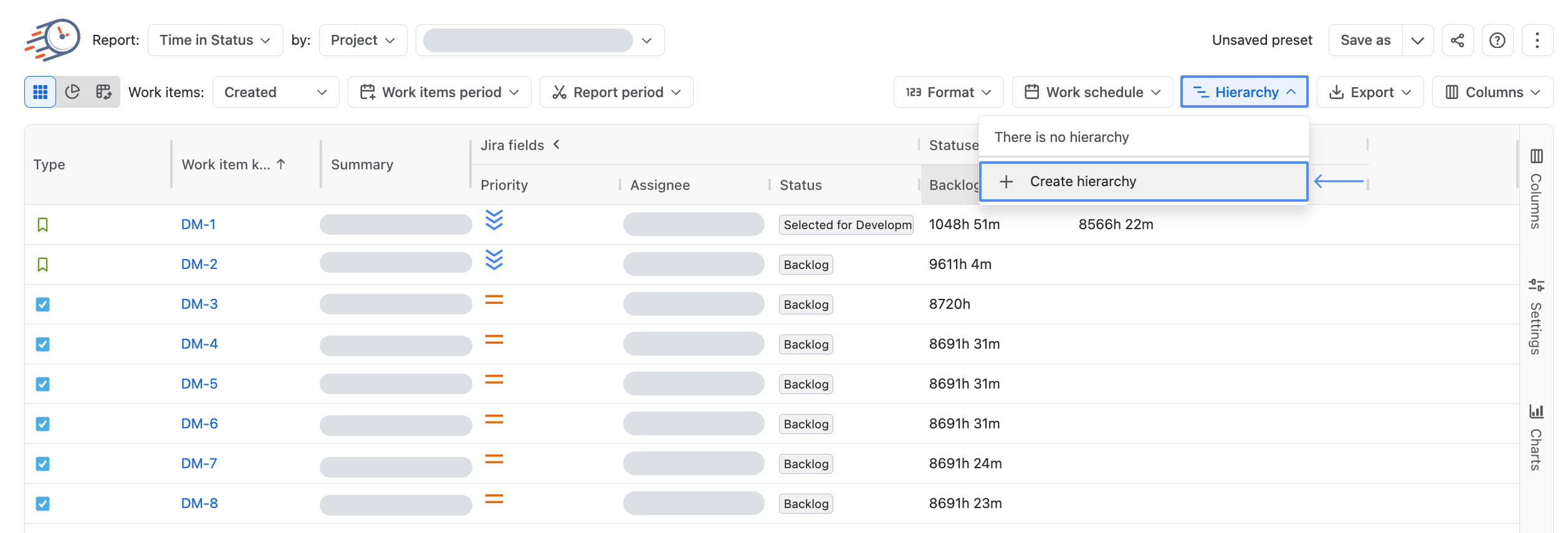
-
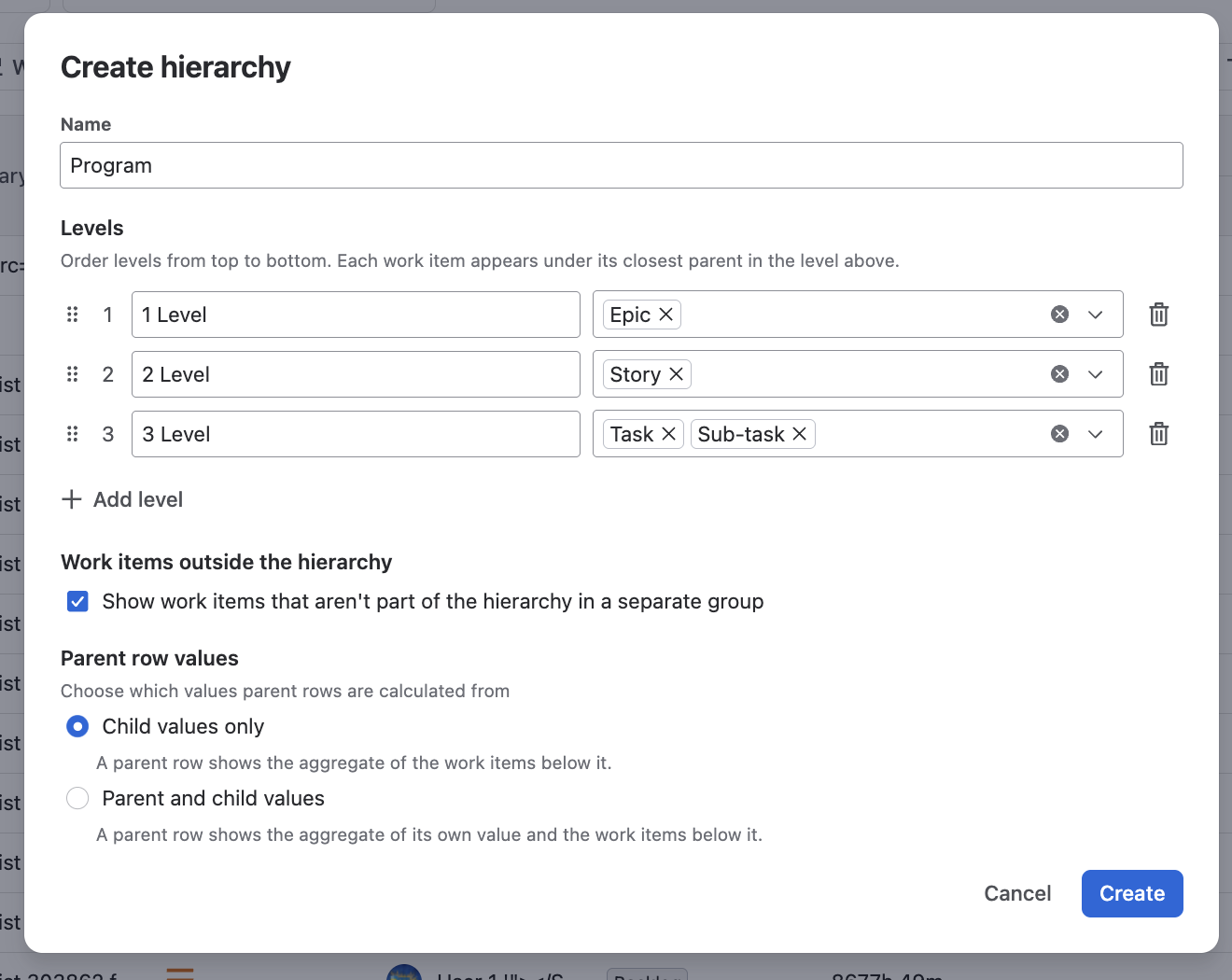
Under Levels, enter a name for Level 1 and select one or more work types for it. Level 1 is the top of the tree.
-
Select Add level and repeat step 2 for each level below.
-
Turn Work items outside the hierarchy on to show work items that fit no level in a separate group, or off to hide them. It is on by default.
-
Under Parent row values, select Child values only or Parent and child values.
-
Select Create.
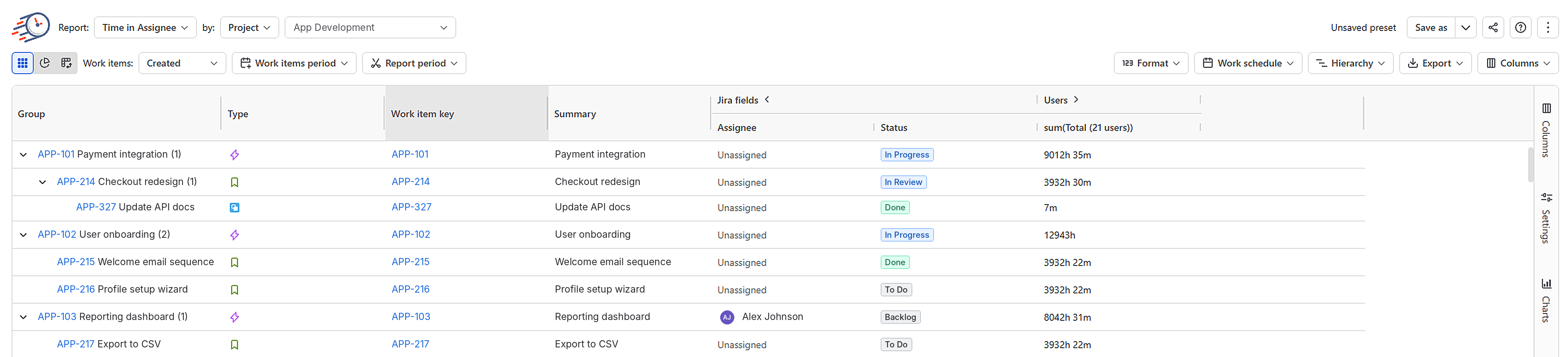
The table displays the tree, and a confirmation message appears.
Each level needs a name that no other level uses, and at least one work type. A work type can belong to only one level: other levels show it as unavailable. You can move a level up or down, or remove it. The work type list shows company-managed work types under Company-managed and team-managed work types under their project name.
Switch, edit, or turn off a hierarchy
-
Switch or turn off: in the Hierarchy list, select another hierarchy, or select None.
-
Edit or delete: point to a hierarchy in the list. When you delete a hierarchy, the report switches to None.
-
Review: select Hierarchy at the bottom of the report to see the levels and settings. You can also turn the hierarchy off there.
How work items are placed
Hieararchy follows each work item’s chain of parents and skips work types that belong to no level. A work item appears under the first parent it reaches, as long as that parent is on the level directly above.
A work item is outside the hierarchy when:
-
its work type belongs to no level
-
the first parent it reaches is on a level other than the one directly above
-
none of its parents are on a configured level
-
a work item in its chain of parents is not in the report
Company-managed and team-managed work items share one tree. Work items outside the hierarchy appear in the Outside the hierarchy group below the tree, or are hidden.
How parent rows are calculated
-
Child values only: a parent row shows / aggregates the values of the lowest-level work items below it.
-
Parent and child values: a parent row shows / aggregates its own value with the values of every work item below it.
Empty values are ignored. If no value remains, the cell stays empty. Work items outside the hierarchy never count toward a parent row. Columns that are not metrics show each row’s own value.
-
Pivot mode disables Hierarchy and shows the data without the tree. Your hierarchy returns when you turn pivot mode off.
-
You can’t change the hierarchy from the Confluence macro.
-
Placement follows the Jira parent of each work item. Links and custom fields are not used.
-
A hierarchy belongs to the report where you create it.
-
Not available for the Average Time and Time in status per date reports.
-
Available in the Table view of the app’s report page and of dashboard gadgets.
If you need help or want to ask questions, please contact SaaSJet Support or email us at support@saasjet.atlassian.net
Haven't used this app yet? Try it now!