
Note: Viewer History is coming soon to Issue History for Jira.
Viewer History in Issue History for Jira app allows you to track who viewed a Jira work item and when. It provides an additional layer of visibility into user activity, helping teams improve traceability, support audits and investigations, and better understand how users interact with work items.
Viewer History is available directly in the Activity section of each Jira work item, so you can review viewing activity alongside other historical information without leaving the work item.
Why use Viewer History
This is useful when you need to:
-
Verify that critical information reached the right people before action was required
-
Investigate why a team member didn’t respond; did they actually see the work item?
-
Maintain an audit trail for regulated processes where visibility of instructions or updates must be documented
-
Confirm that stakeholders reviewed important changes before a decision was made
Note: Viewer History is opt-in and works per space. Before it records any views, a space admin or any user in the space must turn it on. Only the user who turned it on, or an Admin, can turn it off. Admins can turn it off for any space.
Turn on Viewer History
-
Open any work item in your specific Jira space, go to the Activity section, and click More.
-
Select Viewer History.
-
If this is the first time Viewer History is opened for this space, you are prompted to enable tracking (click Enable for this space button). Then, click Confirm to turn it on.
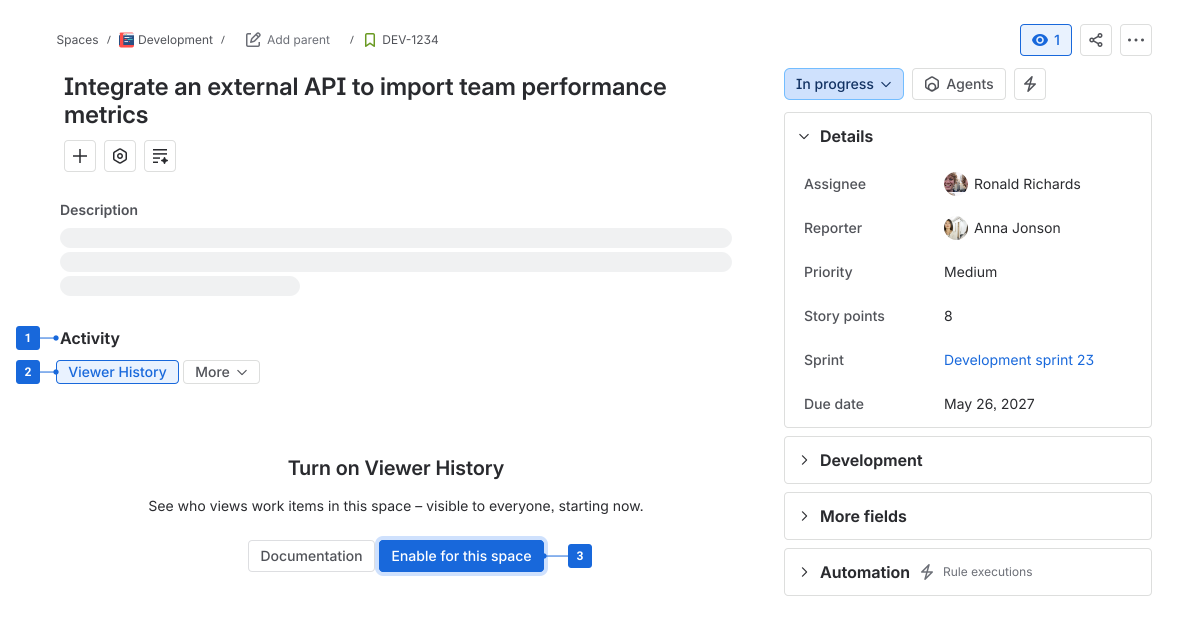
Note: Tracking starts 1 minute after you click Confirm. The user who clicks Confirm is not tracked. Turning on tracking applies only to the Jira space where you turned it on.
Explore the viewer list
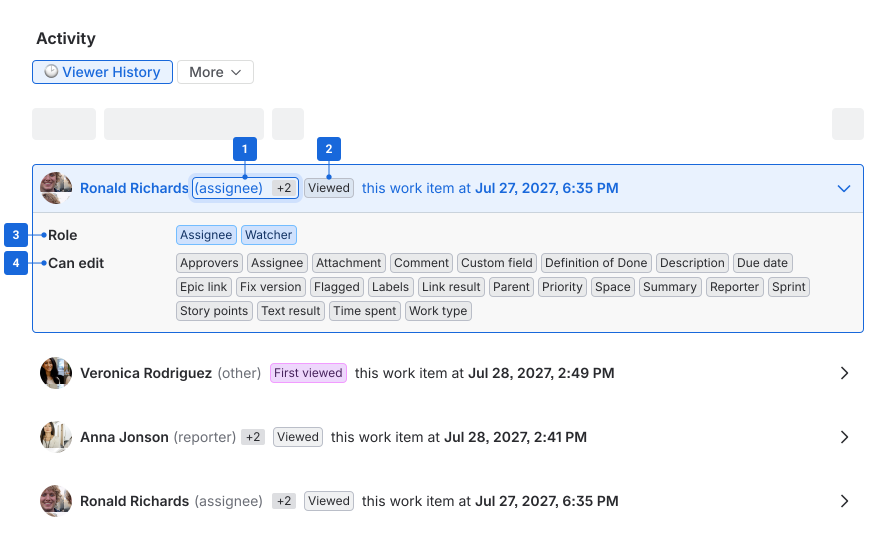
You can click on a user’s row to expand and see the full information related to them:
-
User type – Assignee, Reporter, Watcher, or Viewer. Assignee, Reporter, and Watcher are based on the user’s role in Jira at the time of the view. Viewer indicates a user who has no specific role in the work item.
-
The “+2” indicator shows that the user holds multiple roles.
-
-
Operation – “First viewed” for the user’s first visit, or “Viewed” for a later visit.
-
Role – All roles this user has in the work item (for example, Assignee and Watcher).
-
Can edit – The specific fields and areas this user has permission to modify. This depends on their project role and the configured permission scheme.
-
For example, an Assignee might be able to edit Approvers, Assignee, Attachment, Comment, and Definition of Done, while a Reporter might have more limited edit permissions.
-
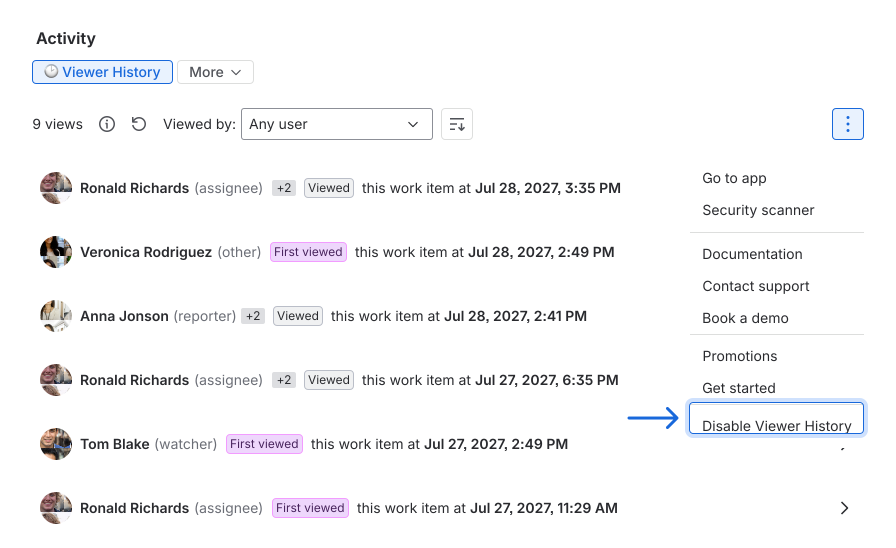
Turn off Viewer History
-
Open the Viewer History menu.
-
Select Turn off Viewer History.
Note:
-
Viewer History only counts views made in the web version of Jira, not the mobile app.
-
Only views made after tracking was turned on are counted.
-
A user's view is recorded only once every 30 seconds, to avoid duplicate records.
-
All users who view the work item are recorded, even those without access to the Viewer History report itself.
-
A view is not recorded if the work item fails to load because the user has no Jira access at all.
Haven't used Issue History for Jira app yet? 👉 Then you’re welcome to try it 🚀