
Overview
You can connect Issue History for Jira data to Power BI using Google Sheets as an intermediate layer.
This approach is recommended because:
-
It avoids direct API configuration in Power BI
-
Data sync and token handling are already managed in Google Sheets
-
Setup is simpler and more stable
🔗 Step 1: Set up Google Sheets integration
Before connecting Power BI, you need to configure data export to Google Sheets.
👉 Follow the full guide here:
[Issue History for Jira → Google Sheets Integration Guide]
This setup will:
-
Connect your Issue History for Jira report via API
-
Automatically sync data into a Google Sheet
-
Handle token refresh and scheduling
📈 Step 2: Connect Power BI to Google Sheets
Once your data is available in Google Sheets:
-
Open Power BI Desktop or Power BI Web version.
-
Click New report.
-
Select Get data.
.png?cb=89f1c858bcb28848e8491be25df9e6d0)
-
Select Google Sheets (or use “Web” connector if needed).
.png?cb=89d0074e232ac8ada6bc2c35adf53b13)
-
Paste your Google Sheet URL.
.png?cb=3f7fc342aee432abb594057428477bff)
-
Select the sheet/tab with your data.
-
Click Create a report.
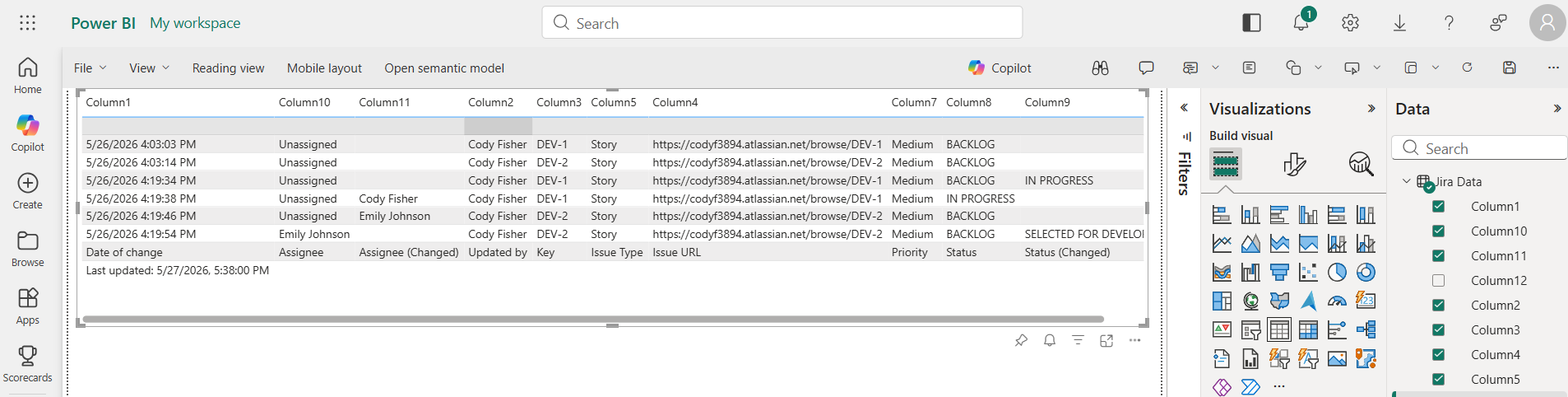
You’ll be able, for example, to receive such a report in Power BI:
🔁 Step 3: Enable automatic refresh
After publishing your report to Power BI Service:
-
Go to your Workspace and navigate to More (⋯).
-
Select View semantic model.
-
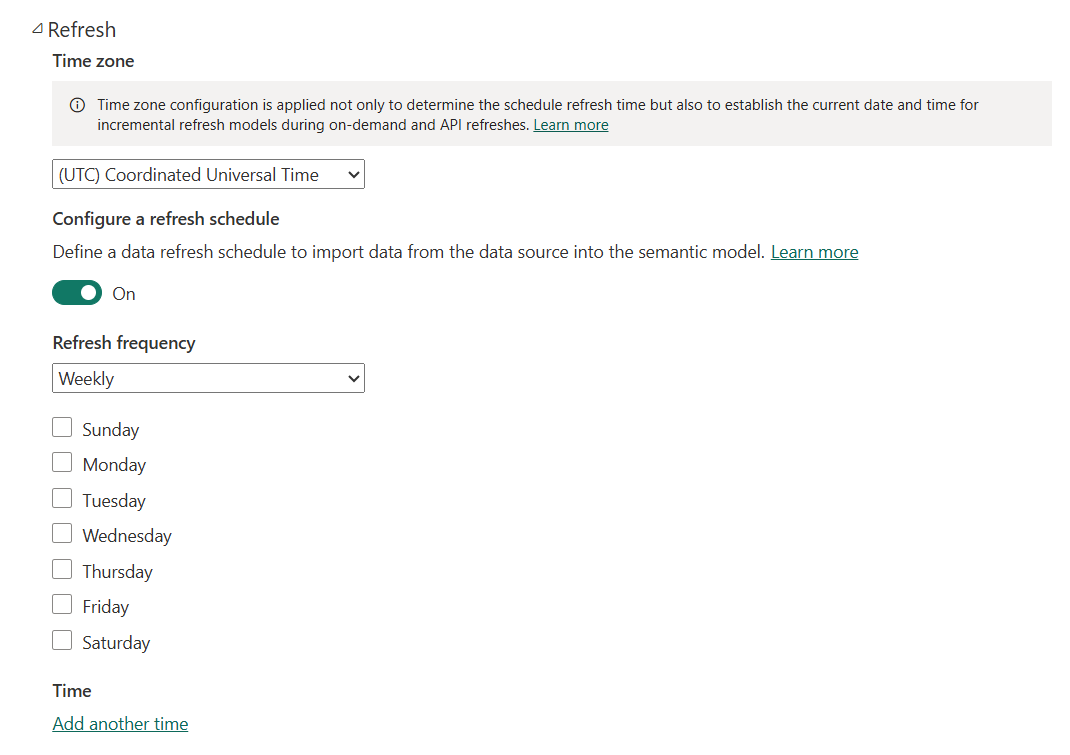
Choose Refresh → Schedule refresh. Then, configure a refresh schedule (Weekly or Daily).
🔄 How updates work
After setup:
-
Google Sheets automatically syncs data from Issue History for Jira.
-
Power BI reads updated data from the sheet.
-
Your dashboards stay up to date without manual work.
🔐 Maintenance
The only required maintenance:
-
Refresh token expires approximately every 90 days.
-
When it expires:
-
Update tokens in Google Sheets (via the script menu).
-
No changes needed in Power BI.
-
✅ Result
✔ Fully automated data pipeline
✔ No manual exports
✔ No API setup inside Power BI
✔ Minimal ongoing maintenance
If you need help or want to ask questions, please contact SaaSJet Support or email us at support@saasjet.atlassian.net
Haven't used this app yet? 👉 Then you’re welcome to try it 🚀