
The Issue History for Jira API allows teams to programmatically export Jira work item history data for reporting, analytics, and integration with external systems.
Using the API, you can retrieve structured historical Jira data without manually reviewing individual work items or exporting reports through the UI. This makes it easier to build custom dashboards, synchronize Jira history with BI tools, and maintain long-term historical records.
Note: API data export limits are determined by Atlassian’s infrastructure, so Issue History for Jira app cannot adjust them.
For more information, check out: Rate limiting
How it works
Prerequisites
In Jira, go to Apps -> Manage apps ->Connected Apps, search for Issue History for Jira (Work Item History), and click on View app details.
.png?cb=150016cde9080db3a90f7731261ef95e)
In the app Details menu, enable the REST APIs option.
.png?cb=9edb50373212d138966f17aea1da675c)
.png?cb=93162a9af6dcb3621917c330e6afa0ca)
1. Generate a new data source link
Go to the app’s Table View and click the API button.
.png?cb=7c784f3d9cbc1564adc5faf202f90fcf)
In the window that opens, generate a new link for your saved preset. For that, select one of the saved views from the list.
.png?cb=893f22804e4296e4df0ce86d2c20a757)
Note: Only views saved in the app's Table View can be used as data sources.
After selecting the required view, click the Create button.
.png?cb=1fc9c0c25600e777b9dc28732d1c7376)
You will receive a data source link that you can easily copy.
.png?cb=7c069fb5936aefe4b1320075fa5b3795)
2. Authorize access
You will also see an action to start authorization. Click the Authorize in the window.
.png?cb=bf90fd24f3d34d63e8199cd7b19cb977)
You will be redirected to the Atlassian consent screen, where you need to review the requested access and click Accept.
.png?cb=839496aa0e5611d7111027635370c6a2)
3. Get your authorization code
After consent is granted, you will be redirected back to the callback page.
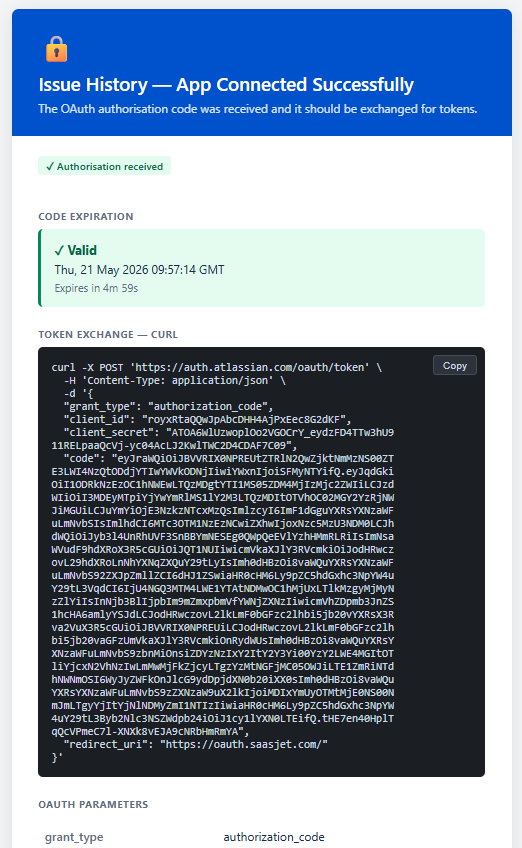
The system will display the authorization details you need for the next step.
After that, use the authorization code to request two tokens with an HTTP client such as Postman: an access token and a refresh token.
Note: The code expires in 5 mins. Make sure you have received the access and refresh token within this timeframe. If not, return to step 1.
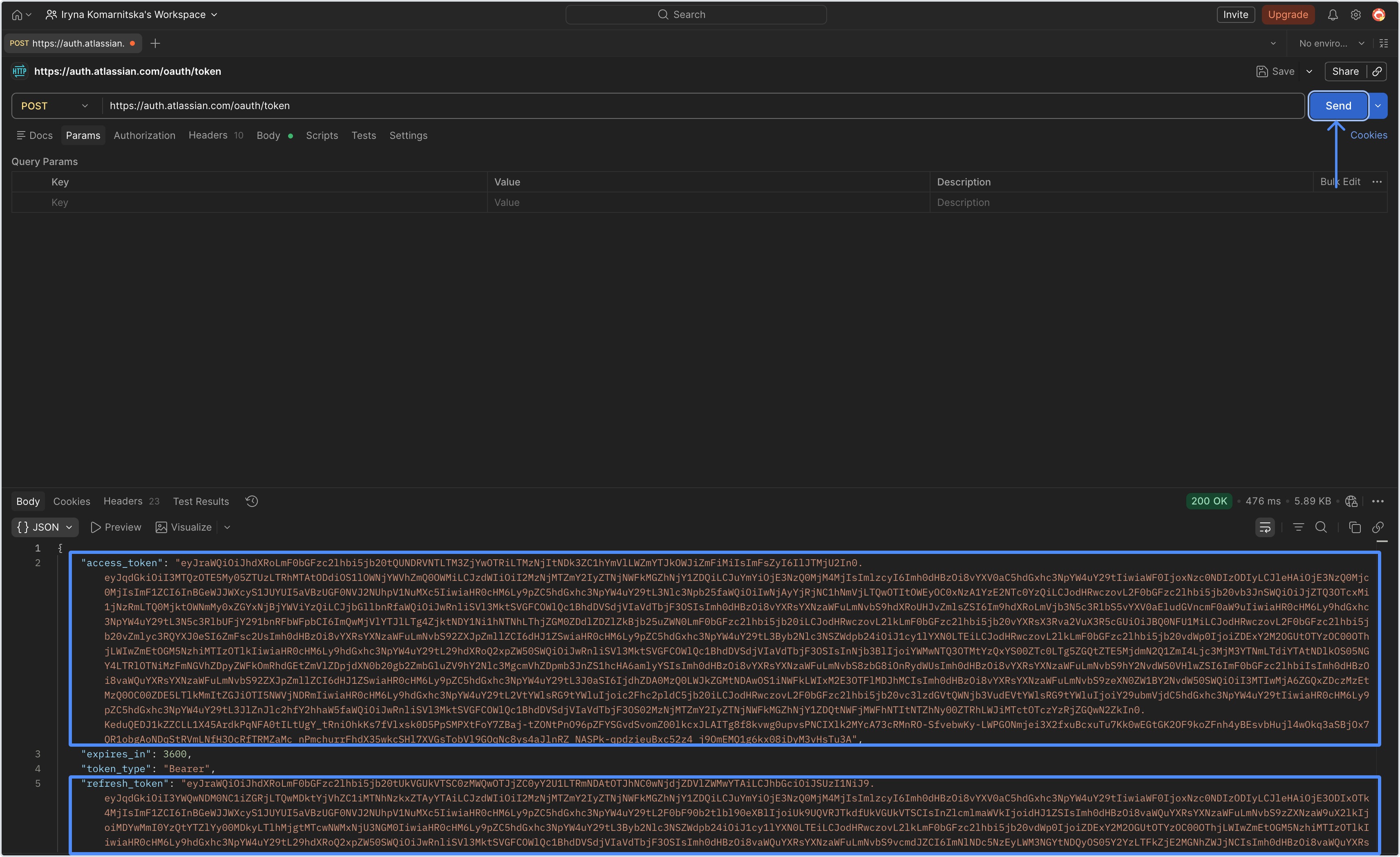
These tokens are used by your external system or integration to securely call the data source.
Both tokens become active when you click the Approve button and have a limited validity period:
-
Access token: valid for 1 hour
-
Refresh token: valid for 90 days
Make sure to use the access token within 1 hour. If it expires before you apply it, return to step 1 and repeat the process.
The 90-day refresh token validity determines how long your data extract remains accessible. After 90 days, to access the report again, regenerate the link and repeat the process from step 1.
5. Use the token when requesting the data source
When your integration calls the generated data source link with a valid access token, the report is calculated at that moment and returned as a JSON response.
Data retrieval is limited to 25 seconds to keep the process fast and stable. As a result, the data source can return up to approximately 1,000 work items, depending on their changelog history.
What the API returns
The API returns report data as a JSON payload. The report is built on demand.
A generated link will follow this pattern:
CODE
https://<site-name>/gateway/api/svc/<product>/apps/<app-id>_<env-id>/<path>
Copy
The request uses dataSourceId as a parameter.
Permissions and visibility
Where Jira permission enforcement is supported, the data source returns only the work items that the authorized user is allowed to view.
This helps ensure that users only receive data they already have access to in Jira.
Counts and report size
Because the report is generated dynamically during the API request, the final result may differ from the number shown when the link was created.
Error messages
The API may return the following errors:
400 Bad Request
Returned when the request is invalid or required data is missing.
Example causes:
-
the request is malformed
-
dataSourceIdis missing or invalid -
the request parameters are incorrect
402 Payment Required
Returned when the app license is inactive or unpaid.
403 Forbidden
Returned when the user does not have permission to access the selected data source or saved view.
404 Not Found
Returned when the requested data source or saved view cannot be found.
Example causes:
-
the data source does not exist
-
the view does not exist
-
the requested source was deleted
413 Payload Too Large
Returned when the calculated report data exceeds 5 MB.
If this happens, narrow the report scope and try again.
500 Internal Server Error
Returned when an unexpected server-side error occurs.
If the issue continues, regenerate the link and retry. If that does not help, contact support.
Troubleshooting
1. I get less data than expected
Possible reasons:
-
the authorized user does not have permission to view all work items in Jira
-
the count shown during link creation was only an estimate
-
the report is too large or too broad for the new dynamic flow
2. The request fails because the payload is too large
Reduce the amount of data in the preset by:
-
narrowing the project scope
-
shortening the date range
-
applying additional filters
3. I completed authorization, but the request still fails
Check that:
-
the view needed is saved
-
the new data source link is being used
-
the access token is valid
-
the token has not expired
-
your integration refreshes tokens when needed
If you need help or want to ask questions, please contact SaaSJet Support or email us at support@saasjet.atlassian.net
Haven't used this app yet? 👉 Then you’re welcome to try it 🚀