
Customer Problem
“I want to automatically notify the user by email when their ticket is updated without manually sending messages.”
Customers want to avoid:
-
Manually notifying users about updates
-
Copying comments or updates into emails
-
Asking users to repeatedly check Jira for updates
-
Losing communication with external users who do not have Jira access
Smart Forms + Jira Automation solve this completely.
Possible Use Cases
This setup is ideal for:
✅ Customer support requests submitted via forms
✅ External service requests
✅ Customer feedback or follow-up communication
✅ Incident updates for external users
✅ Change request discussions with stakeholders
✅ Vendor or partner communication through Jira tickets
✅ Help desk scenarios without customer portal access
✅ Any workflow where external users need update notifications
How It Works
-
A user submits a Smart Form embedded on a website, Confluence page, or shared via link.
-
The form automatically creates a Jira issue, storing the user’s email address in a custom field.
-
When someone adds a comment to the issue (for example, during review or investigation), Jira Automation is triggered.
-
The automation rule checks the issue status (for example, On Review or another selected status).
-
Jira Automation sends an email to the user.
-
The email includes the comment body, keeping the external user informed of updates.
Key Benefits
🚀 Automatically notifies users about ticket updates
📩 Sends comments directly to the customer’s email
🔄 Keeps external users informed without Jira access
🧩 Works with custom fields storing customer emails
⚙ Fully automated communication workflow
💬 Improves transparency and response visibility
Example Setup
-
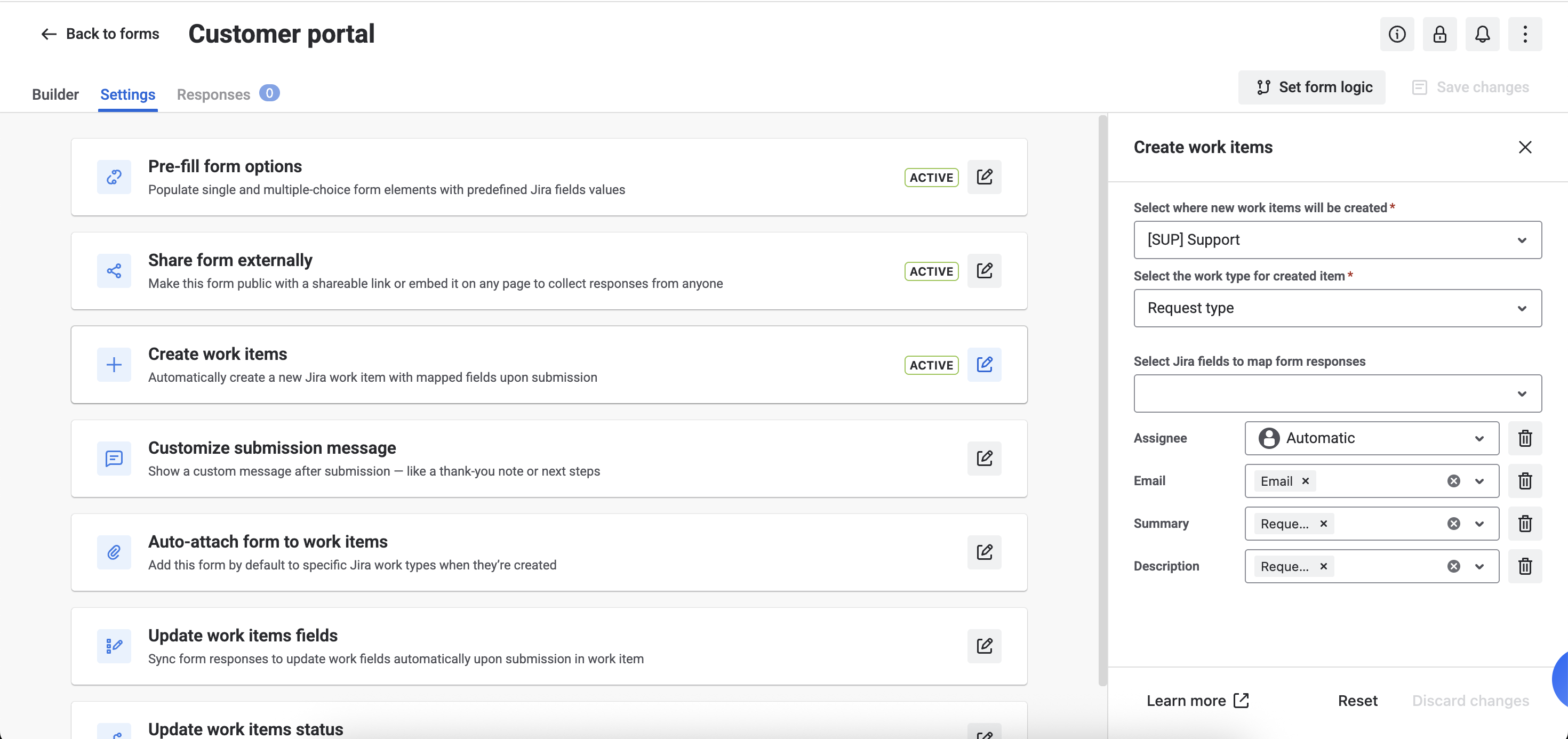
Create a Form in Smart Jira Form:
-
Open the Smart Jira Form app and create a new form.
-
Navigate to the Settings tab. Select Create Issue and connect the previously created custom fields with the appropriate form elements. Read more.
-
After configuration, you can place the form on your website, embed it in a Confluence page, or send the form link via email to users.
-
-
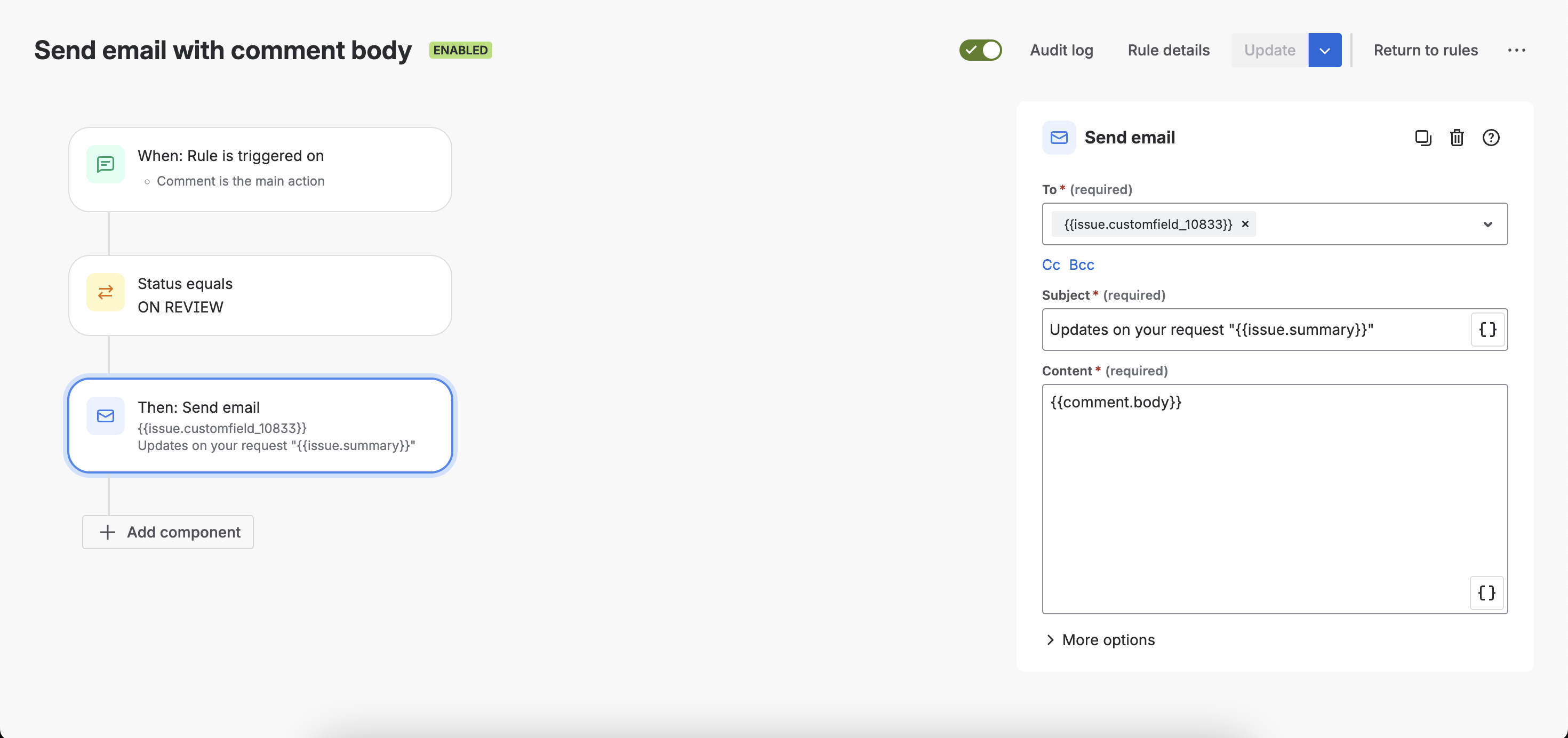
Create an automation rule with three main blocks:
-
Trigger. When: Work item commented
-
Condition. IF: Issue status is On Review (or any other status you prefer)
-
Action. Then: Send an email with the comment body.
-
Use a custom field ID (that populated of the customer’s email address) into the “To“ field - to whom this email will be sent. Use a structure:
{{issue.customfield_10833}} in order to deliver the value (email) from a custom field. Instead of 10255 input the ID of your custom field.
-
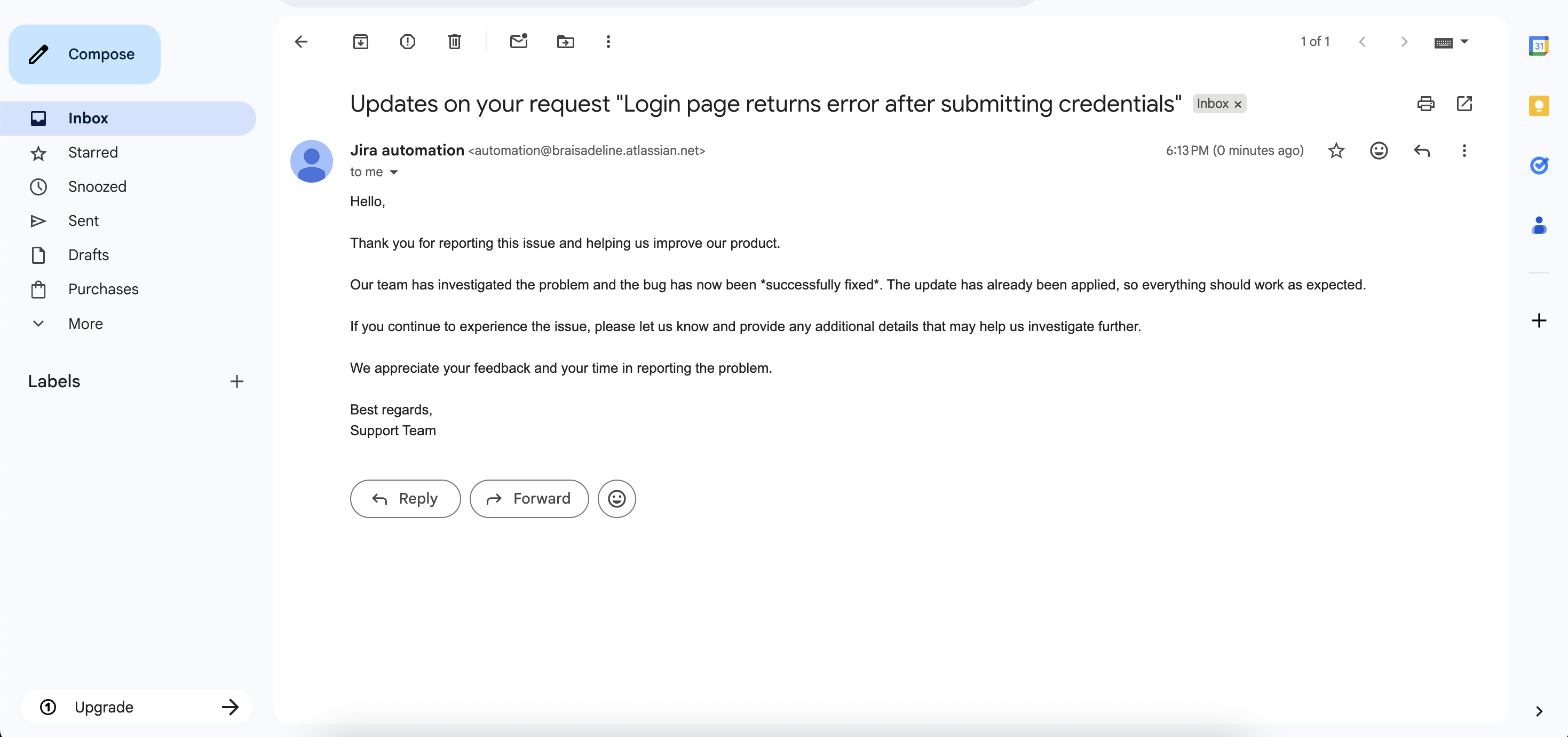
Once configured, the external user will automatically receive email notifications whenever a comment is added to the ticket.
Questions? Please, contact us through SaaSJet Support
Haven't used this add-on yet, then try it now!