
Content: Restriction Options › How to Set Up › Permission Matrix
Form Configuration · Permissions & Restrictions
Who can do
what with a form
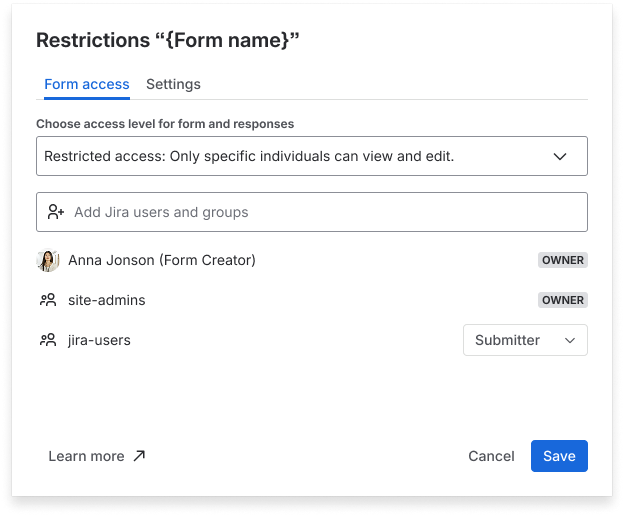
Every form is restricted by default — visible only to its owner.
From there, you decide exactly who can view, edit, or
manage each form using roles and advanced permission settings. Sharing access is limited by default for restricted forms.
How form access
actually works
Three layers control who can do what: access mode, roles, and advanced permissions.
|
🔒 A new form is visible only to its Owner - the creator - and Jira admins. Everyone else starts as a submitter: when the form reaches them (added to a work item or shared as a link) they can fill it out and see their own response, but they can't view or change how it's built. |
|---|
Layer 1 — Access mode
Access mode is the master switch. It decides whether the form is open to everyone or limited to specific people.
|
🔓 Open access “Anyone can view and edit." Every Jira user gets editor-level permissions, except deleting the form. |
|---|
|
🔒 Restricted access Only specific individuals can view and edit." All Jira users start as submitters, so they can fill the form out but not open its setup. No one can view or edit the setup until you grant them a Collaborator or Editor role. |
|---|
Layer 2 — Roles
Roles are the simple way to grant access. Assign a role to a user or a Jira group, and they inherit everything that role can do.
👑 Owner
Form creator + Jira admins, by default
-
View & edit the form
-
Edit form configuration
-
View all responses
-
Edit own & others' responses (if set up)
-
Manage access settings
-
Delete the form
-
Sharing access
✏️ Editor
Trusted collaborators
-
View & edit the form
-
Edit form configuration
-
Manage restrictions
-
View & edit all/own responses (if Response access setting are set up)
-
Sharing access (if set up)
👥 Collaborator
Can use the form, not change it
-
View the form (read-only configuration)
-
Submit responses
-
View & edit all/own responses (if Response access settings are set up)
-
Sharing access (if set up)
📝 Submitter
Fills the form out, nothing more
-
View the form to fill it out
-
Submit responses
-
View & edit own responses (if Response access setting are set up)
-
Sharing access (if set up)
📝 External
Fills the form out, nothing more
-
View the form to fill it out
-
Submit responses
-
Edit own responses (if Response access setting are set up)
Roles work for both individual users and Jira groups.
Assign "Editor" to a single person, or to an entire group like jira-users
Layer 3 — Advanced permissions
For scenarios roles don't cover precisely enough, two advanced settings give finer control. Both work for individual users and Jira groups.
📋 Response access — works in both Open and Restricted modes
Response access — works in both Open and Restricted modes. Controls who can edit responses: their own only, or all responses. Setting "Edit all responses" turns the form into a live collaborative record, where several people can submit and resubmit the same form, like a shared doc. Who can view all responses follows the role: Collaborators and above see all, Submitters see only their own. Submitters can only ever edit their own responses; they can't be given "Edit all.
🔗 Sharing access — Restricted mode only
Restricted mode only. Controls who can share the form from a work item, which is separate from who can fill it out. Owners and Editors always have this and it can't be turned off; you can enable or disable it for Collaborators and Submitters.
Restrictions don't hide the form from everyone.
Restrictions don't hide the form from everyone. Users without access can still see the form's name in lists, and unless Sharing access says otherwise, they can still add the form to a work item or fill it out when it reaches them. Restrictions block opening and editing the form's setup, not every interaction with it.
Tutorial
Restrict a form to
your team only
Let's walk through a complete example: restricting an HR onboarding form so only your HR team can edit it, while every new hire can still fill it out.
Open the form's Restrictions panel
From the Smart Forms list, hover over New Hire Onboarding Form, click the three-dot menu, and select Restrict form. Or click the lock icon directly on the form tile.
Go to the "Form access" tab and choose Restricted access
In the access level dropdown, select Restricted access: Only specific individuals can view and edit.
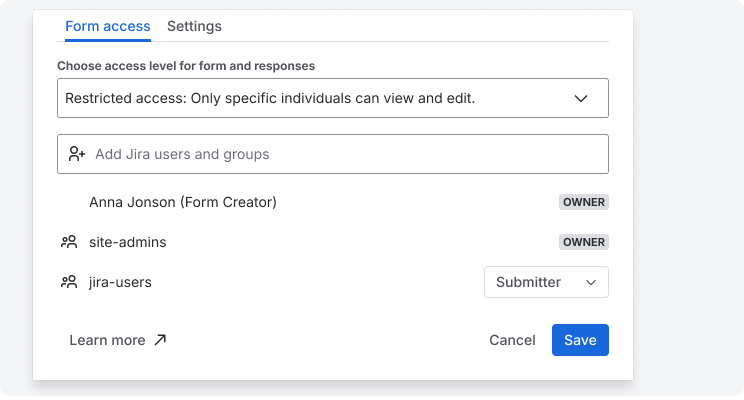
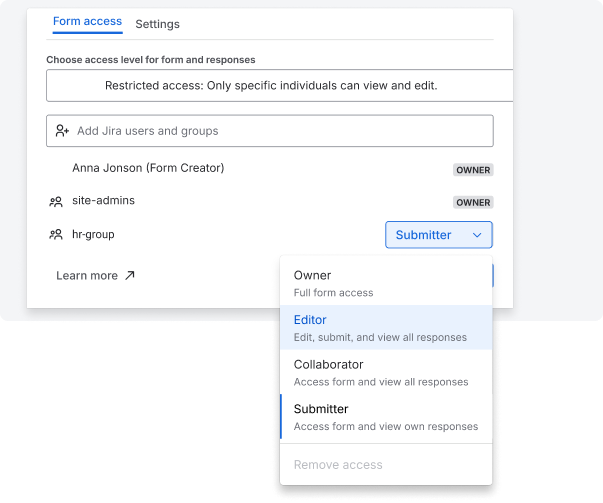
Add the HR group and set its role to Editor
In the search box, type hr-team and select the Jira group. A role dropdown appears next to it — choose Editor.
Allow to edit this group to edit all responses
Go to the Settings tab. Since new hires may need additional info filled in their form from HR, go Response access → who can edit set to "Edit all responses." Each new hire's submission stays private to them and editable to HR.
.png?cb=2d8c69ea3de15697a48c69dcd22c229d)
Permission matrix
|
Capability |
Owner / Jira admin |
Editor |
Collaborator |
Submitter |
External user |
|---|---|---|---|---|---|
|
Delete form |
Yes |
No |
No |
No |
No |
|
Manage restrictions |
Yes |
Yes |
No |
No |
No |
|
Edit form configuration |
Yes |
Yes |
No |
No |
No |
|
View form in app |
Yes |
Yes |
Yes |
No (fill only) |
Only to submit |
|
Submit responses |
Yes |
Yes |
Yes |
Yes |
Yes, per Share external access |
|
Add form to work item |
Yes |
Yes |
Yes |
Yes |
No |
|
Share form from work item |
Always on |
Always on |
Depends on setting |
Depends on setting |
No |
|
View own responses |
Yes |
Yes |
Yes |
Yes |
Yes, when editing them |
|
Edit own responses |
Depends on setting |
Depends on setting |
Depends on setting |
Depends on setting |
Depends on setting |
|
View all responses |
Yes |
Yes |
Yes |
No |
No |
|
Edit all responses |
Depends on setting |
Depends on setting |
Depends on setting |
No |
No |
Forms in JSM portals and external links
JSM portal — portal users follow external rules, even when Jira passes their account. Reporters and request participants don't see each other's drafts, submitted values, or history. Each participant works only with their own response.
External forms — a verified user is checked against their Jira role; an anonymous user is handled by your External settings. External submitters can submit and, when editing is allowed, view and edit their own response. They can't see all responses, add the form, or share it.
Rovo and Automation — both respect the current user's permissions. A form or response you can't see in the Forms app won't surface through Rovo, and in Automation you only see forms you're allowed to add to a work item.
What happens to existing forms after the update
-
Forms on open access stay on open access. Your Edit own responses setting carries over.
-
Forms on restricted access stay restricted. The owner, Jira admins, and previously added editors keep edit-level access as Owner or Editor. Everyone else (All Jira users) becomes a Submitter. Your existing form sharing and Edit own responses settings carry over and apply across roles.
Request a demo call
Questions? Please, contact us through SaaSJet Support
Haven't used this add-on yet, then try it now!