
This guide provides a step-by-step process for integrating Smart Forms for Jira to automatically link issues created from form submissions to a specific Epic. Follow the instructions below to set up the form and map the required Jira fields.
Prerequisites
Before proceeding, ensure you have:
-
Access to the Smart Forms for Jira add-on.
-
Access to the Jira project where issues will be created from submitted forms.
-
Basic familiarity with Smart Forms for Jira functionality.
Instruction on how to automatically add issues created based on form to Epic
-
Configurations in Smart Jira Form Add-on:
-
Open the Smart Jira Form add-on, create a new form, or use the existing one.
-
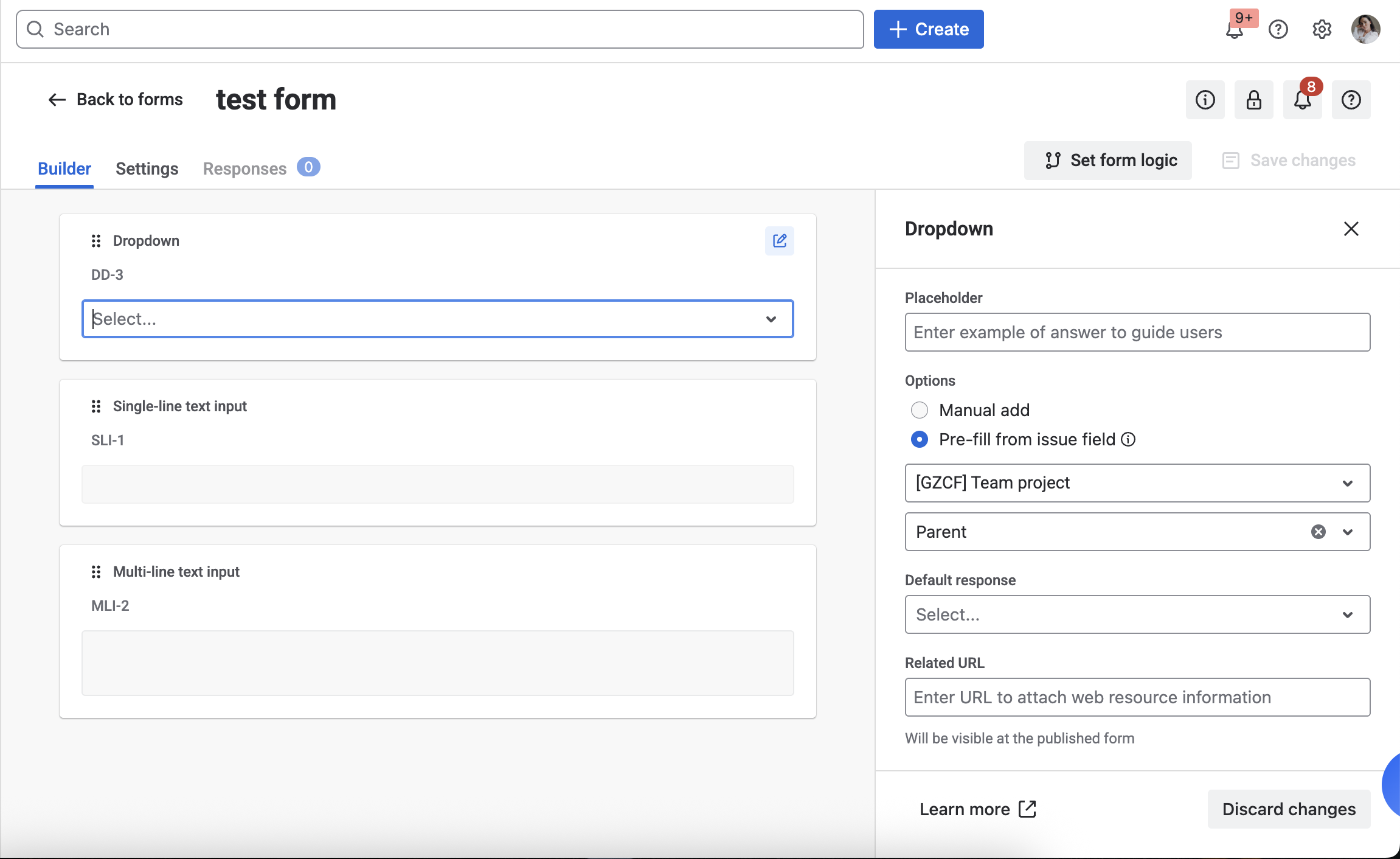
Add a Dropdown element and prefill it with Parent options.
-
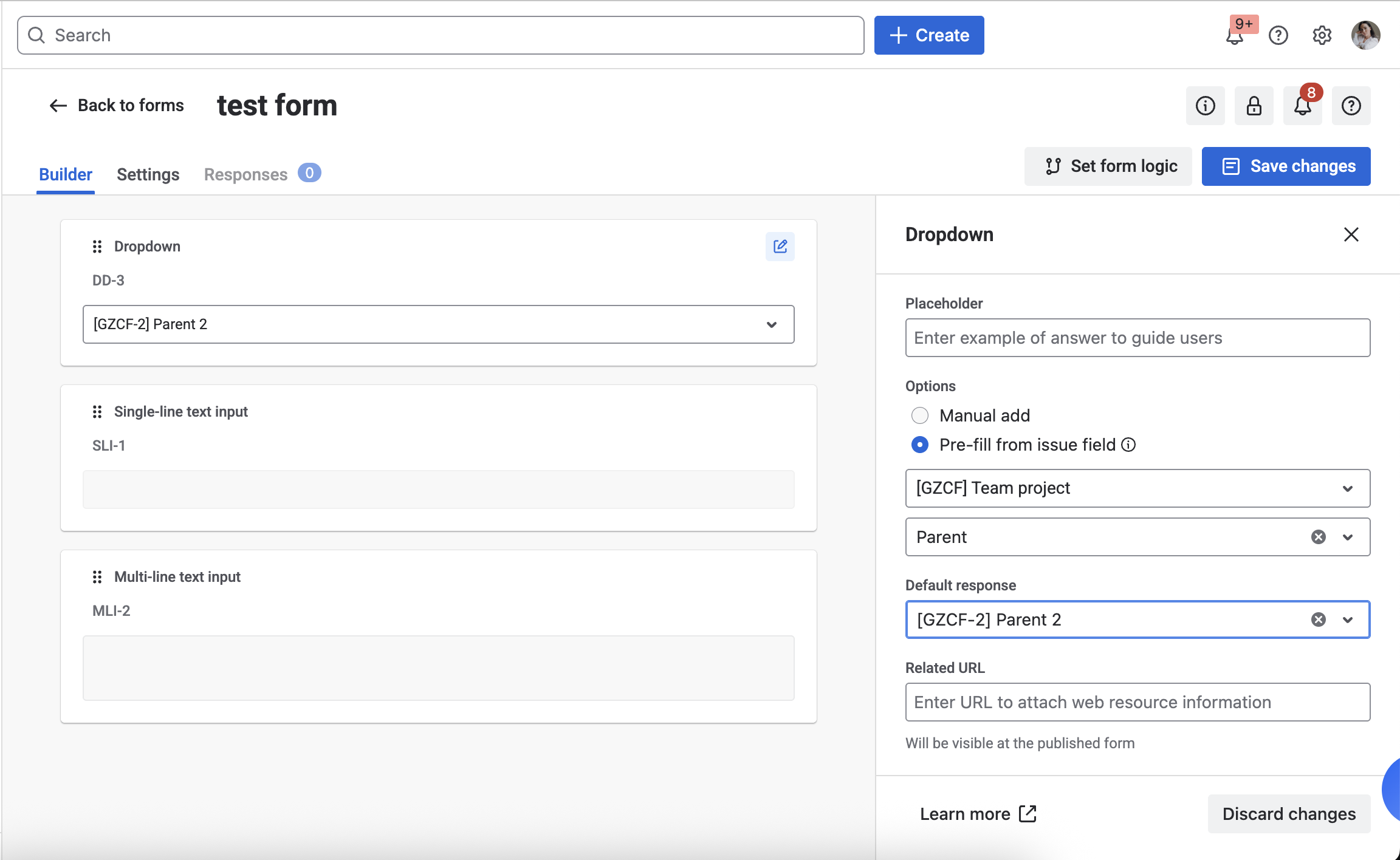
Select the required Parent/Epic option as the default response.
-
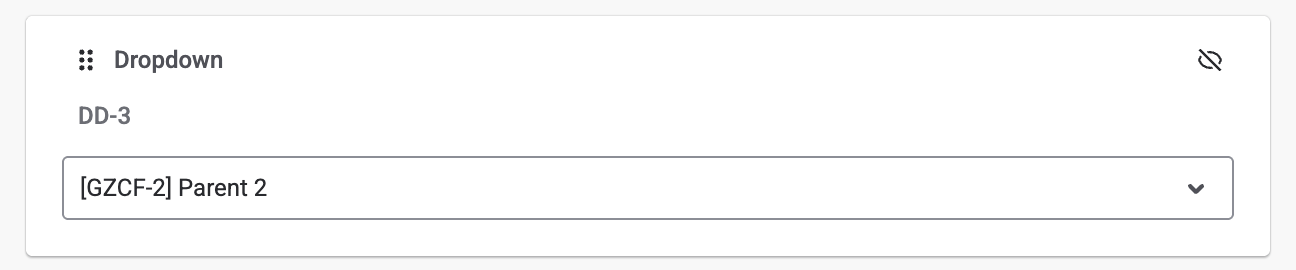
Hide this form element so users do not need to select it manually.
-
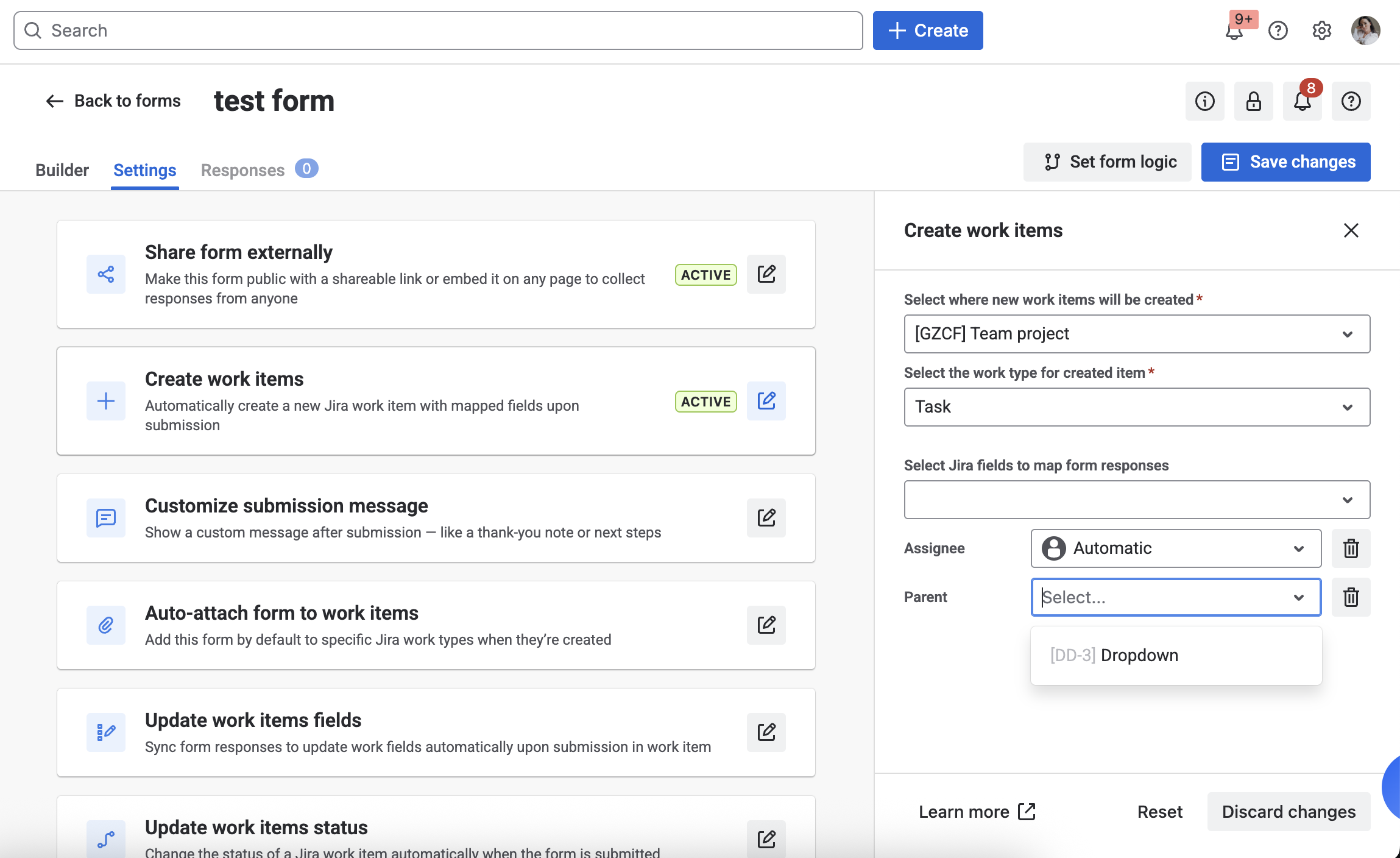
Go to the Settings tab and configure Jira issue creation using the Create new issue option. Associate Jira fields with the form responses to populate the necessary fields, including the Parent field.
-
-
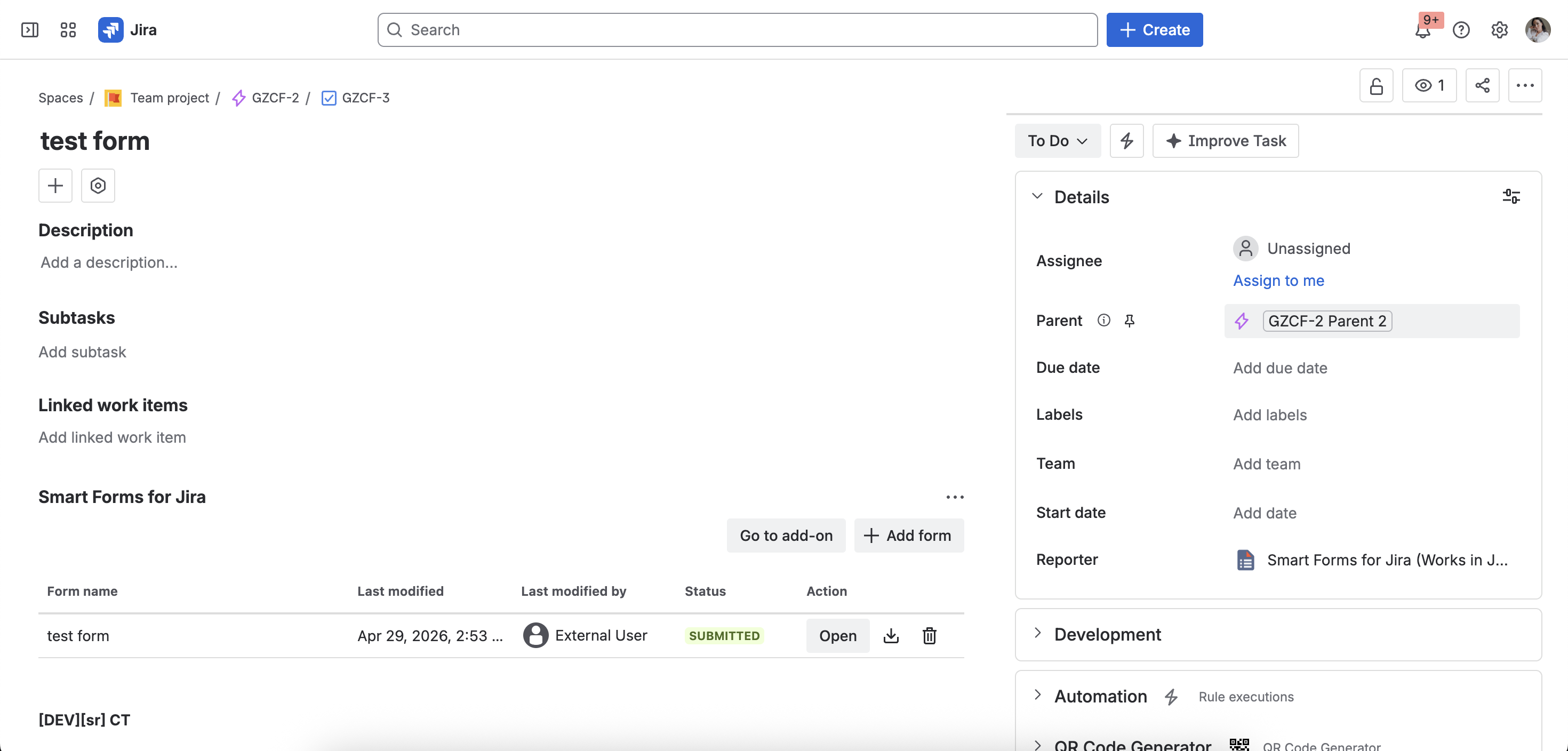
Process explanations: When the form is submitted, Smart Forms for Jira creates a new Jira work item based on the configured settings. Since the hidden Dropdown element already contains the selected Parent/Epic as the default response, the created work item is automatically linked to the selected Parent.
As a result, every work item created from this form submission will be added to the selected Epic.
Questions? Please, contact us through SaaSJet Support
Haven't used this add-on yet, then try it now!