
Smart Forms can be used to send forms to customers or other external users with information already filled in. This saves users from entering information you already have and lets you collect only the details that are still needed.
There are three ways to pre-fill a form, depending on where the information comes from:
|
Your situation |
Use |
|---|---|
|
You already have a Jira work item and want Smart Forms to automatically take values from its fields when the form is attached. Best for: automation-driven workflows where the form belongs to an existing work item. |
Method 1 — Auto-attach form with values via Automation + Auto-share |
|
You already have a Jira work item, but want to pass its values to the form through URL parameters. Best for: flexible URL-based pre-filling where you decide which Jira values to pass to the form. |
Method 2 — Auto-attach form + Auto-share with URL parameter pre-fill |
|
Your form is embedded on your own website, and your website already knows information about the visitor, such as their name, email, or subscription plan. Your website's script adds these values to the form URL. No Jira work item or Jira Automation is required to pre-fill the form. Best for: customer portals, account pages, logged-in users, or any website where visitor information is already available. |
All three methods can be used with external forms, so recipients can open and submit them without needing a Jira account.
Method 1 — Auto-attach form with values via Automation + Auto-share
Use this method when the second form belongs to an existing Jira work item and you want to pre-fill it with values from that work item.
Example
A customer submits an initial request and creates work item:
-
Ticket ID:
HEALTH-1245 -
Customer Name: Alex Morgan
-
Customer Email: alex@example.com
Later, you need Alex to provide additional health information. Instead of sending an empty form, Jira Automation can:
-
Attach a second Smart Form to
HEALTH-1245. -
Pre-fill Ticket ID, Customer Name, Customer Email, and other mapped fields from the work item.
-
Generate an external URL for the form.
-
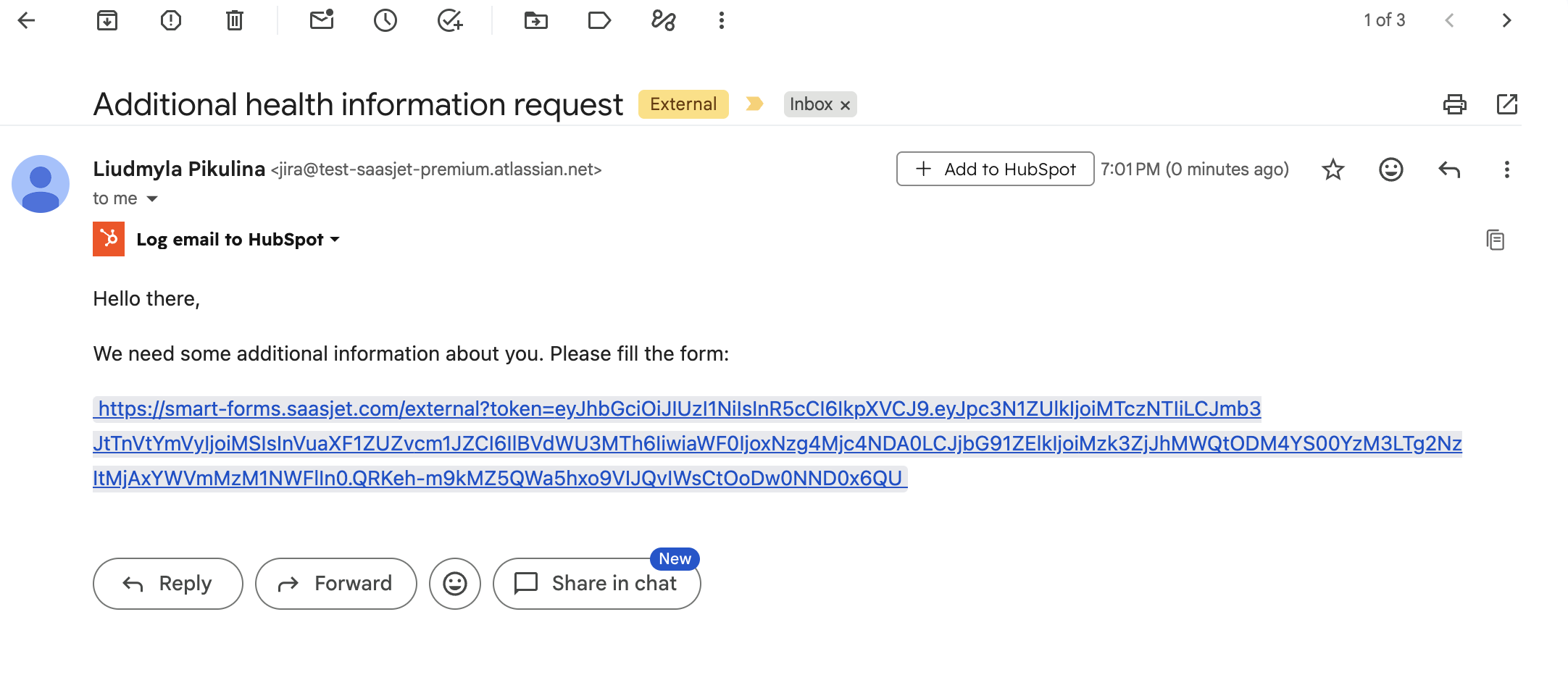
Send the URL to Alex automatically.
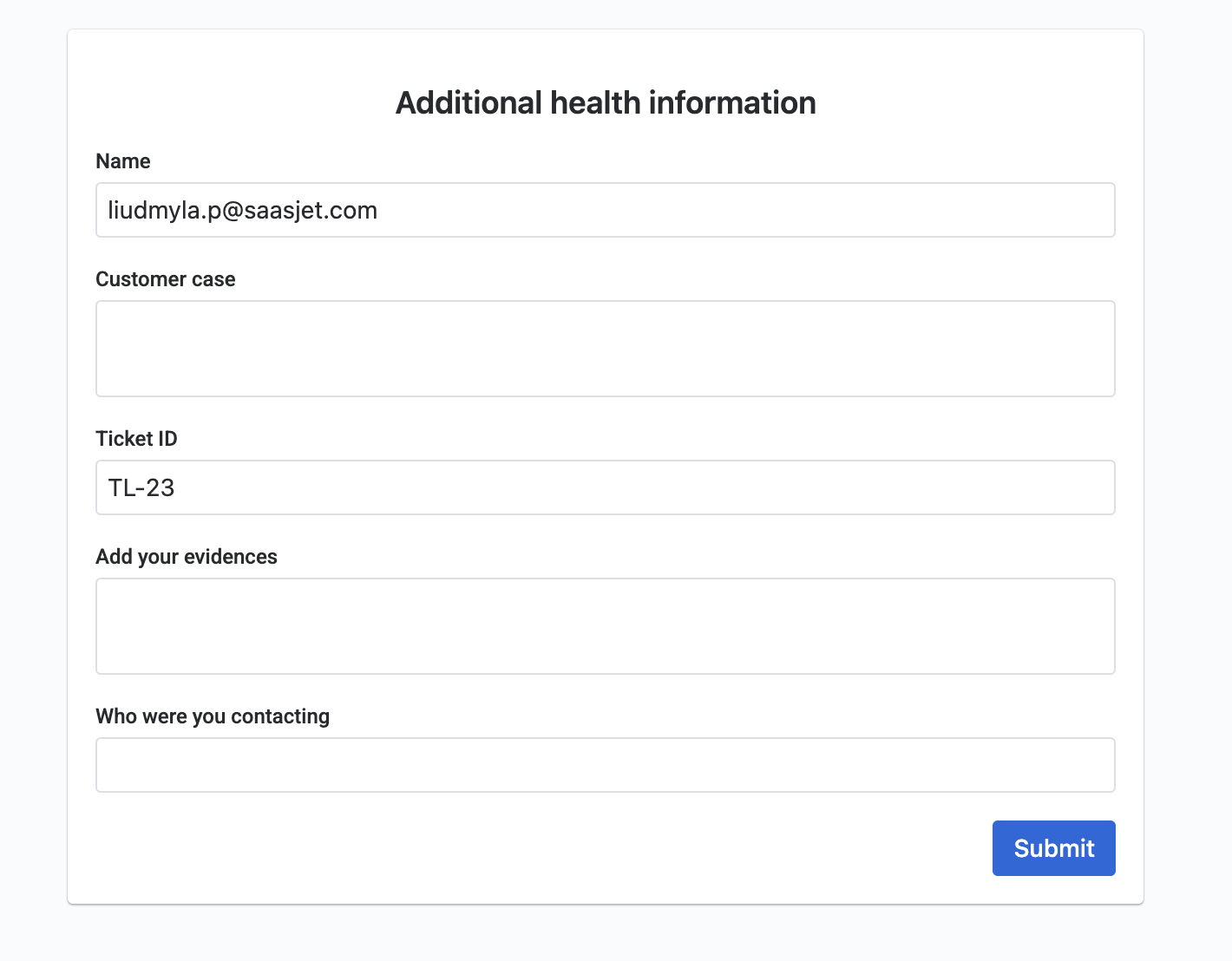
Alex opens the form with the information already filled in and only needs to provide the missing details. When the form is submitted, the response is saved back to HEALTH-1245.
Step 1: Configure the form in Smart Forms
-
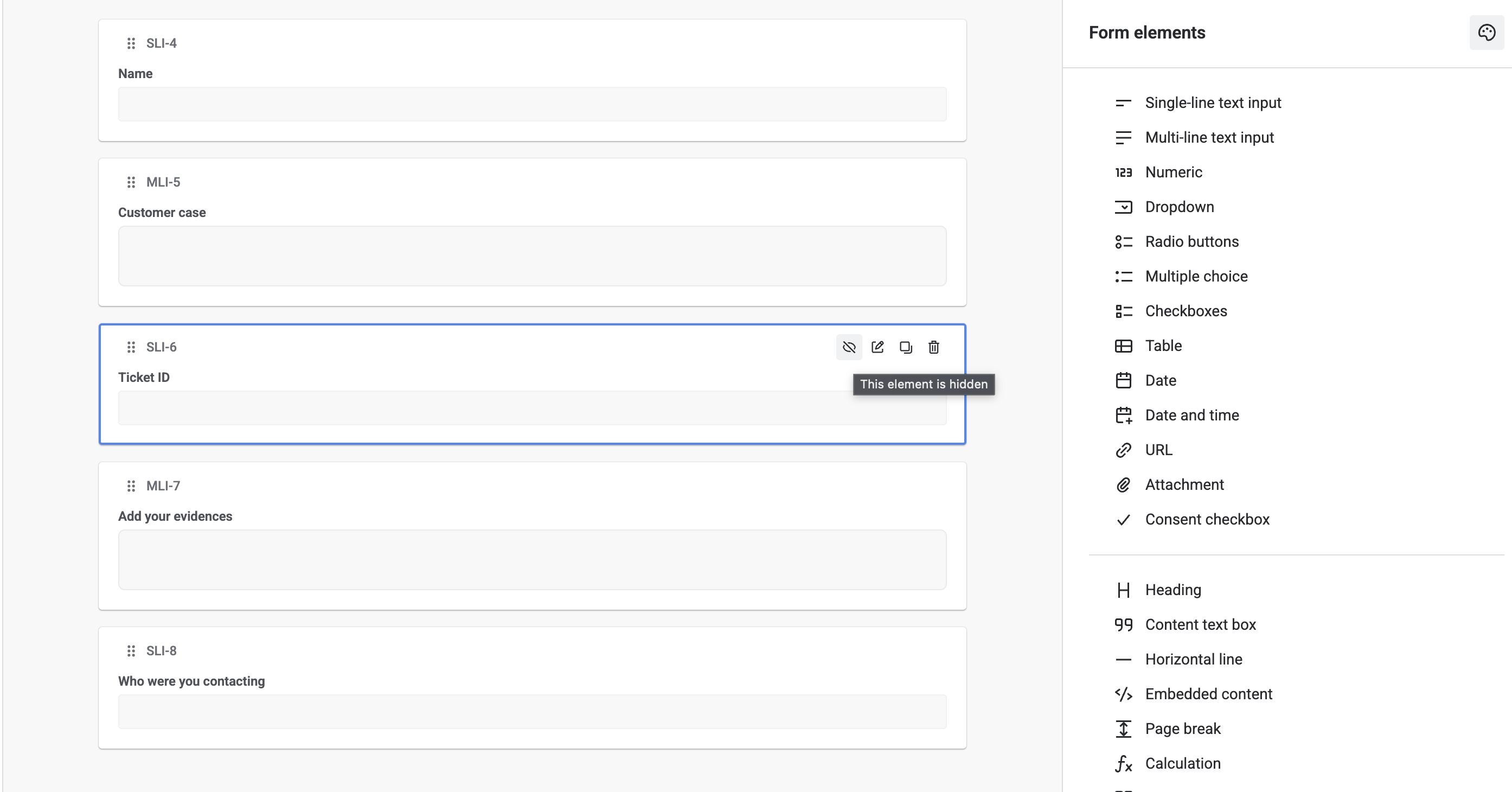
Create the second form with the fields the customer needs to complete (the health-information questions), plus the fields that should arrive pre-filled (Ticket ID, Customer Name, Customer Email).
-
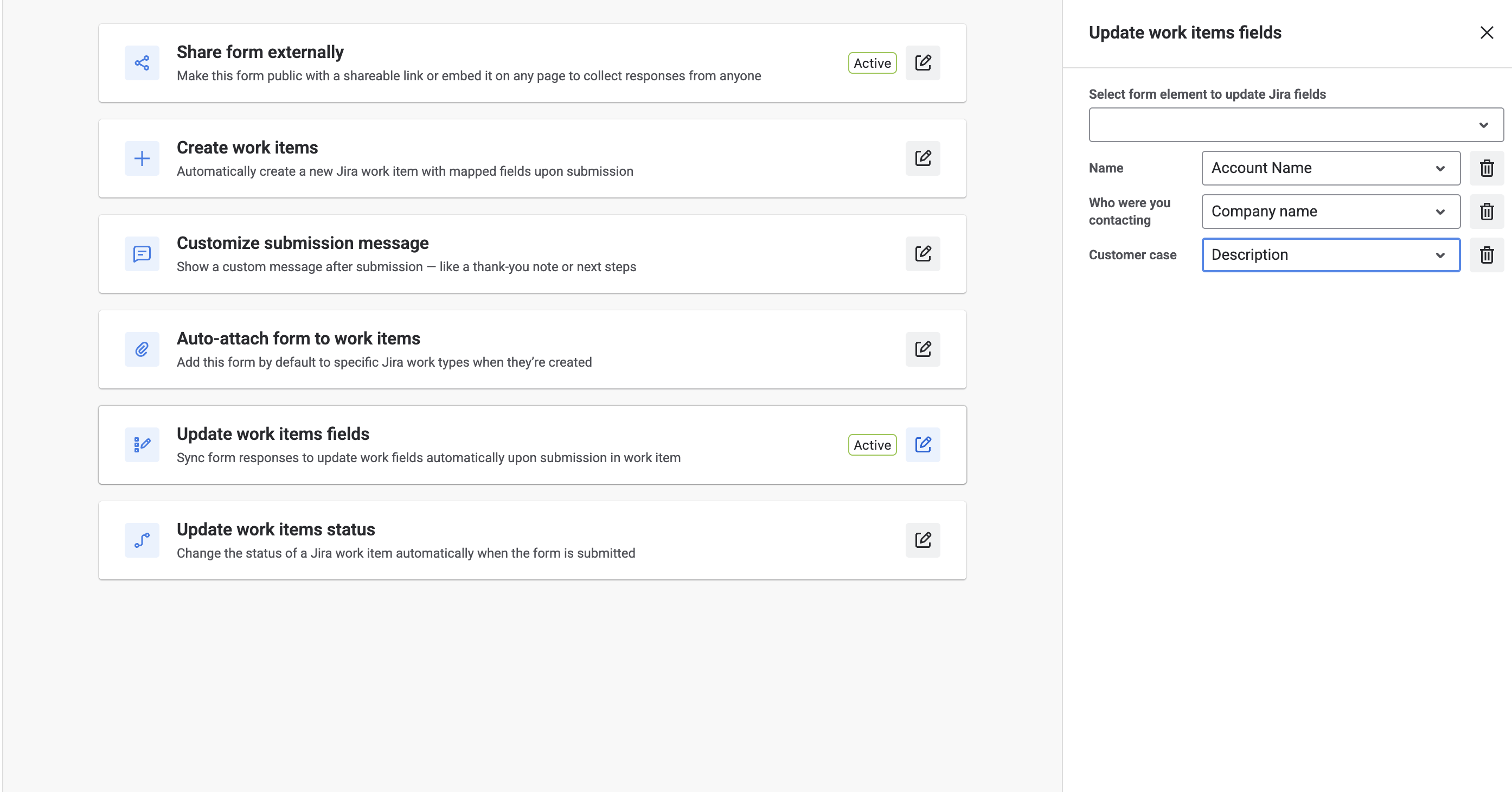
Map each pre-filled element to the work item field it should carry, in the form's Settings tab:
-
Set any field the customer shouldn't change to hidden. A hidden Ticket ID still travels with the submission and can be used later by automation for linking or routing.
Step 2: Attach the form with values
-
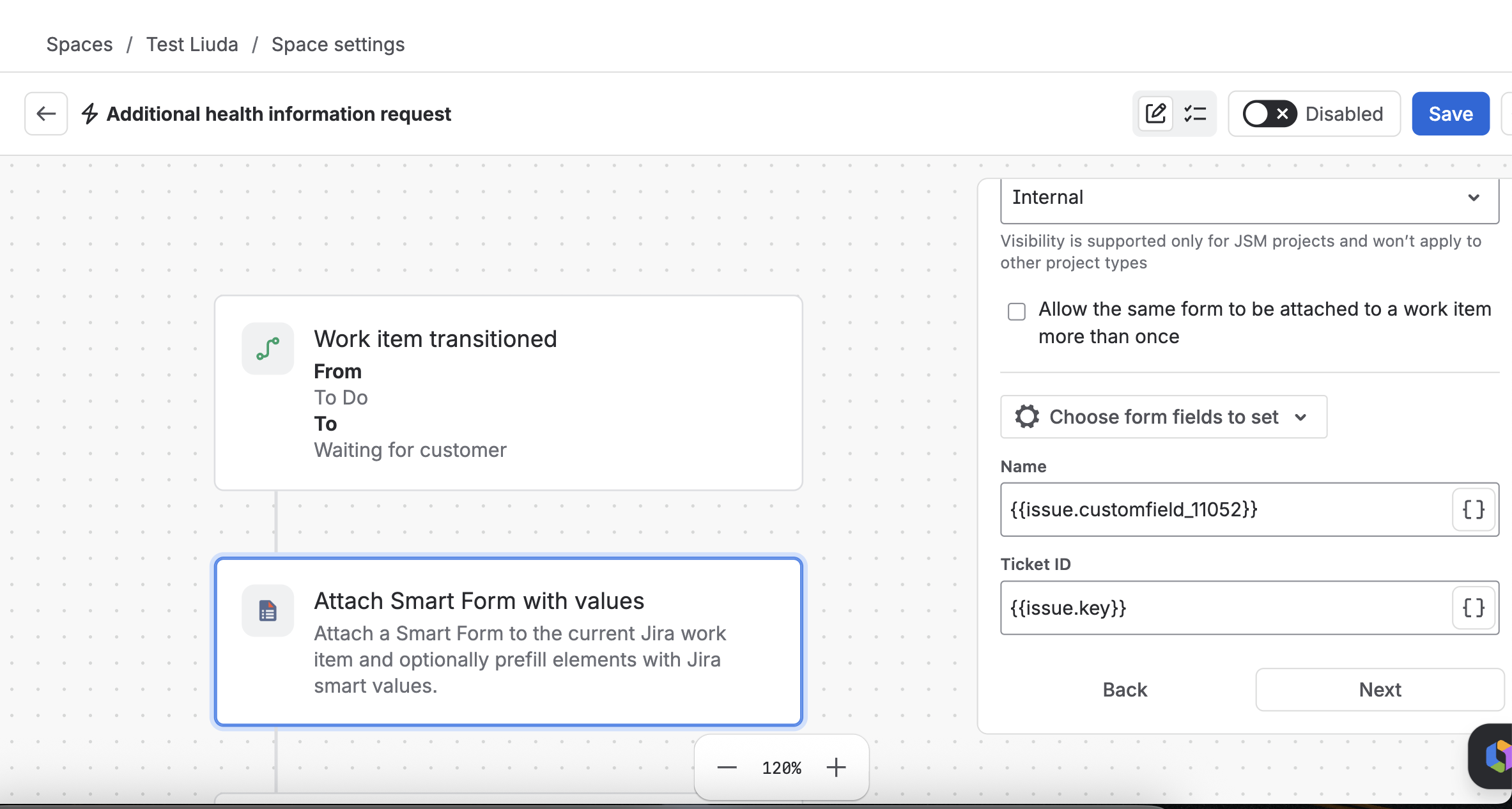
Via automation — add the Smart Forms add form with values action to your rule, so the form attaches only when the trigger fires. The action attaches the mapped form to the current work item and pulls its values in.
Step 3: Configure Jira Automation
Trigger
Whatever moment the second form should go out. For example:
When: work item transitions to Awaiting Details
(You can use any trigger: Issue Created, Field Updated, Scheduled, etc.)
Action: Send Email
Choose recipients:
-
Reporter
-
Assignee
-
Custom email field (e.g. the customer's email,
{{issue.customfield_10255}}) -
Any external email address
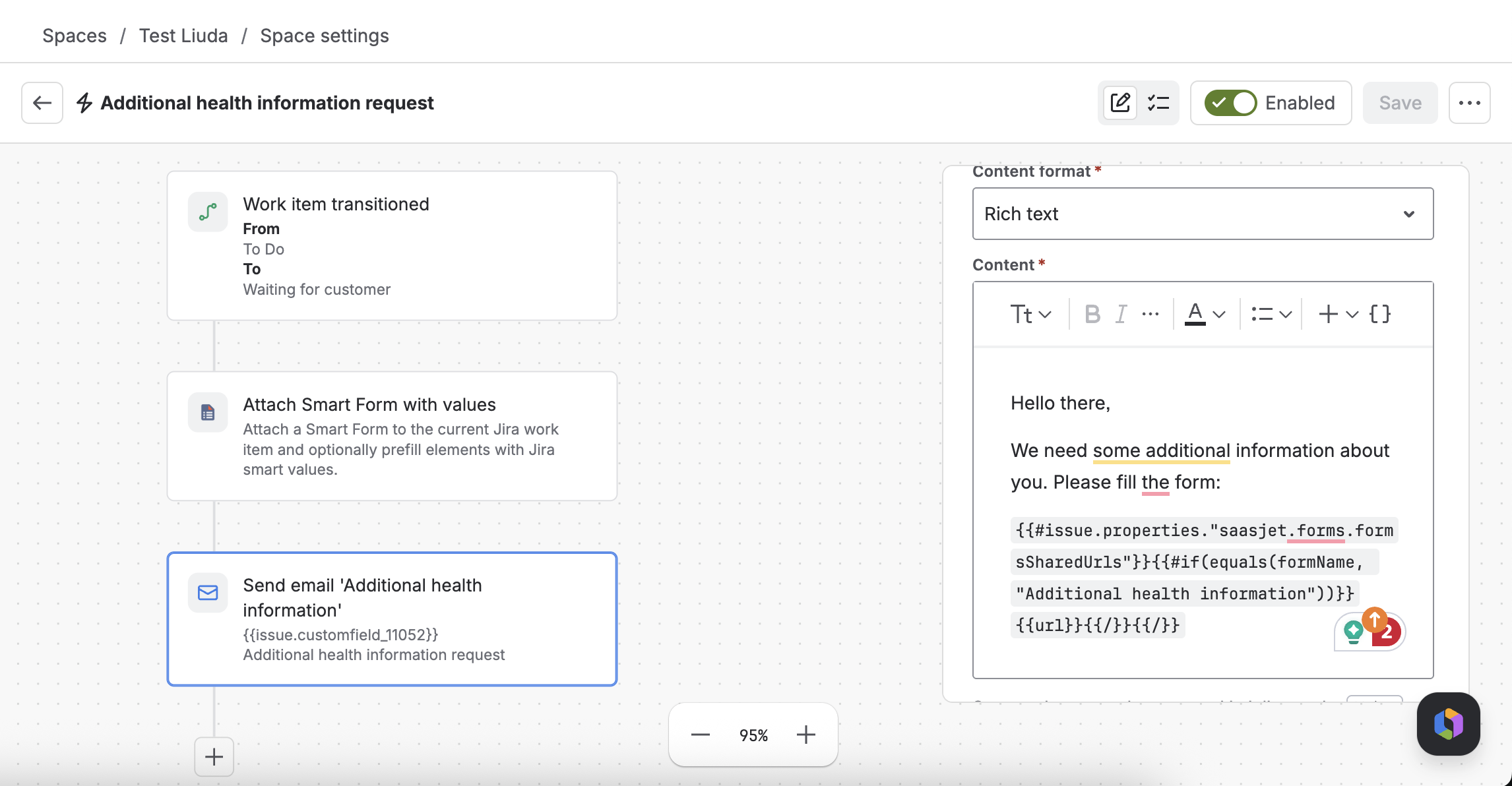
Retrieve the External Form URL
Use this Smart Value in the email body:
{{#issue.properties."saasjet.forms.formsSharedUrls"}}
{{#if(equals(formName, "Your Form Name"))}}
{{url}}
{{/}}
{{/}}
Important:
-
Replace
"Your Form Name"with your exact form name. -
The name is case-sensitive.
-
No parameters are appended here — the values are already in the attached form.
Save and activate the rule.
The result
When the work item reaches Awaiting Details:
-
Jira attaches the form to the item and pre-fills it from the item's fields.
-
Jira sends the email with the form link.
-
The customer opens the form with Ticket ID, Name, and Email already filled.
-
They complete the remaining health-information fields and submit.
-
The response writes back to
HEALTH-1245. Optionally, on submission Smart Forms can update work item fields or change status.
Linking two work items. If the second form creates its own work item rather than updating the first, keep the Ticket ID in a hidden field. An automation rule can read that value on submission and link the new item back to
HEALTH-1245, so the two stay connected without the customer seeing anything.
Method 2 — Auto-attach form + Auto-share with URL parameter pre-fill
Use this method when the form belongs to an existing Jira work item, but you want to pass selected Jira values to the form through URL parameters.
Unlike Method 1, the values are not passed when the form is attached. Instead, the form defines placeholders, and Jira adds the corresponding values to the external form URL.
Step 1: Configure the form in Smart Forms
-
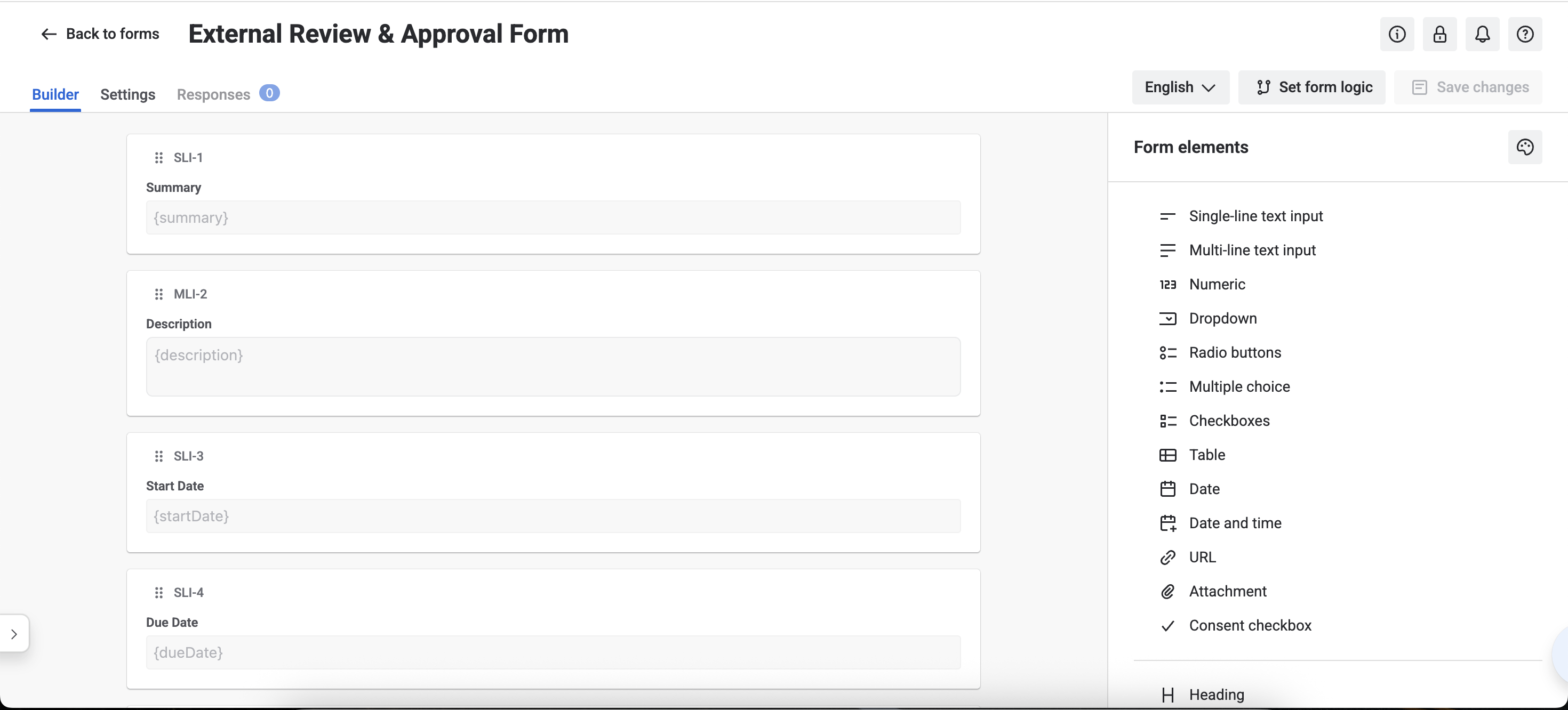
For each text field you want pre-filled, put a placeholder in its Default Response, wrapped in curly braces:
{summary},{description},{startDate}. You can use any parameter name — just wrap it in{ }.Important:
-
Parameter names are case-sensitive.
-
The URL parameter must match the placeholder exactly.
-
If needed, these form elements can be hidden from the form preview.
Supported form elements for parameters:
-
Single-line text input
-
Multi-line text input
-
Hide any the user shouldn't edit.
Step 2: Configure Auto-attach
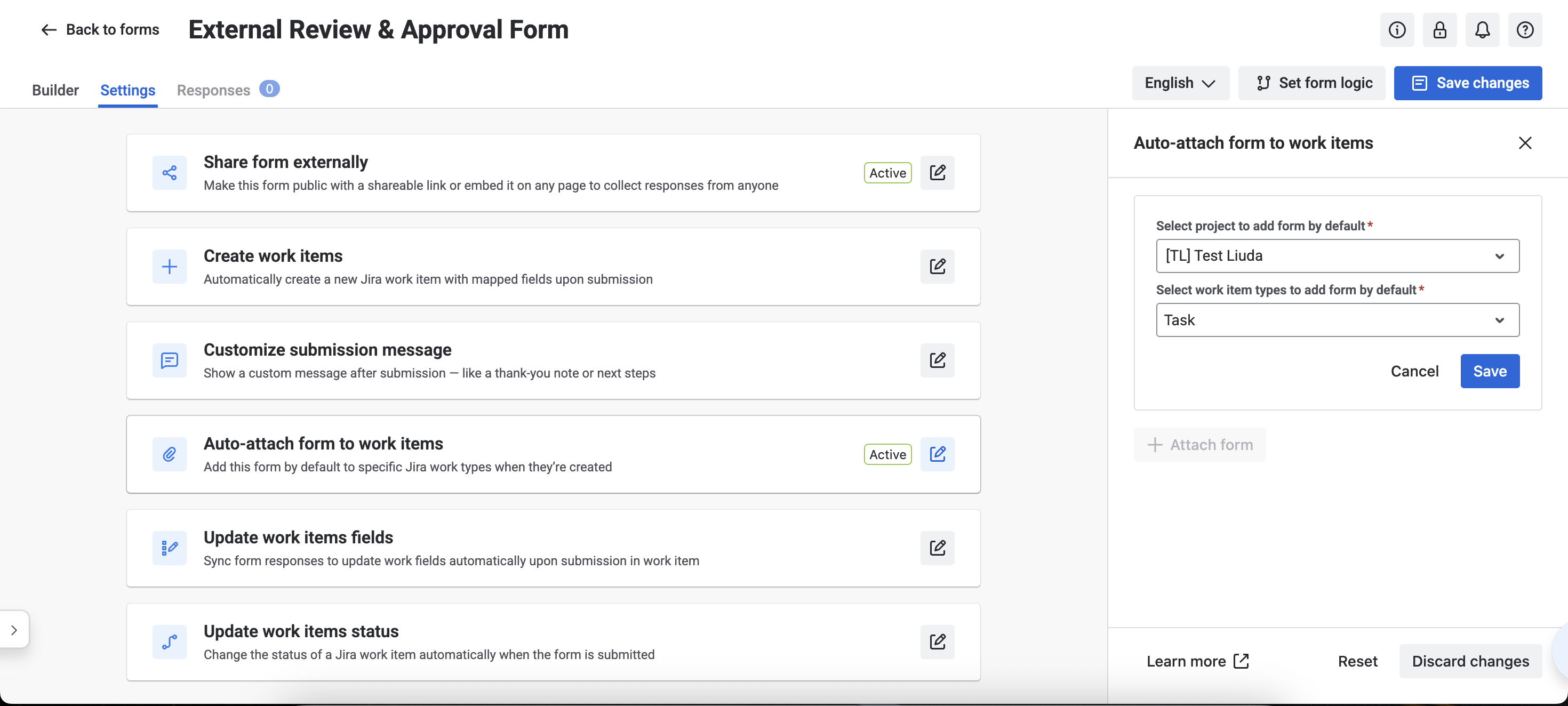
Enable Auto-attach form to work items so the form is automatically added whenever the required work item is created.
If you also want submitted answers to be written back to Jira fields, configure Update work items fields.
Step 3: Configure Jira Automation
Trigger
Whatever moment the second form should go out. For example:
When: work item transitions to Awaiting Details
(You can use any trigger: Issue Created, Field Updated, Scheduled, etc.)
Action: Send Email
Choose recipients:
-
Reporter
-
Assignee
-
Custom email field (e.g. the customer's email,
{{issue.customfield_10255}}) -
Any external email address
Retrieve the External Form URL
Use this Smart Value in the email body:
{{#issue.properties."saasjet.forms.formsSharedUrls"}}
{{#if(equals(formName, "Your Form Name"))}}
{{url}}
{{/}}
{{/}}
Important:
-
Replace
"Your Form Name"with your exact form name. -
The name is case-sensitive.
Append Jira Field Parameters
After the Smart URL, add Jira field values as parameters.
Example:
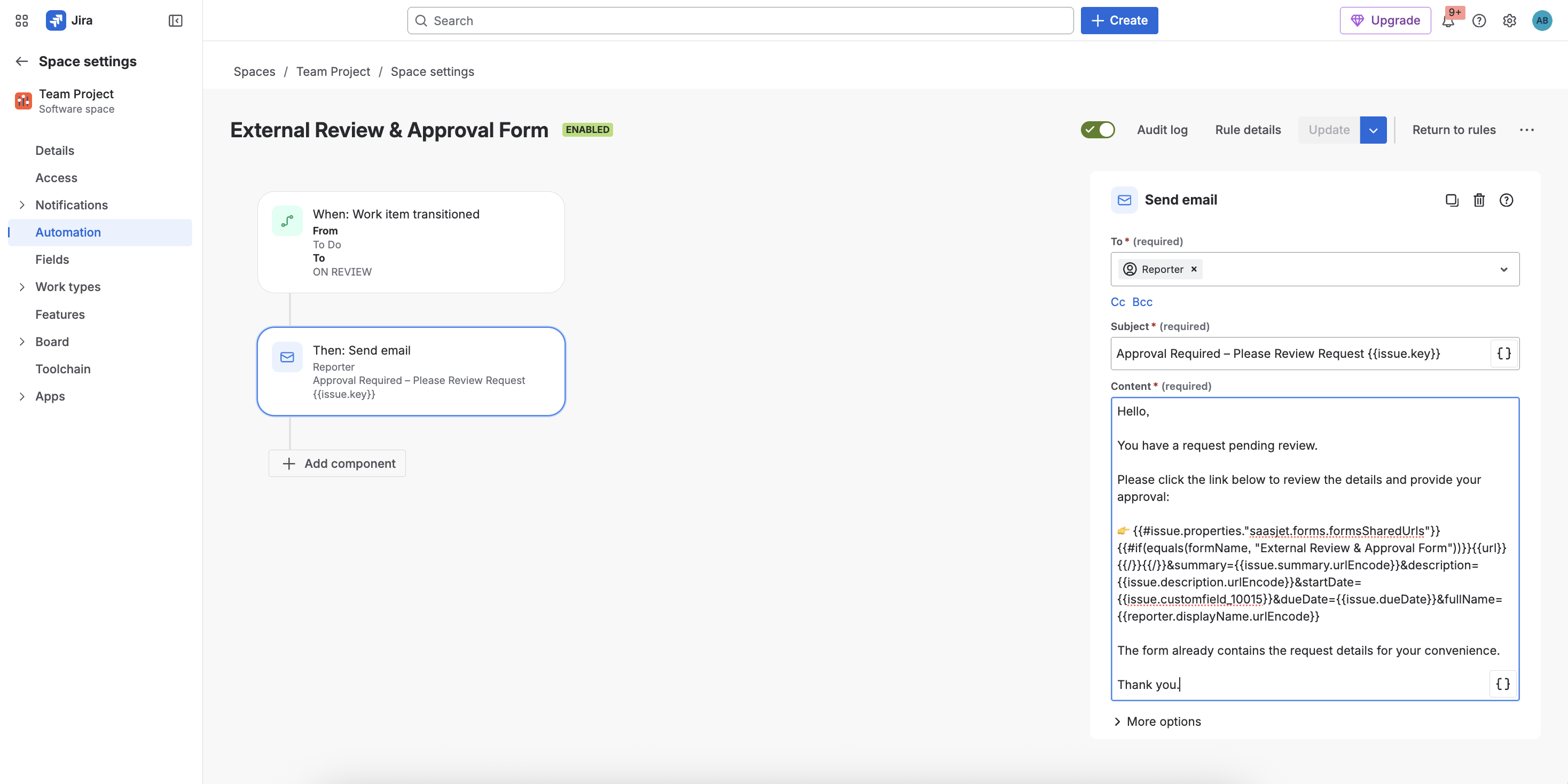
{{#issue.properties."saasjet.forms.formsSharedUrls"}}
{{#if(equals(formName, "External Review & Approval Form"))}}
{{url}}
{{/}}
{{/}}
&summary={{issue.summary.urlEncode}}
&description={{issue.description.urlEncode}}
&startDate={{issue.customfield_10015}}
&dueDate={{issue.dueDate}}
&fullName={{reporter.displayName.urlEncode}}
Notes:
-
Always use
.urlEncodeto prevent broken links in text Jira fields. -
Parameter names must match form placeholders.
-
You can pass any Jira field, including custom fields.
What the recipient experiences
-
The rule fires and the email goes out.
-
They click the link — no Jira account needed.
-
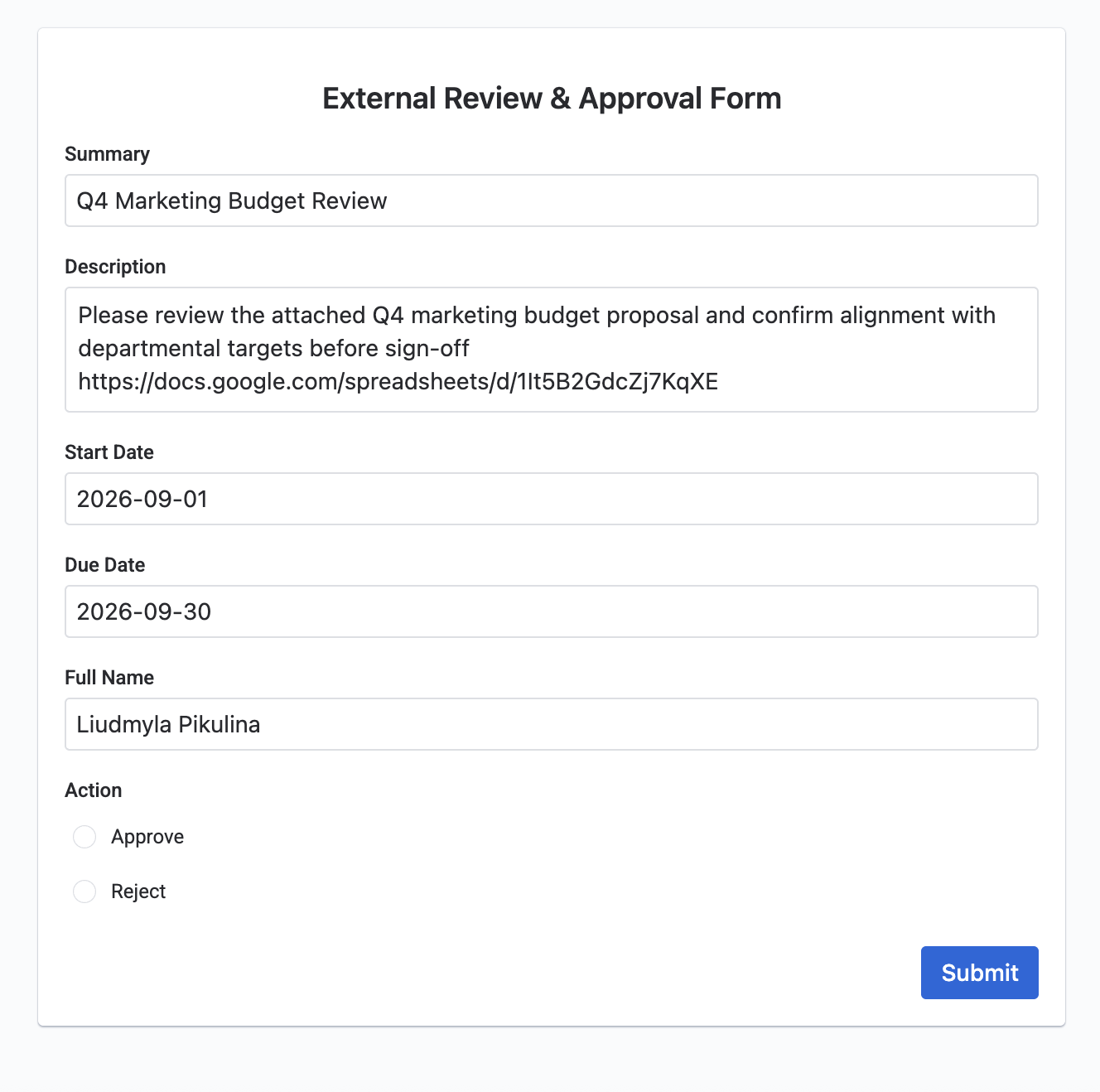
The form opens with the known details already filled.
-
They complete only what's left and submit.
-
Their answers land on the work item (and move its status, if you set that up).
Method 3 — Pre-fill from your site's own script (no Jira item, no Automation)
Use this method when the form is embedded on your own website and your website already knows the visitor's information, such as their name, email, or plan.
The website script adds this information to the form URL as URL parameters. No Jira work item or Jira Automation is required to pre-fill the form.
Step 1: Build the form in Smart Forms
-
Create the form with the fields you want the visitor to complete.
-
For each field you want to pre-fill, add a placeholder to its Default Response, wrapped in curly braces.
For example:
-
{fullName} -
{email} -
{plan}
-
-
Make sure the placeholder names are unique and easy to identify.
-
Hide any fields the visitor shouldn't edit.
Important:
-
Parameter names are case-sensitive.
-
The URL parameter must match the placeholder exactly.
-
Supported form elements for URL parameter pre-filling:
-
Single-line text input
-
Multi-line text input
-
Step 2: Get the form's external share link
-
Open the form's Share settings.
-
Copy the form's general external share URL.
-
Use this URL as the base URL in your website script.
For example:
https://your-share-link
Do not add the parameters manually to the Smart Forms configuration. Your website will add them dynamically.
Step 3: Get the visitor's information from your website
Your website should already have access to the information you want to pass to the form.
For example:
fullName = currentUser.name
email = currentUser.email
plan = currentUser.plan
The exact way you retrieve these values depends on how your website handles authentication and user data.
Step 4: Build the pre-filled form URL
Use your website's script to append the values as URL parameters.
For example:
const formUrl =
  `https://your-share-link` +
  `?fullName=${encodeURIComponent(currentUser.name)}` +
  `&email=${encodeURIComponent(currentUser.email)}` +
  `&plan=${encodeURIComponent(currentUser.plan)}`;
The resulting URL will look similar to:
https://your-share-link?fullName=Alex%20Morgan&email=alex%40example.com&plan=Premium
The values are matched to the form fields using the placeholders configured in Step 1.
Step 5: Open or embed the form
You can use the generated URL in different ways depending on your website.
Open the form in a new page:
window.location.href = formUrl;
Open the form in a new tab:
window.open(formUrl, '_blank');
Embed the form in an iframe:
<iframe id="smart-form" width="100%" height="800"></iframe>

<script>
  document.getElementById('smart-form').src = formUrl;
</script>
Step 6: Map the values to Jira
If the form creates a new Jira work item, configure the form so that the submitted values are mapped to the appropriate Jira fields.
For example:
|
Form field |
Jira field |
|---|---|
|
Full Name |
Customer Name |
|
|
Customer Email |
|
Plan |
Customer Plan |
When the visitor submits the form, the pre-filled values are submitted along with the rest of the form data and can be mapped to the new Jira work item.
What the visitor experiences
-
The visitor opens your website and signs in.
-
Your website retrieves their information from the current session or account profile.
-
Your script generates a Smart Forms URL with those values.
-
The form opens or appears embedded with the information already filled in.
-
The visitor completes the remaining fields and submits the form.
-
Smart Forms creates the Jira work item with the submitted values mapped to the appropriate Jira fields.
Important considerations
URL-encode all values.
Always use encodeURIComponent() or an equivalent function for values inserted into the URL. This prevents names, emails, or other values containing spaces and special characters from breaking the link.
Match parameter names exactly.
The URL parameter must match the form placeholder, including capitalization. For example, {fullName} requires the URL parameter fullName, not fullname or FullName.
Only pass the information you need.
Avoid adding sensitive or unnecessary information to the URL, because URL parameters may be visible in the browser address bar, browser history, logs, or analytics tools.
Method 2 vs. Method 3
Both methods use URL parameters to pre-fill a standalone form.
-
Method 2: Jira provides the values, typically through Jira Automation and an existing work item.
-
Method 3: Your own website provides the values directly from the visitor's session or account data.
With Method 3, there is no Jira work item or Jira Automation involved when the form is pre-filled.
Notes and limits
-
One link, one submission for the method 1. A form shared from a work item accepts a single response and expires after one month. To collect from several people, attach several copies of the form.
-
URL state matters. A green icon in the add-on means the URL is live. Deactivating it blocks access immediately; regenerating it permanently breaks the old link.
-
User picker fields force verified access. If the form contains a user picker field, it's locked to Verified in instance — external email delivery won't reach anyone outside your Jira. Keep user pickers off forms meant for outside recipients.
-
Case sensitivity. Form names in the smart value, and parameter names against placeholders, both have to match exactly.
Building a lightweight customer portal from these pieces
Chain the two methods and you get a simple portal with no custom development:
-
A form on your site (Method 2) creates a Jira work item.
-
Automation attaches a second, pre-filled form and emails the link (Method 1).
-
The customer confirms, approves, or adds detail — and it all lands back on the work item.