
Connect Jira sites to share and receive Time in Status data for multi-site reports.
Overview
Connections links two Jira sites that both use Time in Status. The sharing site decides which work items and fields to share, and the receiving site gets read-only access to exactly that data. Use the Connections page to see which sites this site shares data with or receives data from, and whether each connection is working.
Before you begin
-
Edition: Connections is part of the Advanced edition.
-
Permissions:
-
To view connections, you need the Administer Jira global permission (Jira admin). Without it, Jira won't open the page. Jira admins who aren't site admins can view connections in read-only mode, without New connection or row action menus.
-
To set up and manage connections, you must also be a site admin. Setup requires a site admin on each site: one generates and shares the token, and the other enters it.
-
-
Prerequisites: Time in Status must be installed with a valid license on both sites, and both installations must support multi-site connections. Configure a work schedule on the sharing site before creating a connection.
-
Data access: Connections run on behalf of the app (
asApp()), so user-level Jira permissions do not apply. All issues returned by the configured JQL query are shared with the connected site. Make sure the query includes only the issues you intend to share.
Set up a connection between two Jira sites
Start on the site that will share data, then complete the connection on the site that will receive data.
1. Share data from the source site
-
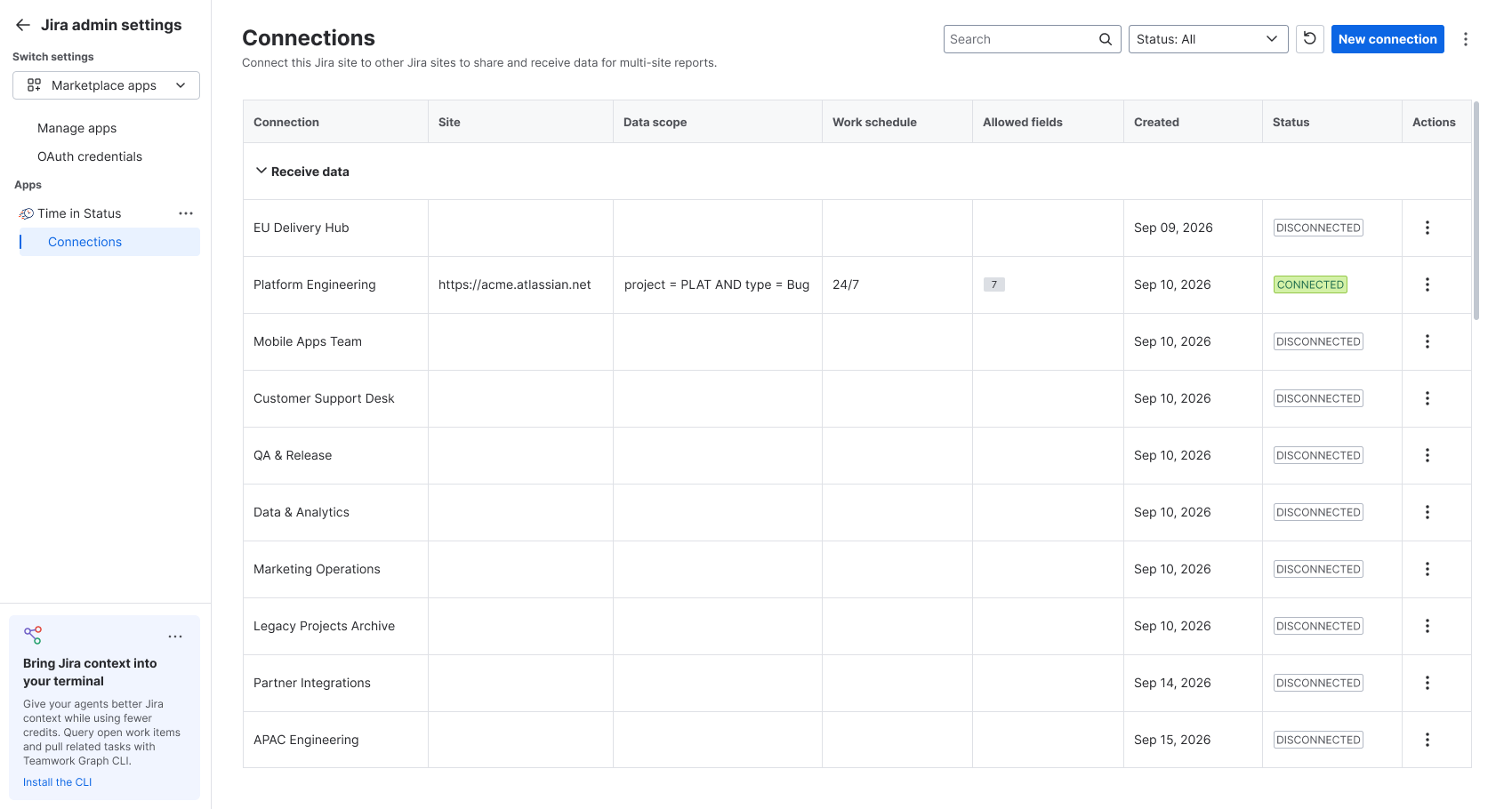
On the source site, go to Jira admin settings > Marketplace apps. In the sidebar, under Time in Status, select Connections.
-
On the Connections page, select New connection.
-
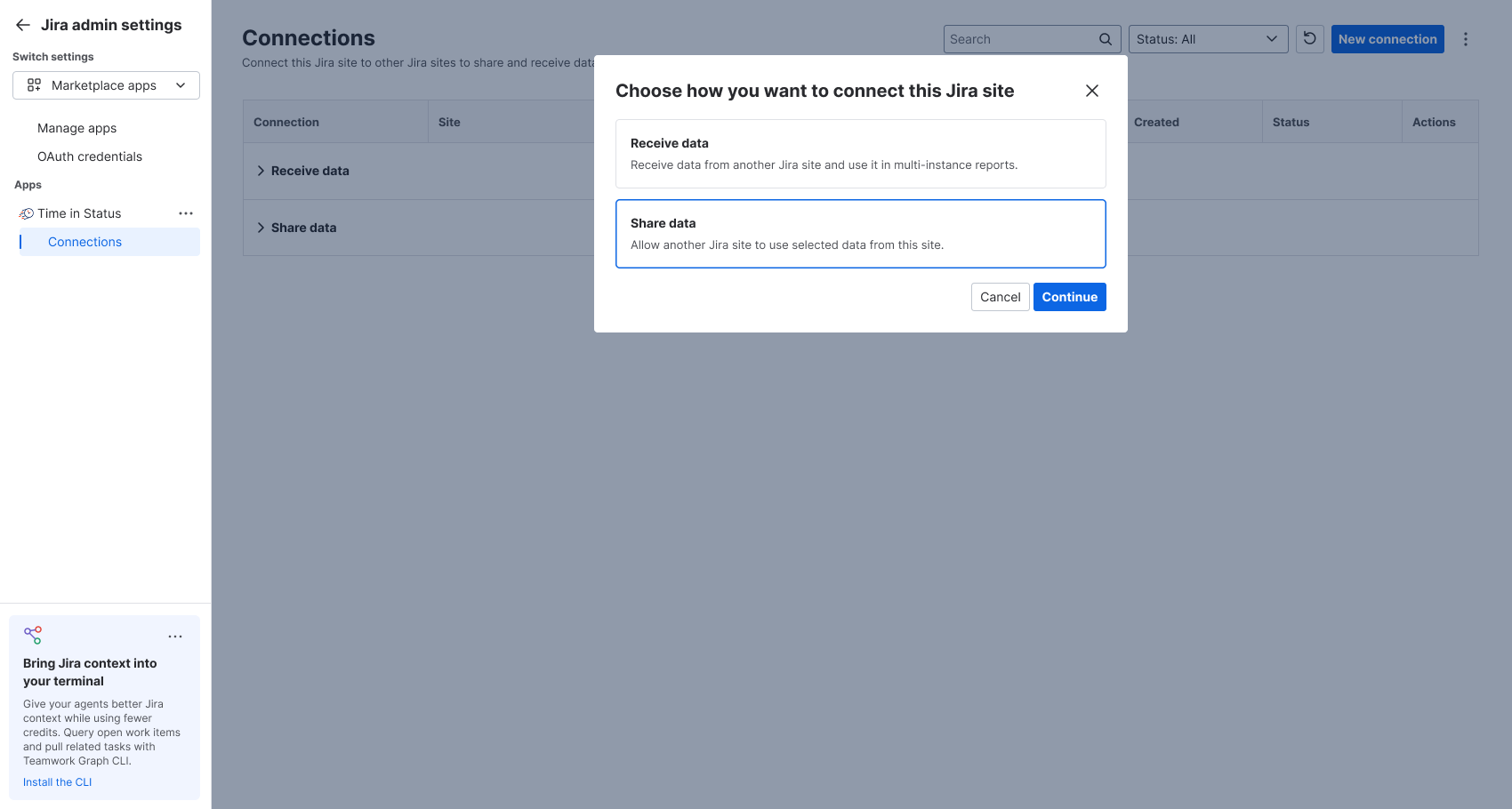
Select Share data, then continue.
-
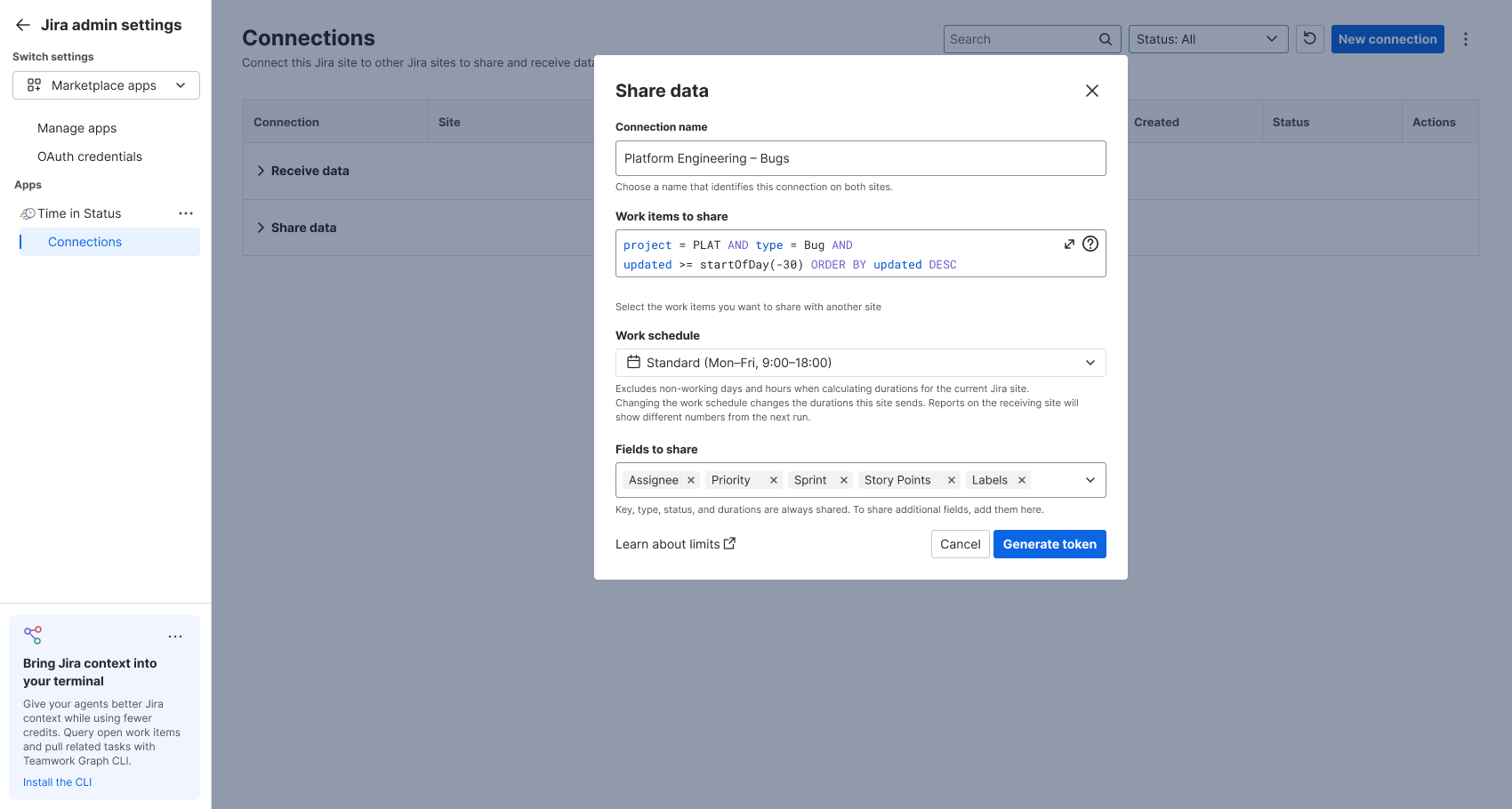
Enter a Connection name that identifies the connection on both sites. Use 1–100 characters and a name that is unique among Share data connections on this site.
-
In Work items to share, enter a JQL query that returns the work items you want to share. For example,
project = DEMOshares work items from the DEMO project; replace DEMO with your project key. -
In Work schedule, select one of this site's work schedules. The schedule excludes non-working days and hours.
-
Optional: In Fields to share, add the fields you want to share. Key, work type, status, and durations are always shared.
-
Select Generate token. The connection appears under Share data as Pending, and a dialog with the token opens.
-
Select Copy, then send the token to the site administrator who will complete the connection on the receiving site.
The token expires after 7 days and can be used once. To copy the token again later, open the row menu and select Share token.
2. Receive data on the destination site
Do this on the receiving site, using the token from the sharing site.
-
On the Connections page, select New connection.
-
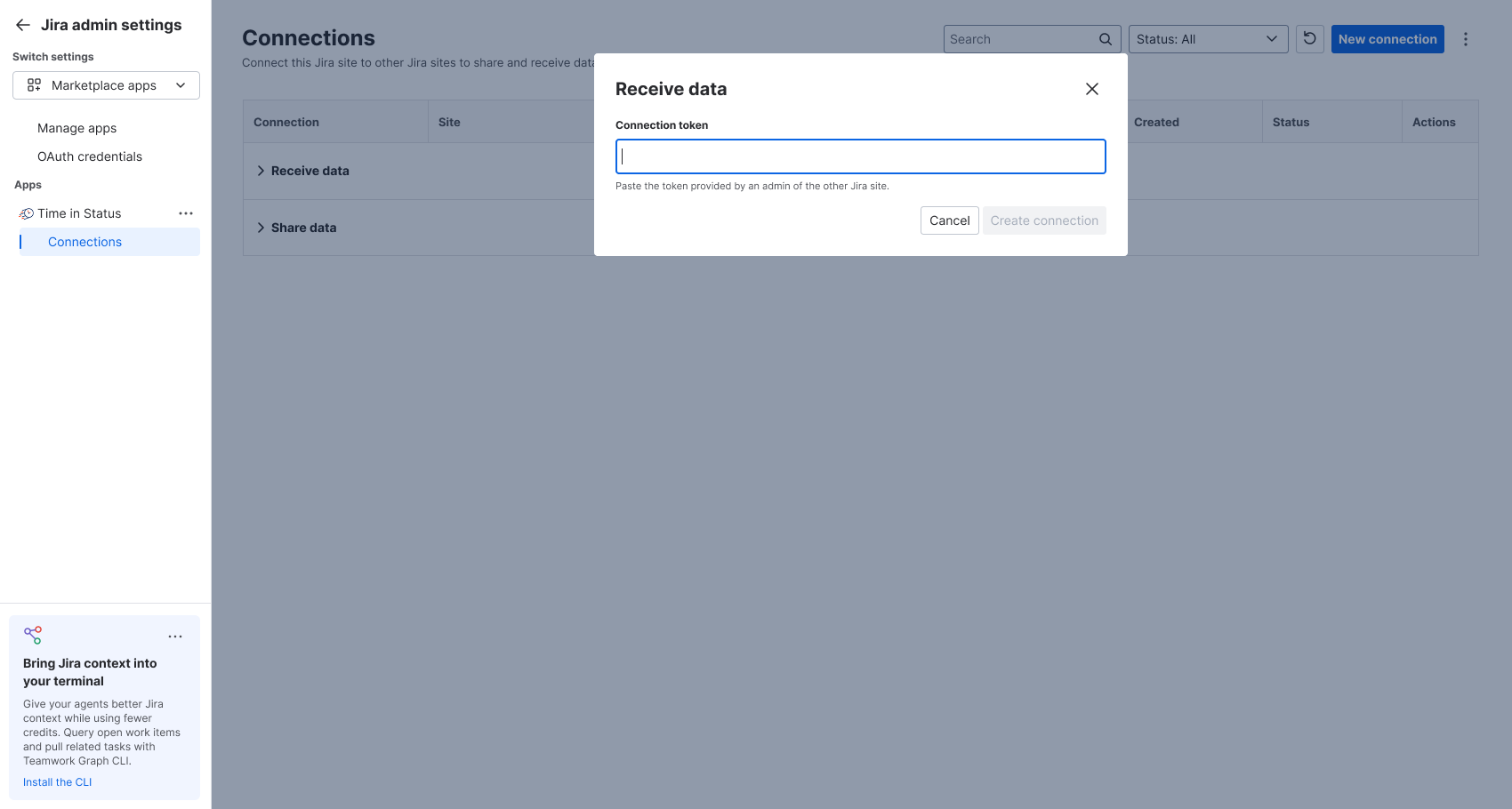
Keep Receive data selected, then confirm.
-
In Connection token, paste the token.
-
Select Create connection.
The connection may briefly appear as Pending, with only the sharing site URL displayed. After the first refresh, the name, data scope, work schedule, and allowed fields appear, and its status changes to Connected.
Once the token is used, Share token is no longer available on the sharing site.
If the token can't be used, the dialog stays open and explains why, for example that the token was already used or has expired. Ask an admin of the sharing site for a new token.
Edit a connection
-
Open Connections on the sharing site.
-
Select Edit from the connection’s row action menu.
-
Update the connection name, JQL filter, work schedule, or additional fields as needed.
-
Select Save.
The updated configuration applies to the next data request from the receiving site. You do not need a new token or another approval from the receiving site. The receiving site displays the updated settings after a metadata refresh.
Changing the work schedule changes the durations sent by the sharing site. Reports on the receiving site show the recalculated durations from the next run.
Reconnect or delete a connection
To delete a connection:
-
In the row menu, select Delete.
-
In Delete this connection?, select Delete.
The connection disappears from your site, and the other site's connection shows Disconnected. Deletion completes even if the other site can't be reached. The connection is gone completely once both sites delete it.
To reconnect a Disconnected connection, select Reconnect in its row menu:
-
On the sharing site: Generate a new token, then send it to the receiving site.
-
On the receiving site: Paste the new token in the form that opens. Your connection name stays the same.
To replace an expired token on the sharing site, select Generate new token in the row menu, or Generate in the token dialog. The old token stops working, and the connection returns to Pending.
Connection statuses
Hover over or focus on a status label to see more information.
|
Status |
Meaning |
What to do |
|---|---|---|
|
Pending |
Sharing site: the token hasn't been used yet. Receiving site: the connection is waiting for its first metadata refresh. |
Complete setup on the receiving site, or refresh to check again. |
|
Connected |
The latest exchange between the sites succeeded. |
The connection is ready for use in multi-site reports. |
|
Token expired |
A sharing token was not used within 7 days. |
Generate a new token on the sharing site. |
|
Disconnected |
The connection was removed on the other site. Site, data scope, work schedule, and allowed fields are cleared from the row. |
Reconnect with a new token, or delete the remaining connection. Only Reconnect and Delete are available. |
|
Error |
The latest exchange failed. The status explanation identifies the cause. |
Follow the displayed guidance. After a successful exchange, the connection returns to Connected. |
Resolve connection errors
|
Problem |
Action |
|---|---|
|
Invalid token |
Check that you copied the entire token and try again. |
|
Used or expired token |
Ask the sharing site administrator for a new token. |
|
Other site rejected the connection |
Ask its administrator for a new token. |
|
Error continues without a clear cause |
Try again, then contact support if the problem persists. |
Behavioral details
-
Direction: Connections are grouped under Receive data and Share data.
-
Refresh: Connection details update automatically while the page is open and visible. Use the refresh control to check for updates manually.
-
Setting changes: Changes made on the sharing site appear on the receiving site after the next successful refresh, without a confirmation prompt.
Learn about limits