
Want to keep your team updated on Jira changes without manually exporting and sharing reports?
With Issue History for Jira and Jira Automation, you can automatically generate history reports and share download links directly in Jira work item comments.
This makes it easier for project managers, team leads, and other stakeholders to access regular updates without leaving Jira.
Use case: Share monthly Jira history reports in a work item comment
Scenario: A project manager uses a dedicated Jira work item to track monthly project reviews. At the beginning of each month, they need a report showing what changed across the project during the previous month.
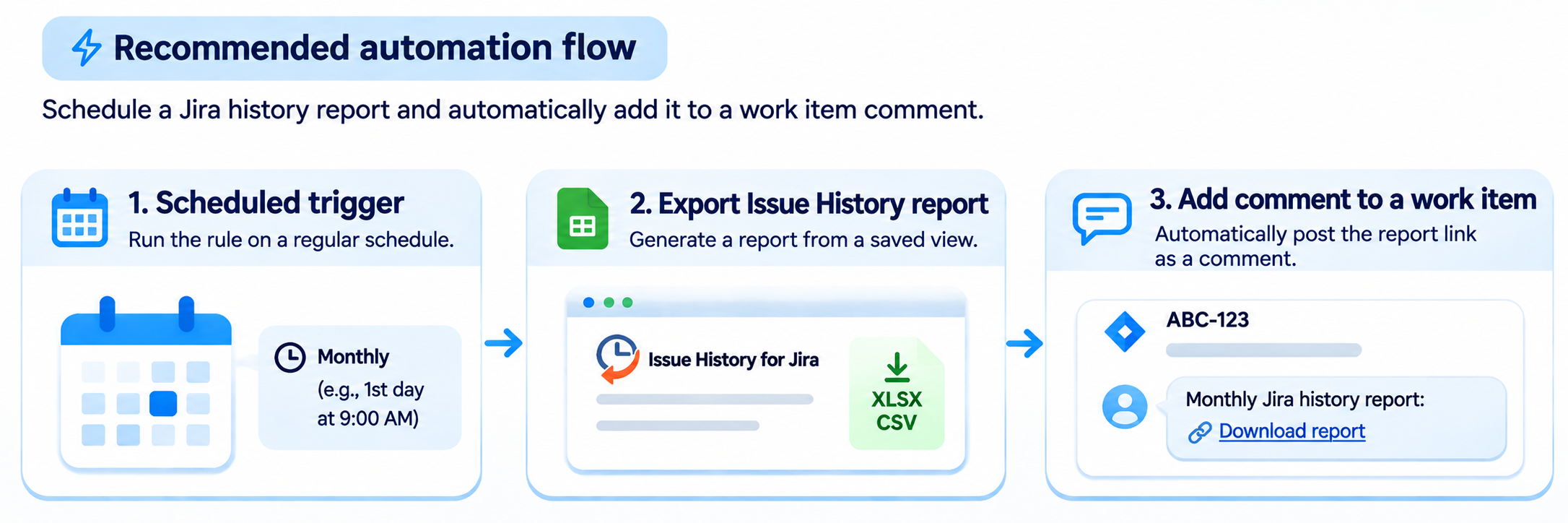
Instead of manually exporting the report and adding it to the work item, they can configure Jira Automation to:
-
Run automatically on the first day of each month.
-
Generate a history report in Issue History for Jira.
-
Post a comment containing the report download link in a selected Jira work item.
This keeps monthly report links in one place, making them easy for the team to find and review.
How to schedule Jira reports in work item comments
Step 1. Create and save your history report
-
Open Issue History for Jira and go to Table View.
-
Select the Jira project and apply the necessary filters, such as dates and updaters.
-
Add necessary fields using the Columns menu.
-
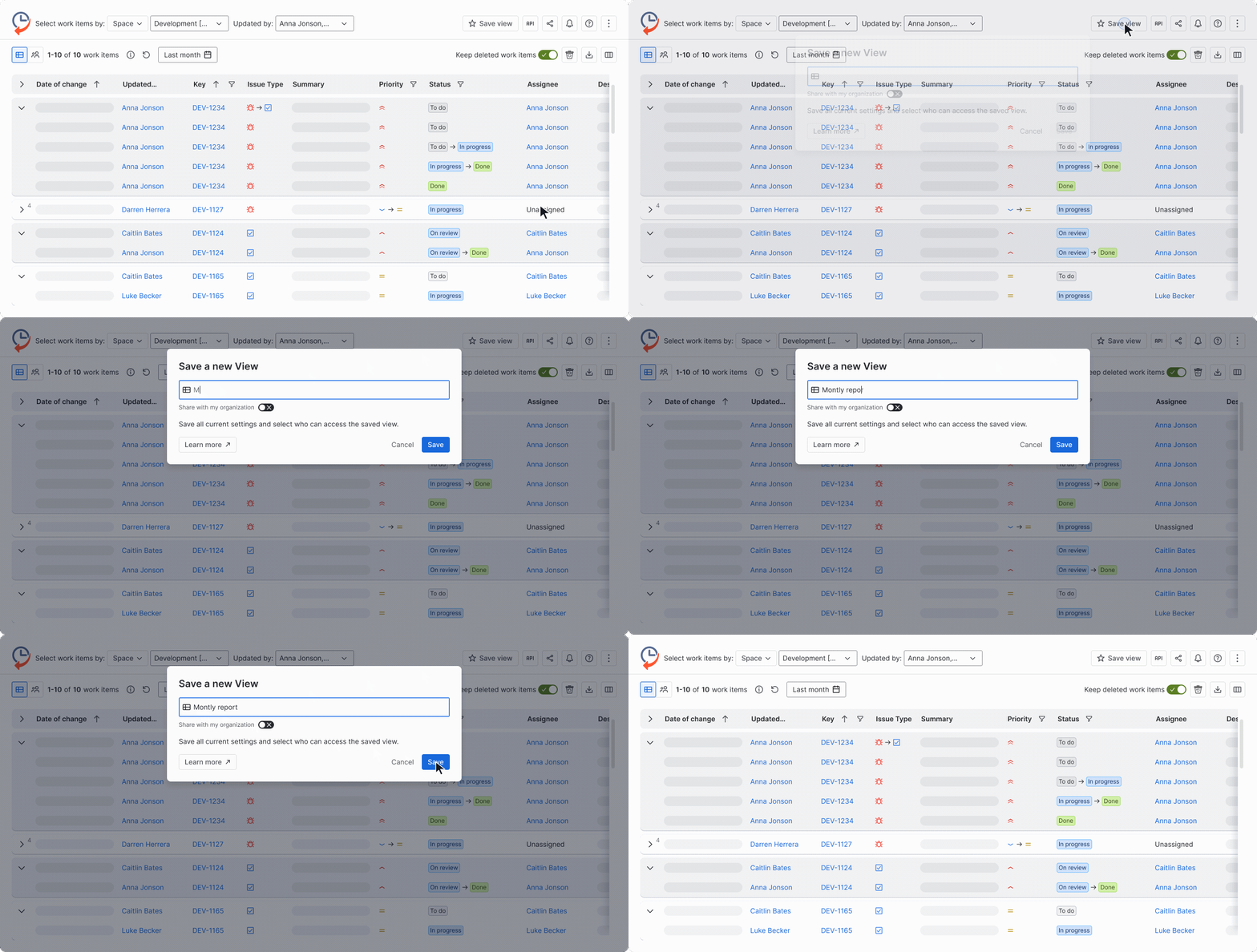
Click Save View and give your report a name, such as Monthly Report.
Step 2. Set up the automation
-
Open Space settings → Automation in Jira.
-
Create a new automation rule.
-
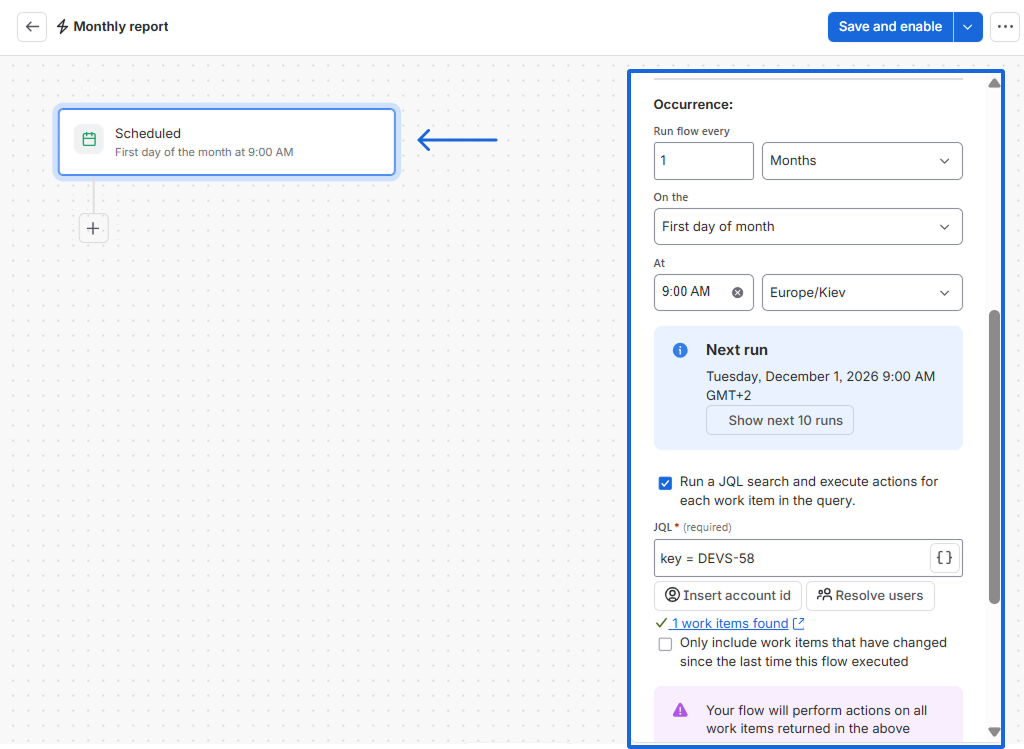
Select the Scheduled trigger.
-
Configure it to run monthly, for example, on the 1st day of every month at 9:00 AM. This ensures the automation runs at the beginning of each month.
-
If you're using a dedicated work item for collecting reports, make sure the rule targets that work item. You can use a JQL query such as:
key = PROJ-123(replacePROJ-123with your Jira work item key).
Step 3. Configure the Issue History report export
-
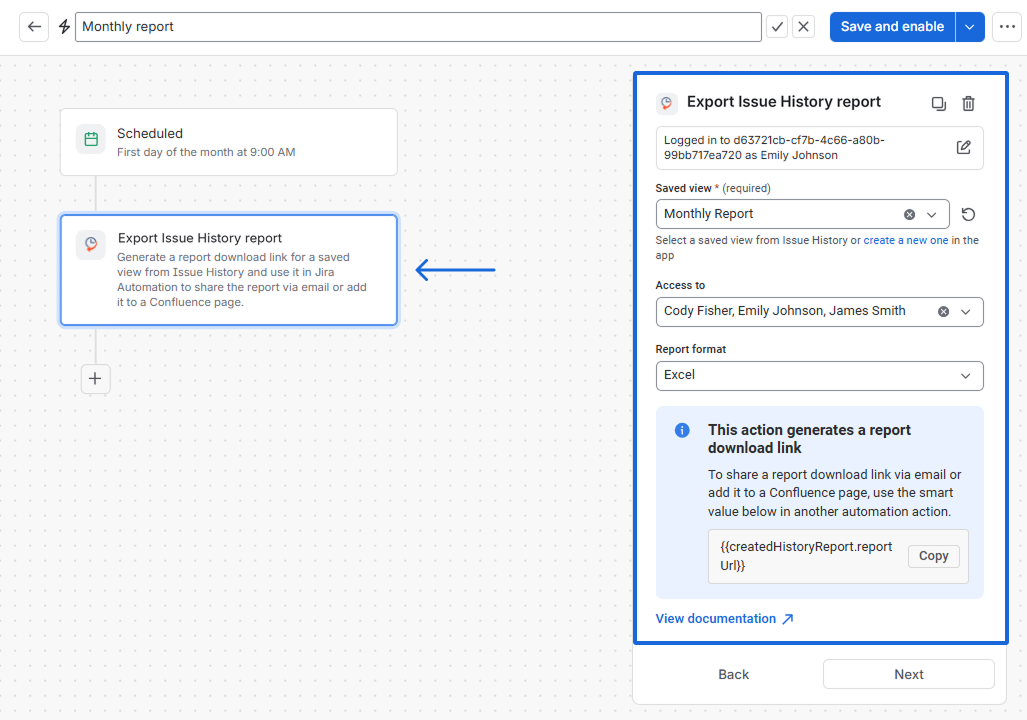
Add the Export Issue History report action.
-
Select your Monthly Report Saved View.
-
Under Access to, choose Any user or Specify the user/users, depending on who should access the report.
-
Select the export format: Excel, Excel Advanced, or CSV.
-
Copy the report link smart value:
{{createdHistoryReport.reportUrl}}
-
Click Next.
Step 4. Configure the work item comment
-
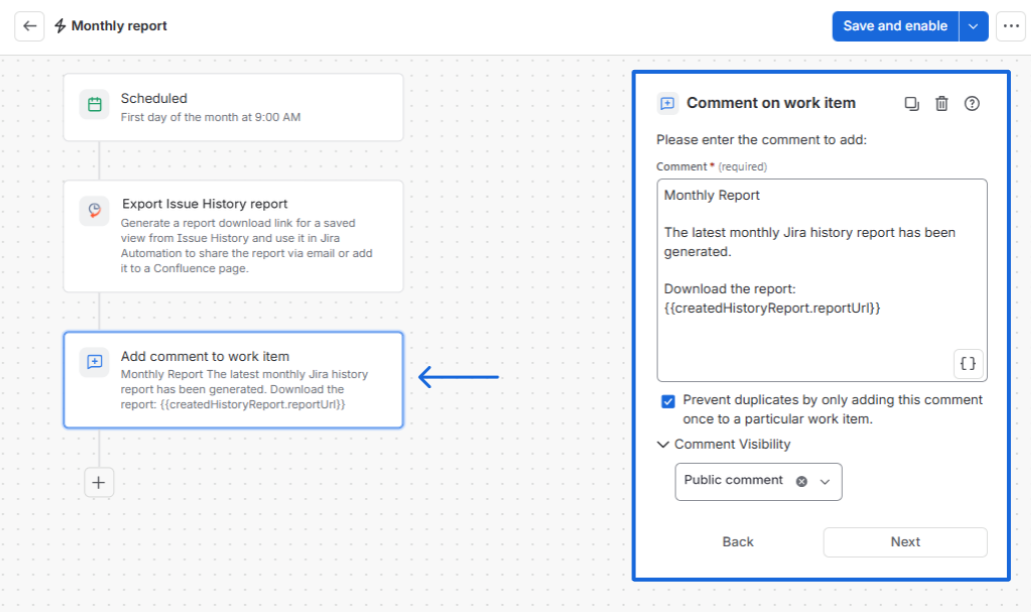
Add the Comment on work item action.
-
Enter the message you want to appear in the comment.
-
Include the report link smart value.
Example comment:
Monthly Report
The latest monthly Jira history report has been generated.
Download the report: {{createdHistoryReport.reportUrl}}
-
If you want a new report comment to be added every month, uncheck Prevent duplicates by only adding this comment once to a particular work item.
-
Under Comment Visibility, select Public comment to make the report link visible to users who have access to the work item.
-
Click Next.
Note: For recurring reports, make sure the duplicate prevention option is disabled. Otherwise, Jira Automation may skip adding the same comment in subsequent runs. If you encounter the GROUP_VISIBILITY_SETTING_NOT_ENABLED error, select Public comment instead of restricting visibility to a Jira group.
The comment contains a link to the report, not the exported file itself. The report is available for download for 30 days.
Step 5. Save and enable the automation
Save and enable your automation rule.
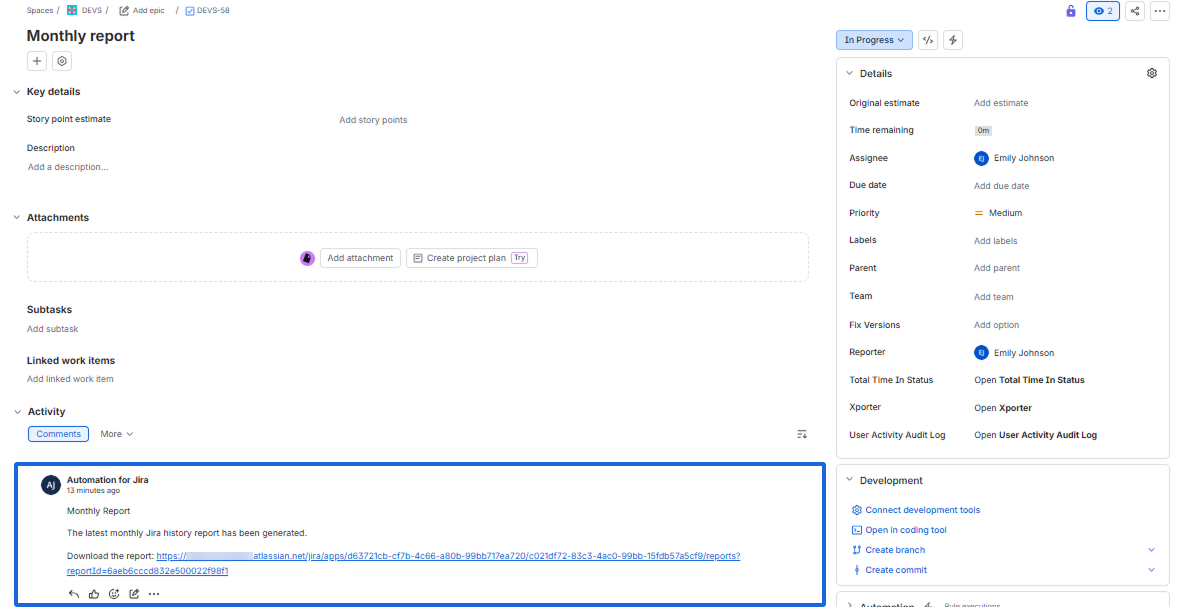
At the scheduled time, Jira Automation will generate a new Issue History report and automatically add a comment with the download link to the selected work item.
Note:
-
The Export Issue History report automation action is available on the Advanced plan of Issue History for Jira.
-
Only Saved Views from Table View can be used in Jira Automation.
-
Users must have the required Issue History for Jira permissions to access the report.
-
The feature is available on regular Jira Cloud sites, excluding Government and Isolated Cloud sites.
Have questions or need assistance? Contact SaaSJet Support, and we will get back to you.
Haven't used this app yet? 👉 You're welcome to try it now 🚀