
We've added a new Media content element that lets you add images and videos straight to your forms — and it's replacing the old Embedded content element.
What's new — and what's going away
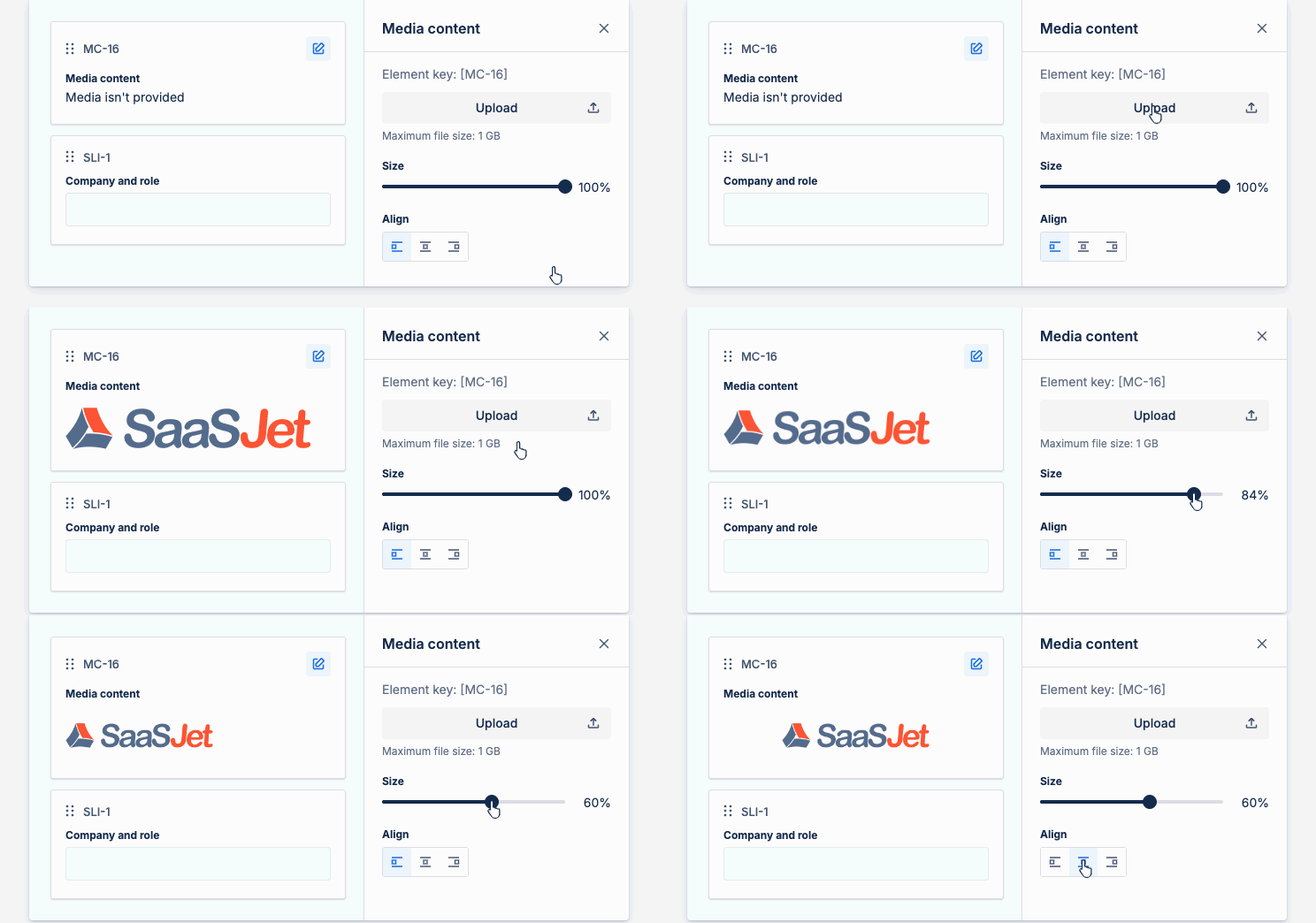
The new Media content element is the easy way to show images and videos in your forms. You upload a file, and it appears right where you want it, with the alignment and size controls you already know.
How it works:
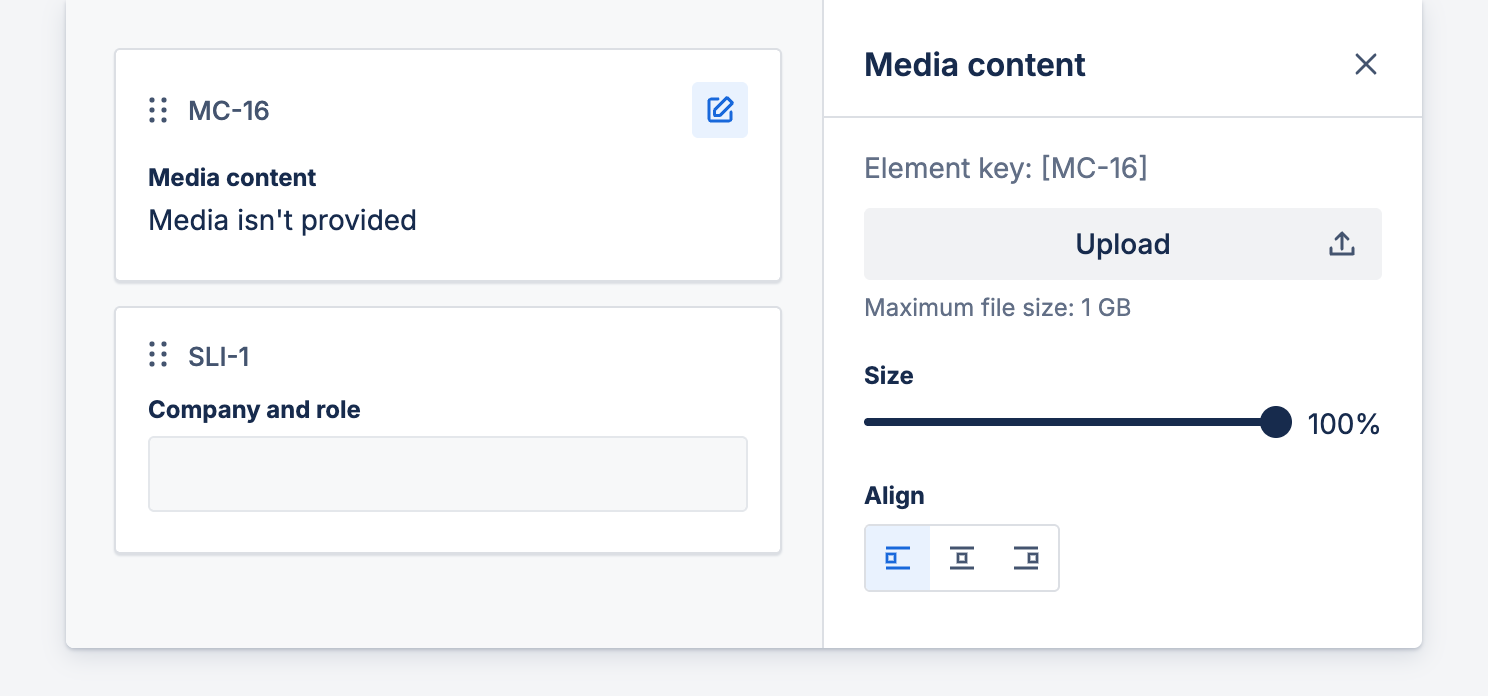
Drop a Media content element onto your form, click Upload, and choose an image or video (up to 1 GB). Then use the Size slider to scale it and the Align buttons to place it left, center, or right. That's the whole setup — no links, no external permissions to manage.
It replaces the old Embedded content element, which worked by pasting a link. Links can break, lose access, or stop loading for the people filling out your form — so we're retiring that element in favor of something more reliable.
What happens, and by when
Right now, you can't add new Embedded content elements — you'll see them marked Deprecated in the sidebar. Any Embedded content already in your forms keeps showing its content for now, so there's no rush, but there is a deadline.
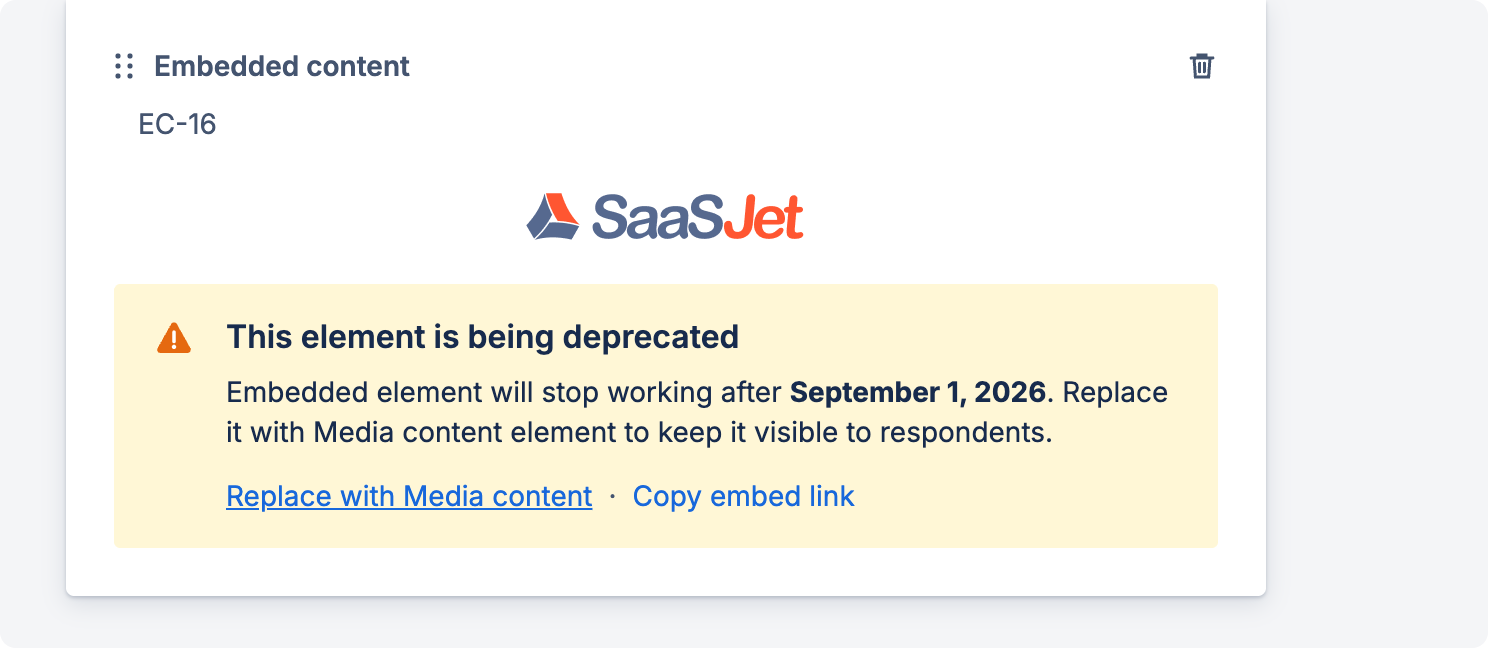
Until each existing Embedded content element shows a short notice with a Replace button so you can move it over. After those elements stop showing their content and the automatic Replace goes away — so anything you haven't moved by then won't appear to the people filling out your form.
The easy way: move images automatically
If your Embedded content element holds an image, you can move it in one click.
-
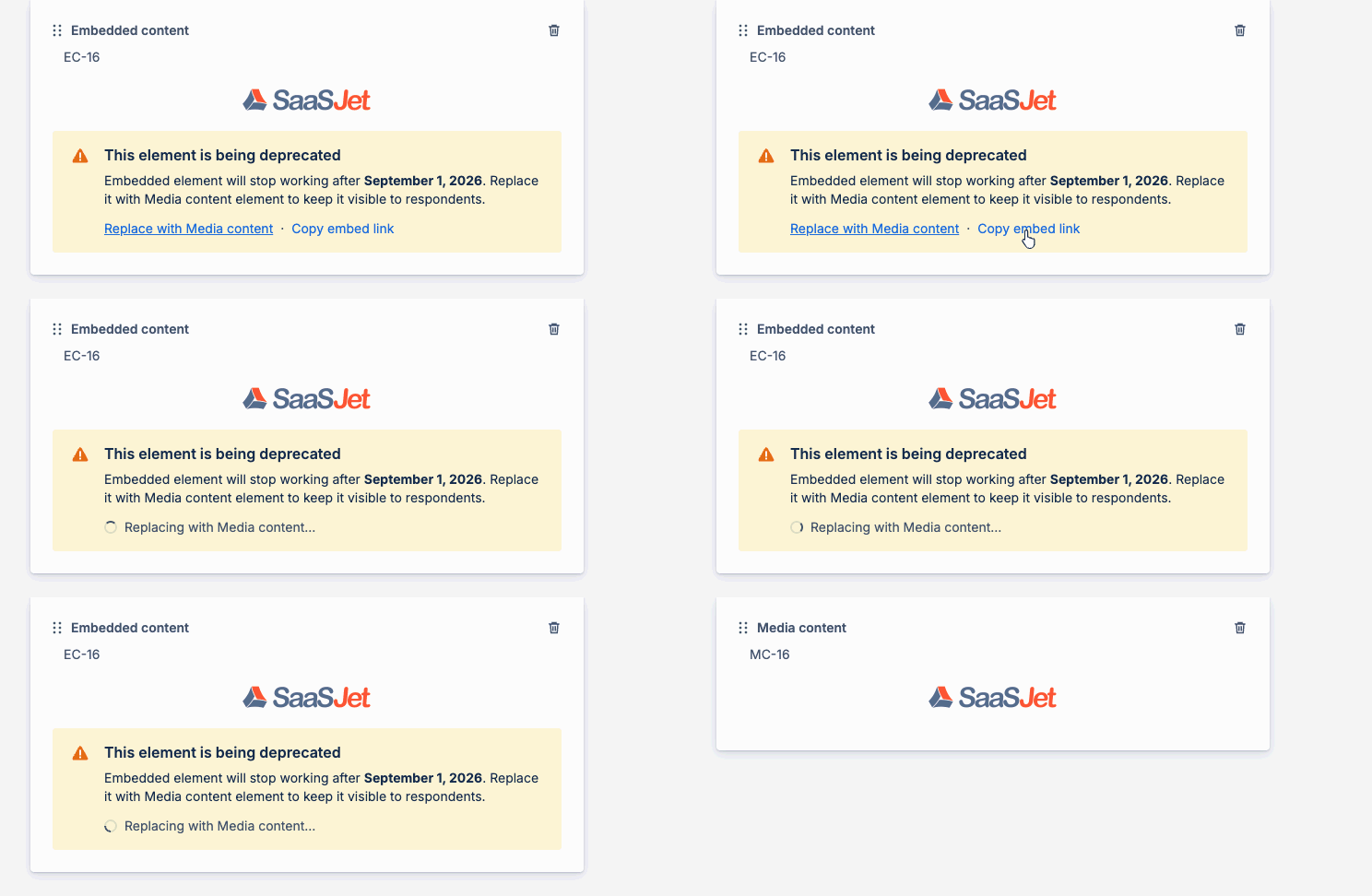
Open your form in the builder and find the Embedded content element.
-
Click Replace. You'll see it working for a moment while we bring the image across.
-
Done — it becomes a Media content element, and your alignment, size, and layout stay exactly as they were.
Repeat for each image, and that form is migrated.
If Replace doesn't work for something, don't worry — it just means that item needs the manual step below. (Tip: click Copy embed link on the element first to save the original link, so you have it handy.)
The few things you'll move by hand
Some content isn't a plain image, or isn't publicly available, so Replace can't do it for you. Here's how to handle each one.
A YouTube video. Add a Media content element and upload the video file directly, then delete the old element. Prefer to keep the YouTube link? Drop it into a Content text box as a clickable link instead.
An image from Google Drive, SharePoint, or Dropbox. If the file isn't public, we can't fetch it for you. Just download the image, add a Media content element, and upload it there — then set the alignment and size to match. (Alternatively, make the file public with "Anyone with the link," but uploading it directly is the surest way.)
A Google Doc or Sheet. Media content shows images and videos, not live documents. You can take a screenshot of the part you need and add it as an image, or simply link to the document from a Content text box so people can open it.
What's no longer supported
Embedded websites (iframes). The old element could show an entire website inside your form. Media content doesn't do that. Instead, add a Content text box with a link to the site, or use the Related URL setting to point people to it — so the reference is still there, just as a link.
Now available on Government Cloud and Isolated Cloud.
Having trouble?
You clicked Replace and saw "We couldn't replace this content." This means the item isn't something Media content can bring over automatically — usually a YouTube video, a document, a website, or an image that isn't public. Use Copy embed link to grab the original and uploading the file directly.
Replace just keeps spinning. That usually means the source isn't publicly available. Move it over manually: download the file and upload it to a Media content element.
Your content vanished from a form. If the deadline has passed, Embedded content no longer shows anything. Add a new Media content element and re-add the content using the steps above.
Do I have to do this right away? Please,do it before After that, Embedded content stops showing its content and the automatic Replace is no longer available.
Will moving my content change how the form looks? Not for automatic image moves — alignment, size, and layout come across as-is. For manual moves, just set the same alignment and size on the new element.
How do I find the original link after an element is deprecated? Click Copy embed link on the element. It copies the original URL so you can re-add or link to the content.
What can Media content show? Images and videos you add directly to the form. It doesn't show live documents (Google Docs/Sheets) or embedded websites.