
Content: Overview › How to Set Up › FAQs › Regex Examples
Smart Forms for Jira provides flexible validation options that help creators control the quality of submitted data, prevent errors, and guide users with clear messages.
This page covers all available validation types:
-
Regex validation (Text & Attachment fields)
-
Choice validation (Checkboxes & Multi-choice fields)
-
Numeric validation
-
Date and Date & Time validation (new)
Regex Validation
The Regex Field Validation allow form creators to enforce input rules for different form elements. These rules help maintain data accuracy, prevent errors, and guide users by displaying helpful validation messages.
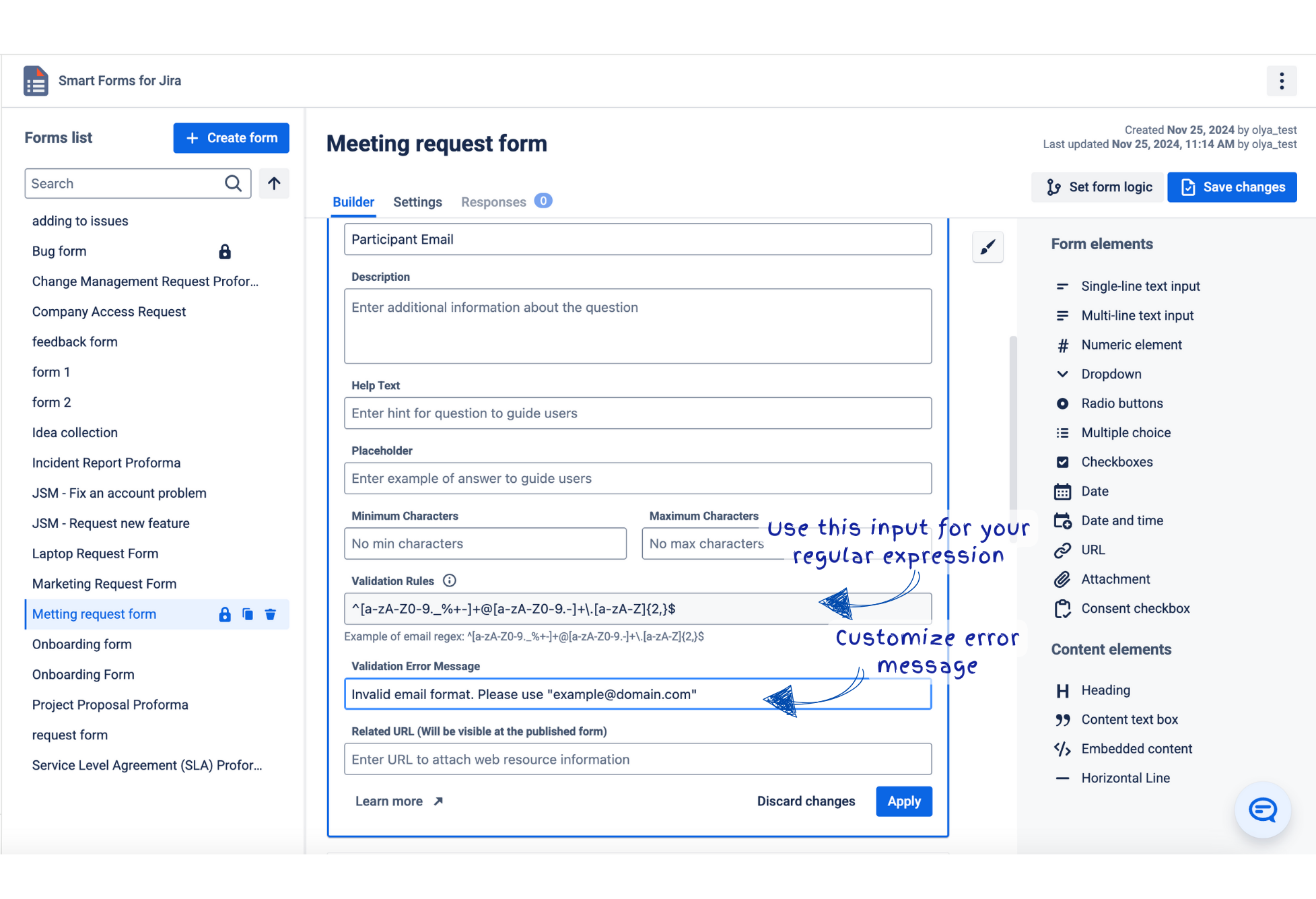
Using Regex Validation for Smart Forms
Setting Up Validation Rules
1. For Single-Line Text Input and Attachment Fields
-
Navigate to Form Builder:
-
Open the form builder in Smart Forms for Jira.
-
Add or select a Single-Line Text Input or Attachment field.
-
-
Enter Regex Pattern:
-
Input a valid regex pattern in the Regex pattern field.
-
Examples:
-
Email:
^[a-zA-Z0-9._%+-]+@[a-zA-Z0-9.-]+\.[a-zA-Z]{2,}$ -
PDF file format (for attachments):
/\.pdf$/i
-
-
-
For text input fields, you can set Minimum characters and Maximum characters limits.
-
Define Error Message:
-
Provide a custom error message in the Regex error message field.
-
Example:
Invalid email format. Please use "example@domain.com".
-
2. Configuring Validation for Multi-Choice and Checkbox Fields
-
Select Multi-Choice or Checkbox Field:
-
In the form builder, choose a Multi-Choice or Checkbox field.
-
-
Set Minimum and Maximum Choices:
-
Define Minimum number of choices and Maximum number of choices.
-
3. Adding Validation for Numeric Fields
-
Select Numeric Field:
-
Add or select a Numeric field in your form.
-
-
Define Numeric Range:
-
Enter values in Minimum number and Maximum number fields.
-
Leave blank or enter "No min number" and "No max number" if no limits are required.
-
-
Error Message Configuration:
-
Default messages:
-
Must be more than or equal to [min]. -
Must be less than or equal to [max]. -
Must be between [min] and [max].
-
-
Date and Time validation settings - 🆕
Date validation lets you limit which dates users can select by defining a relative range based on the moment the form is opened.
This works for:
-
Date
-
Date & Time
How the logic works
Validation accepts offsets such as days, weeks, hours, or minutes:
|
Unit |
Meaning |
Applies to |
|---|---|---|
|
|
Days |
Date & Date-Time |
|
|
Calendar weeks (7 days) |
Date & Date-Time |
|
|
Hours |
Date-Time only |
|
|
Minutes |
Date-Time only |
Offsets:
-
4d→ 4 days in the future -
-4d→ 4 days in the past -
2w→ 2 weeks ahead -
-1w 3d→ 1 week + 3 days in the past -
0→ today / now -
Empty → no limits
FAQs
Q1. What happens if a user input doesn't match the regex pattern?
The field will show the custom error message you defined, prompting the user to correct their input.
Q2. Can I use regex validation for optional fields?
Yes, regex validation applies only when the user fills out the field.
Q3. Are regex patterns case-sensitive?
By default, regex patterns are case-sensitive. To make them case-insensitive, use the i flag (e.g., /pattern/i).
Examles for Regex validation rules
1. Email Address
-
Regex:
^[a-zA-Z0-9._%+-]+@[a-zA-Z0-9.-]+\.[a-zA-Z]{2,}$ -
Example Input:
user@example.com -
Description: Ensures the input is a valid email address.
2. Phone Number (International)
-
Regex:
^\+?[1-9]\d{1,14}$ -
Example Input:
+1234567890 -
Description: Validates international phone numbers using the E.164 format.
3. Phone Number (US Format)
-
Regex:
^\(?\d{3}\)?[-.\s]?\d{3}[-.\s]?\d{4}$ -
Example Input:
(123) 456-7890 -
Description: Accepts US phone numbers with optional separators like dashes, dots, or spaces.
4. ZIP Code (US)
-
Regex:
^\d{5}(-\d{4})?$ -
Example Input:
12345or12345-6789 -
Description: Matches standard US ZIP codes with an optional four-digit extension.
5. Jira Issue Key Validation (Project-123 format)
-
Regex:
^[A-Z]+-\d+$ -
Example Input:
DEV-123 -
Use Case: Ensures that input follows the Jira issue key format used in bug tracking and project management.
6. Invoice Number (Finance Teams)
-
Regex:
^INV-\d{6}$ -
Example Input:
INV-202345 -
Use Case: Ensures invoice numbers follow a standardized format.
7. National ID / Social Security Number (US)
-
Regex:
^\d{3}-\d{2}-\d{4}$ -
Example Input:
123-45-6789 -
Use Case: Validates social security numbers for compliance.
8. Tax ID Number (TIN)
-
Regex:
^\d{2}-\d{7}$ -
Example Input:
12-3456789 -
Use Case: Ensures tax IDs are formatted correctly.
9. File format (Attachment)
-
Regex:
/\.(jpe?g|png|gif)$/i -
Example Input:
profile.png -
Use Case: Validates that uploaded files are image formats (JPEG, JPG, PNG, or GIF), ensuring proper file type handling.