
You can configure SLA Time and Report to send notifications to a Microsoft Teams channel when an SLA goal is exceeded.
To receive notifications, you need to create a Microsoft Teams webhook URL and add it to your SLA goal configuration.
How to generate a Webhook URL in Microsoft Teams
Step 1. Create a webhook URL in Microsoft Teams
-
Open Microsoft Teams.
-
Open the channel or create a new one where you want to receive notifications.
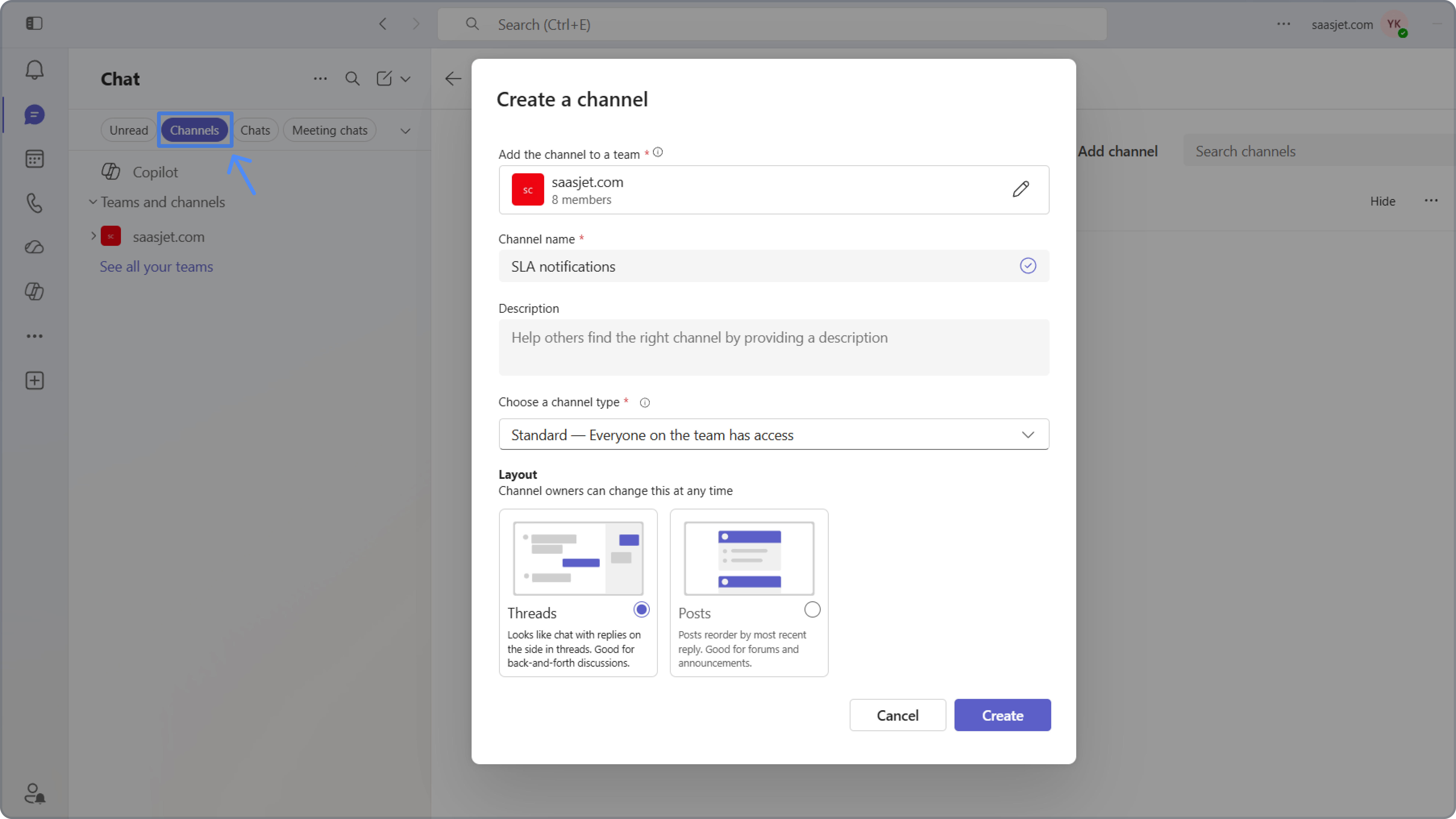
-
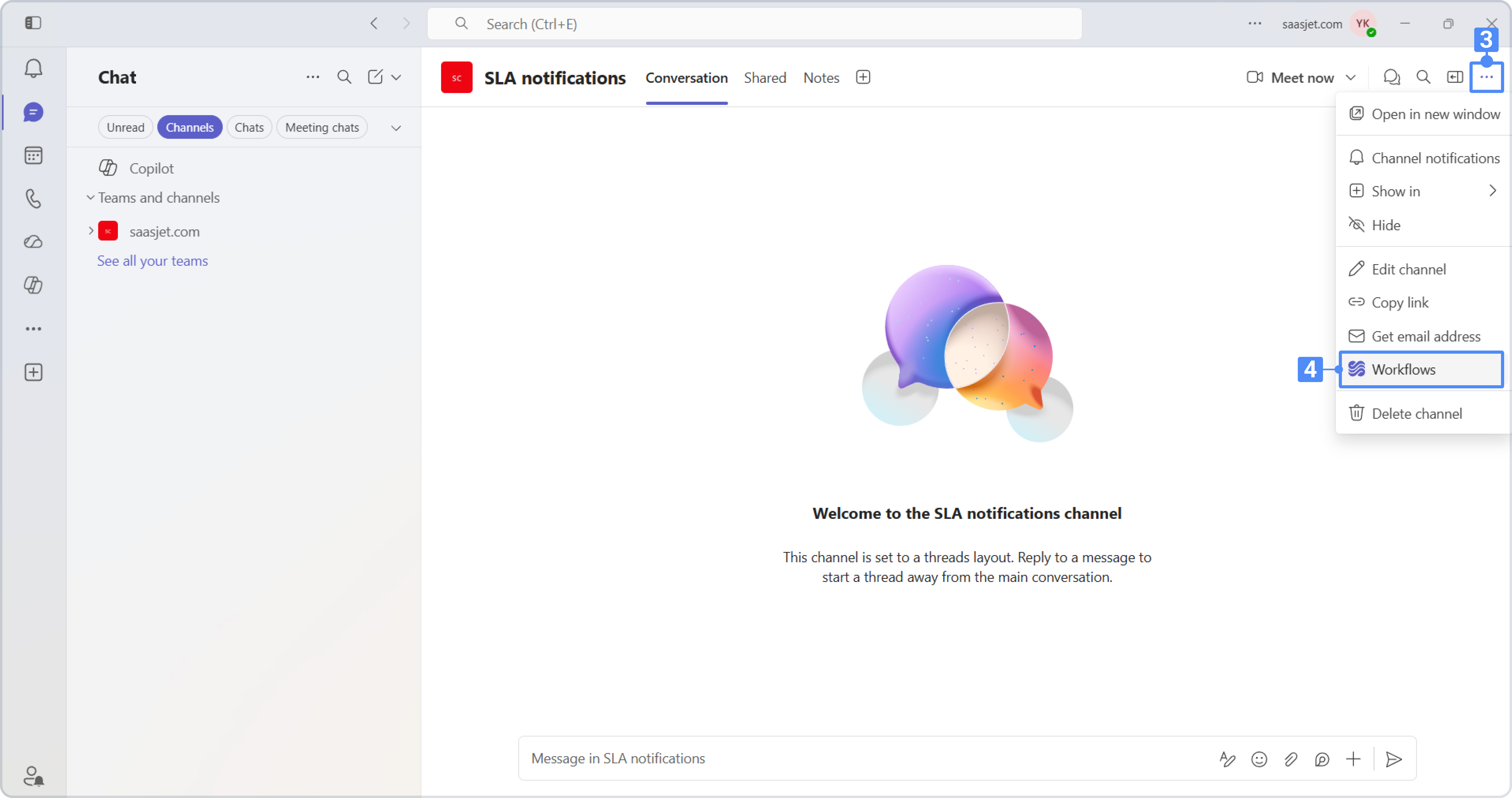
Click the channel menu (⋯).
-
Select Workflows.
-
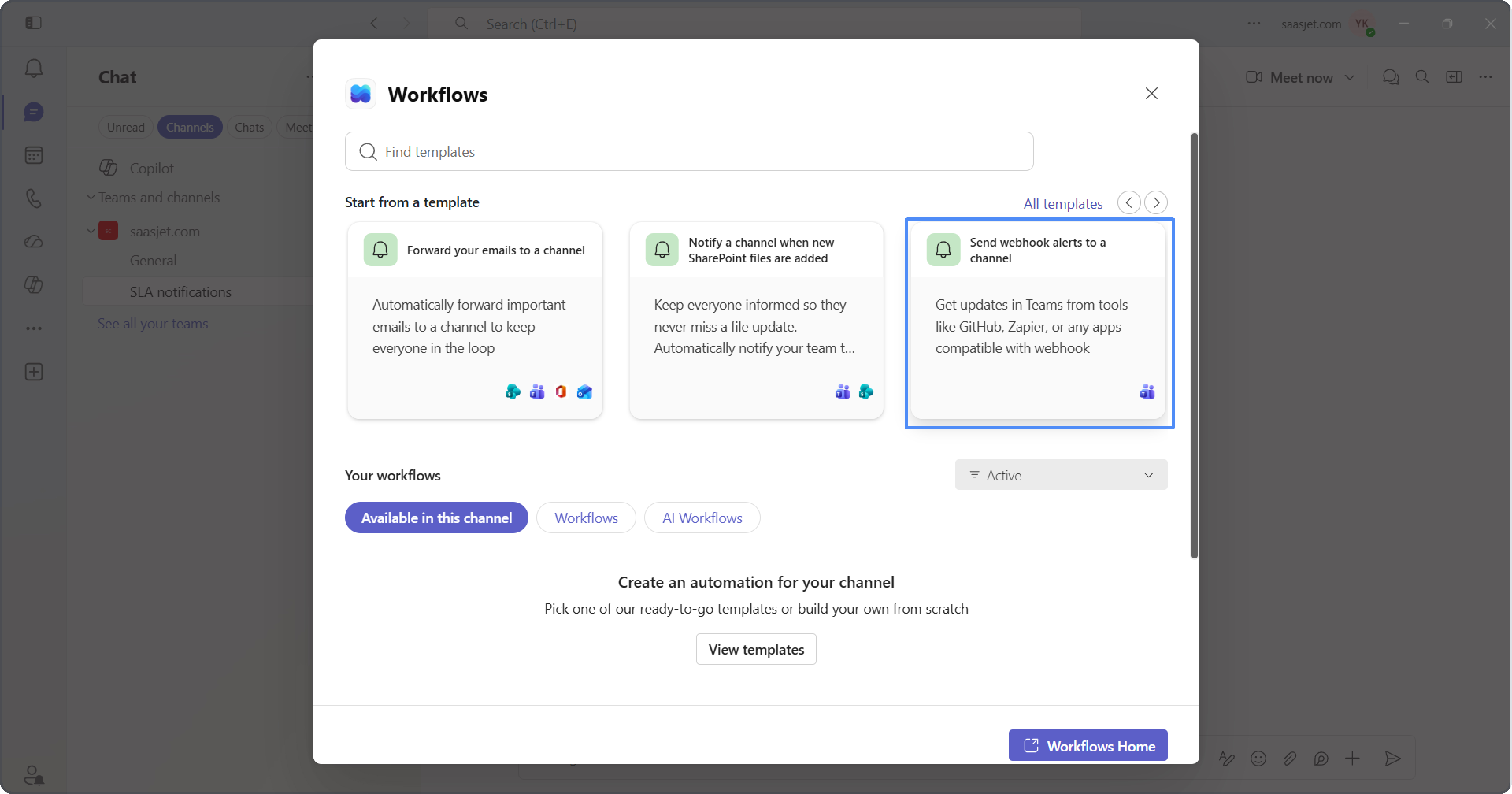
Search for the template:
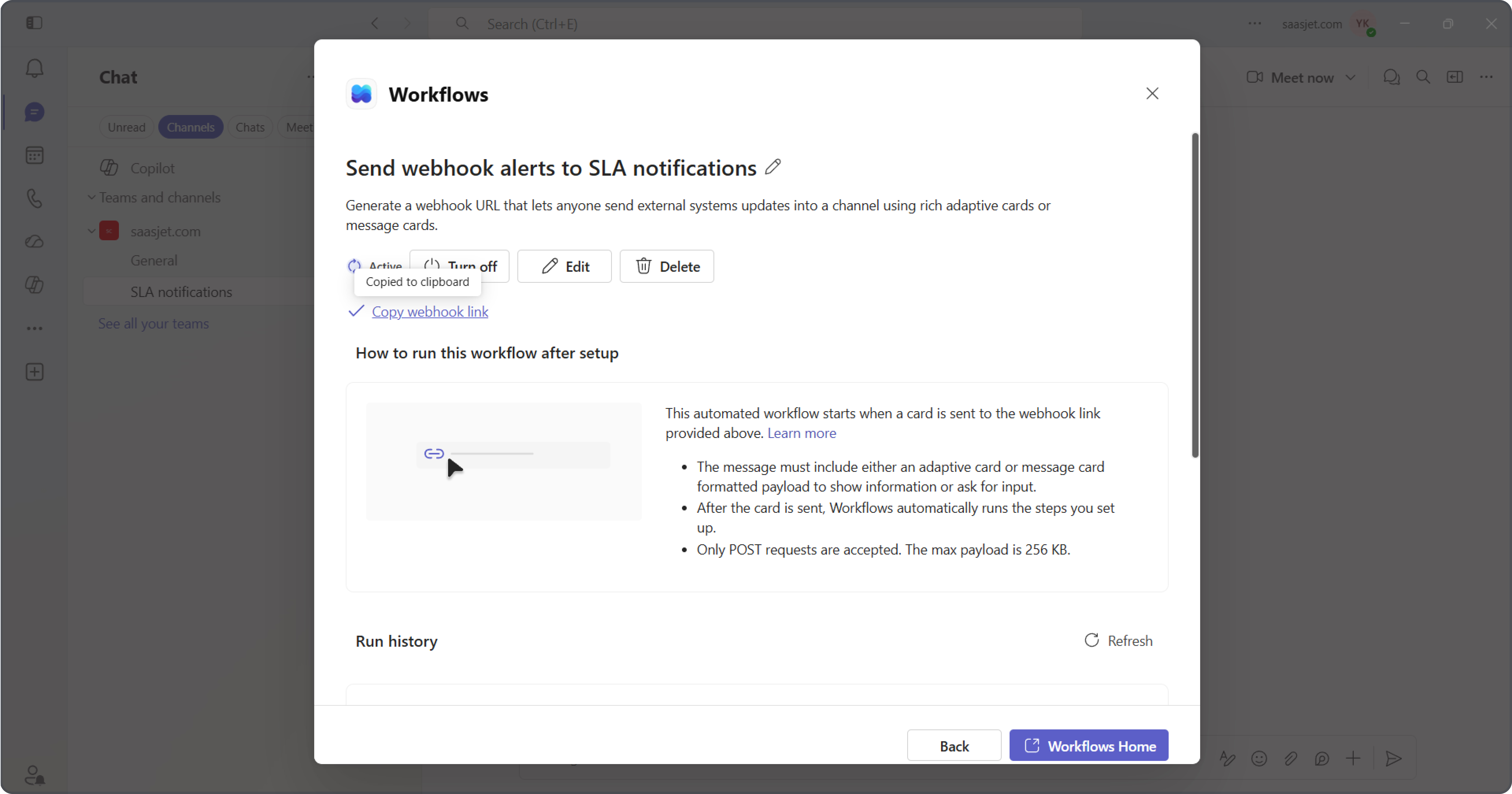
Send webhook alerts to a channel
Select the template and create the workflow.
-
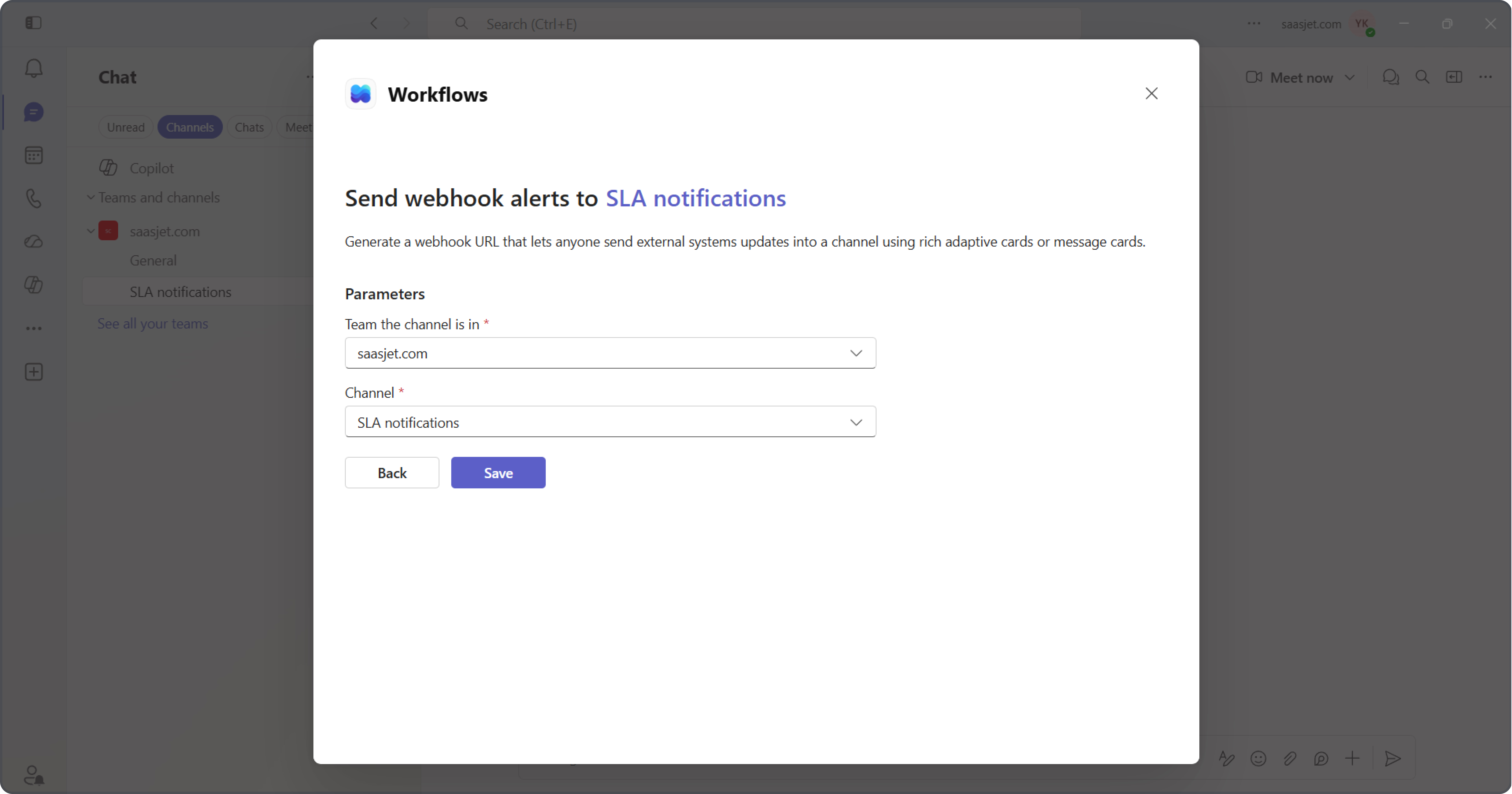
Choose the team and channel that should receive notifications, click Save.
-
Copy the generated webhook URL.
Step 2. Configure notifications in SLA Time and Report
-
Open SLA configuration.
-
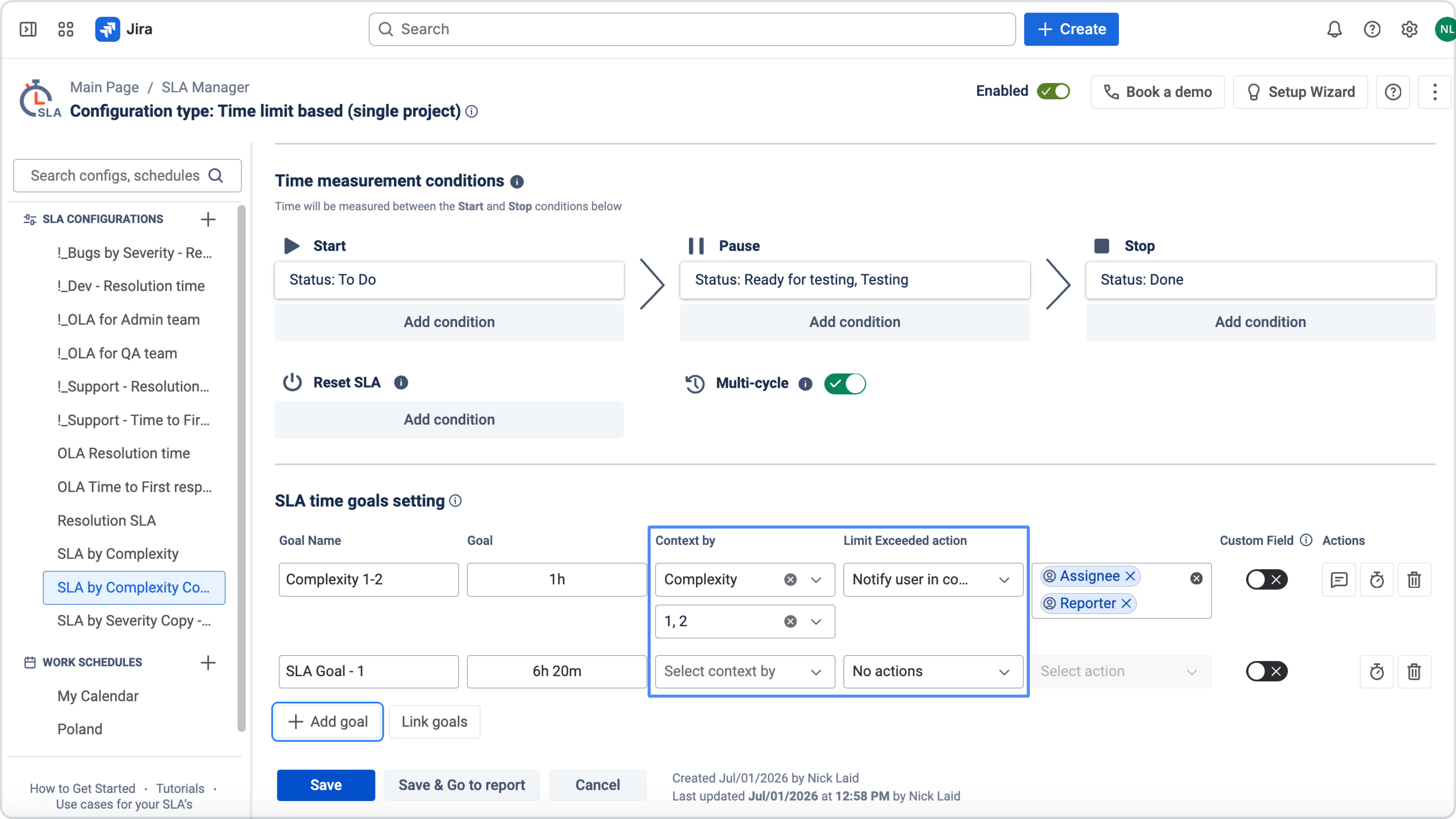
Go to SLA time goals settings.
-
Create a new goal or edit an existing one.
-
In Limit Exceeded action, select Notify via Microsoft Teams.
-
Paste the webhook URL into the Microsoft Teams Webhook URL field.
-
Save the configuration.
When the SLA goal is exceeded, the app automatically sends a notification to the selected Microsoft Teams channel.
Message template
The default Microsoft Teams notification looks like this:
Some time limits for the SLA "[SLAName] ([GoalName])" have been exceeded.
Work item: [WorkItemURL]
This is an automated notification from SLA Time and Report.
SLA configuration: [ConfigURL]
You can customize the notification message by using available Shortcodes. Simply add the Shortcodes you need to include dynamic information from the work item and SLA configuration in the message.
Need help?
Have questions or need help with SLA Time and Report? Contact our support team.
Want to see SLA Time and Report in action?
Book a demo with our team to explore your use case, or start a free trial to try the app in your Jira environment.
You can also use Microsoft Teams together with Jira Automation and SLA Custom Fields to build advanced notification workflows and escalations.
Learn more in:
Use Microsoft Teams notifications with Jira Automation