
Use SLA access settings to control who can see and manage individual SLA configurations. You can make an SLA available to everyone in the project or restrict access to specific users and user groups.
The SLA owner and organization admins always have access to the SLA, even if they are not included in the selected users or groups.
Configure access for SLA
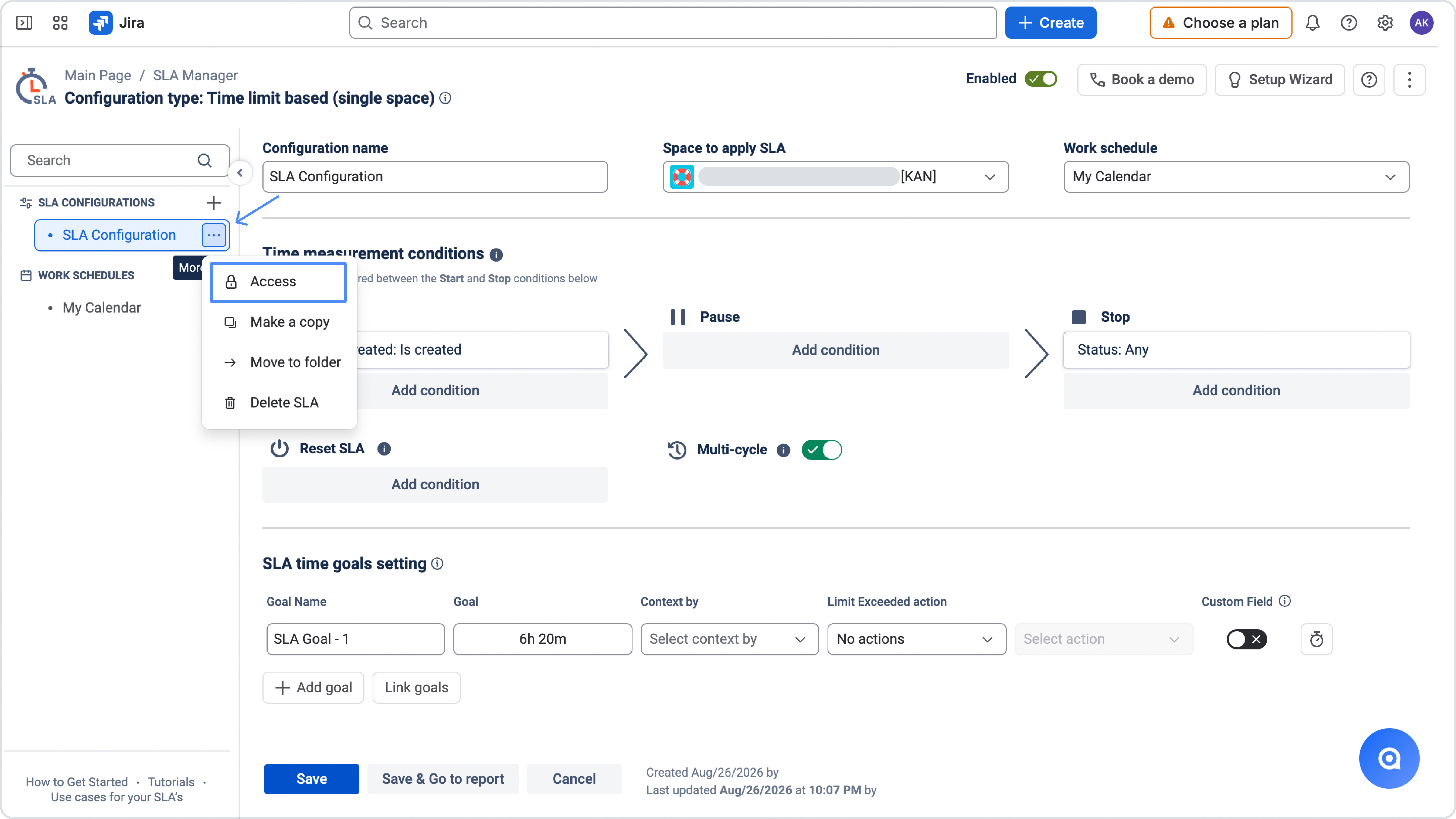
Access settings are available from the More actions (•••) menu next to each SLA in the SLA Configuration Manager sidebar. Select Access to open the access settings.
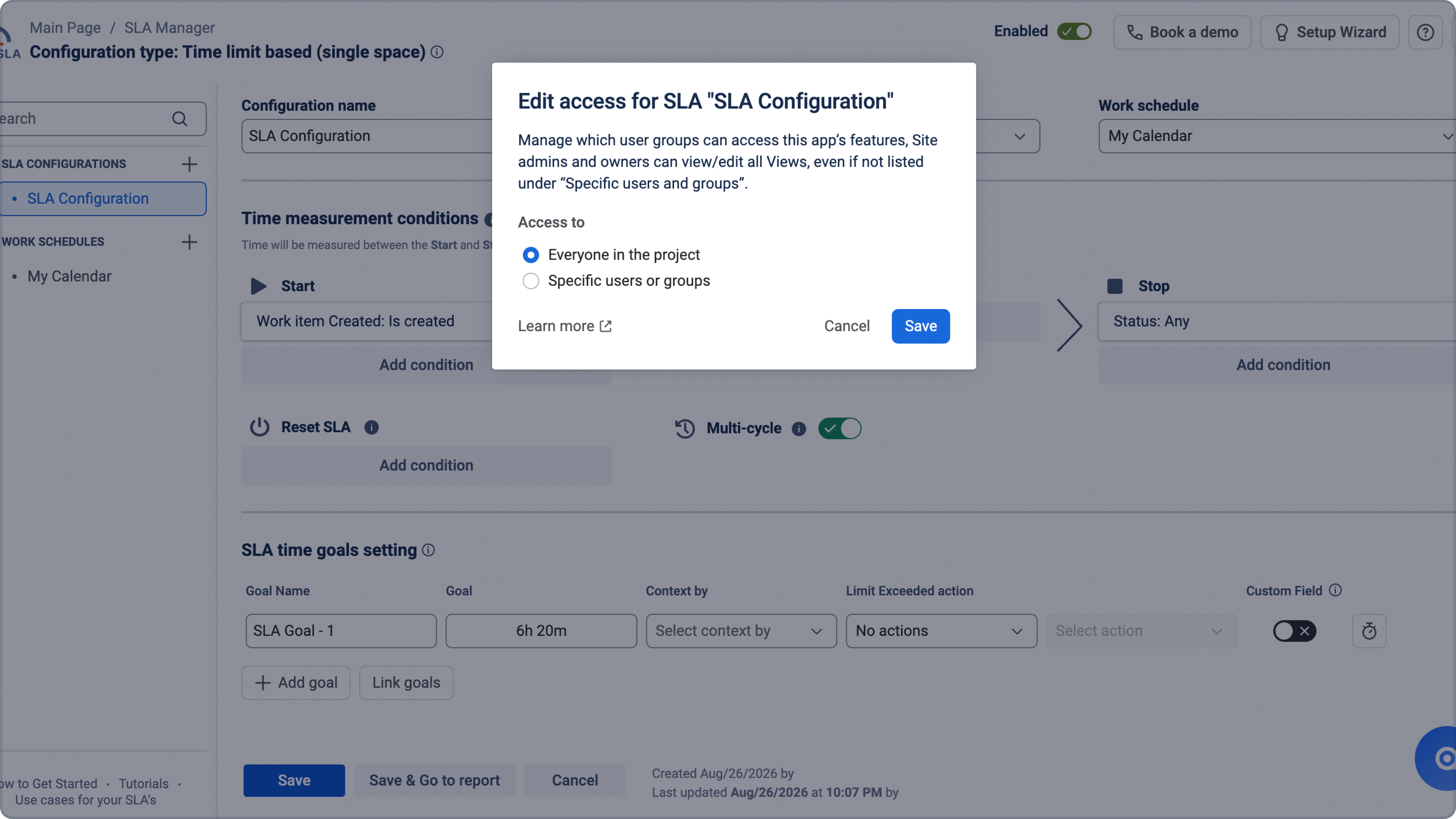
Choose Everyone to make the SLA available to all users who have access to the project.
Choose Specific users or groups when the SLA should only be available to selected people or teams. Search for the users or groups you need and add them to the list.
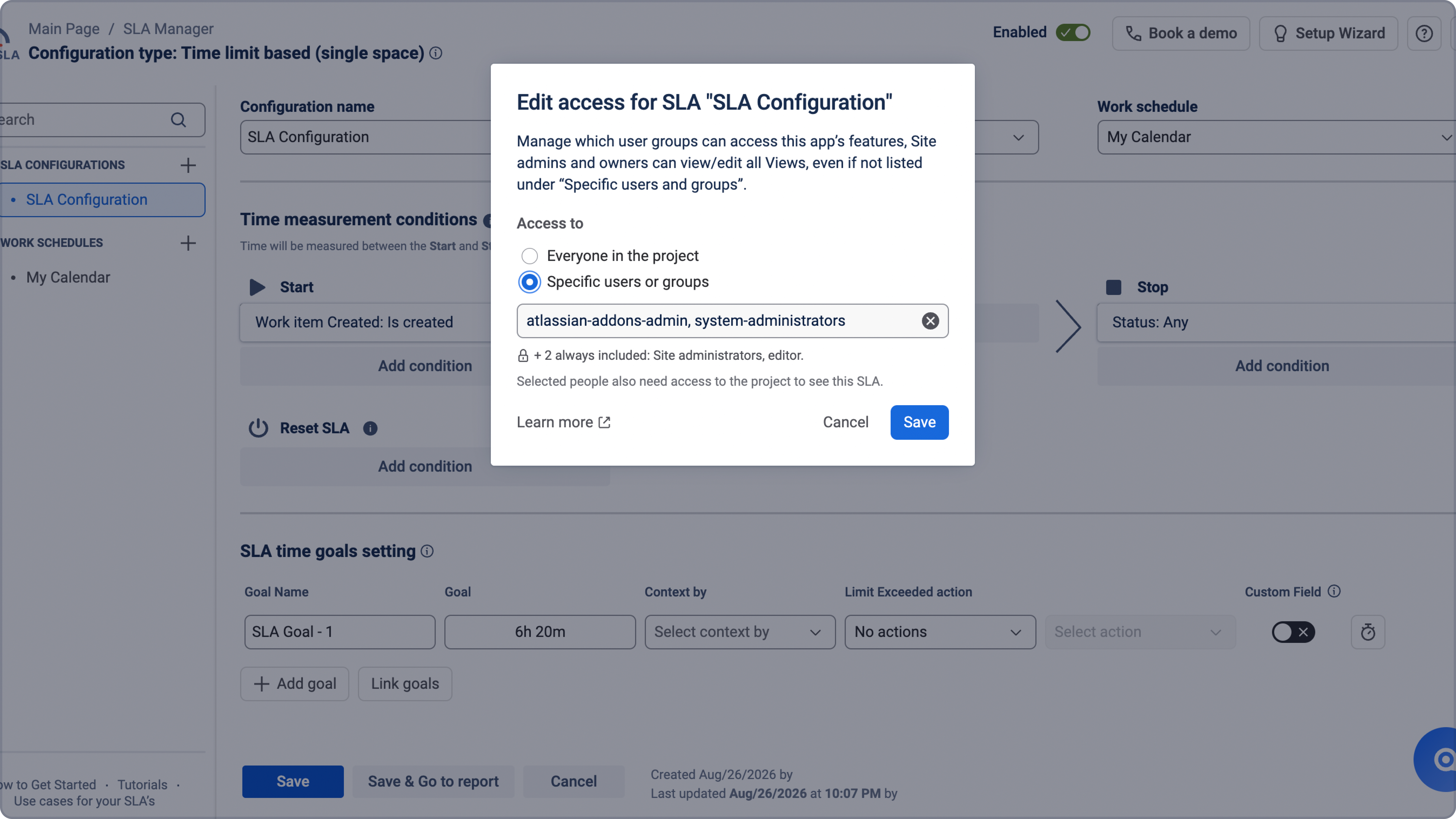
Selected users and groups can view, edit, and manage the SLA configuration and its access settings.
Users still need access to the Jira project to see the SLA. Adding someone to the SLA access list does not grant them access to the project.
SLA access and Jira permissions
SLA access is not the same as Jira permissions. SLA access settings control who can see and manage a specific SLA configuration in SLA Time and Report, while Jira permissions control access to the project and its work items.
Adding a user to a restricted SLA does not give them access to the Jira project. Make sure the selected users already have access to the projects where the SLA is used.
If a user cannot see an SLA, check both the SLA access settings and their Jira project permissions. A user may have access to the SLA configuration but still not see it if they do not have access to the related project.
Learn more about app permissions in Manage access and permissions.
How restricted access works
SLA access restrictions apply to the SLA configuration itself within SLA Time and Report. They determine who can view and manage that configuration in the app.
These restrictions do not extend to data generated by the SLA configuration and exposed outside the app. For example, SLA Goal custom field values, such as SLA status, target date, and other SLA-generated values, can remain visible wherever the user has access to that data.
How SLA folders affect SLA access
Folders are used to organize SLA configurations and do not change their access settings. If you move an SLA to another folder, its access settings stay the same. Deleting a folder also does not change SLA access – the SLAs become ungrouped and keep their existing settings.
If you do not have access to any SLAs in a folder, the folder can still be visible in the sidebar, but it may appear empty.
Learn more in Group SLAs into folders.
Need help?
Have questions or need help with SLA Time and Report? Contact our support team.
Want to see SLA Time and Report in action?
Book a demo with our team to explore your use case, or start a free trial to try the app in your Jira environment.