
Use SLA folders to organize SLA configurations in the SLA Configuration Manager sidebar. Folders help you keep related SLAs together and make it easier to navigate long lists of configurations. You can create folders, add existing SLA configurations to them, move SLAs between folders, and remove SLAs from folders when needed.
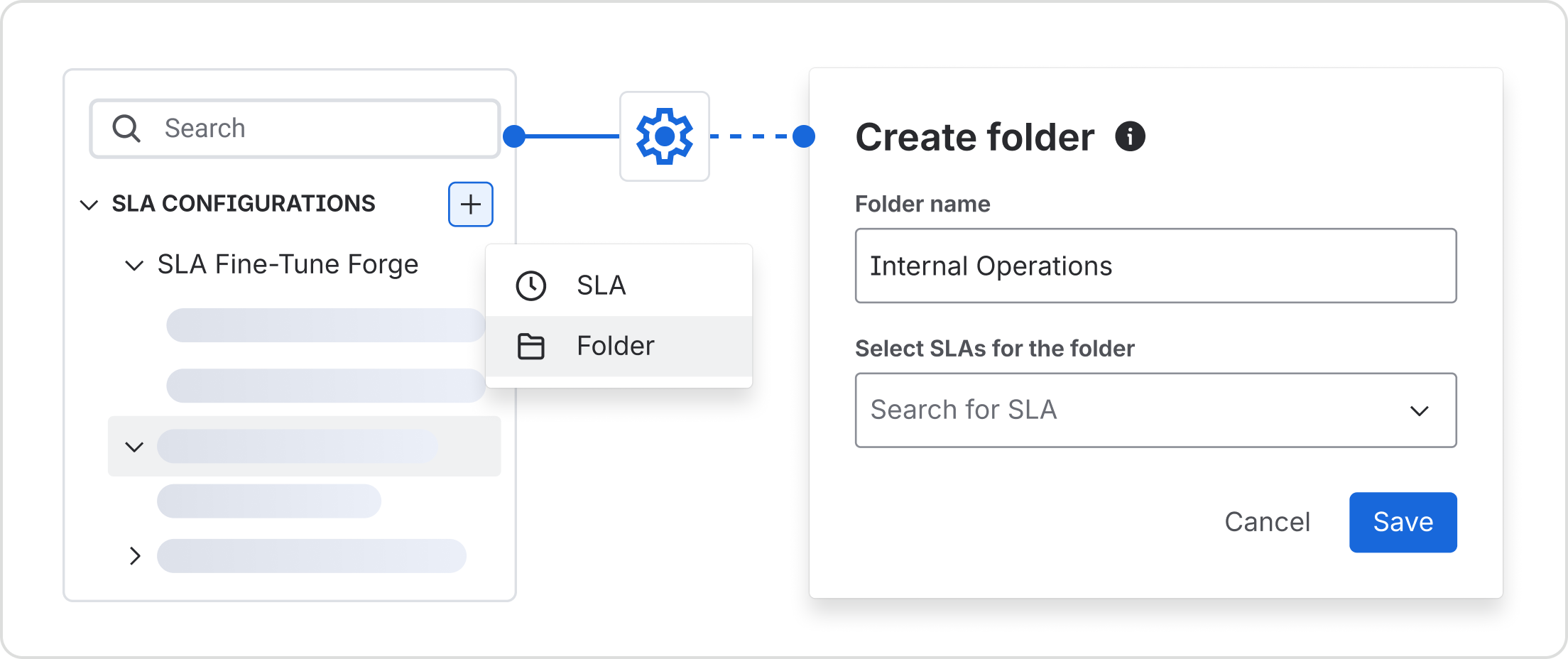
Create a folder
To create a new folder:
-
Open SLA Configuration Manager.
-
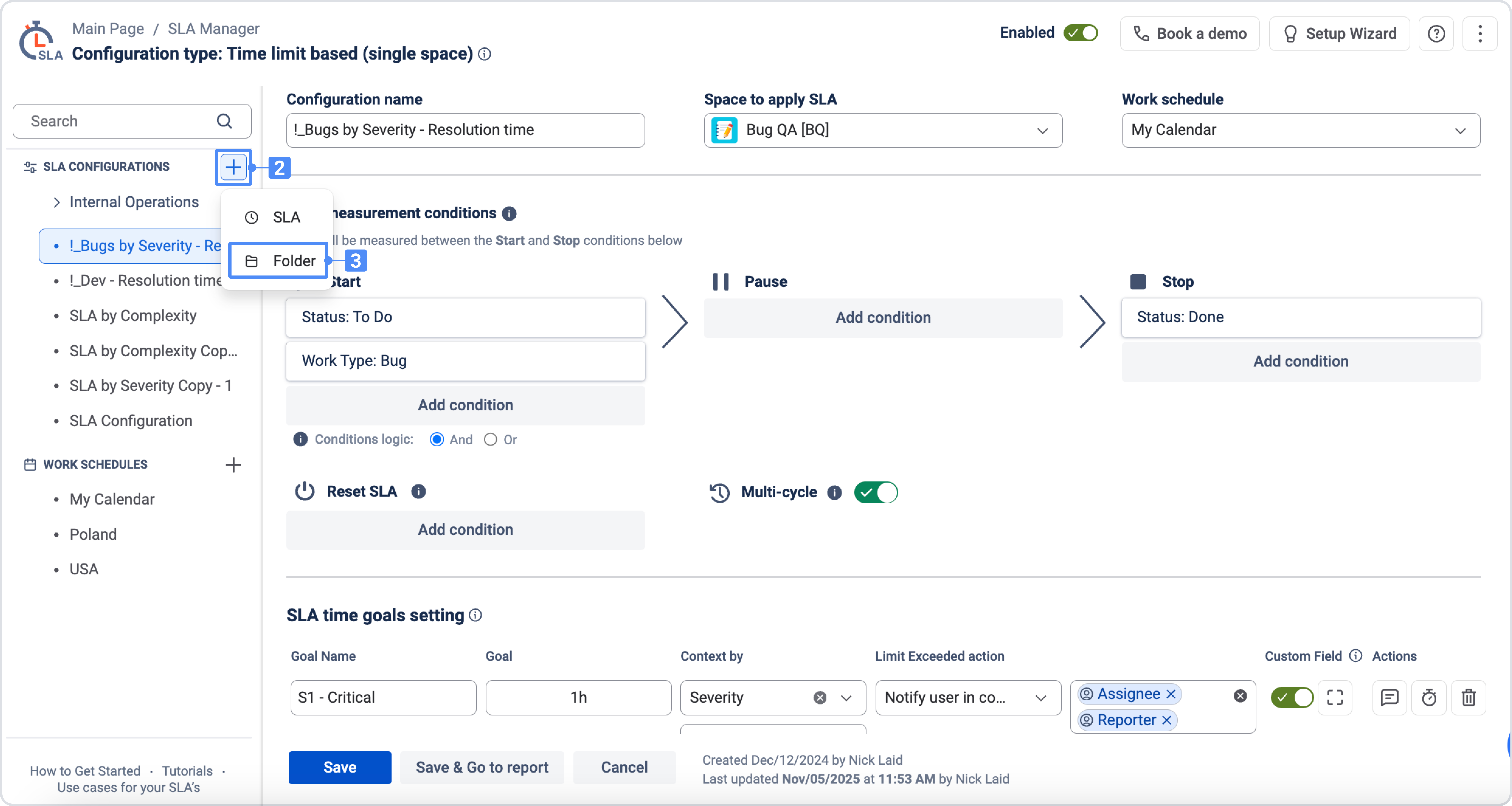
In the left sidebar, click + next to SLA Configurations.
-
Select Folder.
-
Enter a Folder name.
-
Optionally, select one or more existing SLAs to add to the folder.
-
Click Save.
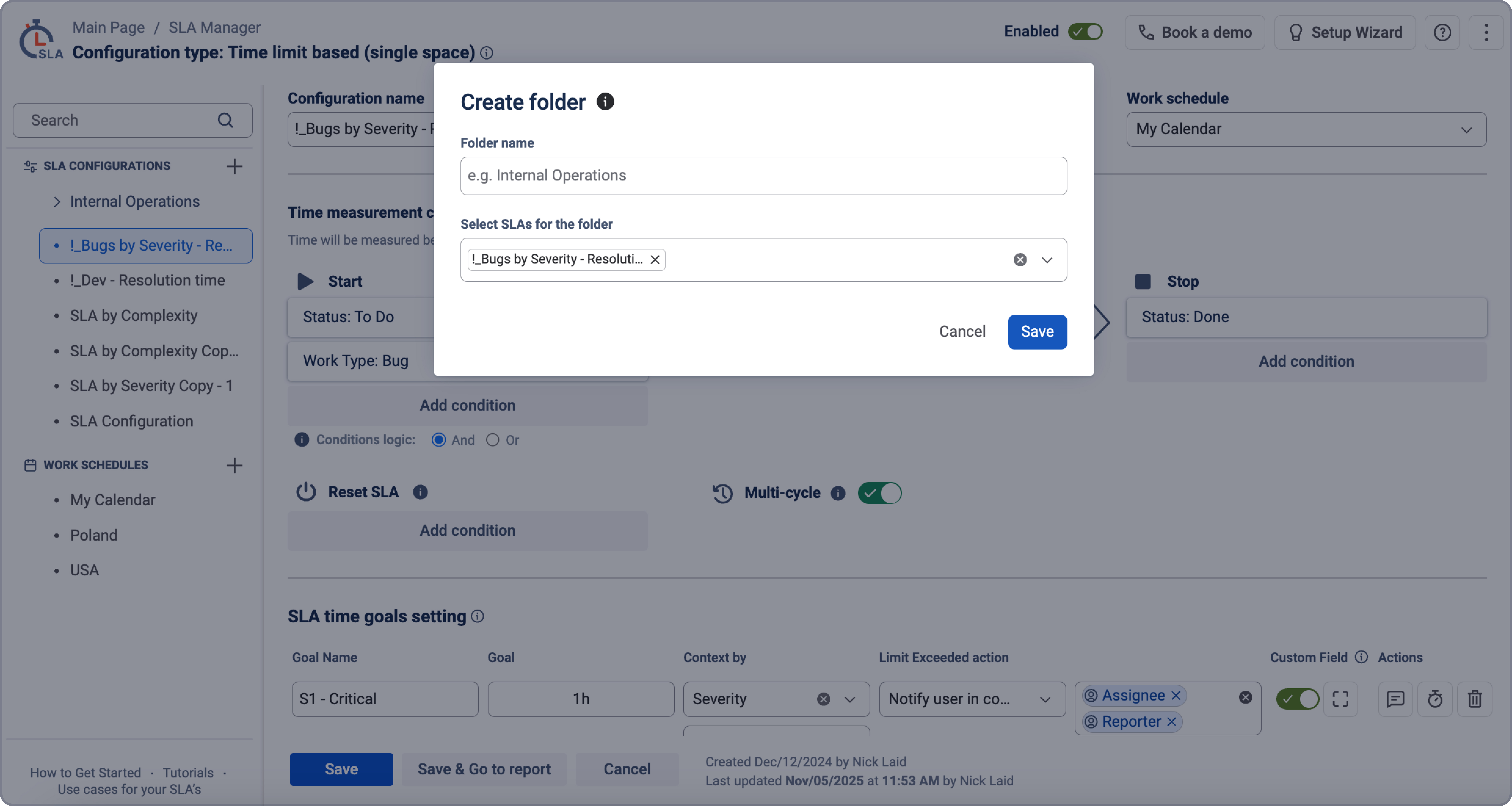
The new folder appears in the SLA Configuration sidebar.
Add SLAs to a folder
You can add existing SLA configurations when creating or editing a folder.
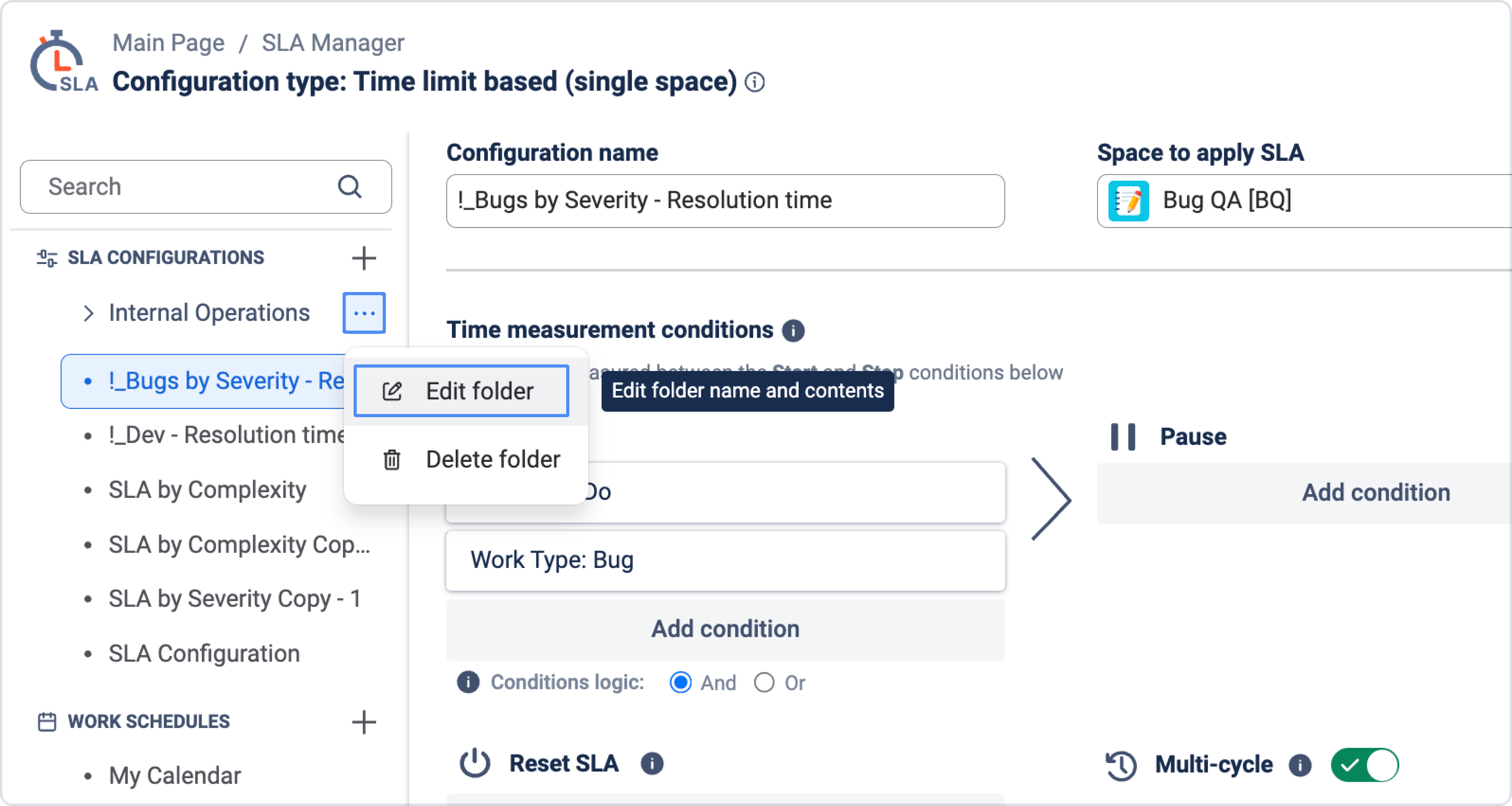
To add SLAs to a folder:
-
Open the folder menu by clicking ••• next to the folder name.
-
Select Edit folder.
-
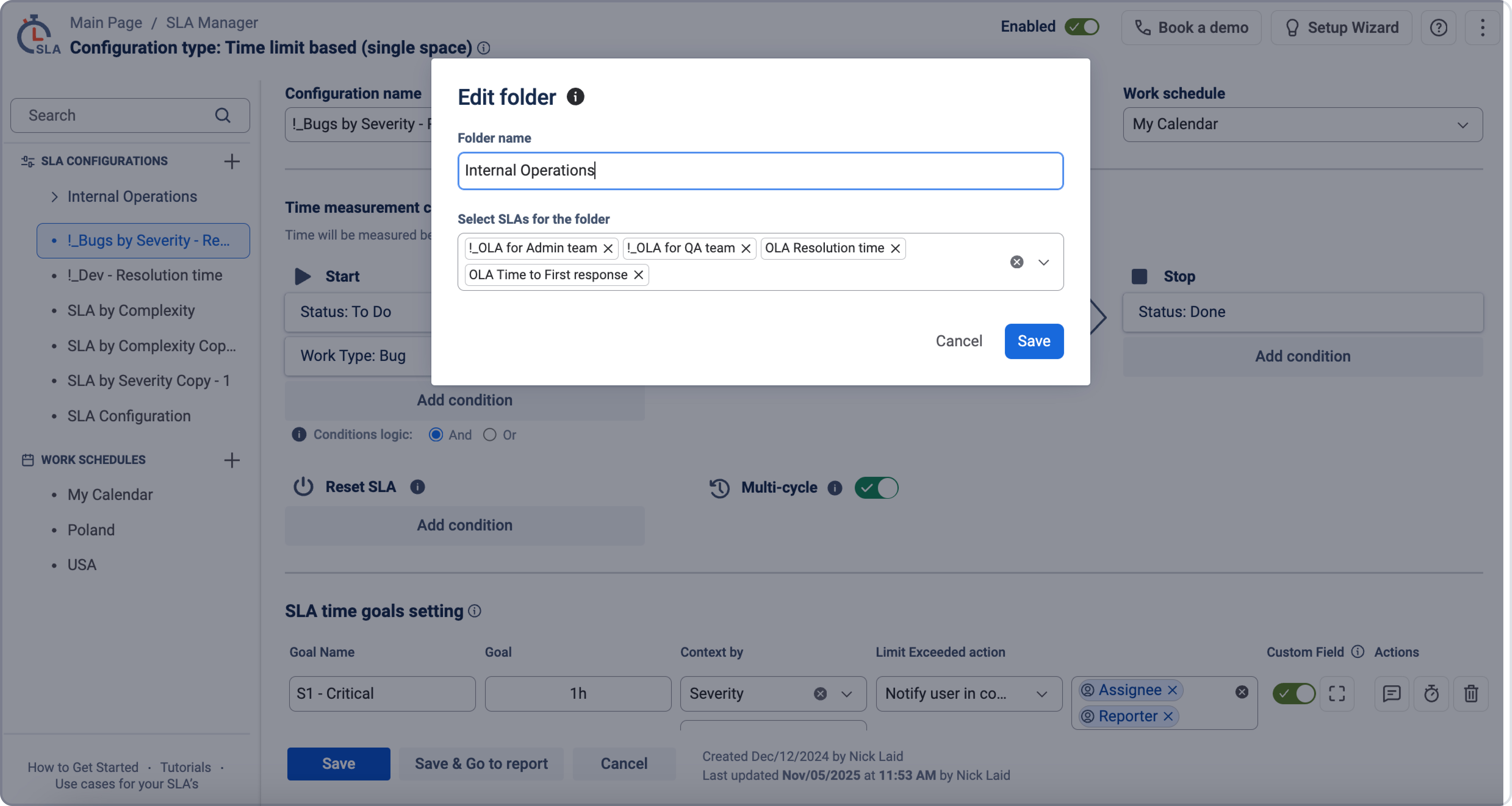
In Select SLAs for the folder, search for and select the SLA configurations you want to include.
-
Click Save.
SLAs can belong to only one folder at a time. Selected SLAs will be removed from their previous folder.
Edit a folder
Use Edit folder to rename a folder or change which SLA configurations it contains.
To edit a folder:
-
Click ••• next to the folder name.
-
Select Edit folder.
-
Update the folder name or selected SLAs.
-
Click Save.
Move an SLA to a folder
You can move an SLA configuration to an existing folder directly from the SLA menu.
To move an SLA to a folder:
-
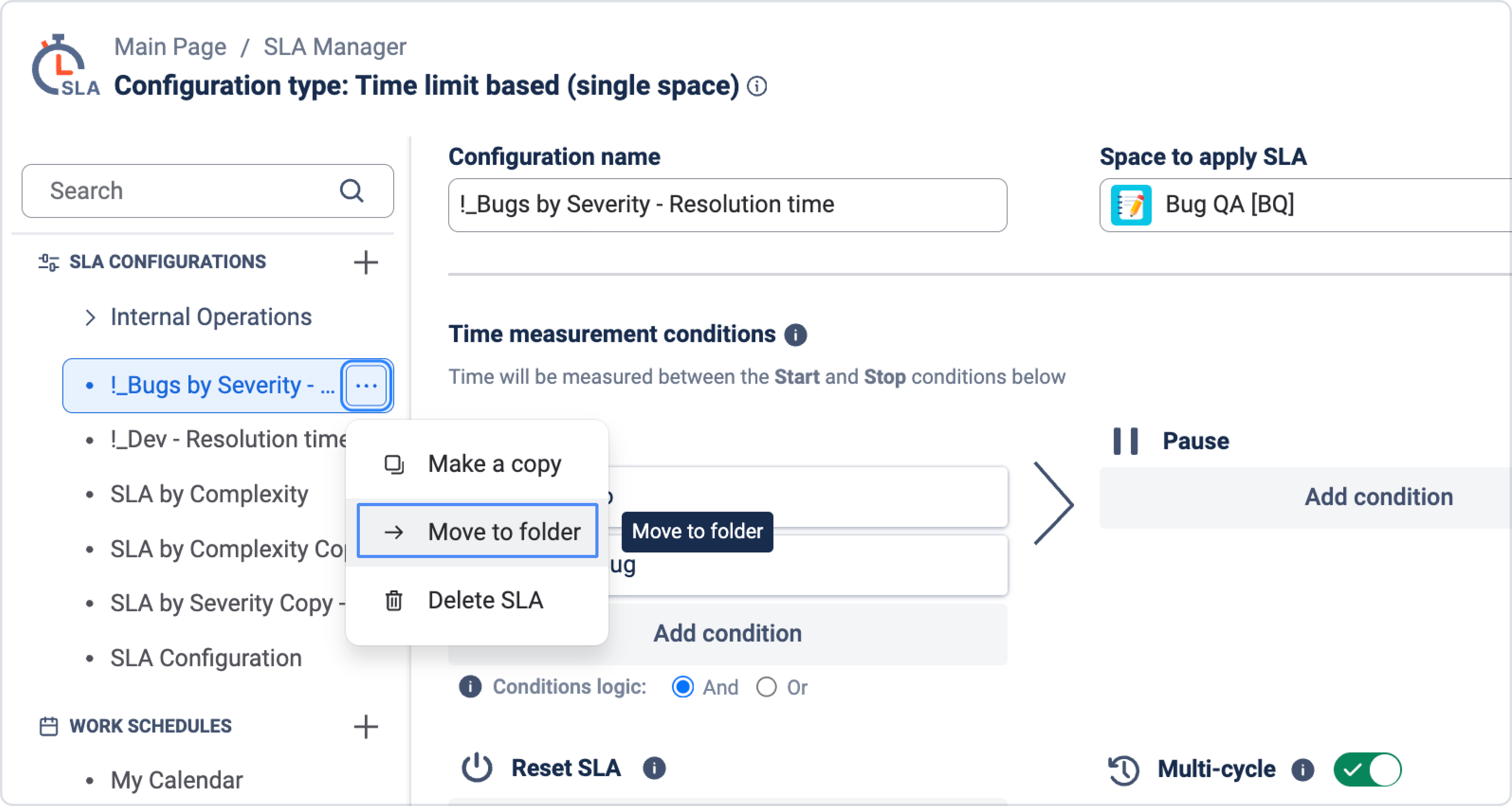
Click ••• next to the SLA configuration.
-
Select Move to folder.
-
Choose the folder where you want to move the SLA.
-
Click Save.
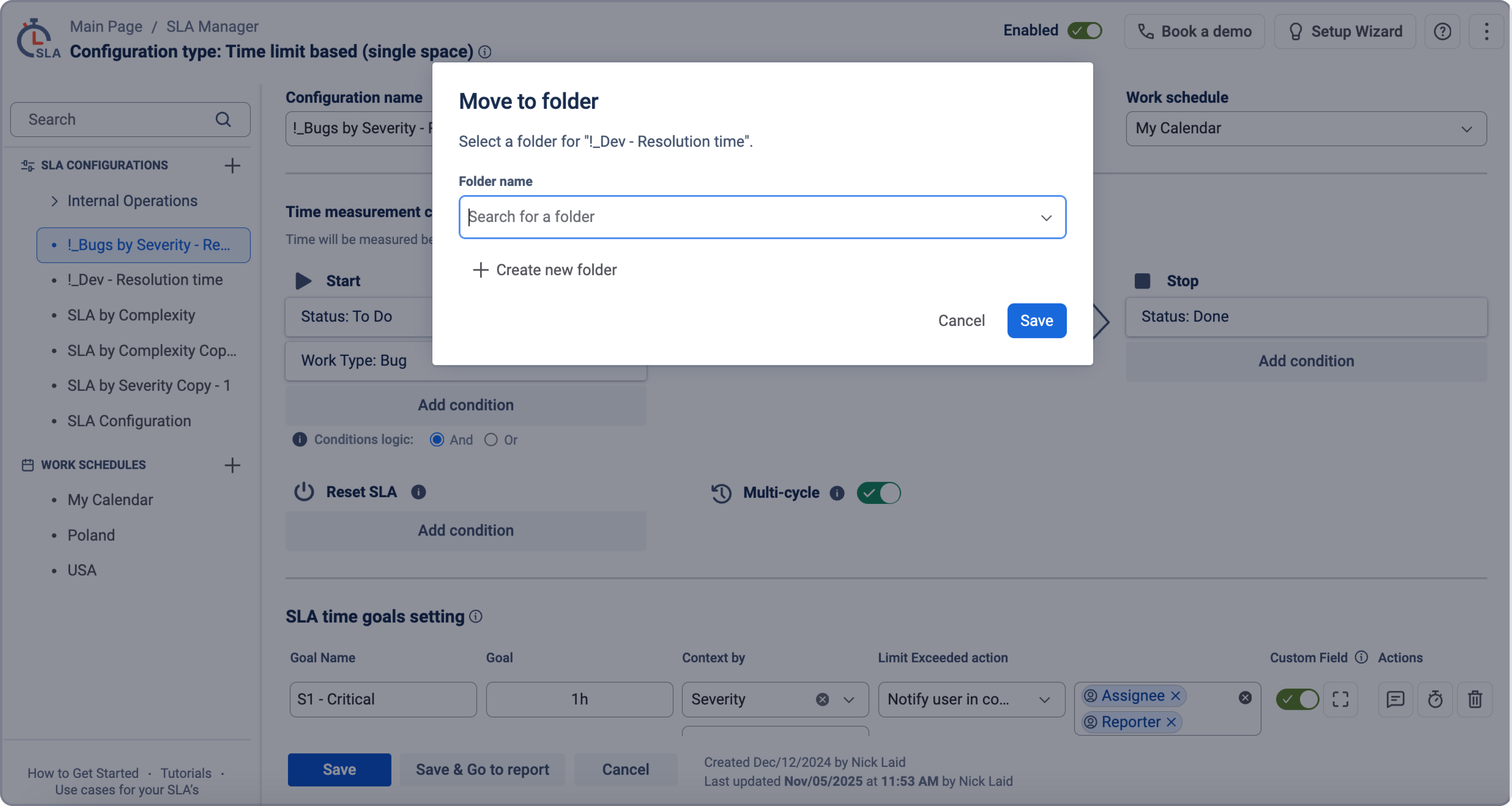
If the SLA already belongs to another folder, it will be removed from the previous folder and added to the selected one.
Create a folder while moving an SLA
When moving an SLA, you don’t have to choose only from existing folders. You can create a new folder directly from the Move to folder modal and add the selected SLA to it.
.jpg?cb=c739c318706f6e74dd85754dbdda6828)
After saving, the new folder will appear in the SLA Configuration Manager sidebar with the selected SLA inside.
Remove an SLA from a folder
Removing an SLA from a folder does not delete the SLA configuration. The SLA will no longer belong to the folder, but it will remain available in SLA Configuration Manager.
To remove an SLA from a folder:
-
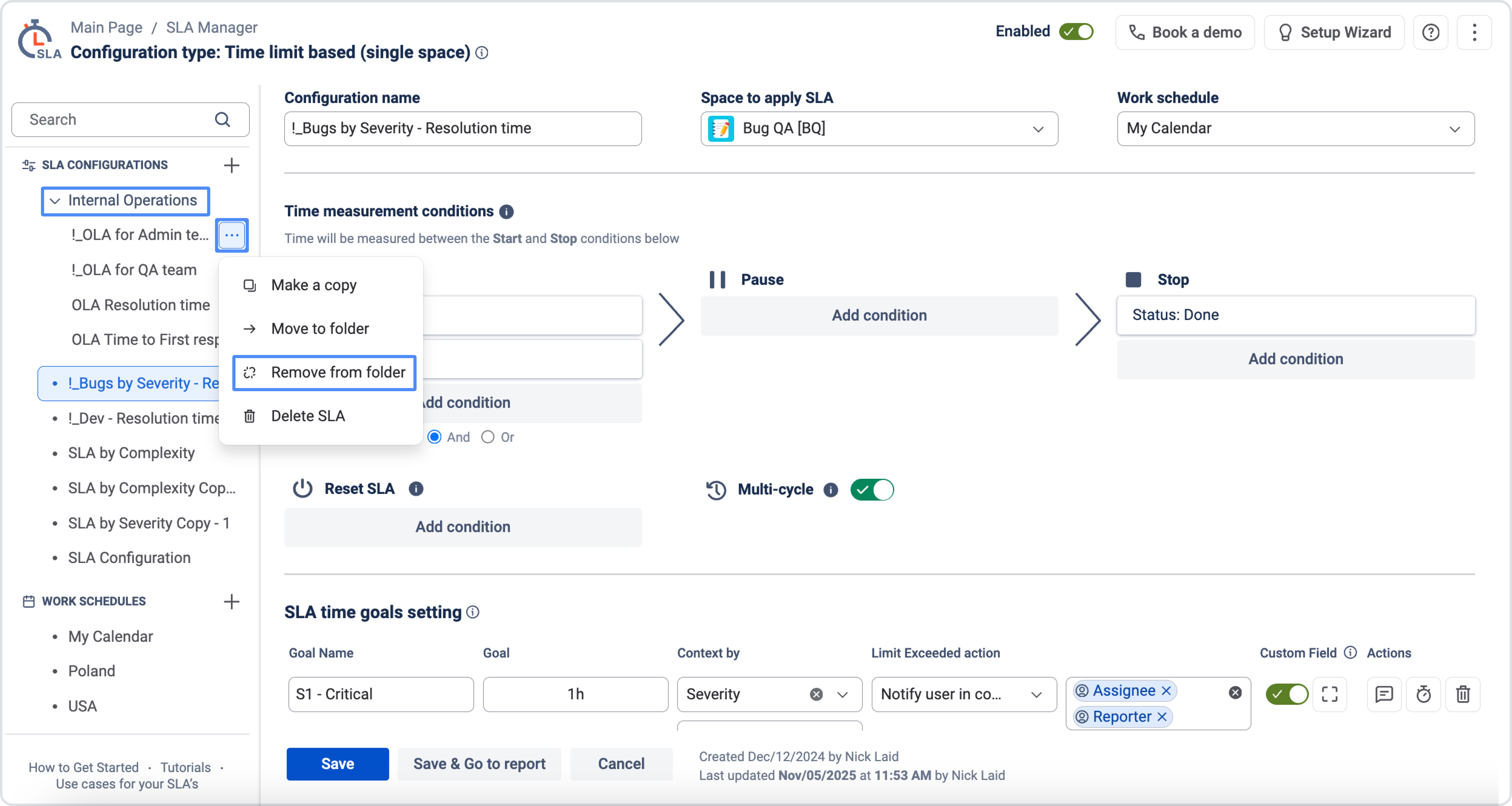
Click ••• next to the SLA configuration inside the folder.
-
Select Remove from folder.
-
Confirm the action.
Delete a folder
Deleting a folder does not delete any SLA configurations inside it.
To delete a folder:
-
Click ••• next to the folder name.
-
Select Delete folder.
-
Confirm the action.
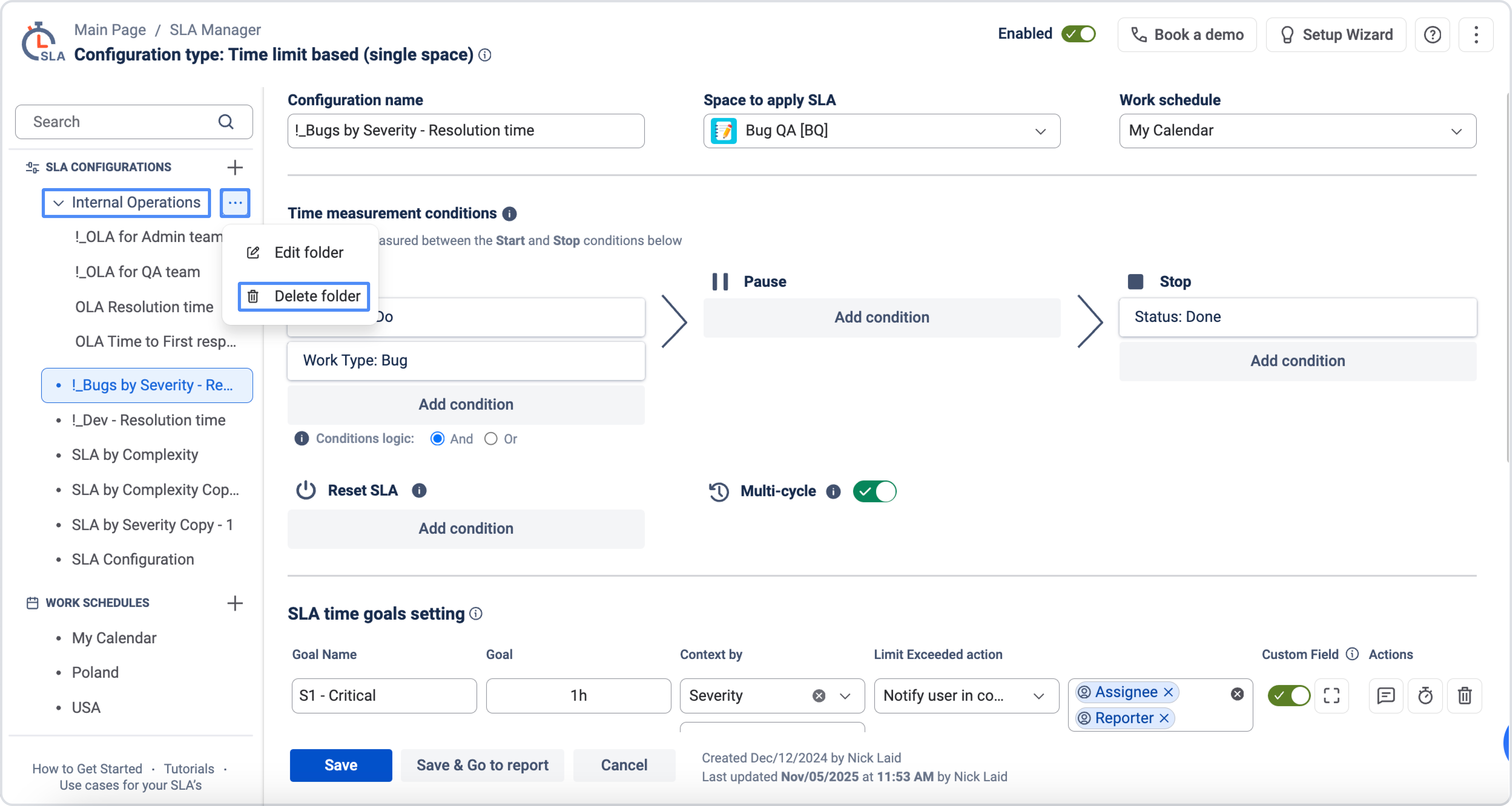
The folder will be deleted. SLAs inside it will no longer belong to a folder.
Need help?
Have questions or need help with SLA Time and Report? Contact our support team.
Want to see SLA Time and Report in action?
Book a demo with our team to explore your use case, or start a free trial to try the app in your Jira environment.