
Report Views help you save frequently used report settings and open them later without configuring the same filters again.
You can save Views for both SLA Grid Reports and SLA Chart Reports. Views are especially useful when you regularly check the same SLA reports, share report settings with other users, or use the Report Scheduler.
A View saves the selected report filters and settings, such as project, SLA, SLA status, date range, and other report-specific options.
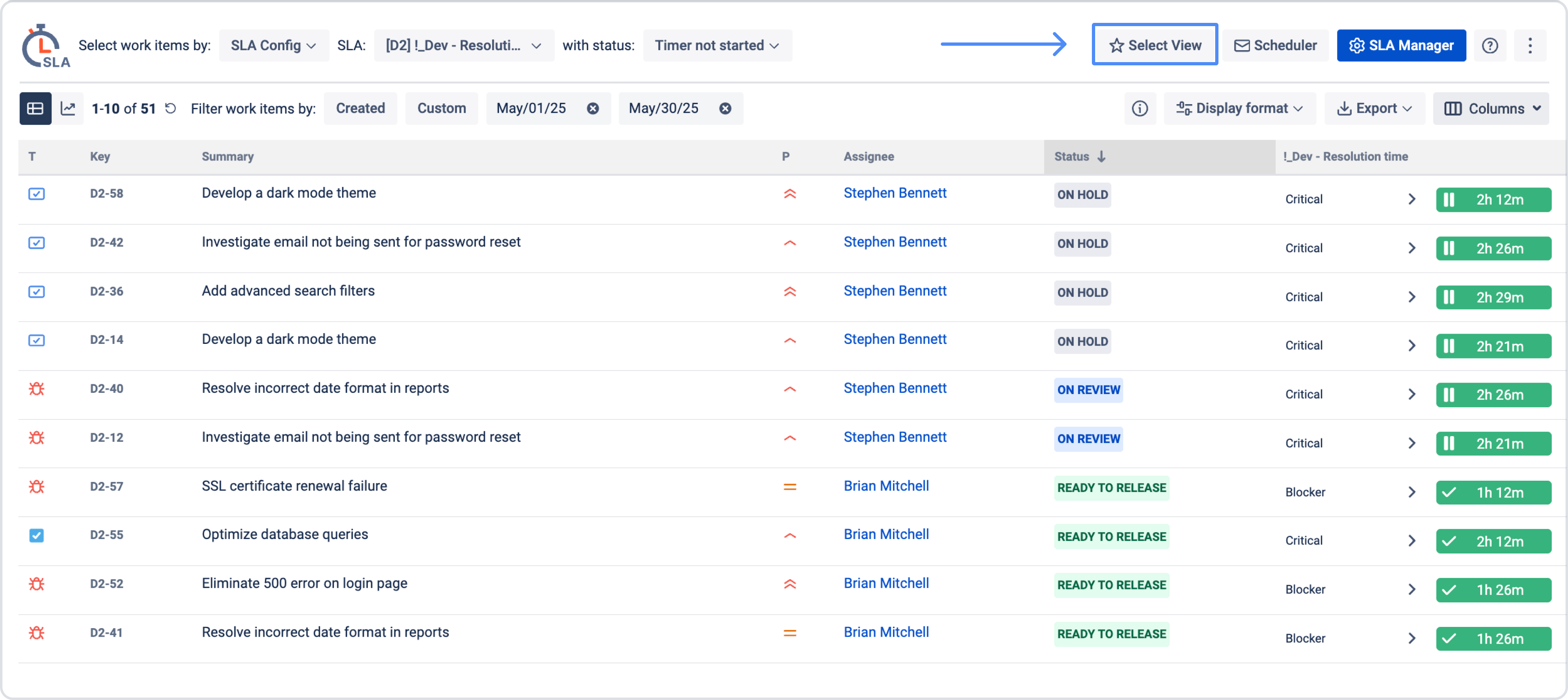
If you want to use the Report Scheduler feature, you need to create your own View.
Learn more: Report Scheduler
What is a report View?
A report View is a saved version of your report configuration. Instead of selecting the same filters every time, you can save them once and quickly load the View later.
For example, you can create separate Views for:
-
exceeded SLA work items
-
monthly SLA performance
-
specific projects or teams
-
selected SLA configurations
-
SLA reports shared with managers or support leads
How to save a new View
To save a report View:
-
Open the SLA Grid Report or SLA Chart Report.
-
Select the filters and report settings you need.
-
Click Select View :view:
-
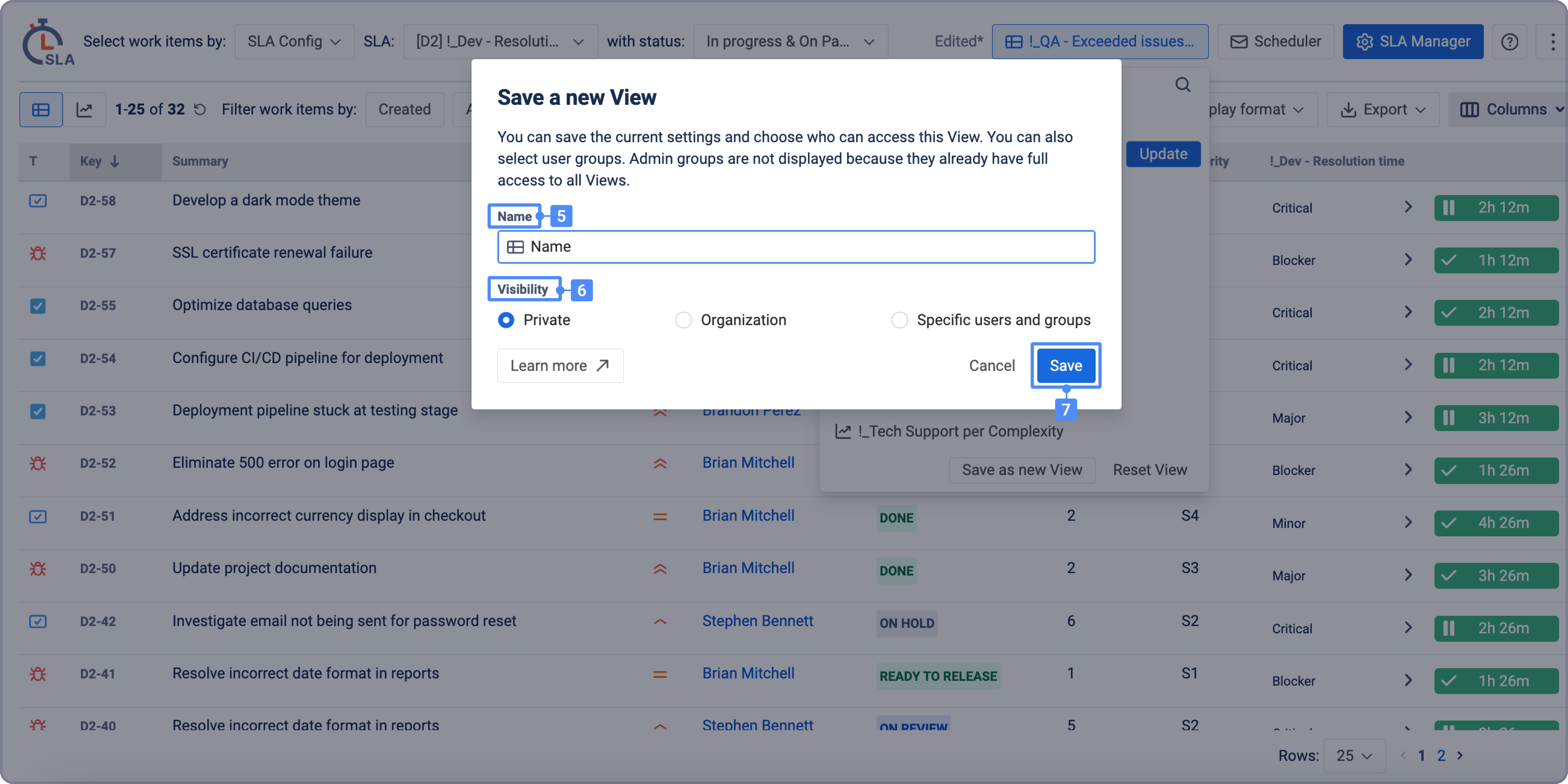
Then click Save as new View.
-
Enter the View name.
-
Select the privacy settings.
-
Click Save.
Once saved, the View will appear in the list of available report Views.
View privacy settings
When saving or editing a View, you can choose who can access it.
Private
The View is available only to you and organization admins.
Organization
The View is available to users in your organization who have access to the report.
Specific users and groups
The View is available only to selected users and groups.
Organization admins can view and edit all Views, even if they are not listed under Specific users and groups.
How to load a saved View
To open a saved View:
-
Click the View dropdown at the top of the report.
-
Use search if you have many saved Views.
-
Select the View you want to open.
The report will load with the filters and settings saved in that View. If the selected View belongs to a Grid Report, it opens in the grid. If it belongs to a Chart Report, it opens in the corresponding Chart Report.
.jpg?cb=f1e37bb5722209120952adf11aa20db4)
How to edit, update, or delete a View
:Edit: Update a View
You can update a View in two ways:
1. Update the View name or privacy settings
Use the Edit icon next to the View to change only the View name or privacy settings.
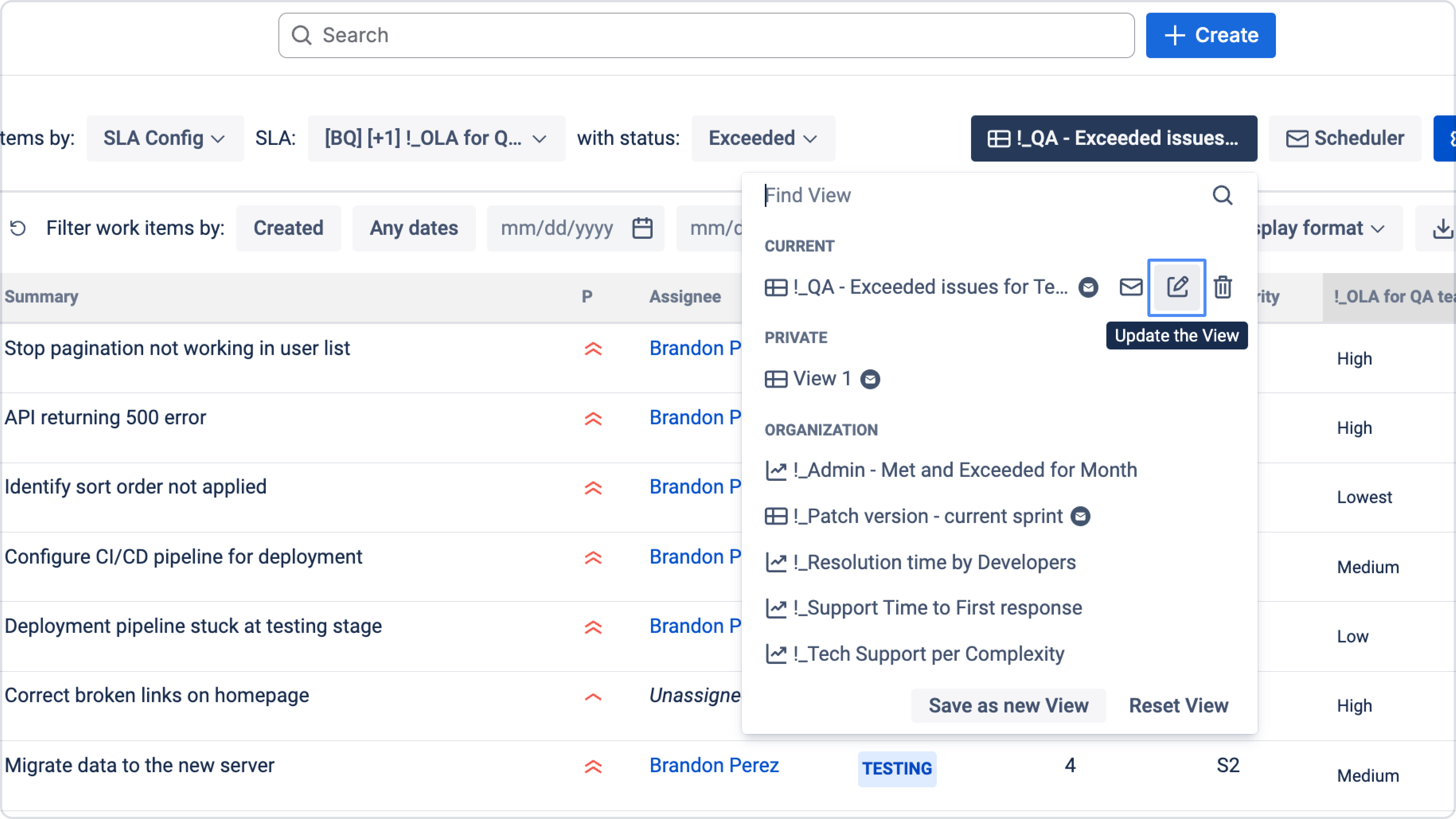
Here, you can update only the View name and privacy settings. Saved filters stay unchanged. Organization admins can view/edit all Views, even if not listed under “Specific users and groups”.
2. Update saved filters in the View
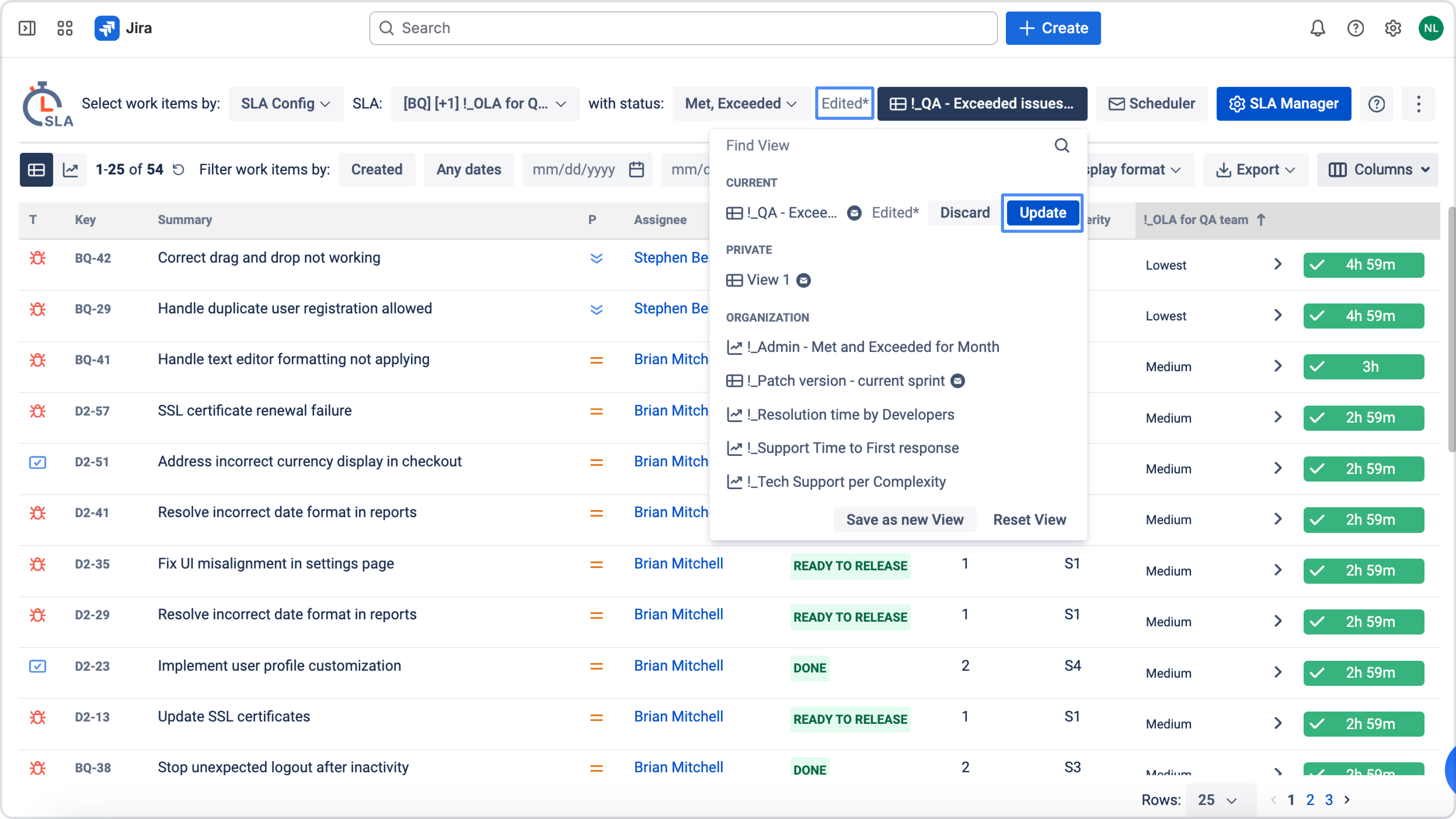
Open a saved View and change the report filters directly, such as project, SLA, SLA status, or date range. When the Edited label appears, click Update to save the new filters to the same View.
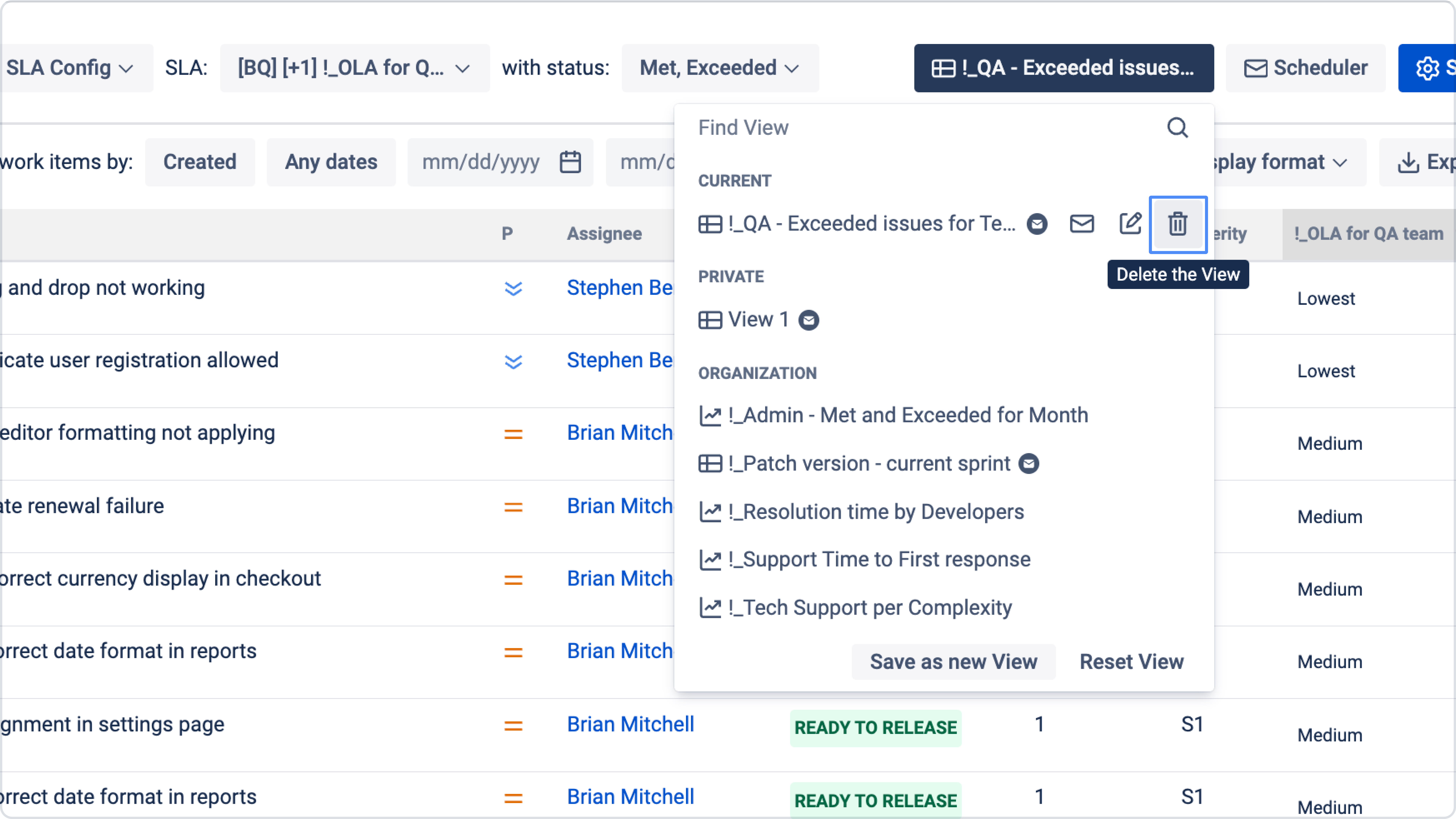
:delete: Delete a View
To delete a View, click the Delete icon next to the View and confirm the action.
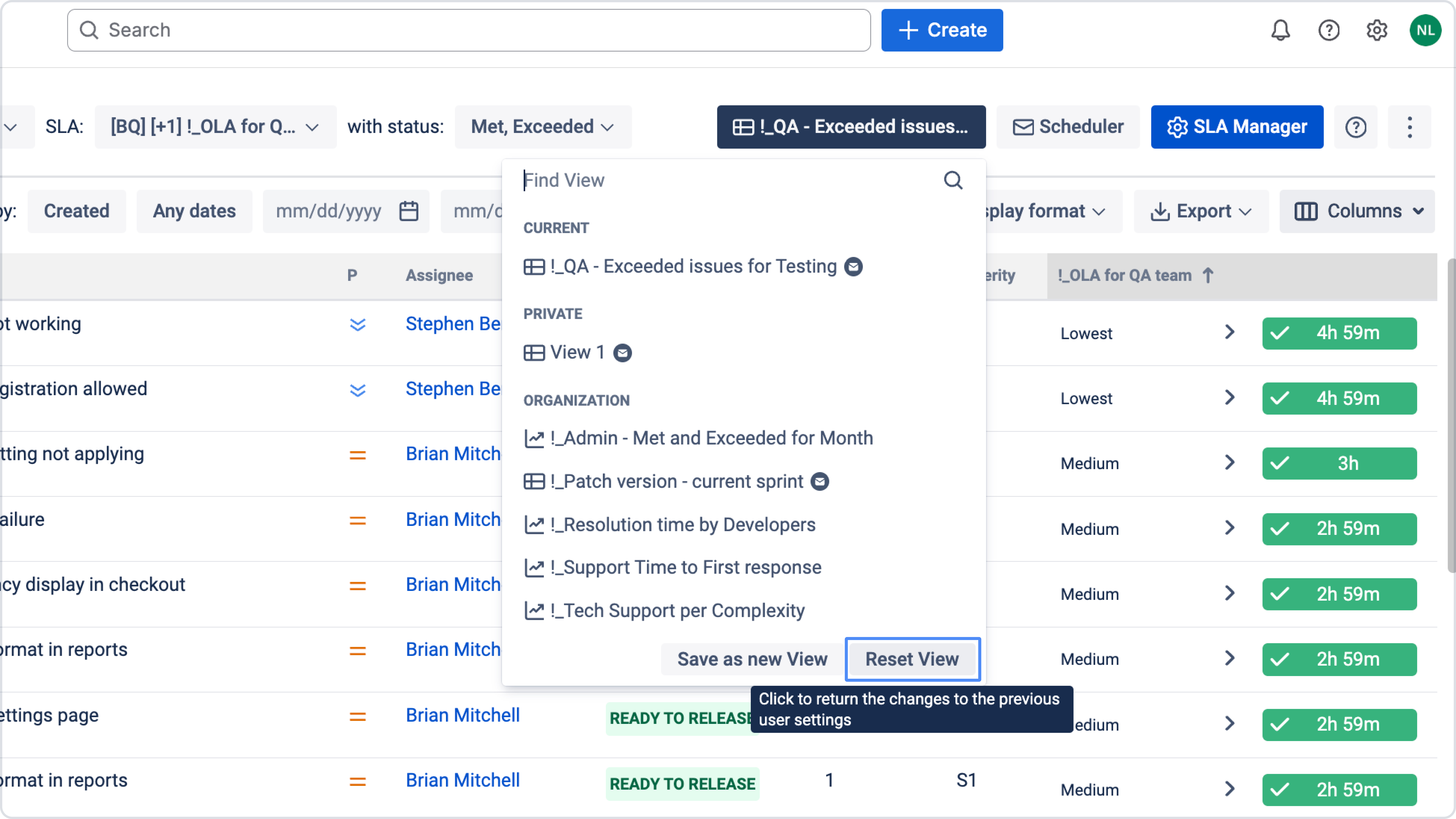
Reset a View
If you changed filters but want to return to the previously saved View settings, click Reset View. This removes unsaved filter changes and restores the saved filters.
Use Views with Report Scheduler
To use Report Scheduler, you need to select a saved View. The scheduler uses the filters and settings saved in the selected View to generate and send the report.
Before setting up a scheduled report, make sure the View contains the correct filters and report settings. 👉 Learn more here: Report Scheduler
Important note about shared Views
When using public or shared Views, remember that saved report filters may include visible information such as project names, project keys, field values, or JQL-related data.
Avoid adding sensitive or confidential information to Views shared with a wide audience. See the Security and Data Handling Policy for more details.
Need help?
Have questions or need help with SLA Time and Report? Contact our support team.
Want to see SLA Time and Report in action?
Book a demo with our team to explore your use case, or start a free trial to try the app in your Jira environment.