
Export SLA reports to continue working with your data outside SLA Time and Report.
You can export:
-
SLA Grid reports as XLSX or CSV files
-
SLA chart reports as PNG, JPEG, PDF, or SVG files
The Export option becomes available after the selected report data is loaded on the page.
Export an SLA Grid report
Choose a time format
Before exporting the SLA Grid, use the Format menu to choose how SLA durations should appear in the exported file.
Available time formats include:
-
h:m:s
-
h:m
-
M
-
HM – Hours and Minutes
-
DHM – Days, Hours, and Minutes
-
Decimal Hours
-
Decimal Days
-
Business DHM
-
Business Decimal Days
Timer modes:
-
Elapsed
-
Remaining/Overdue
Goals display:
-
Show all goals
-
Hide N/A goals
Please note: in order to extract the data for analysis, please choose one of the Decimal time formats. It will enable you to perform calculations on the exported data and build charts.
Choose a timer mode
The selected Timer Mode also applies to the exported SLA data.
Remaining/Overdue
Displays how much time remains before the SLA goal is reached. This is the default mode.
Elapsed
Displays how much time has passed since the SLA timer started. To change the mode:
-
Open the Display Format button.
-
Scroll to Timer Mode.
-
Select Remaining/Overdue or Elapsed.
When you switch to Elapsed, it will also apply to the SLA panel inside each issue. This setting is saved per user, so other users will continue to see Remaining/Overdue unless they change the setting themselves.
To export data from the SLA Grid:
-
Open the SLA Grid Report.
-
Select the SLA data you want to include in the report.
-
Wait until the data is displayed in the Grid.
-
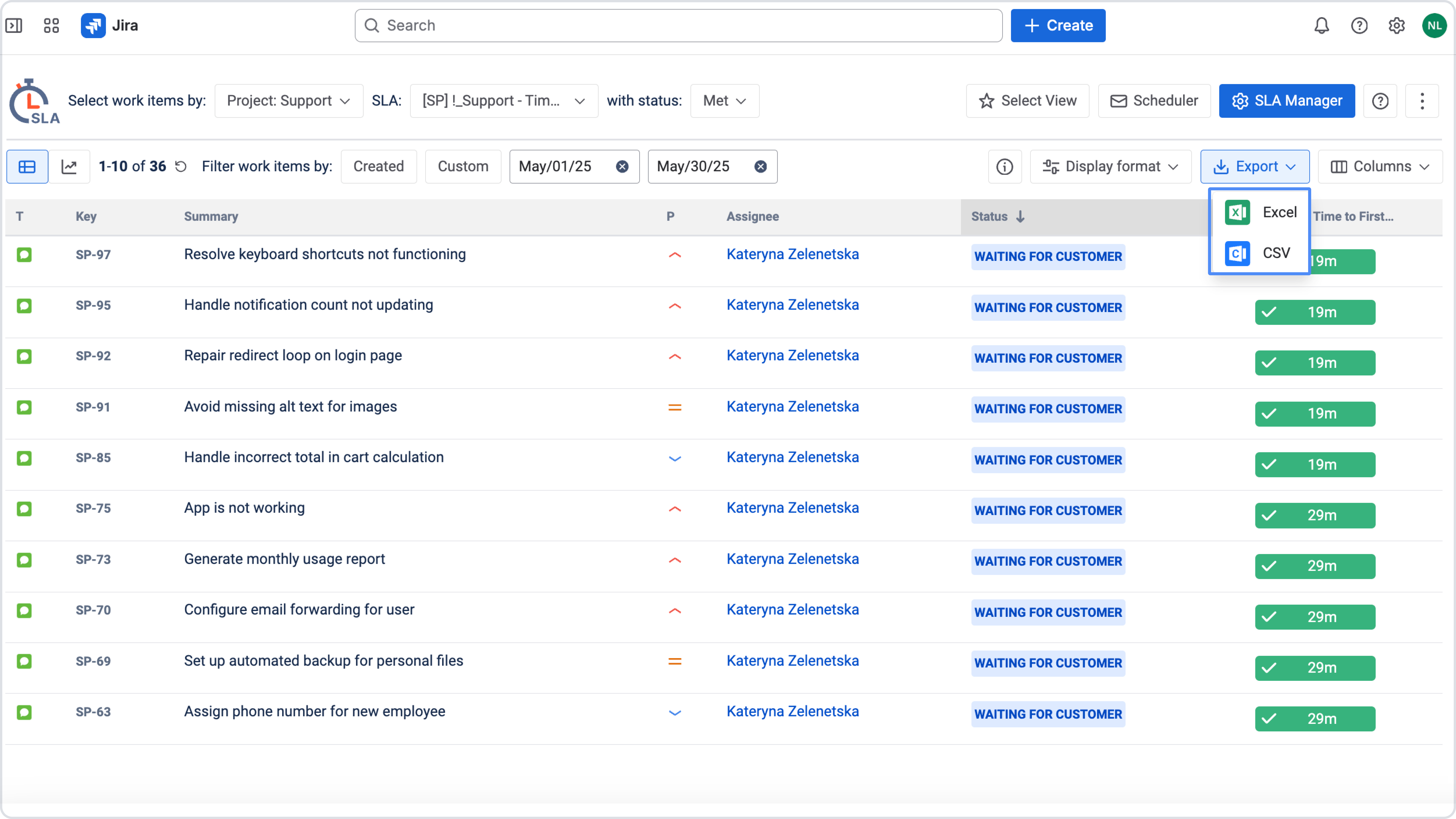
Click Export.
-
Select Export Excel or Export CSV.
-
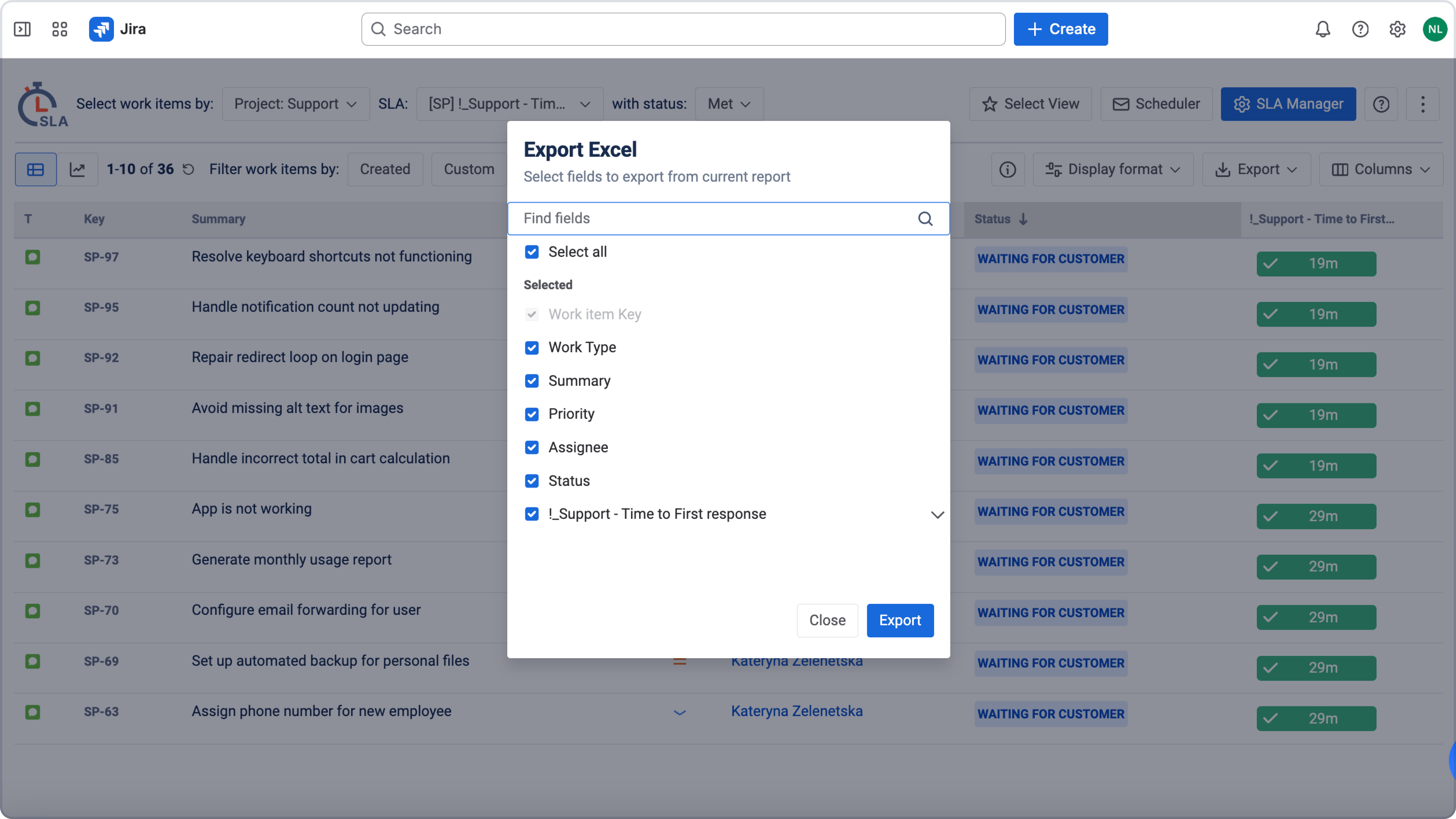
In the export configuration window, select the columns you want to include.
-
Click Export to generate the file.
The exported file contains the selected work item and SLA data displayed in the report.
Export an SLA chart
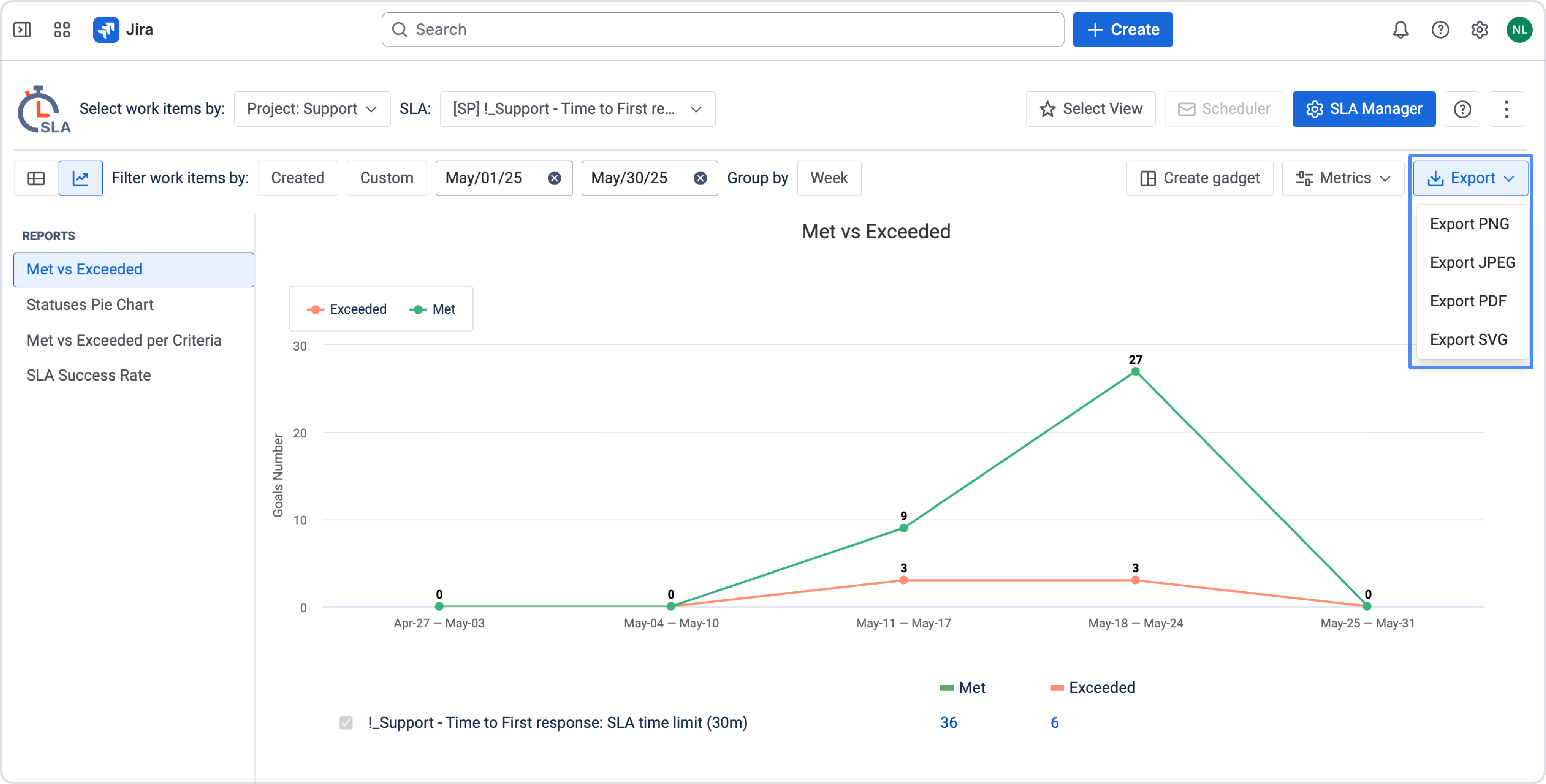
SLA charts can be exported as image or document files. Available formats:
-
PNG
-
JPEG
-
PDF
-
SVG
To export a chart:
-
Open the required SLA chart report.
-
Configure the report and wait until the chart data is displayed.
-
Click Export.
-
Select the required file format.
Work with exported data
You can open XLSX or CSV files in spreadsheet applications, including Google Sheets. The exported data can be sorted and filtered using the available spreadsheet tools.
For example, you can use the following SLA values:
-
Goal name – the name of the SLA goal
-
Goal time – the time limit defined in the SLA configuration
-
Remaining time – the time left before the SLA goal is reached
To calculate elapsed SLA time, use:
Goal time − Remaining time = Elapsed time
Сalculation of the SLA time remaining
Also, you can filter data according to the conditions in the program.
Important notes
-
Export is available only after report data is loaded on the page.
-
SLA Grid reports can be exported as XLSX or CSV files.
-
SLA chart reports can be exported as PNG, JPEG, PDF, or SVG files.
-
Select a decimal time format when you need to perform calculations with exported SLA durations.
-
The selected time format and Timer Mode determine how SLA time appears in the exported file.
Need help?
Have questions or need help with SLA Time and Report? Contact our support team.
Want to see SLA Time and Report in action?
Book a demo with our team to explore your use case, or start a free trial to try the app in your Jira environment.