
To use the SLA Time and Report Agent, make sure Rovo is available and enabled on your Jira Cloud site.
Rovo is available only on specific Jira Cloud plans. According to Atlassian, Rovo is available for Standard and Premium Cloud plans. You can check plan availability here:
https://www.atlassian.com/licensing/rovo#billing-subscriptions
If Rovo is not available on your site, ask your Jira site admin to enable it in Atlassian Administration.
The SLA SLA Time and Report Agent is a Rovo agent for SLA Time and Report for Jira. It helps you ask questions about SLA analytics and get quick answers directly in Jira. Use the agent to check SLA-related work items, review current SLA statuses, and find where exceeded SLA work items need attention.
What the SLA Time and Report Agent can help with
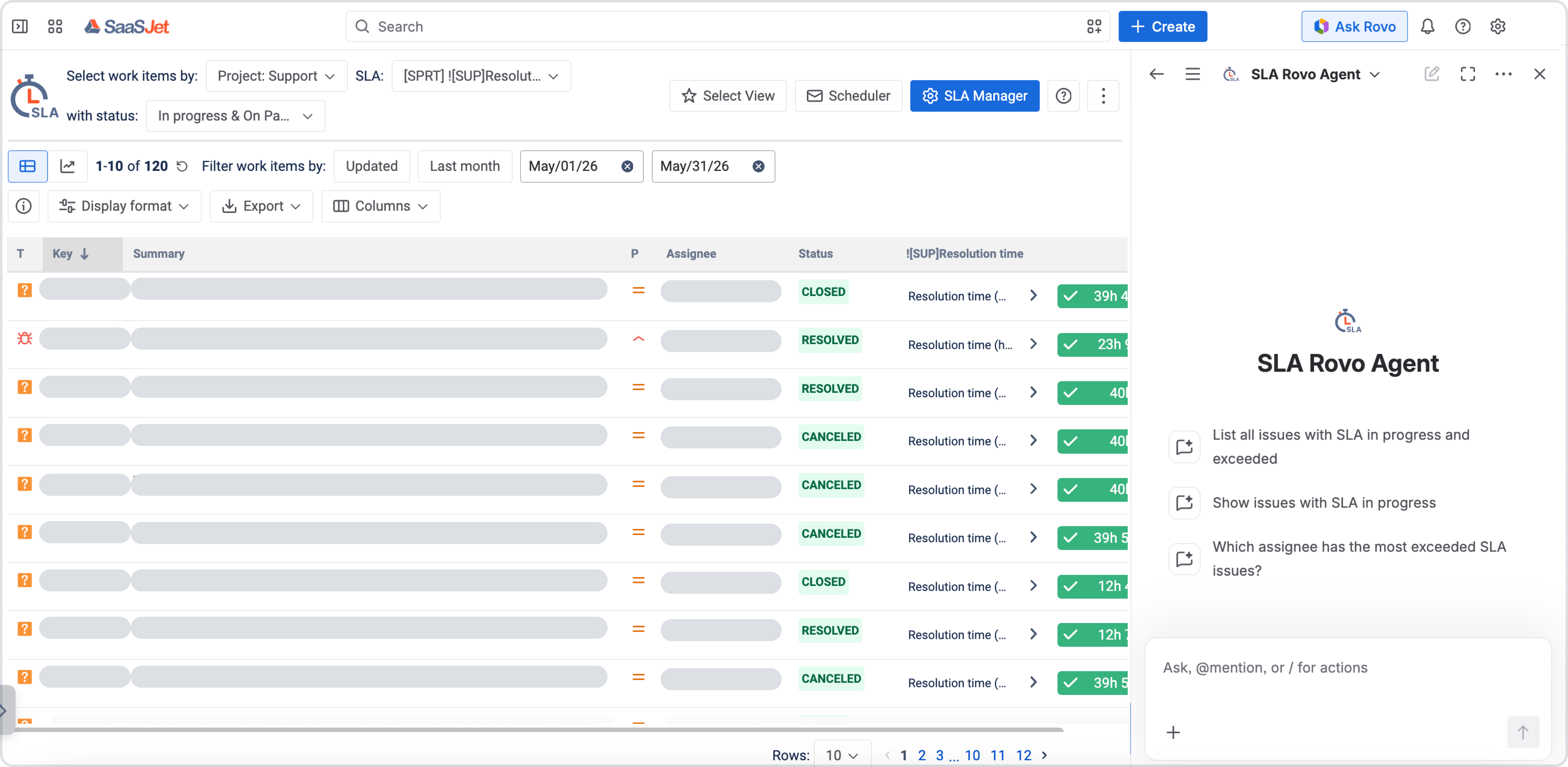
You can use the SLA Time and Report Agent to ask questions such as:
-
List all work items with SLA in progress and exceeded
-
Show work items with SLA in progress
-
Which assignee has the most exceeded SLA work items?
The agent helps you work with SLA analytics faster by turning your question into a clear response with relevant SLA work item information.
How to open the SLA Time and Report Agent
The SLA Time and Report Agent button is available by default in the top-right corner.
.jpg?cb=86f573ec681347ca380678eb9ba5e919)
How to open SLA Time and Report Agent:
-
Open your Jira instance.
-
Open SLA Time and Report main page.
-
Click Ask Rovo in the top-right corner. The agent opens immediately.
-
In the Rovo panel, click the arrow next to Rovo to open the agent list. Select SLA Time and Report Agent.
.jpg?cb=52a608b9b0ad736a4c8128e0eb869b0c)
-
Select one of the suggested prompts or enter your own question.
How the SLA Agent responds
The SLA Agent returns a short answer based on your request. Depending on the question, the response can include:
-
the number of matching work items;
-
work item key and summary;
-
current work item status;
-
SLA status, such as In progress or Exceeded;
-
assignee-related SLA information, when requested.
For example, if you ask:
List all work items with SLA in progress and exceeded
The agent can return a list of work items that match this SLA status, including the work item key, summary, and current Jira status. You can also ask follow-up questions about the returned work items, such as checking the SLA target date for an exceeded SLA work item.
Example prompts
Try these prompts to start working with the SLA Agent:
-
List all work items with SLA in progress and exceeded
-
Show work items with SLA in progress
-
Which assignee has the most exceeded SLA work items?
-
What is the due date for the exceeded SLA work item?
Important notes
The SLA Agent uses AI-generated responses. Always verify the results before using them for reporting or decision-making.
If the agent does not have access to the required SLA field, it may explain what field is needed to provide the exact answer. For example, to show the exact SLA target date, the agent may need access to the slaTargetDate field.
Need help?
Have questions or need help with SLA Time and Report? Contact our support team.
Want to see SLA Time and Report in action?
Book a demo with our team to explore your use case, or start a free trial to try the app in your Jira environment.