
Smart Forms can publish your form responses into Atlassian's Teamwork Graph, so you can find and ask about them in Rovo. Once connected, you can search your responses in Rovo Search and Rovo Chat — by form name or by what's inside the responses — without opening each form.

Turn your form responses into shared, searchable knowledge. Your forms collect a lot of valuable information — customer feedback, access requests, bug reports, onboarding details. Normally that knowledge sits inside each form's Responses tab, waiting for someone to go looking for it. Connecting Smart Forms to Teamwork Graph changes that.
Teamwork Graph is Atlassian's unified knowledge layer — the shared "brain" that connects work data across Jira, Confluence, Jira Service Management, and more, and powers Rovo, Atlassian's AI search and chat. When you connect Smart Forms to it, your form responses become part of that shared knowledge: searchable, askable in plain language, and available in Rovo right next to the rest of your team's work.
What it does
When the integration is on, the responses from your Smart forms become searchable in Rovo.
You can:
-
Find responses by typing the form name in Rovo Search or Rovo Chat.
-
Search across response content (the text of the answers).
-
Open a specific response document in Rovo Chat just by naming it.
Only the form content is published — labels, descriptions, and answers. No internal identifiers are stored.
What gets published (and what doesn't)
Only responses from open forms — forms shared with no access restrictions — are sent to Teamwork Graph. This keeps responses visible in Rovo in line with who can actually access the form:
-
A form access set to open (no restrictions) → its responses are published and searchable in Rovo.
-
A form gets access restrictions (permissions added) → its responses are removed from Teamwork Graph.
The result: in Rovo, a user only sees responses from forms they have full access to.
How to set it up
Teamwork Graph integration works through a connector that you add in the Atlassian admin panel, under the connected-app settings for Smart Forms.
-
Open the Atlassian admin panel and go to the connected apps settings for Smart Forms for Jira.
-
Create the connector. Creating it starts a full synchronization of your site's existing data into Teamwork Graph. This runs in the background and takes some time to complete.
.png?cb=3e9bcc2d5477456b787bb8084fda8bac)
-
Once the sync finishes, your public form responses are available in Rovo.
A few things to know about the connector:
-
There can be only one connector.
-
When you delete the connector, all data it published to Teamwork Graph is deleted too. This makes it safe to recreate the connector — for example, if you need to re-run the setup.
How to find responses in Rovo
After the connector has synced, use Rovo Search or Rovo Chat:
-
Search by form name to pull up its responses.
-
Search by keywords that appear in the responses.
-
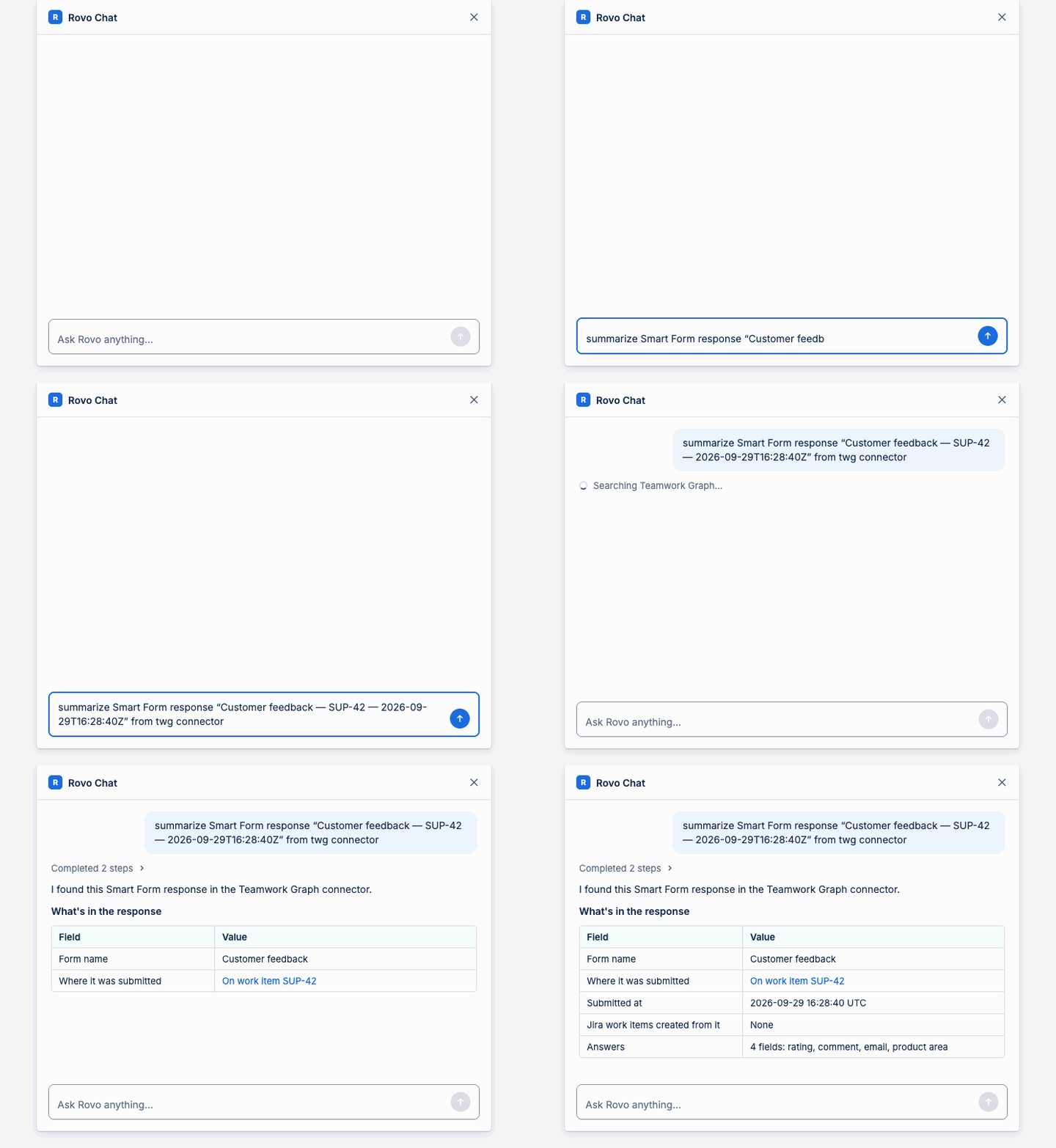
In Rovo Chat, open a specific response document by naming it, and view its content directly.
What you can use it for
Once connected, you can stop digging through individual Responses tabs and simply ask Rovo. A few ways teams use it:
-
Support & customer teams — find responses by topic across all your feedback and request forms ("show recent responses that mention billing"), or ask Rovo to summarize what customers have been submitting.
-
HR & operations — pull up onboarding, access, or equipment requests by form name instead of opening each form.
-
Product teams — surface feature requests and ideas scattered across many submissions in one search.
-
Anyone — open a specific response in Rovo Chat just by naming the form, and read its content there.
Because responses live in the shared graph, this works across your Atlassian tools — the same place your team already searches for Jira and Confluence work.
Who can see what
Response documents in Teamwork Graph follow the form's access, so people see only what they're entitled to:
-
Responses are visible to users who are a collaborator or above on the form.
-
Access works directly for individual users — named collaborators, the owner, and Jira users.
-
Groups (including the admin group) aren't read directly from Teamwork Graph. Instead, group access is mirrored into internal access groups, which comes with two limits:
-
Only the first 100 users of a group are included.
-
Group membership syncs on a schedule, about once an hour (Jira doesn't send an event when a group changes), so newly added or removed group members may take up to an hour to take effect.
-
Good to know
-
Updates aren't instant. Documents and their permissions refresh with a delay — allow roughly 10 minutes for a change (new response, or a change to form access) to appear in Teamwork Graph and Rovo.
-
Only public-form responses are ever published. Responses from forms with any access restriction are not in Teamwork Graph.