SLA Time and Report for Jira offers two pricing plans – Standard and Advanced.
Both plans cover core SLA tracking and reporting needs, while Advanced unlocks extended automation and configuration capabilities for more complex workflows.
This page explains:
-
the difference between plans
-
pricing and trial details
-
how to enable the Advanced plan step by step
Available Plans Overview
Standard Plan
The Standard plan is suitable for teams that need reliable SLA tracking, reporting, and dashboards without advanced automation.
Included features:
-
Real-time SLA reporting
-
Save & edit report views
-
Sort tickets by SLA time
-
Chart-based SLA reports
-
Dashboard gadgets
-
Limit exceeded actions
-
Notifications before SLA breach
-
Context time preservation
-
Issue panel SLA widget
This plan works well for small to mid-sized teams with straightforward SLA rules.
Advanced Plan
The Advanced plan is designed for teams with complex SLA logic, distributed teams, or multi-region support.
Everything from Standard, plus:
-
Multiple schedules SLA (Multi-calendar SLA). Better support for global teams and multiple time zones
This plan is recommended if:
-
your team works across different regions
-
SLA time should depend on assignee schedules
-
you need more control over how SLA time is calculated
Feature Comparison
|
Feature |
Standard |
Advanced |
Description |
|---|---|---|---|
|
Real-Time SLA Reporting |
✔ |
✔ |
Monitor your SLA metrics in real time and always know the current SLA status. |
|
Save & Edit Views |
✔ |
✔ |
Customize how you view your SLA data. Save your preferred report configurations and easily switch between views for different teams or use cases. |
|
Sort Tickets by SLA Time |
✔ |
✔ |
Quickly identify issues that are closest to breaching. Sort and prioritize tickets based on remaining or elapsed SLA time. |
|
Chart-Based Reporting |
✔ |
✔ |
Visualize SLA performance with clear and interactive charts for better visibility and understanding. |
|
Dashboard Gadgets |
✔ |
✔ |
Create charts and instantly turn them into dashboard gadgets for convenient SLA analysis. |
|
Limit Exceeded Action |
✔ |
✔ |
Define custom actions for limit-exceeded scenarios to maintain system stability and avoid hard failures. |
|
Notification Before Breach |
✔ |
✔ |
Notifications before breach alert your team when an SLA is at risk, giving you time to act before a violation happens. |
|
Context Time Preservation |
✔ |
✔ |
Keep elapsed time across context changes - SLA time is preserved instead of restarting, so progress is never lost when conditions change. |
|
Issue Panel Widget |
✔ |
✔ |
View SLA progress directly in the issue panel for fast insights without opening detailed reports. |
|
Multiple Schedules SLA |
➖ |
✔ |
One SLA can use multiple work schedules per users or groups, running the timer only during the assignee’s working hours and time zone. |
Pricing & Trial Information
-
Standard:
-
Free 30-day trial
-
Up to 10 users – free
-
More than 10 users: $0.01 – $1.25 per user / month, depending on team size
-
-
Advanced:
-
Free 30-day trial
-
Up to 10 users – $2.00 per user / month
-
More than 10 users: $0.10 – $2.13 per user / month, depending on team size
-
Billing is handled via Atlassian subscriptions and follows your Jira user count.
Pricing Comparison:
|
Team size |
Standart (USD) |
Advanced (USD) |
|
1-10 |
Free |
$2.00 |
|
11-100 |
$1.25 |
$2.13 |
|
101-250 |
$0.85 |
$1.57 |
|
251-1000 |
$0.35 |
$0.60 |
|
1001-2500 |
$0.20 |
$0.33 |
|
2501-5000 |
$0.10 |
$0.18 |
|
5001-7500 |
$0.04 |
$0.10 |
|
7501-10000 |
$0.02 |
$0.10 |
|
10001-15000 |
$0.02 |
$0.10 |
|
15001-20000 |
$0.01 |
$0.10 |
|
20001-25000 |
$0.01 |
$0.10 |
|
25001-30000 |
$0.01 |
$0.10 |
|
30001-35000 |
$0.01 |
$0.10 |
|
35001-40000 |
$0.01 |
$0.10 |
|
40001-45000 |
$0.01 |
$0.10 |
|
45001-50000 |
$0.01 |
$0.10 |
|
50001-60000 |
$0.01 |
$0.10 |
|
60001-70000 |
$0.01 |
$0.10 |
|
70001-80000 |
$0.01 |
$0.10 |
|
80001-90000 |
$0.01 |
$0.10 |
|
90001-150000 |
$0.01 |
$0.10 |
How to Enable the Advanced Plan
Follow these steps to start using Advanced features.
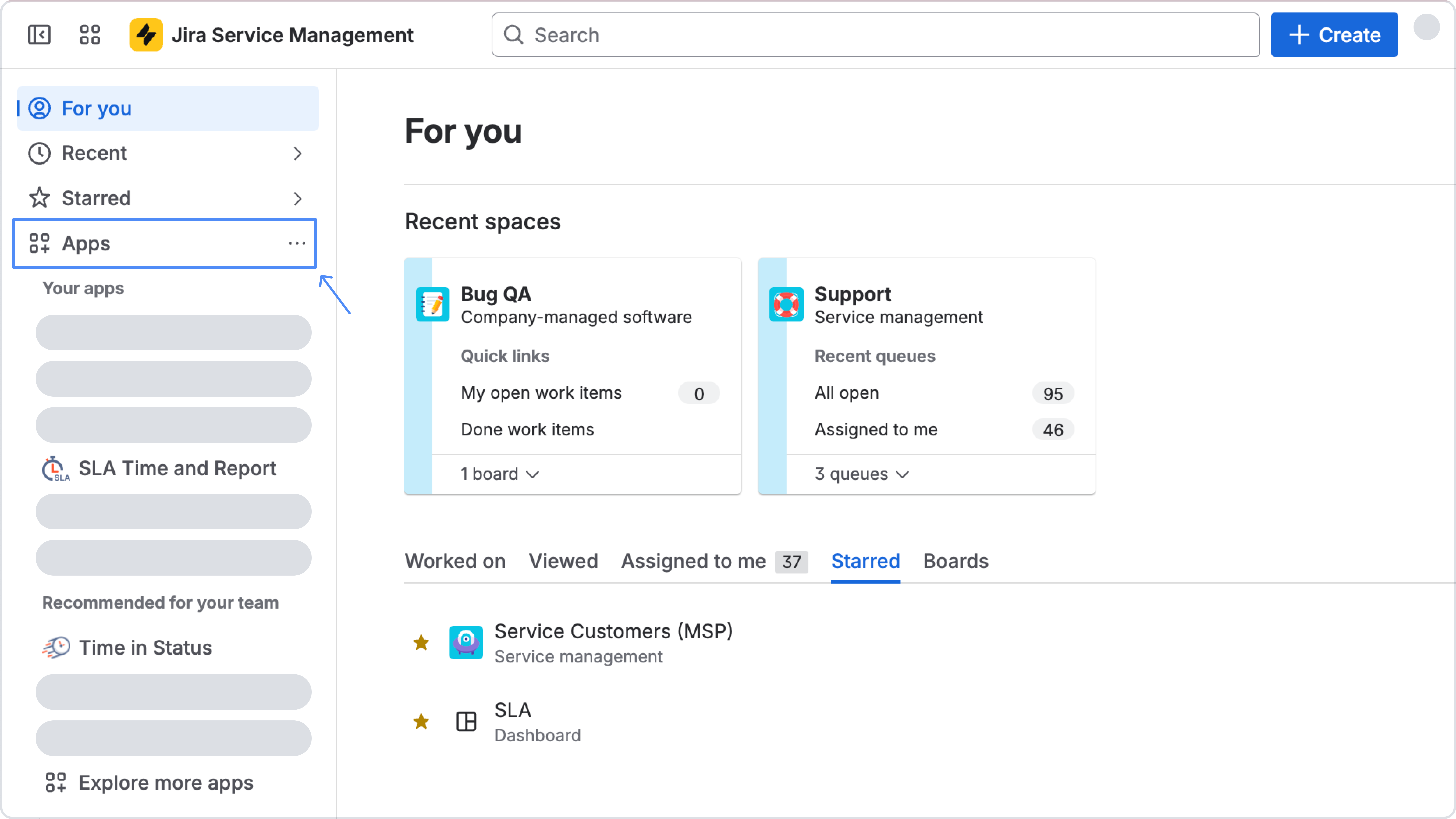
Step 1: Open Connected Apps
Go to: Open sidebar or Jira admin settings → Apps or Marketpalce apps → Manage apps
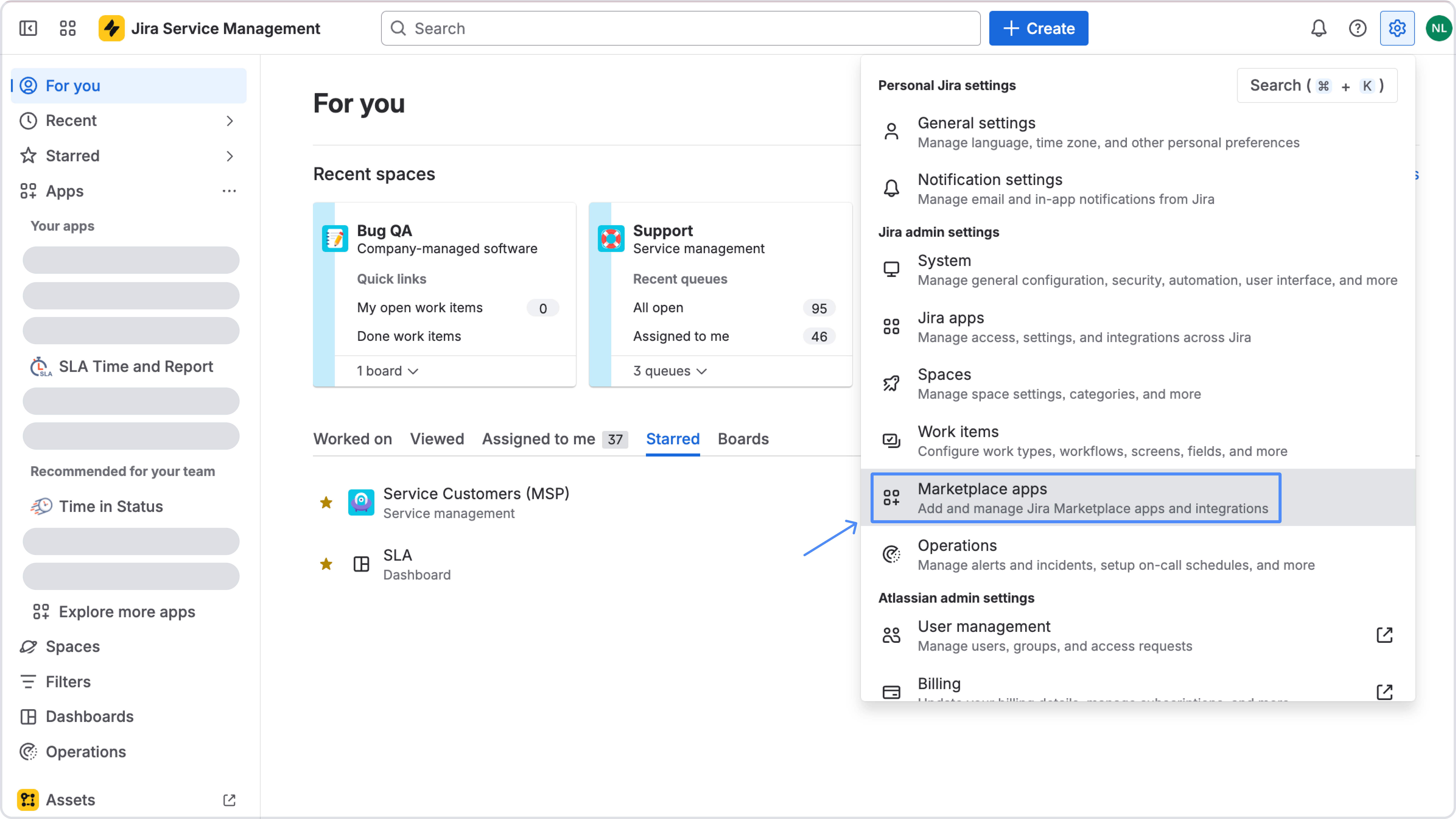
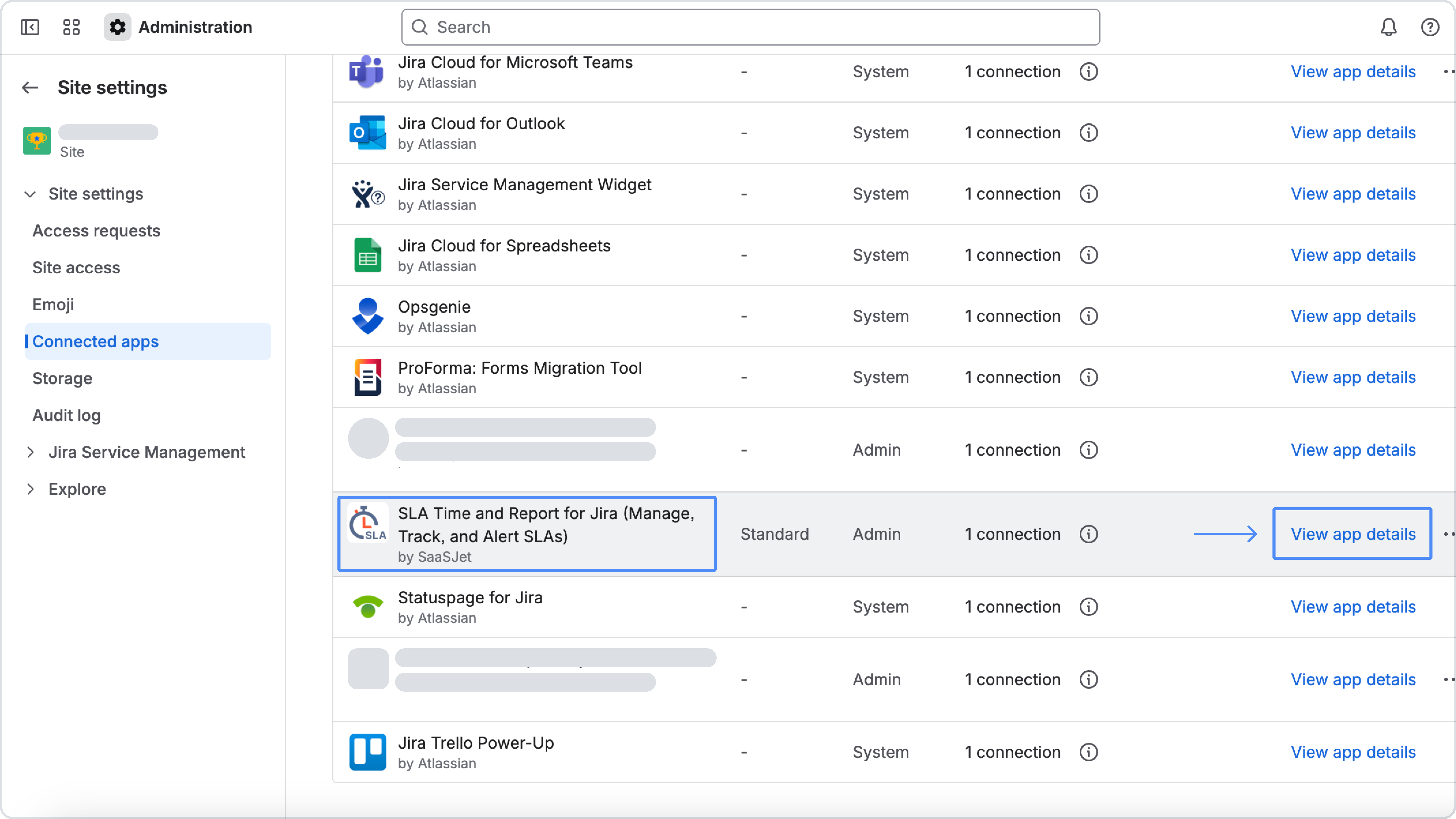
Find SLA Time and Report for Jira and open View app details.
Step 2: Open Subscription Details
In the app actions menu, select Manage subscription.
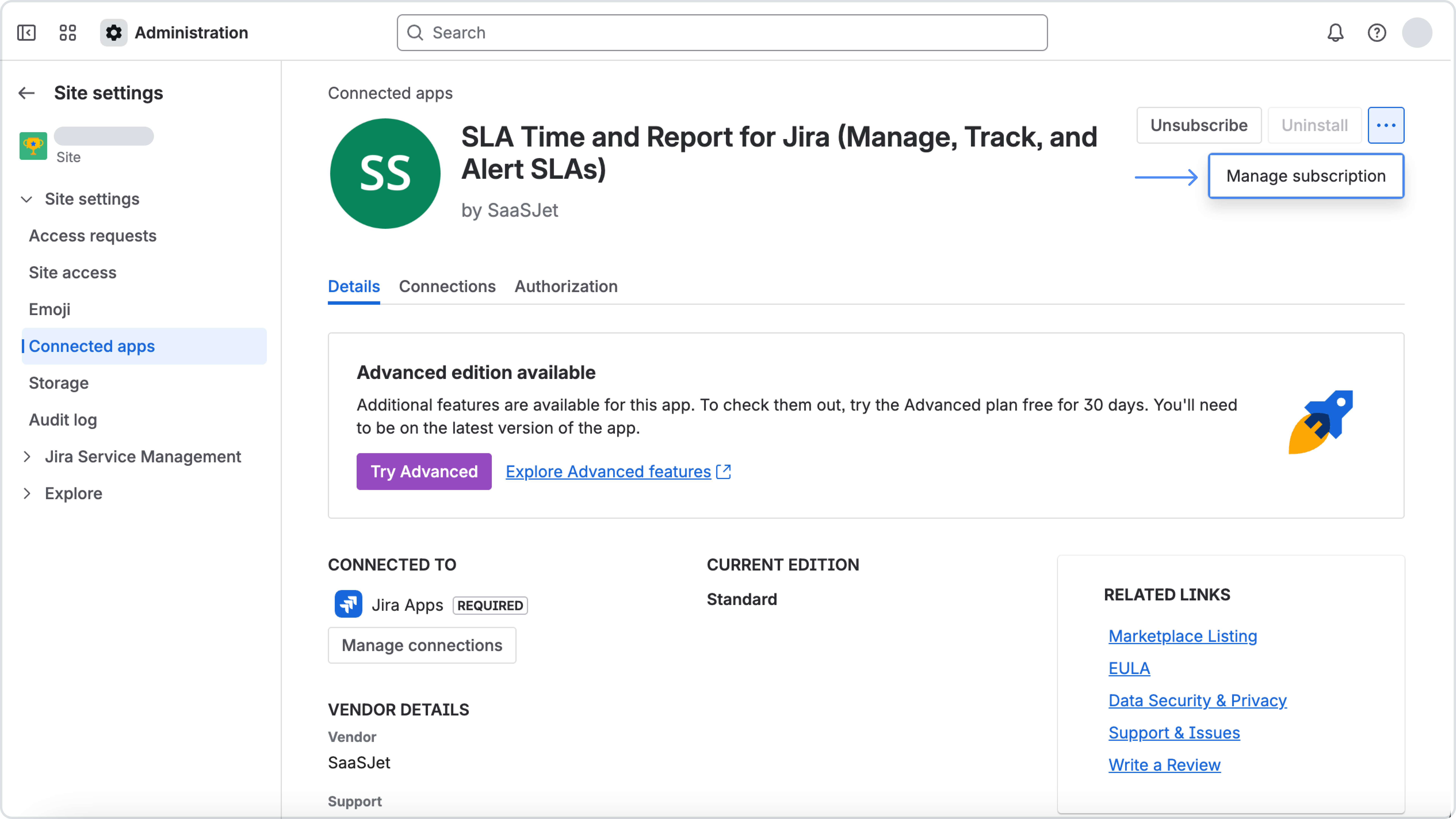
You will be redirected to the Atlassian subscription page.
Step 3: Choose the Advanced Plan
On the subscription page:
-
Select Change Plan
-
Click Try it free
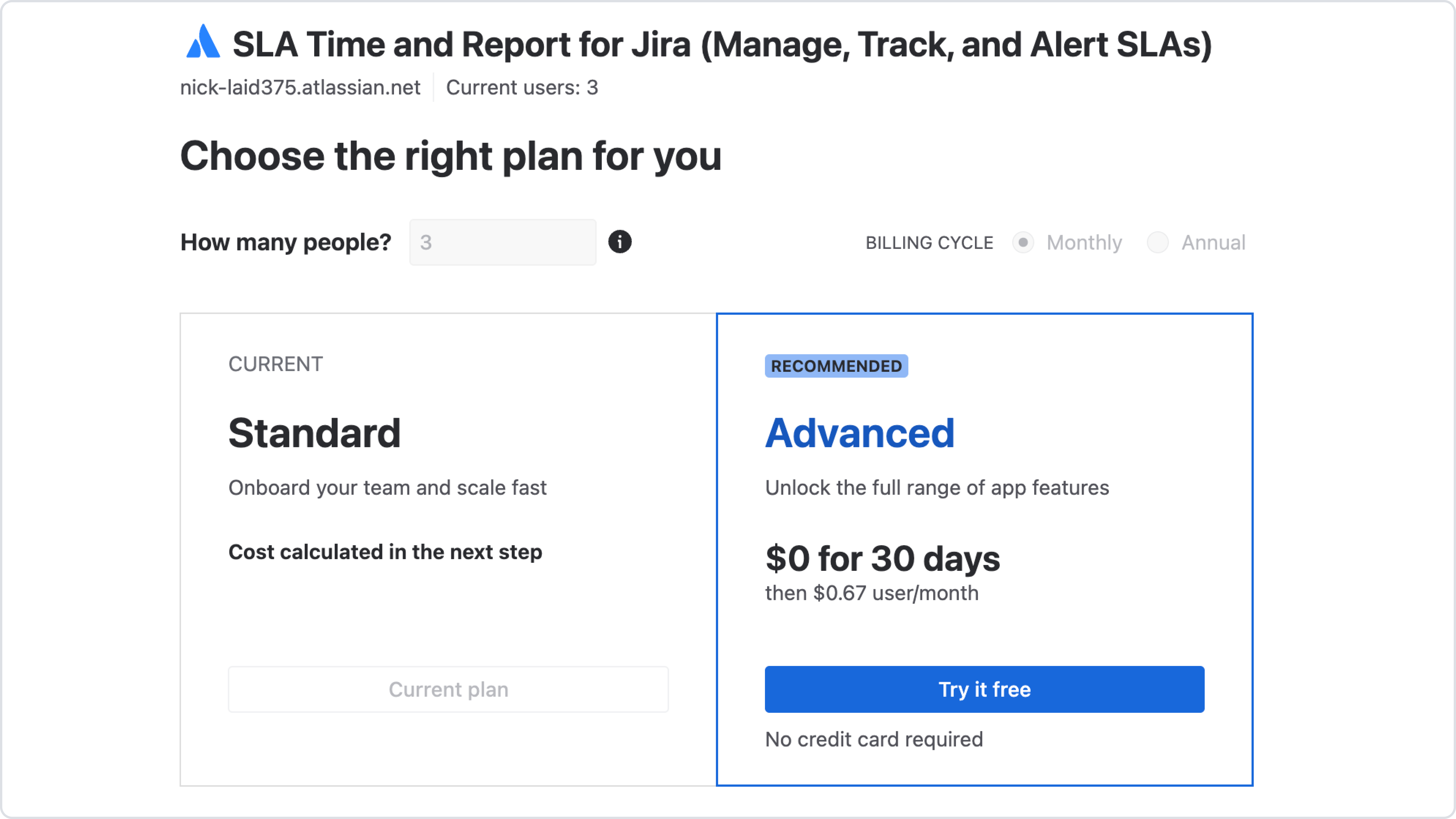
You will see a confirmation that your Advanced trial has started.
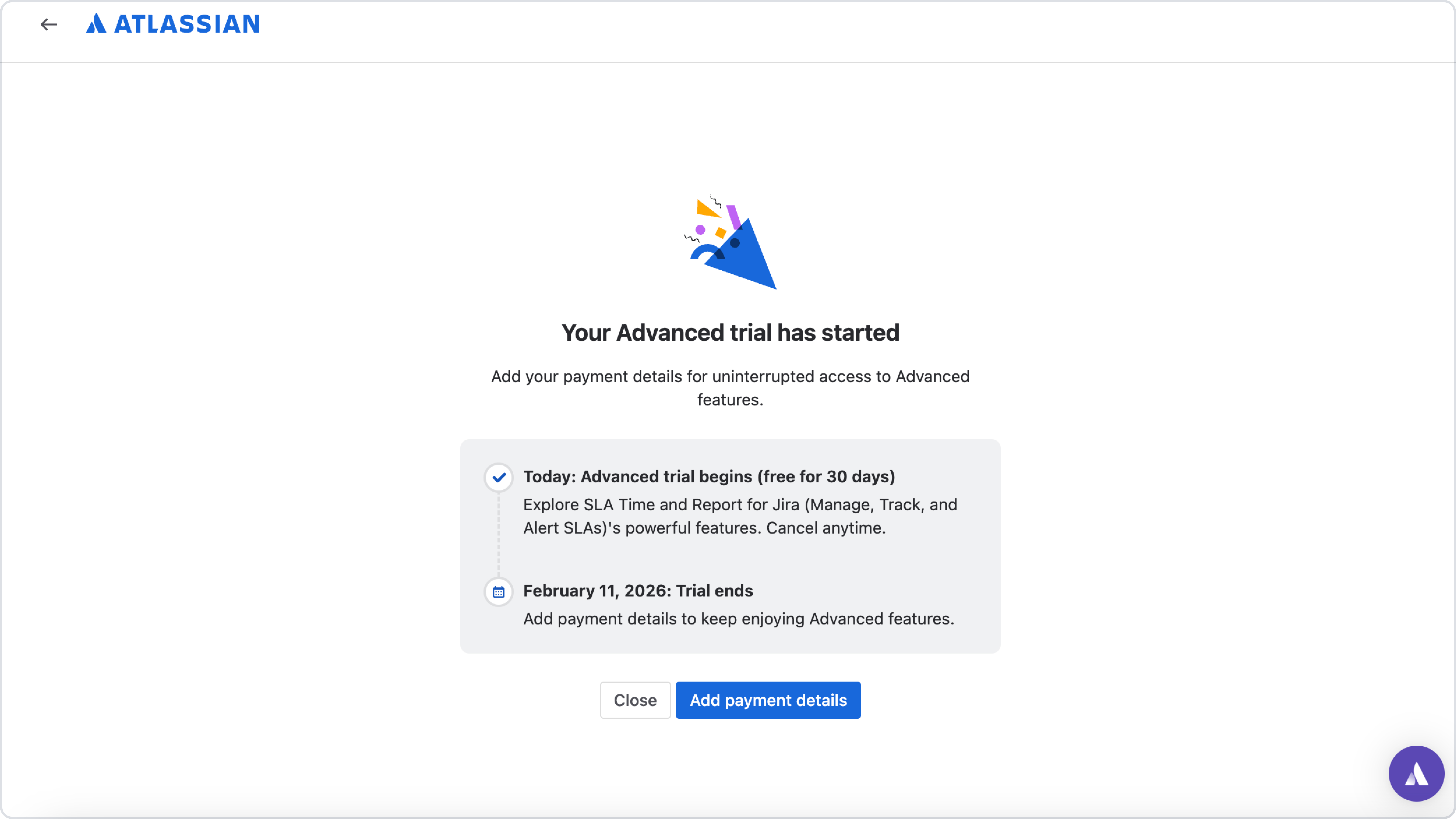
Step 4: Confirm Trial Status
Once activated:
-
Advanced features become available immediately
-
Trial lasts 30 days
-
Trial end date is displayed in subscription details
No payment method is required during the trial period.
Step 5: Add Payment Details (Optional)
To continue using Advanced after the trial:
-
Add payment details before the trial ends
-
Otherwise, the app will automatically return to the Standard plan
Notes & Tips
-
Advanced features are enabled per site, not per project
-
Downgrading to Standard does not delete existing SLA configurations, but Advanced-only options will stop applying
-
You can switch plans at any time from Atlassian Admin → Subscriptions
When should you upgrade to Advanced?
Upgrade to Advanced if you:
-
manage SLAs across multiple regions or time zones
-
need SLA time to depend on assignee working schedules
-
want more accurate SLA tracking for distributed teams
If you’re unsure which plan fits your setup, we recommend starting the Advanced trial and testing it in your real workflows.
Helpful resources & links