
AI Apps Builder lets you create AI agents and skills, as well as custom Forge apps. Agents can work with your Jira data, follow your rules, and perform actions such as finding issues, updating fields, or leaving comments. Skills are small, reusable abilities you give to an agent (for example, “summarise an issue” or “create a Confluence page”).
By combining agents and skills, you can automate more of your Jira work, not just single apps or screens.
To create your own agent or skill, click “+” in the prompt box and choose Agent or Skill from the menu.
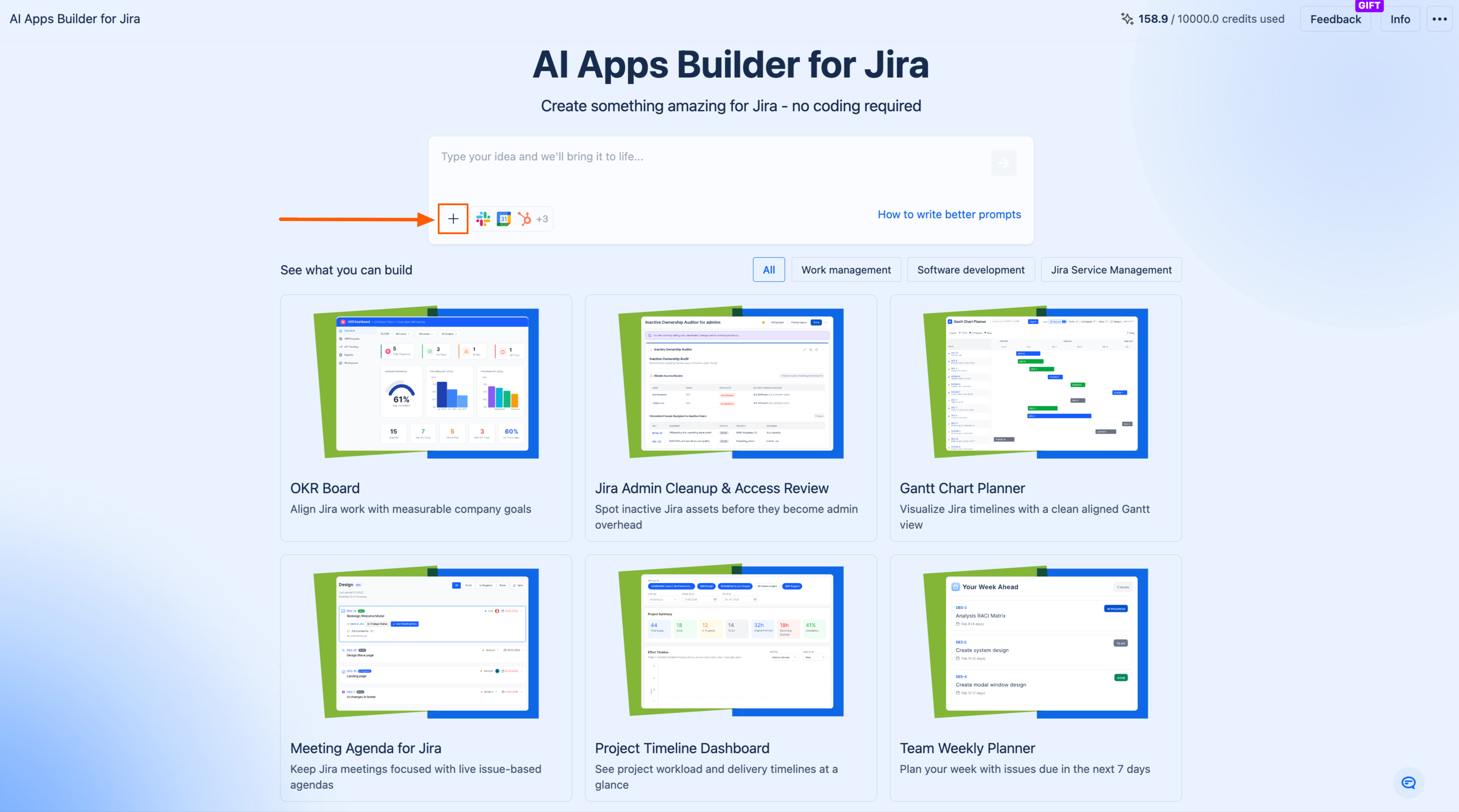

After that, in the prompt box, describe its rules, and configure how it should work with your Jira data.
Follow the Step-by-Step Guide.
If you have any questions, feedback, or ideas, just contact SaaSJet Support or email us at support@saasjet.com. We’re always happy to help.
How to Find Your AI Agent
You can start using your agent from Rovo Chat.
-
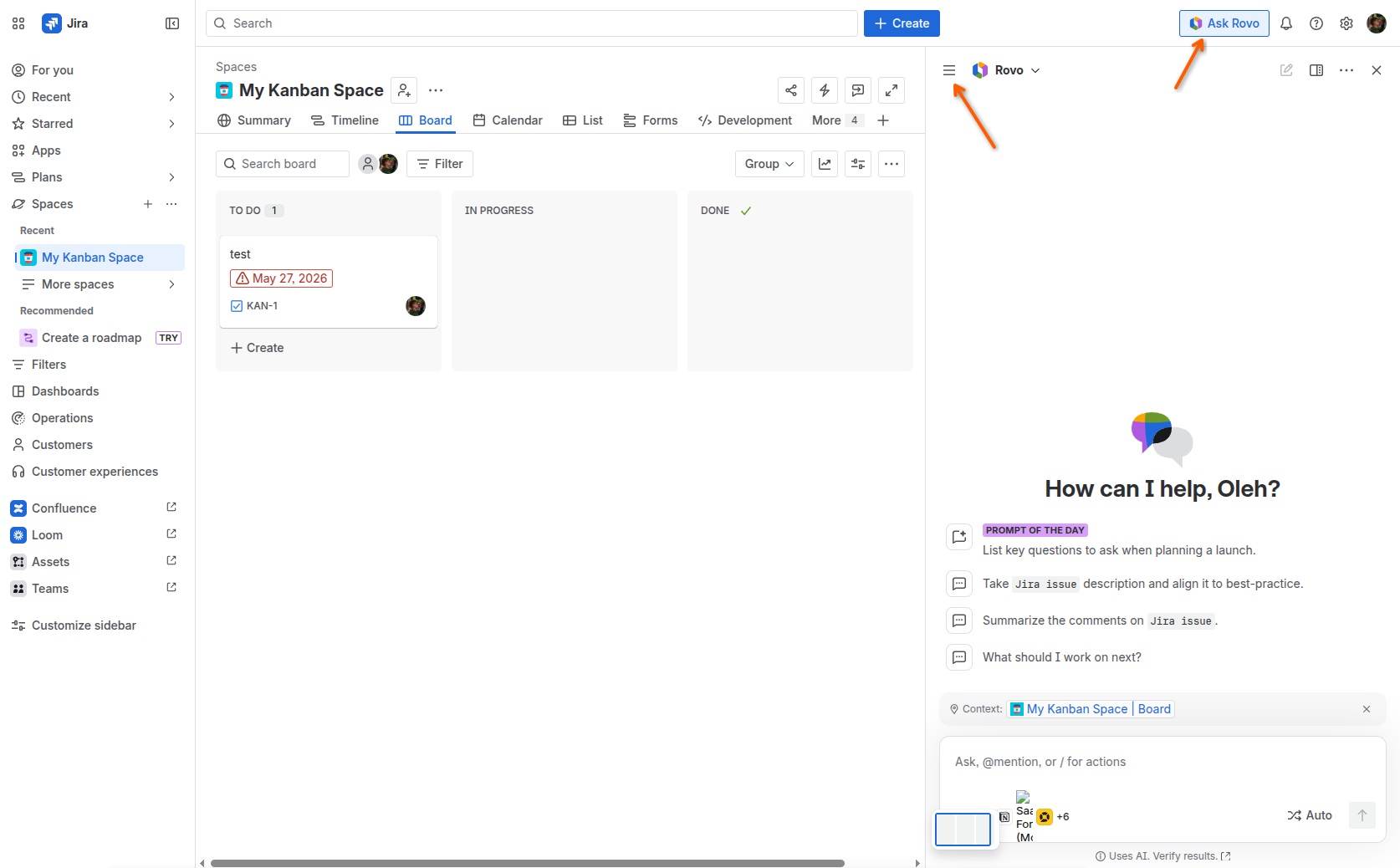
Open Chat from the top navigation bar in your Atlassian cloud product (for example, Jira or Confluence) in the domain where the agent is installed.
-
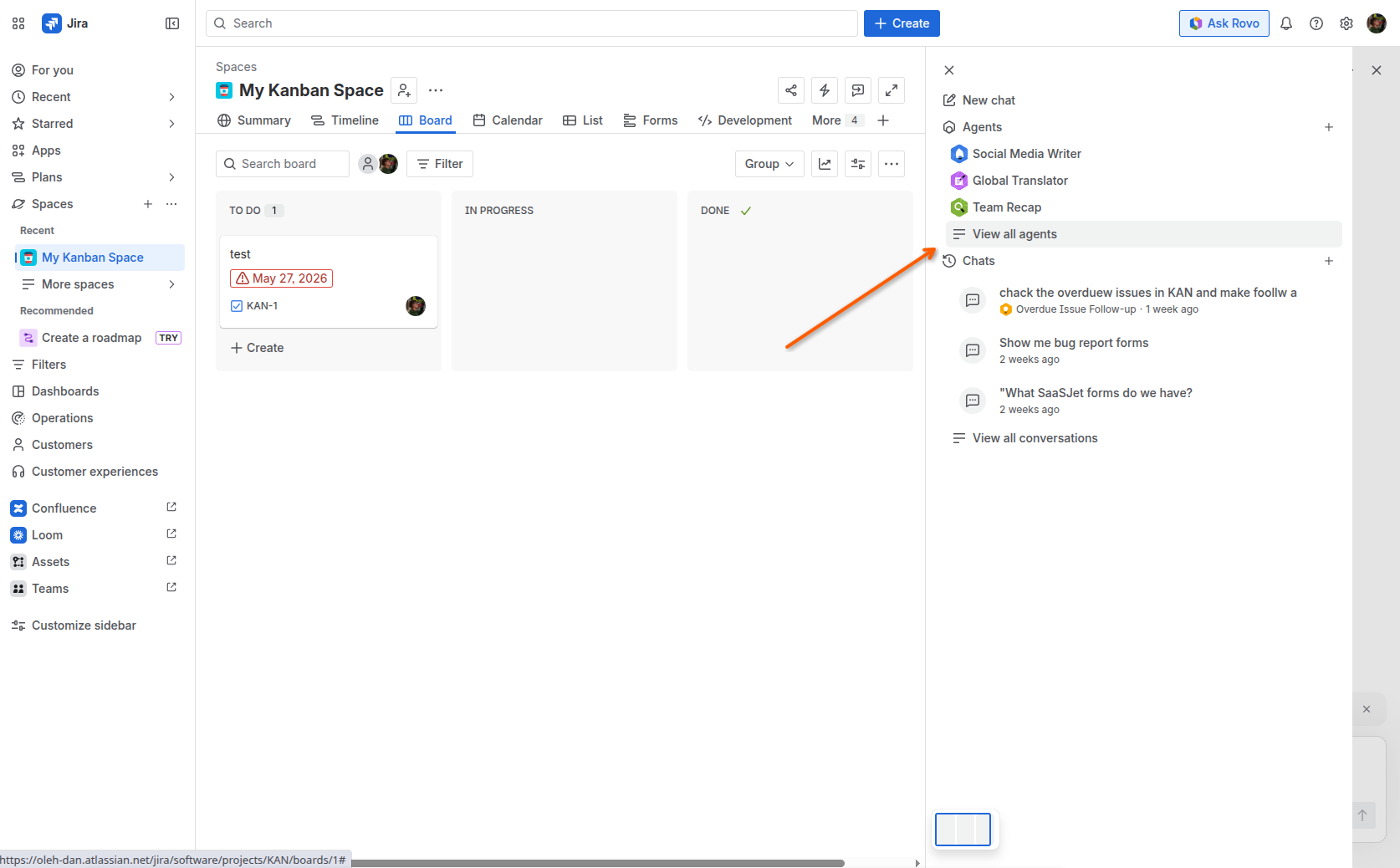
In the chat sidebar, open the agent selector and click Browse agents.
-
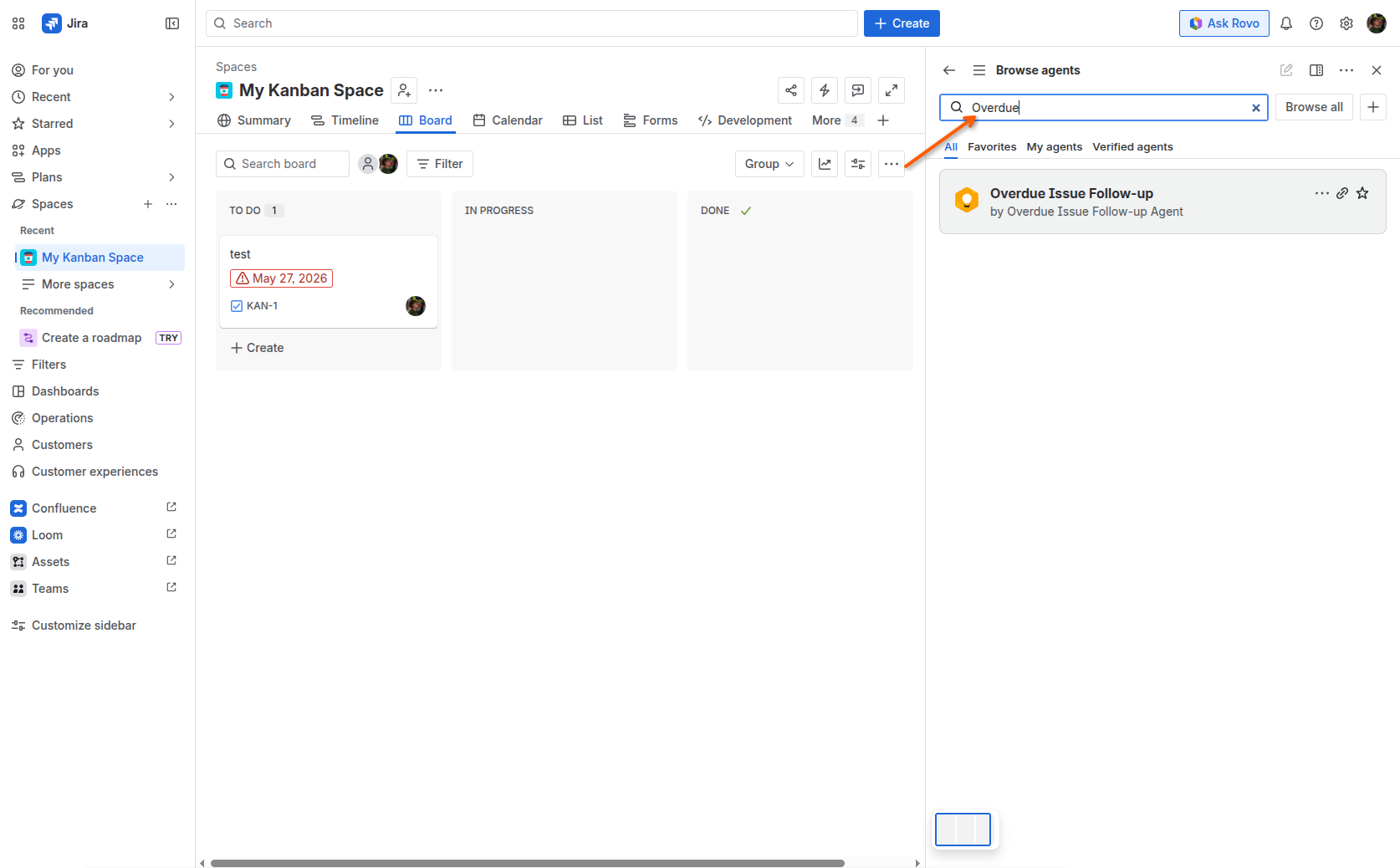
Find your agent by the name you gave it or by the user who owns it.
-
Select the agent in the agent selector and start chatting with it.
You can also find your agent in Rovo Studio.
-
Open Rovo Studio from the Atlassian app switcher.
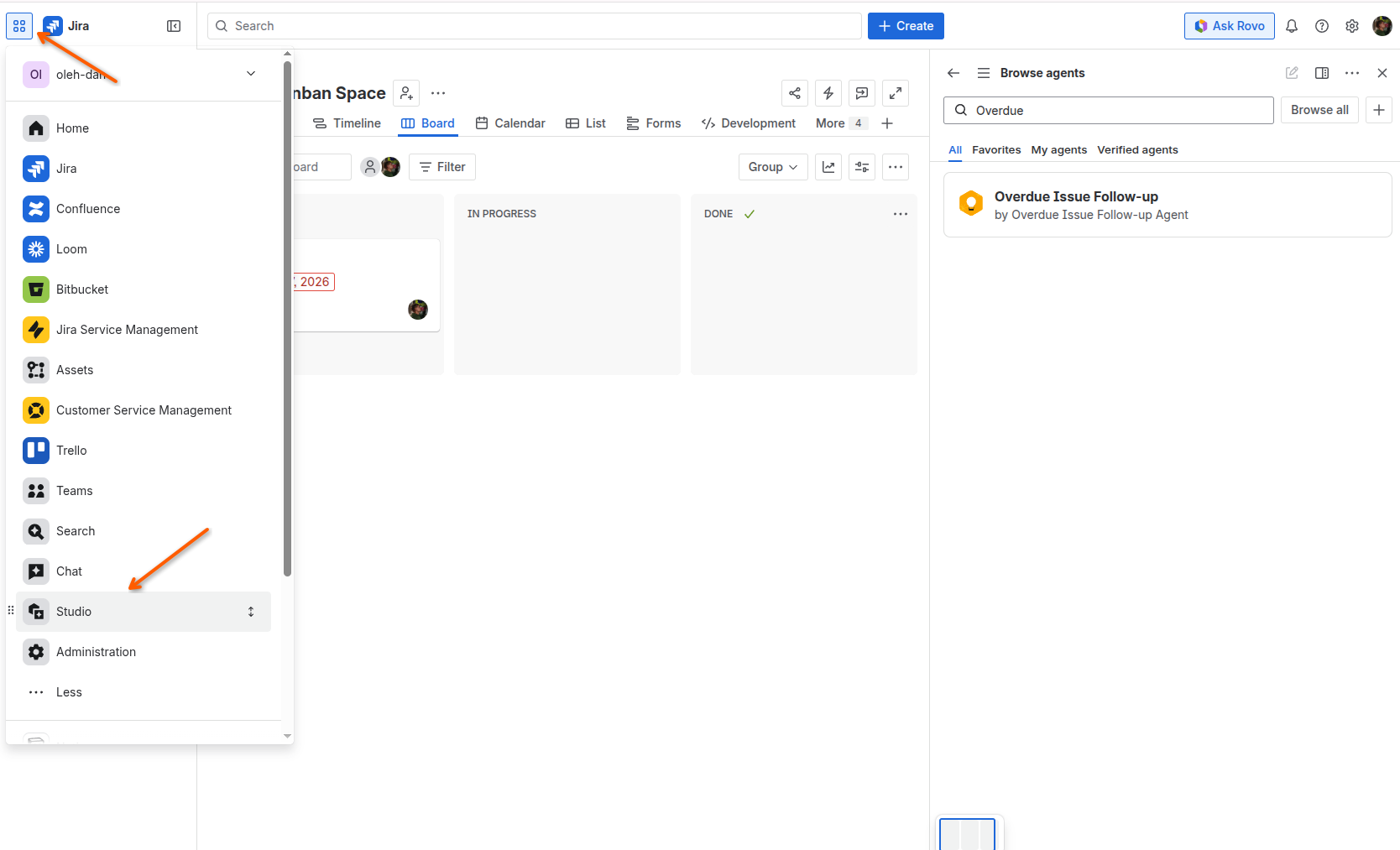
-
Browse the list of agents in your organization. Your own AI agents appear there together with built‑in agents and Studio‑built agents.
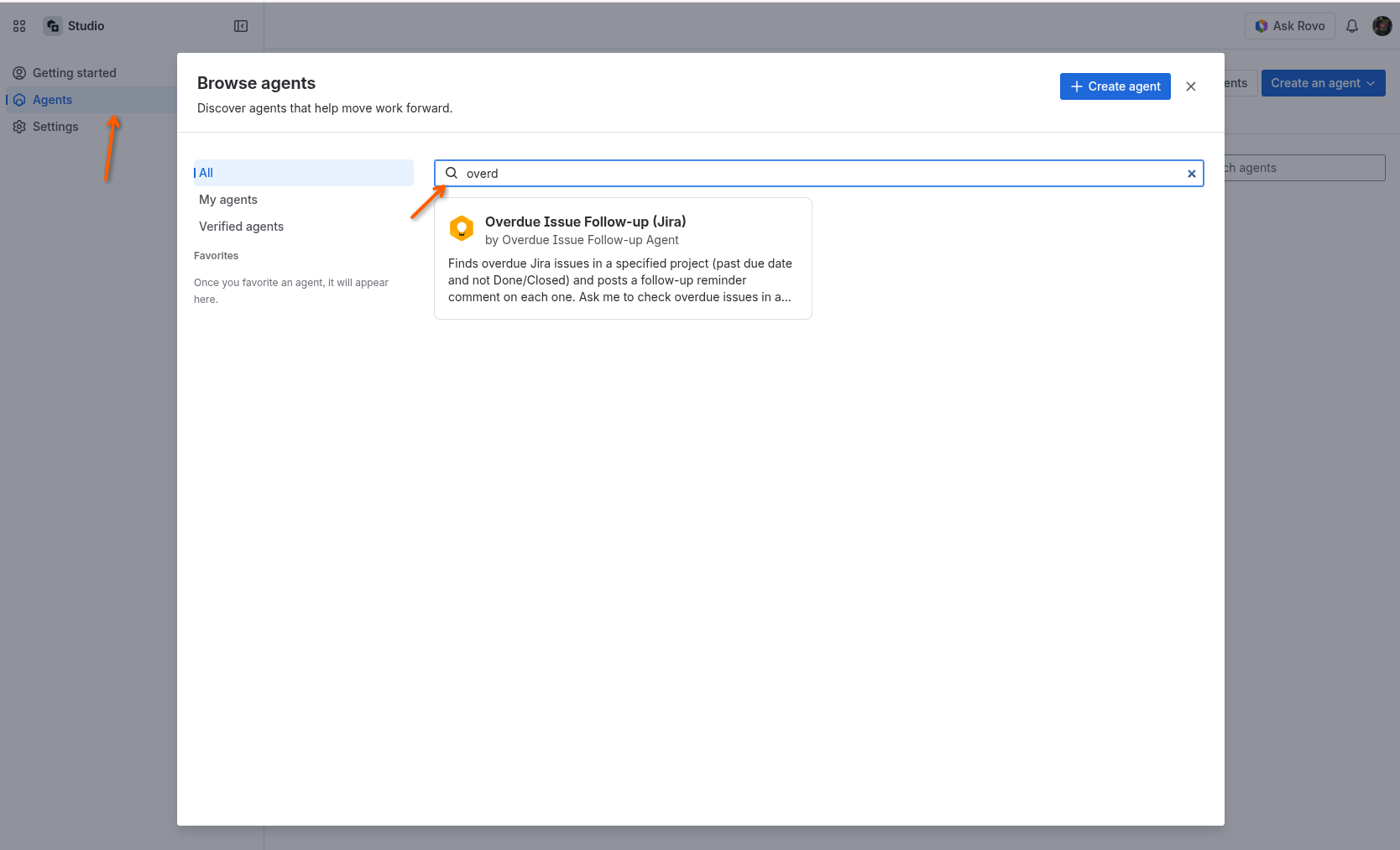
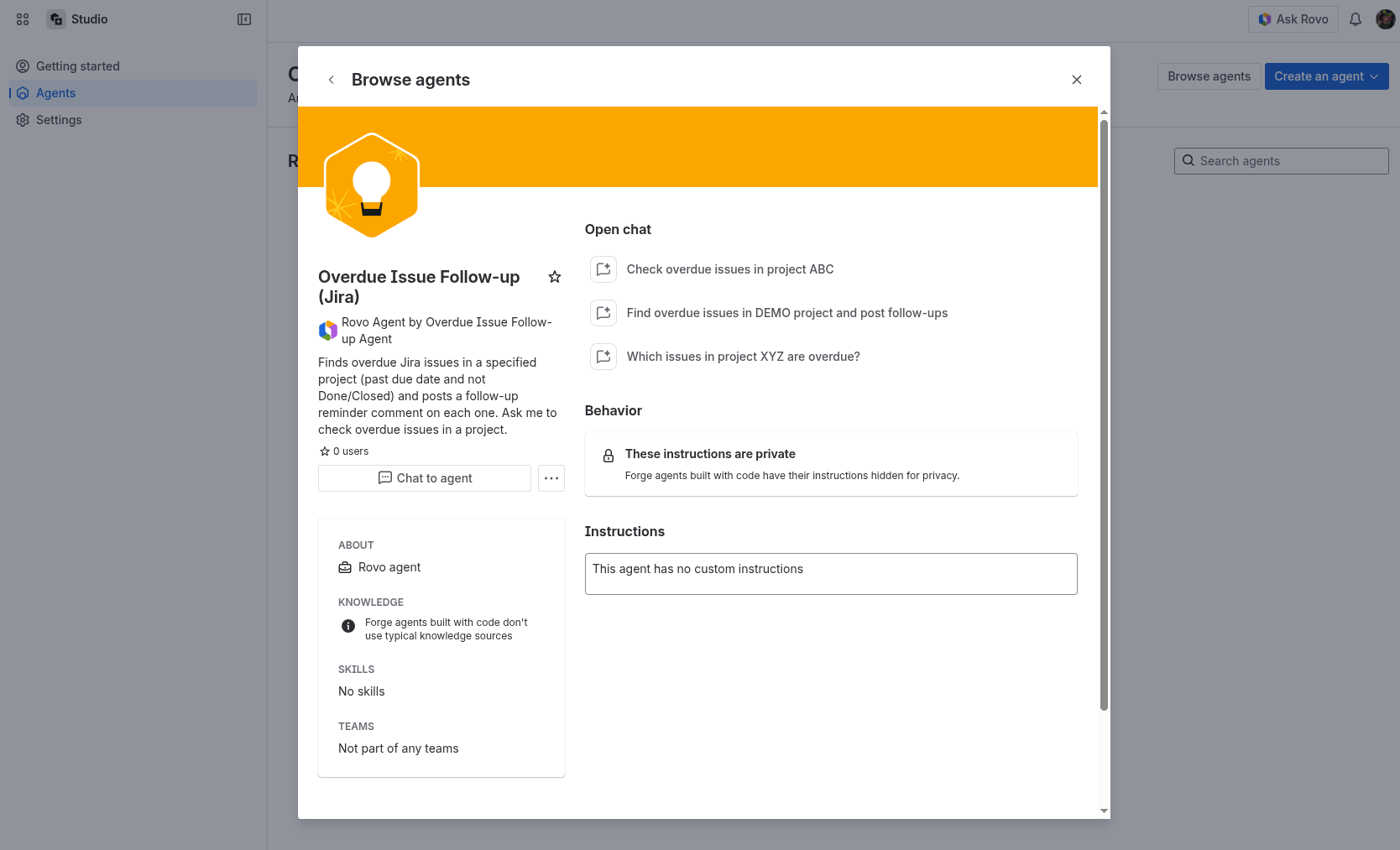
Your agent is visible in Rovo Studio, but you do not edit its logic or add skills there. To make any changes, update the manifest.yml file or continue working with the agent in AI Apps Builder chat. Rovo Studio is just an entry point and overview.
If you have any questions, feedback, or ideas, just contact SaaSJet Support or email us at support@saasjet.com. We’re always happy to help.
How to Find Your Created Skill
You can find your custom skills in Rovo Studio.
-
Open Rovo Studio from the Atlassian app switcher.
-
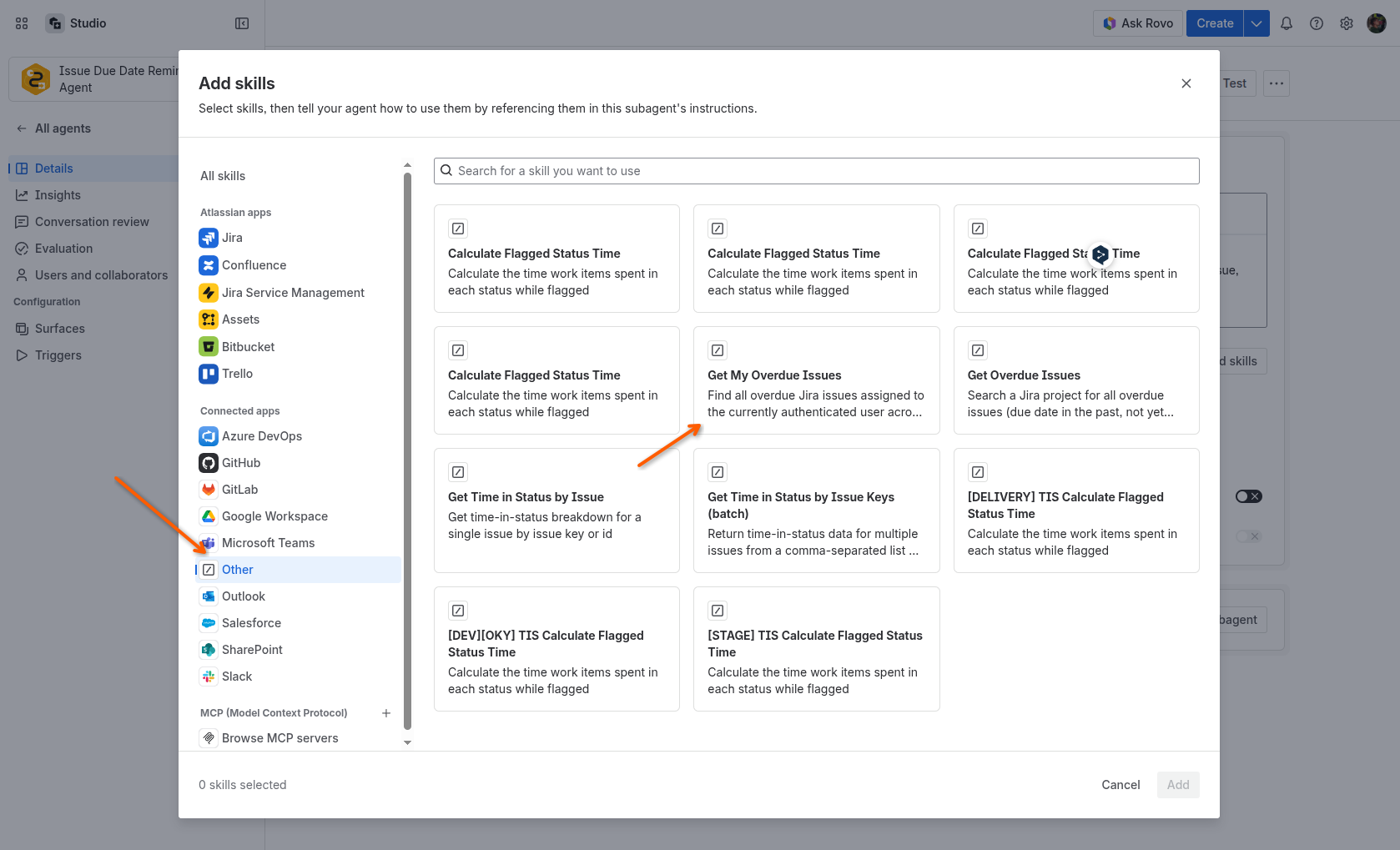
Click Skills and select Others. Search for your skill by its name.
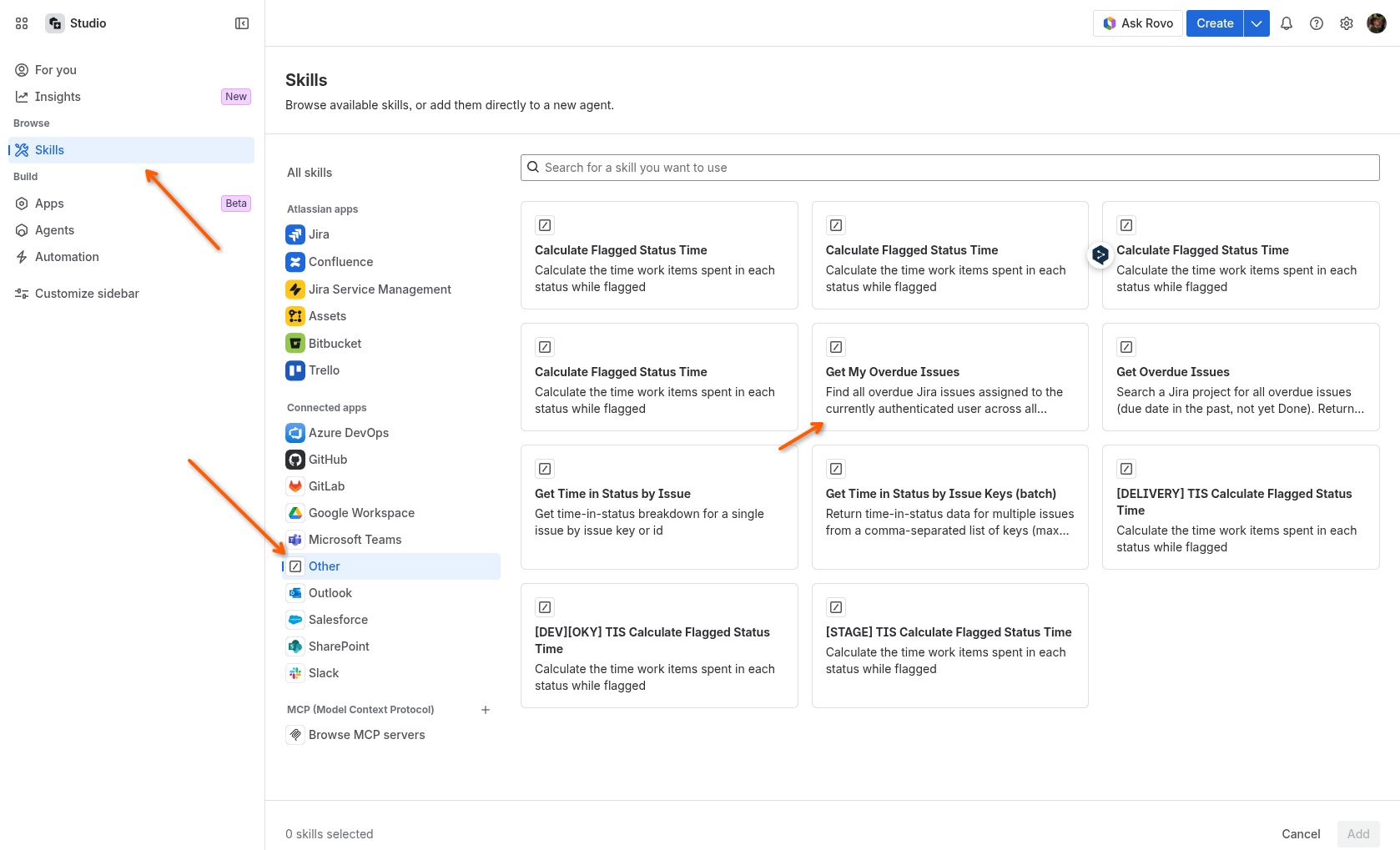
If you have any questions, feedback, or ideas, just contact SaaSJet Support or email us at support@saasjet.com. We’re always happy to help.
How to Connect Your Skill to the Existing Agent Built with Rovo Studio
-
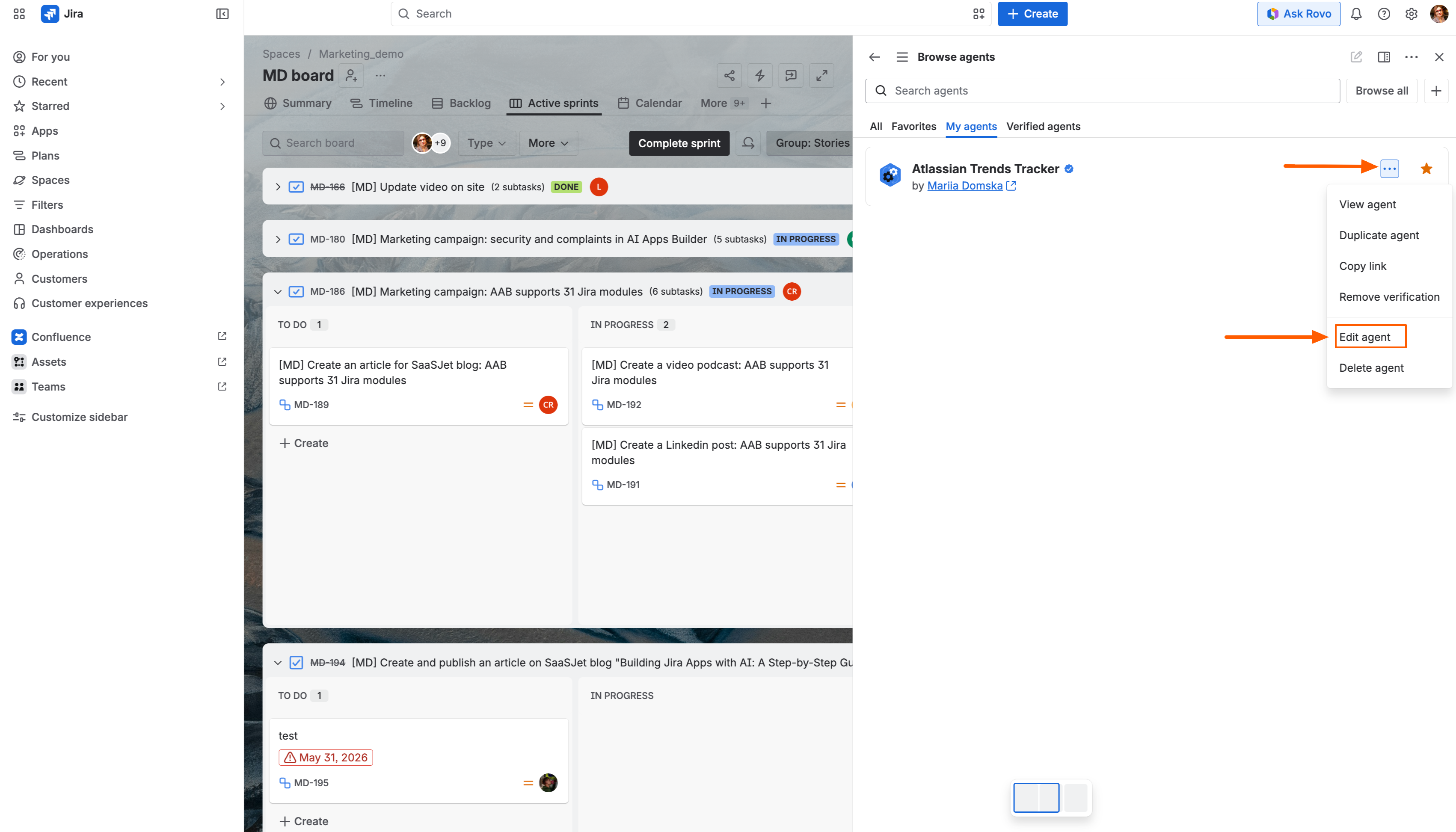
Open your agent in Rovo Chat. Locate your agent, click “…”, and select Edit agent.
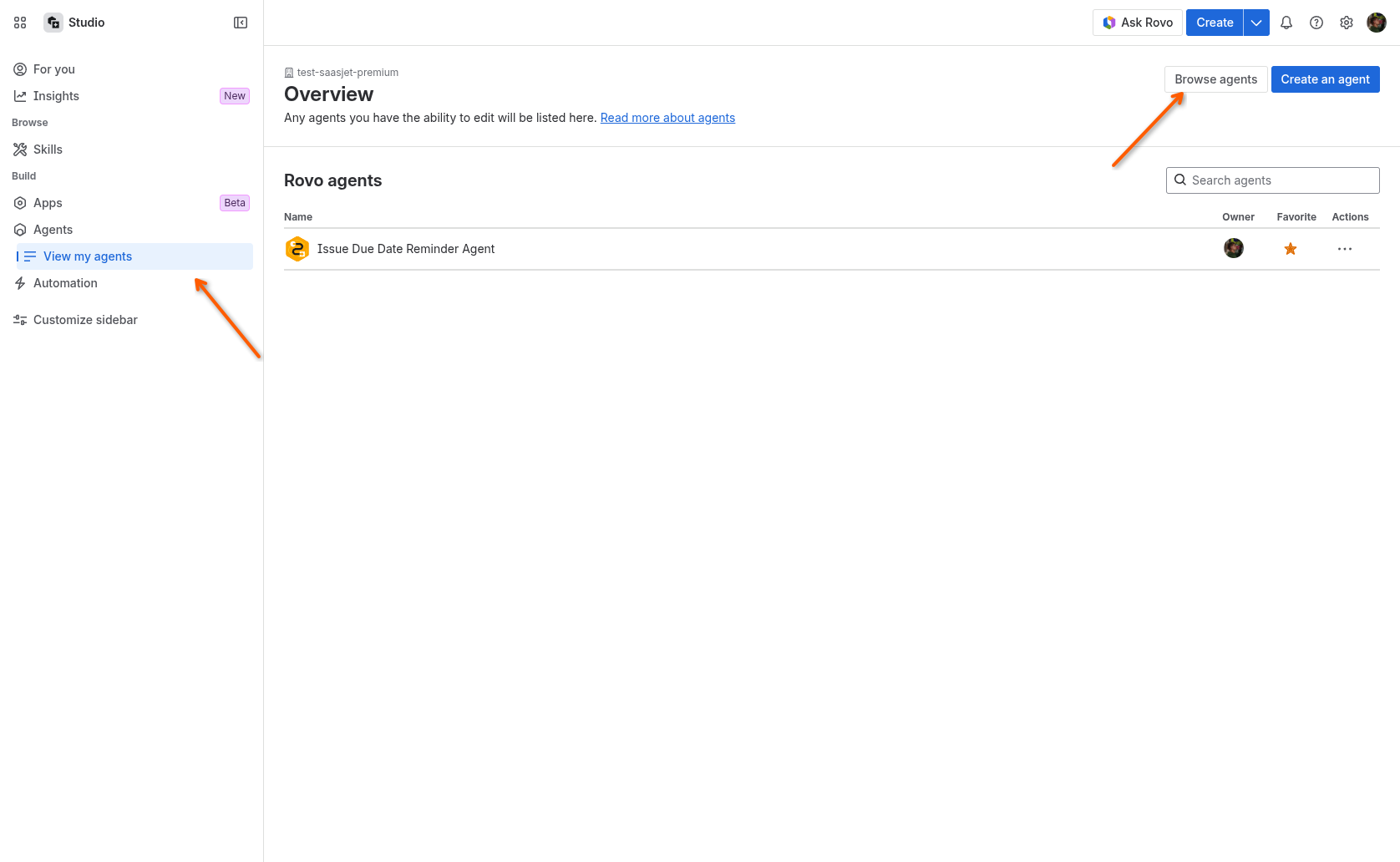
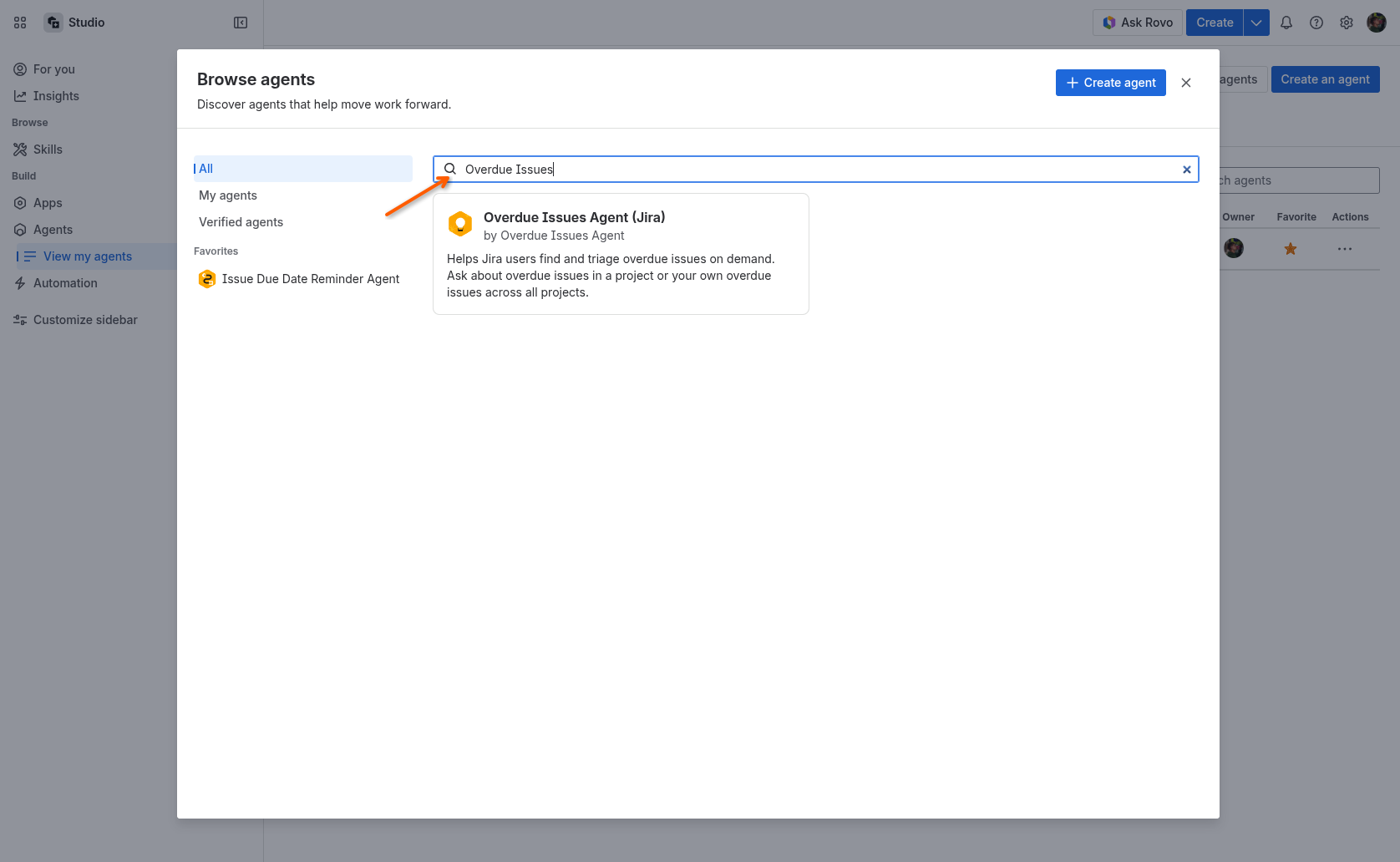
Open your agent in Rovo Studio. In the sidebar, click View my agent, then select Browse agents. Search for your agent by name.
-
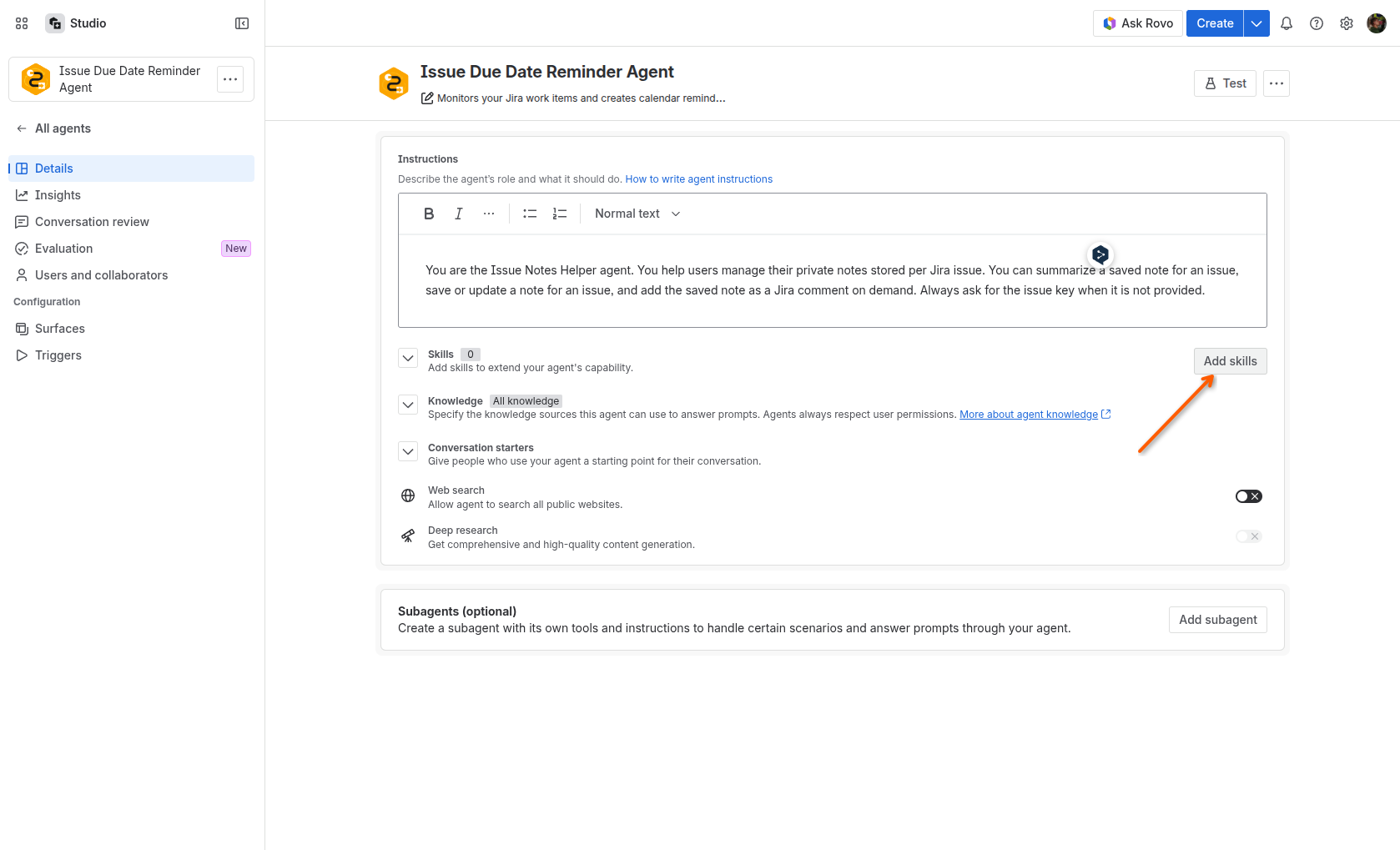
In the Details tab, click the Add skills button.
-
Choose Others and search for the skills you want to add.
Add skills to your agent built with AI Apps Builder by updating the manifest.yml file or using the AI Apps Builder chat.
Haven't used AI Apps Builder yet? You're welcome to try it then!