
This document helps you troubleshoot the most common issues you may encounter while installing or deploying an app to Jira.
Most deployment errors can be fixed automatically. When a problem occurs during deployment, you'll see an Auto Fix button. Click it and the AI will analyze the error and attempt to resolve it automatically.
If the issue isn't resolved after three attempts, some problems require manual action because they depend on:
Here you'll find clear steps to resolve these issues manually and continue the setup process.
Auto Fix
When a deployment error occurs, AI Apps Builder can attempt to fix it automatically.
-
Click the Auto Fix button, and the error is automatically sent to the AI.
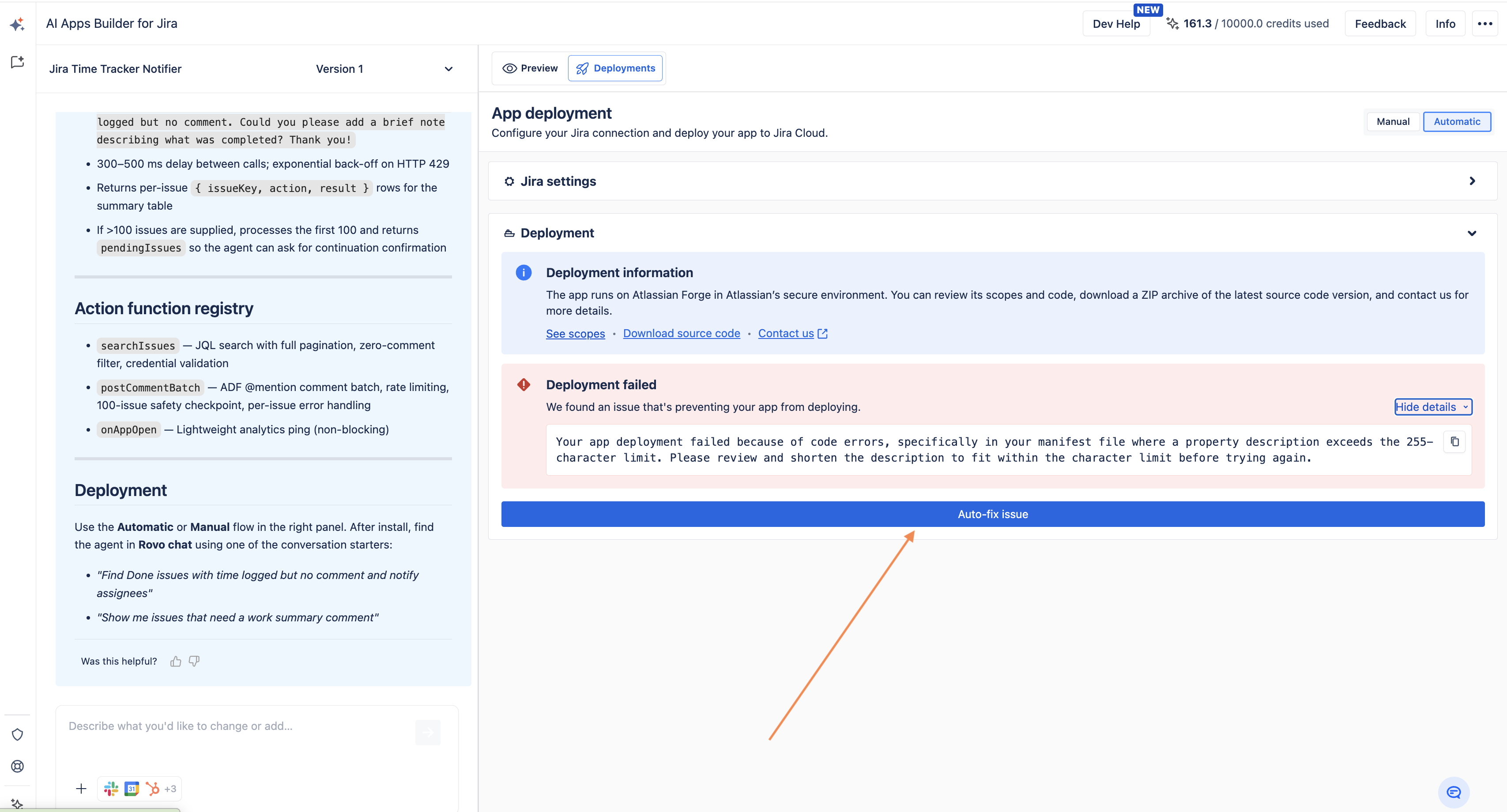
-
The AI analyzes and fixes the problem. To apply changes, redeploy your app in Jira.
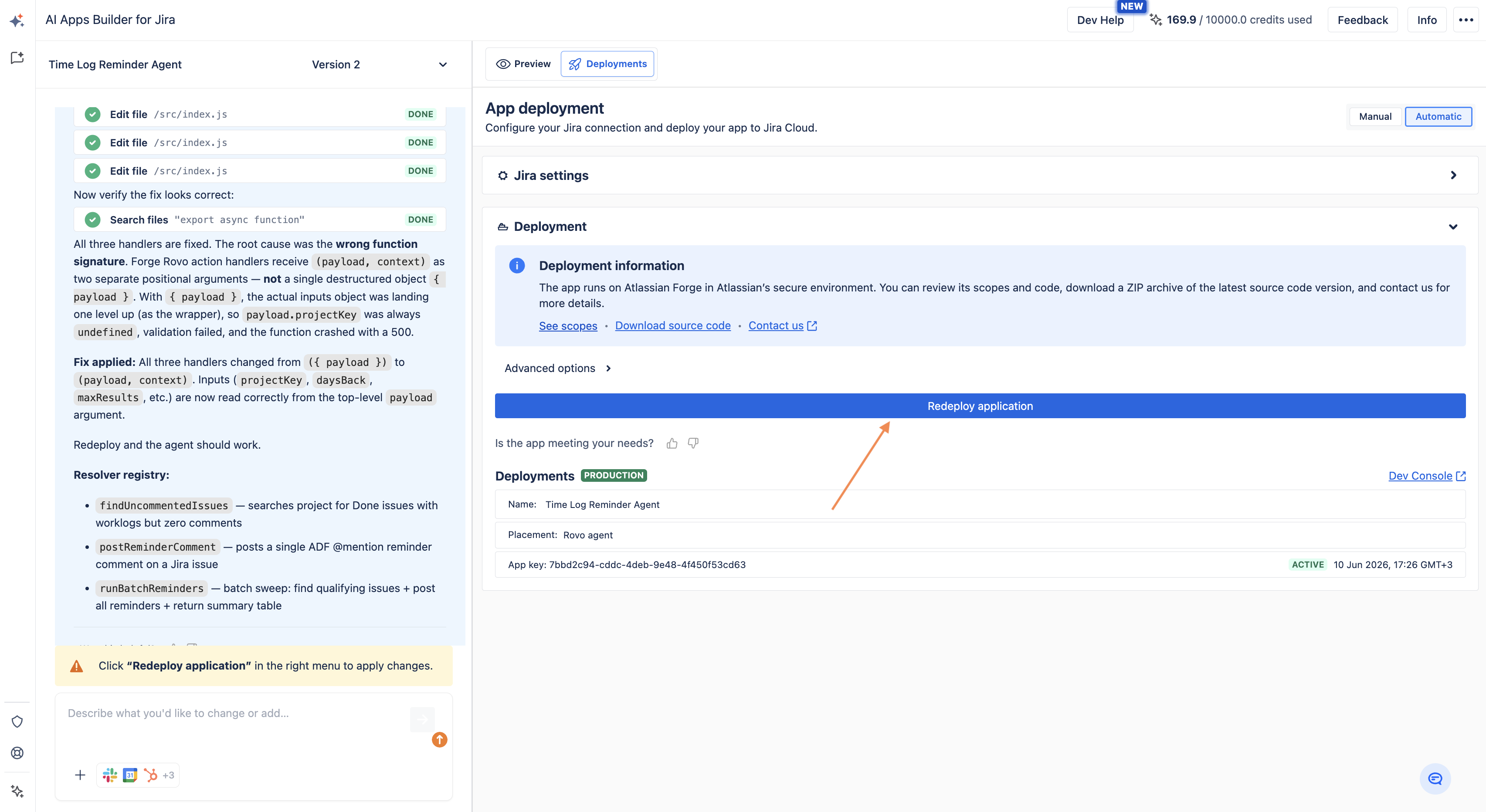
If the issue is not resolved after 3 attempts, the problem likely requires manual action. Please contact SaaSJet Support or email us at support@saasjet.com. We’re always happy to help.
API Token Issues
This type of error occurs when an invalid or expired API token is provided. If the token is invalid or expired, the app cannot be registered, installed, or deployed.
How to fix it?
The API token is used only during the app installation and deployment process.
It does not affect the app’s operation after installation.
-
Open Atlassian Account Settings:
-
Go to https://id.atlassian.com/manage-profile/security/api-tokens
-
Or click the button above the API token input field in the app.
-
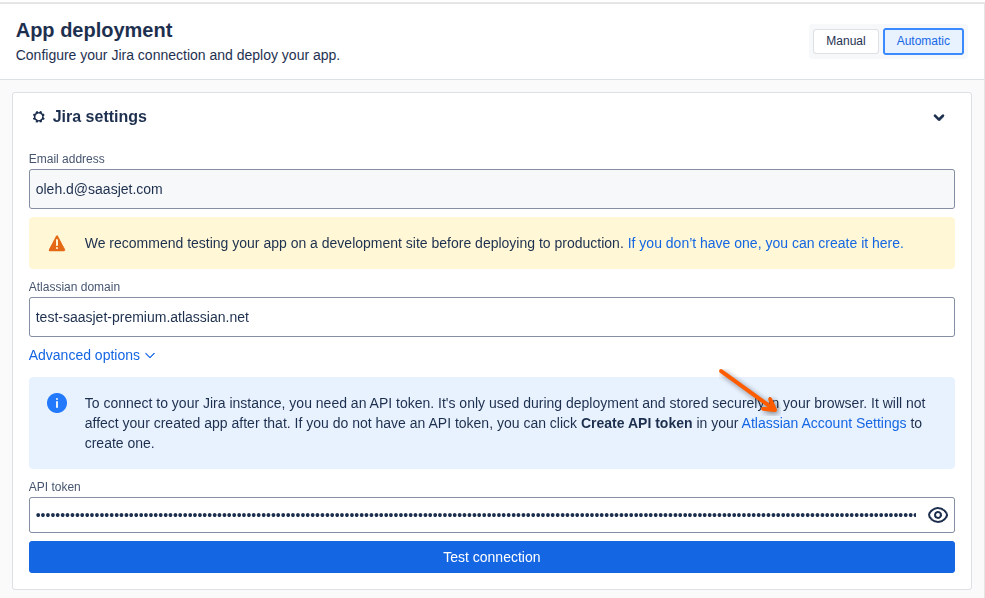
-
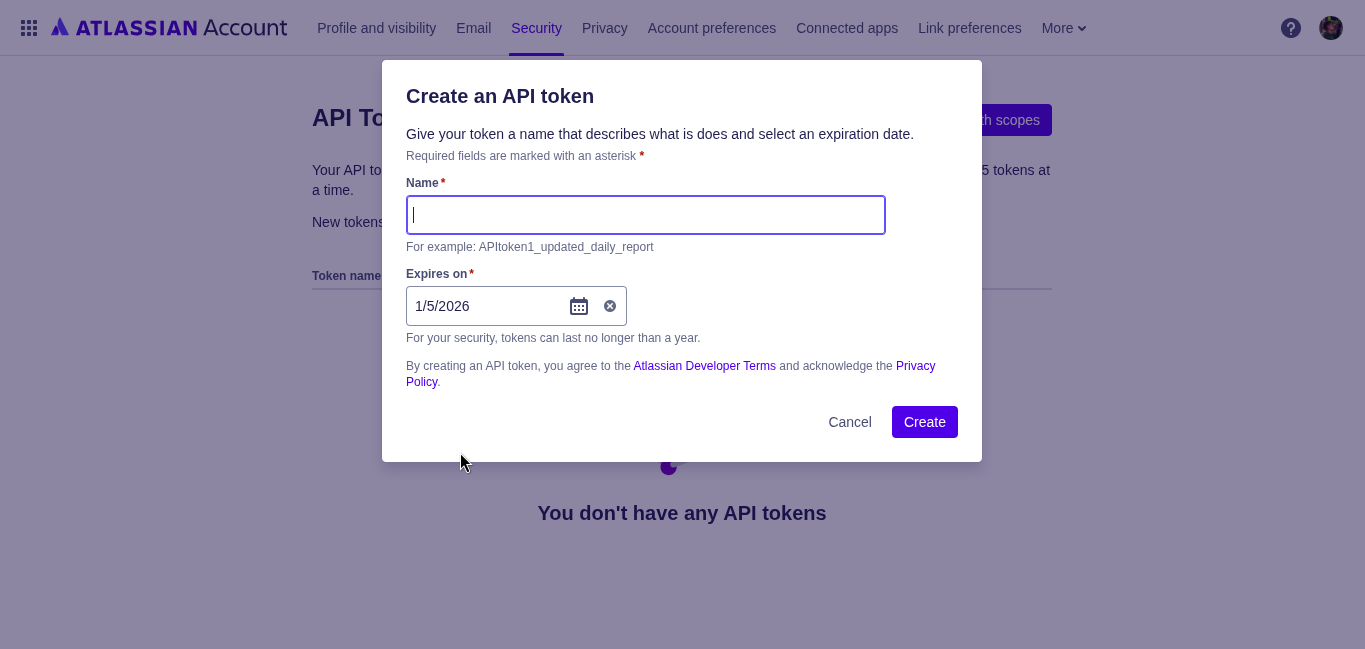
Click Create API token.
Warning Make sure to use Create API token, not Create API token with scopes. -
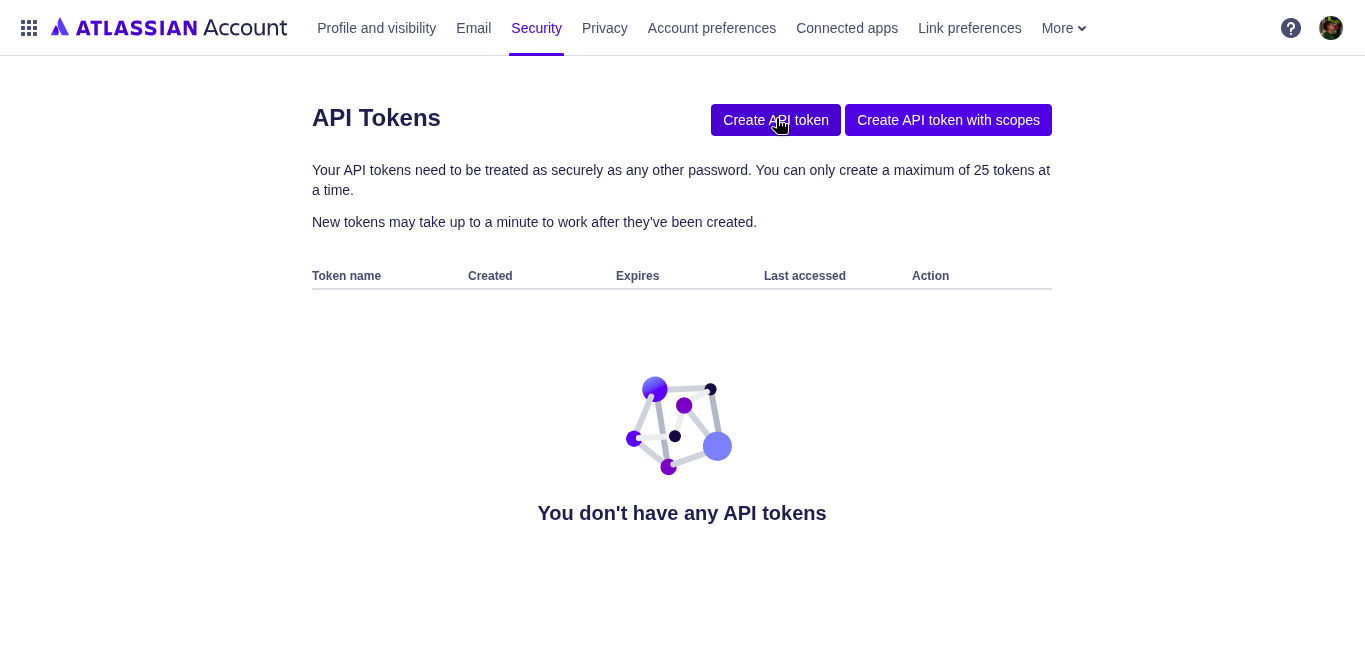
Set a name and an expiration date for the token. These values do not affect the app’s functionality, so you can choose any values you prefer.
-
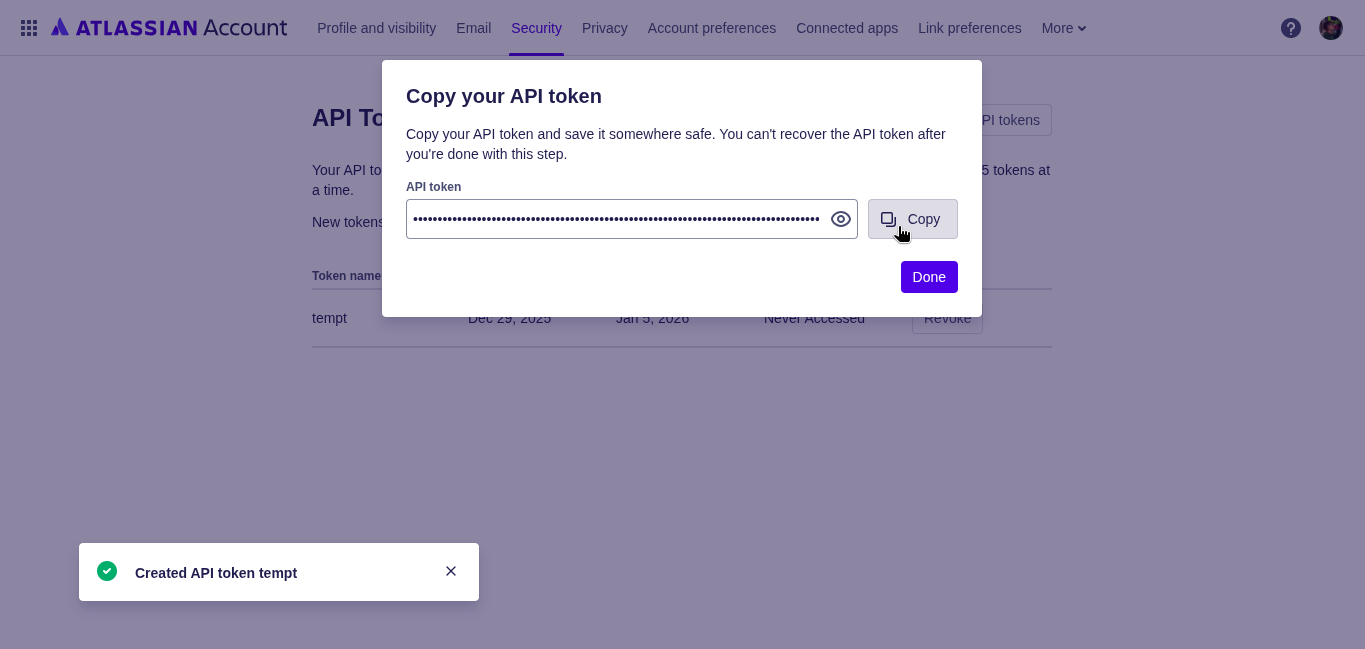
After the token is created, copy it immediately.
warning Once you click Done, you will not be able to copy this token again.
-
Paste the new token into the API token input field in the app.
-
Click Test connection to verify that the token is valid.
Jira Permission Issues
This type of error occurs during the app testitng connection and indicates that you do not have sufficient permissions to install the app in the selected Jira instance.
Only Jira administrators can install apps. If you are not an admin, the installation will fail.
How to fix it?
There are several ways to resolve this problem:
-
Add the administrator as a Publisher or Editor to the chat.
Click the "Share" button, then add the user with admin permissions in that Jira instance (Publisher or Editor rights) as a contributor of the chat. Read the documentation. -
Select a different Jira instance
Change the Jira instance in the Atlassian domain input field to one where you have administrator access. -
Request temporary admin access
Ask a Jira administrator to grant you temporary admin permissions so you can install the app yourself. -
Ask an admin to install the app for you
Generate the installation link (see How to Move Forge Apps Built with AI Apps Builder to Another Jira Site) and send it to the Jira administrator.
The admin can use this link to install the app directly.
Atlassian Forge Availability Issues
To deploy your app, we use the Atlassian Forge CLI. Sometimes Forge experiences temporary outages or service degradation that are outside of our control. In such cases, the deployment may fail due to Forge being unavailable.
How to fix it?
-
Check the Atlassian Developer Status page: https://developer.status.atlassian.com/
-
If Forge is experiencing an incident or degraded performance, wait for Atlassian to resolve the issue and try deploying again later.
If the status page shows no active incidents, but the error persists, try running the deployment again or contact support.
Error Examples
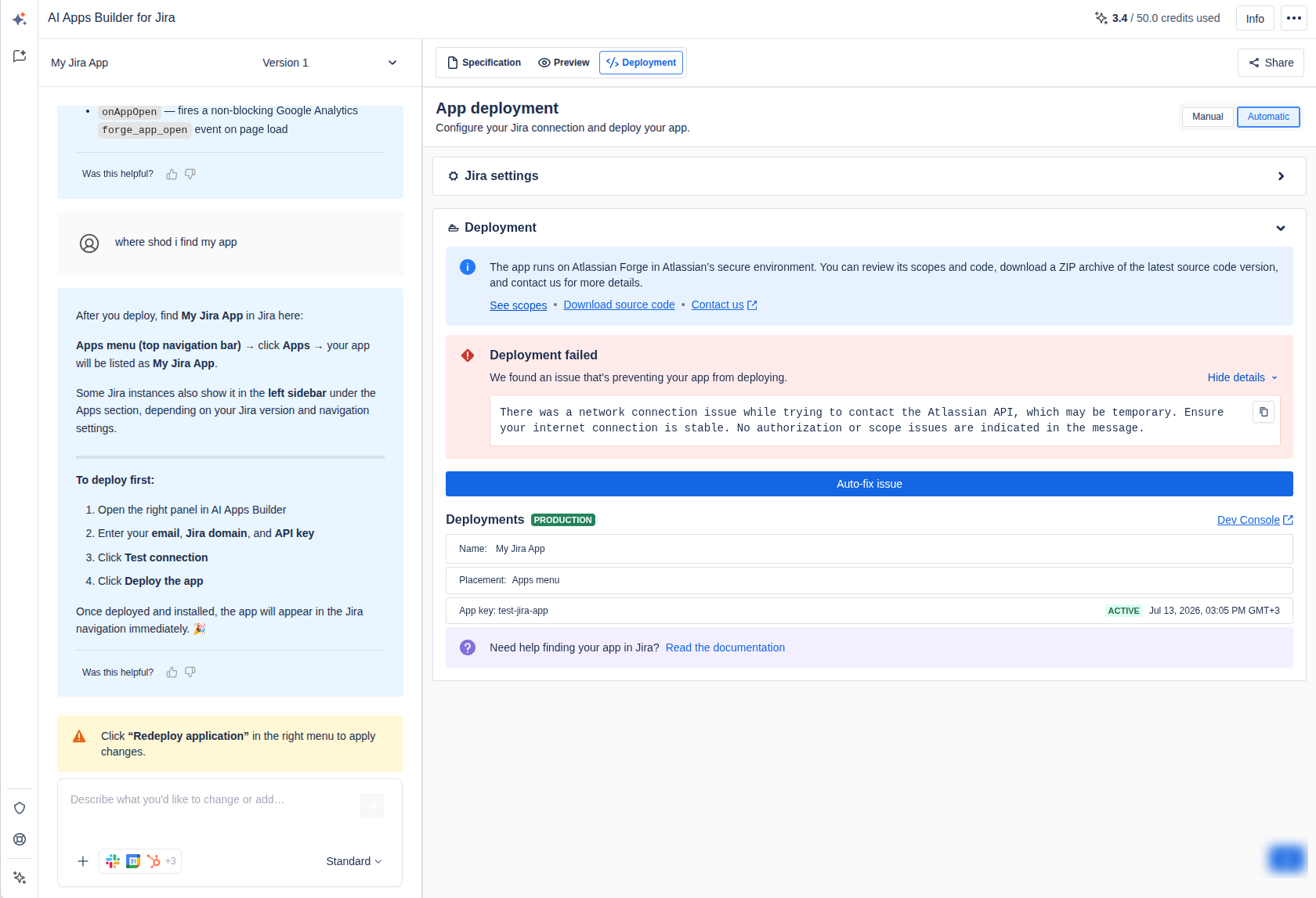
There was a network connection issue while trying to contact the Atlassian API, which may be temporary. Ensure your internet connection is stable. No authorization or scope issues are indicated in the message.
How does it look?
If you have any questions, feedback, or ideas, just contact SaaSJet Support or email us at support@saasjet.com. We’re always happy to help.
Haven't used AI Apps Builder yet? You're welcome to try it then!