
If someone shares their AI Apps Builder chat with you, you will receive an email invitation. Based on your assigned role, you can view the chat, deploy the app, AI agent, or skill, or edit it.
-
As a Publisher, you can view the chat and its code, deploy it, and use the auto-fix feature.
-
As an Editor, you can view and deploy the app, AI agent, or skill and send messages to modify it. Generation uses your credits, not the chat owner's.
Step 1: Open the chat
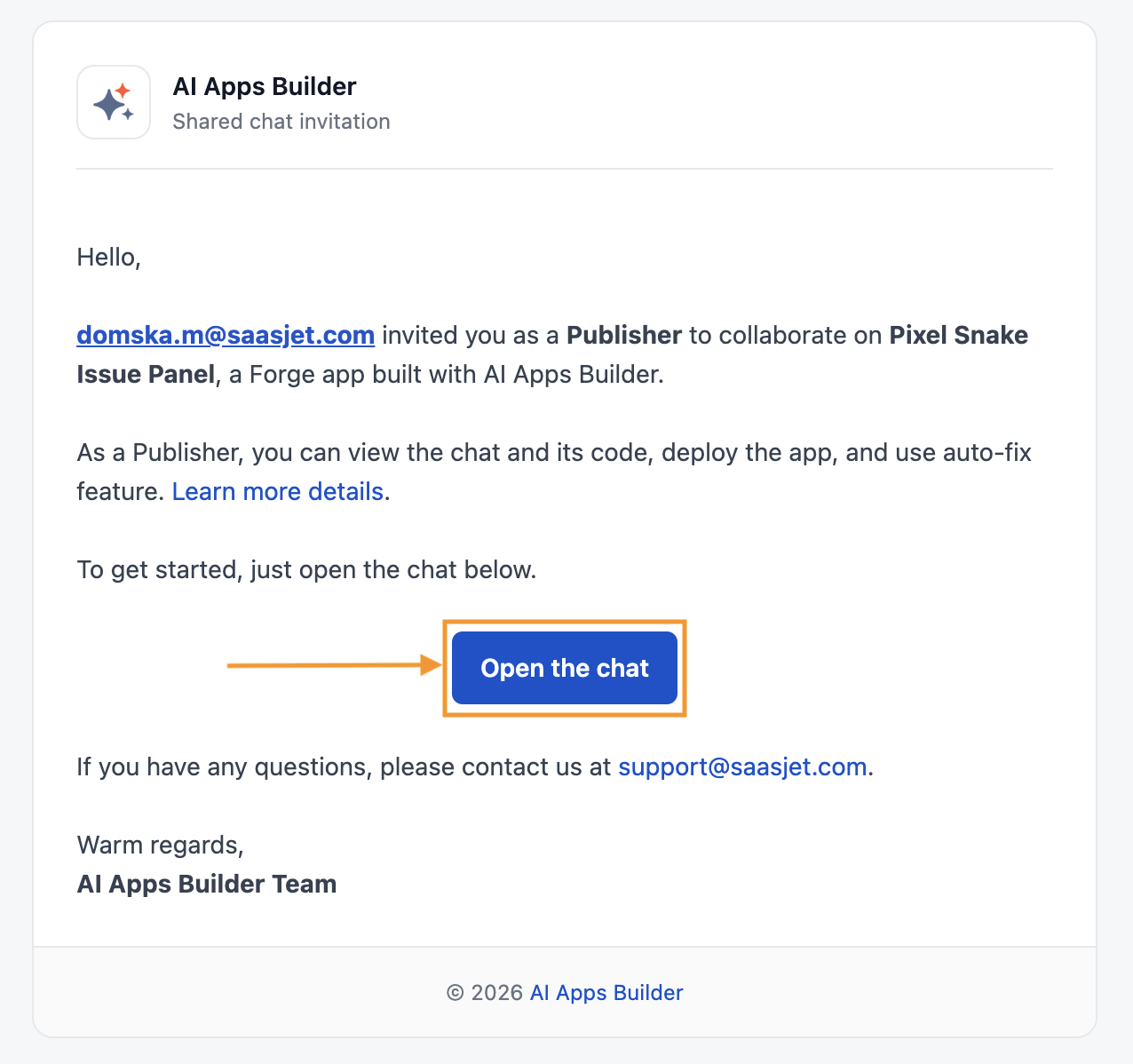
In the invitation email, click Open the chat. This takes you to the chat the sender shared with you.
Step 2: Create an account (first-time users only)
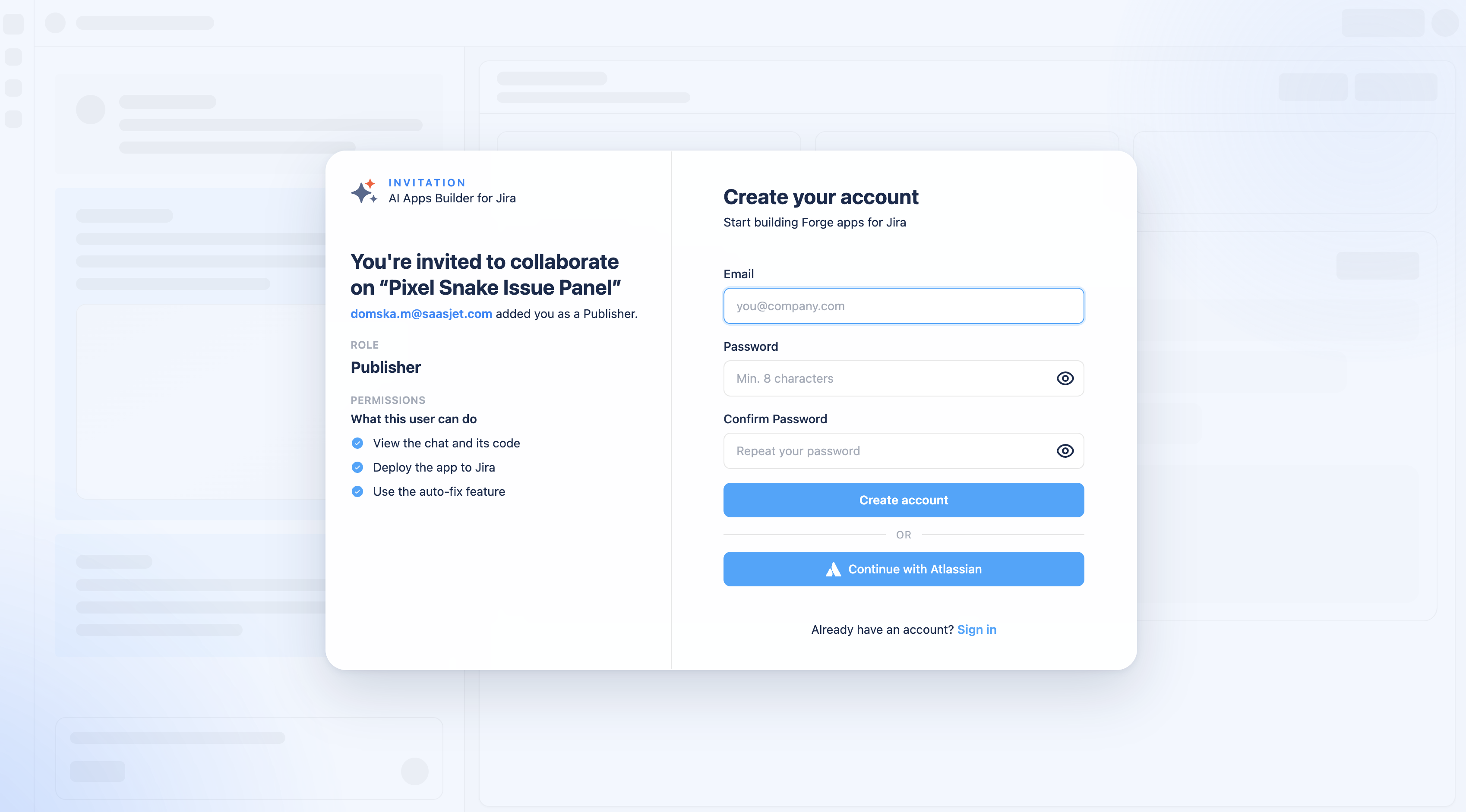
If you don't already have an AI Apps Builder account, clicking the link opens an invitation screen instead of the chat directly. Create an account with your email and a password, or click Continue with Atlassian.
Step 3: Explore the app
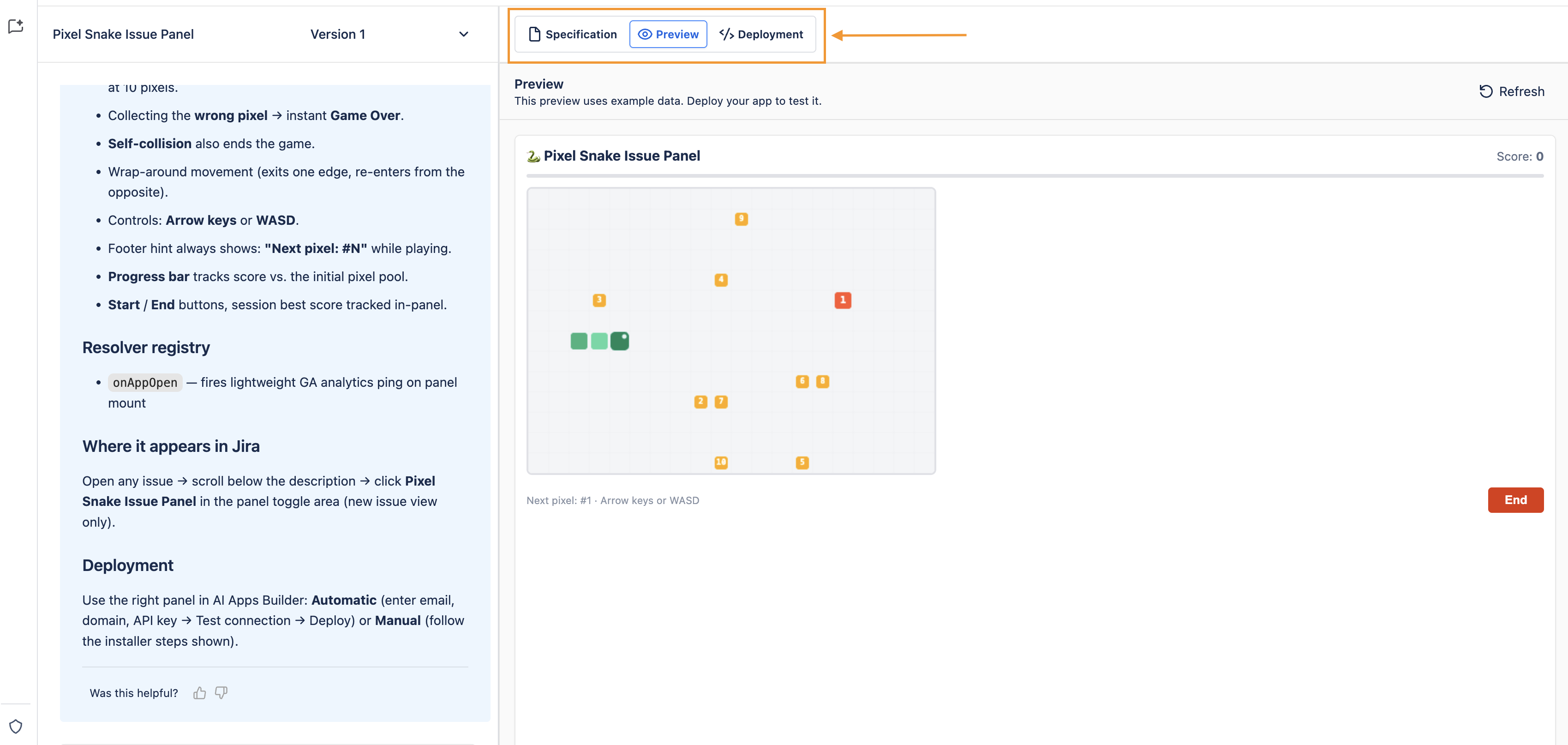
Once you're in, you'll see the Chat and the page with three tabs: Specification, Preview, and Deployment.
-
Specification: Read about what the app or AI agent does and how it is built. You can also download the specification.
-
Preview (available only for app): Try the app with example data before it is deployed.
-
Deployment: Deploy the app to Jira if you are an admin on the target Jira site.
If you are an Editor, you can send messages in the chat to request changes based on what you see in the specification or preview.
Step 4: Complete the deployment
This is the step you were invited for: the chat owner doesn't have admin access to the target Jira site, so they asked you to deploy their app.
To complete the deployment, click the Deployment tab and follow the Step-by-Step Guide: Create Your Own Jira App Without Coding | Step 3: Deployment.
Once you deploy, the app goes live on your Jira site, and you become the app's owner in the Atlassian Developer Console.
Step 5: Give the chat owner access to the deployed app
Since you're now the owner of the deployed app or AI agent, the person who invited you doesn't have access to it in the Developer Console. To give it to them:
If you have any questions, feedback, or ideas, just contact SaaSJet Support or email us at support@saasjet.com. We’re always happy to help.
Haven't used AI Apps Builder yet? You're welcome to try it then!