
Before deploying any app created with AI Apps Builder, ensure you have the required permissions. To deploy or redeploy your Forge app, you need to be an Administrator for the Jira site where the app will run.
If you built the app on your Jira site or a Jira Sandbox and want to move it to another site where you are not an admin, create a share link in the Dev console. Follow the Installation Guide to do this.
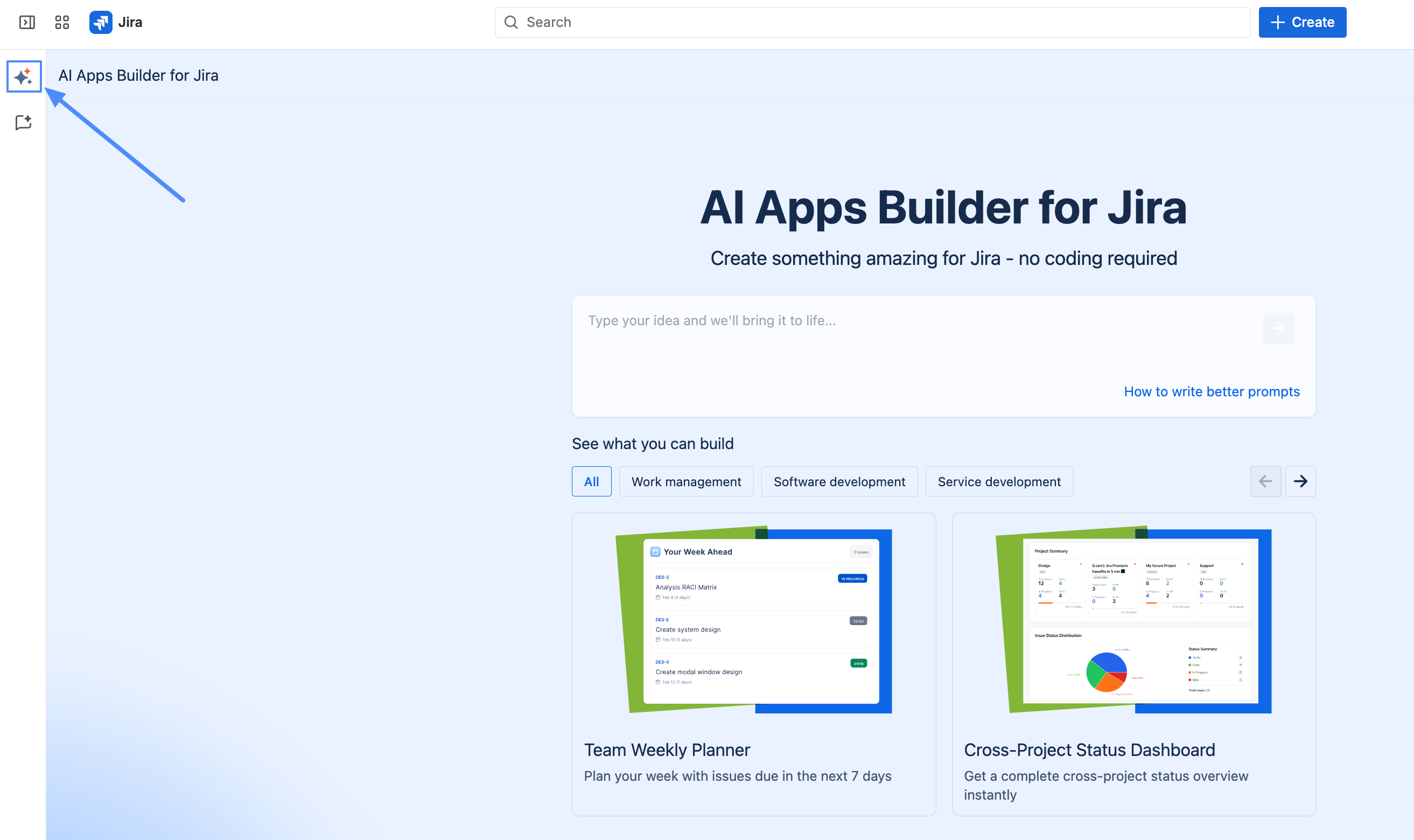
Step 1 – Open the App deployment window in AI Apps Builder
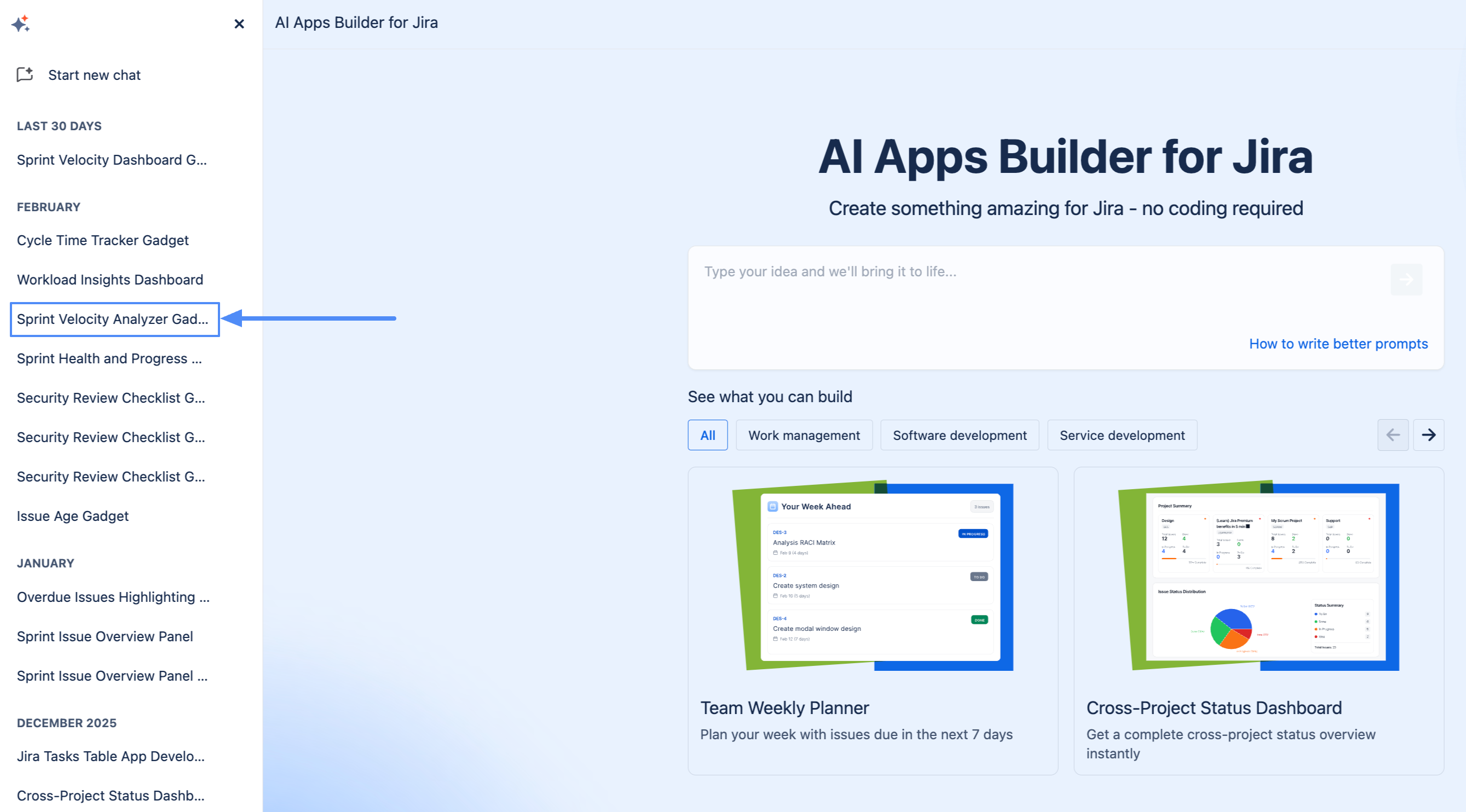
Open the AI Apps Builder sidebar, select the app you want to move, click it, and open the App deployment window.
Step 2 – Open the app in the Developer Console
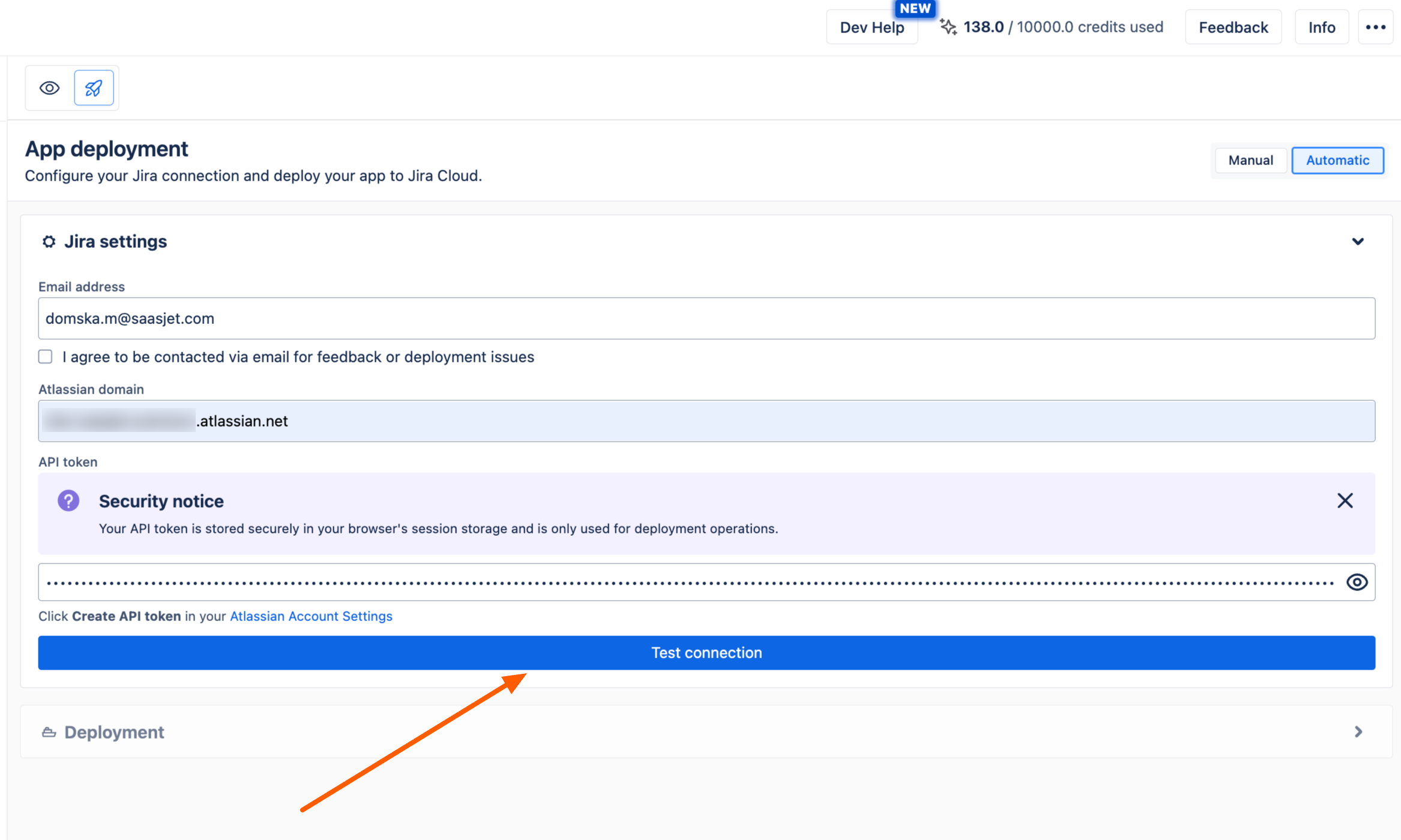
When the App deployment window is opened, make sure the Automatic tab is selected. Fill in all fields in the Jira settings section, then click Test Connection.
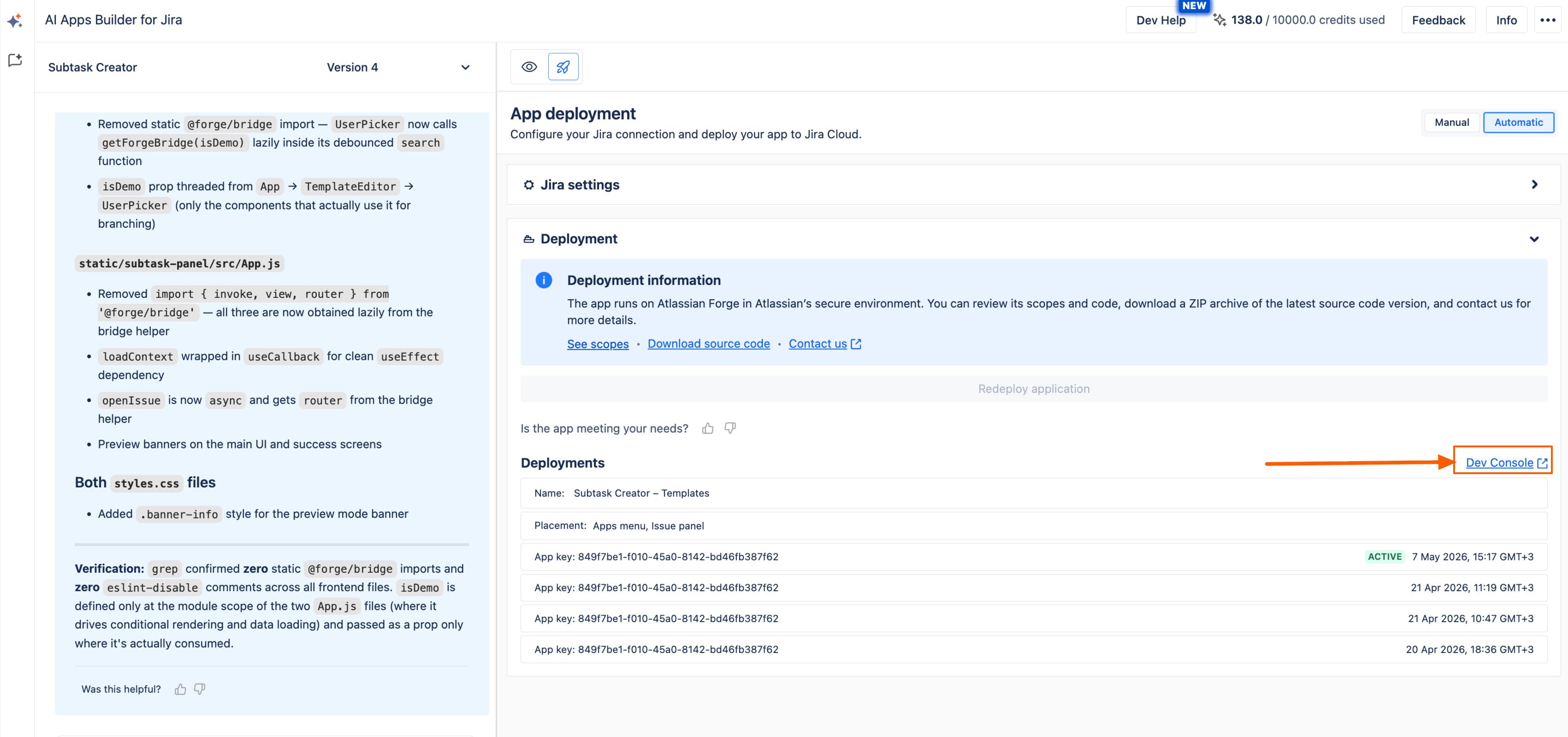
In the Current deployment section, click the Dev Console link.
If you have any questions, feedback, or ideas, just contact SaaSJet Support or email us at support@saasjet.com. We’re always happy to help.
Step 3 – Open the Distribution page
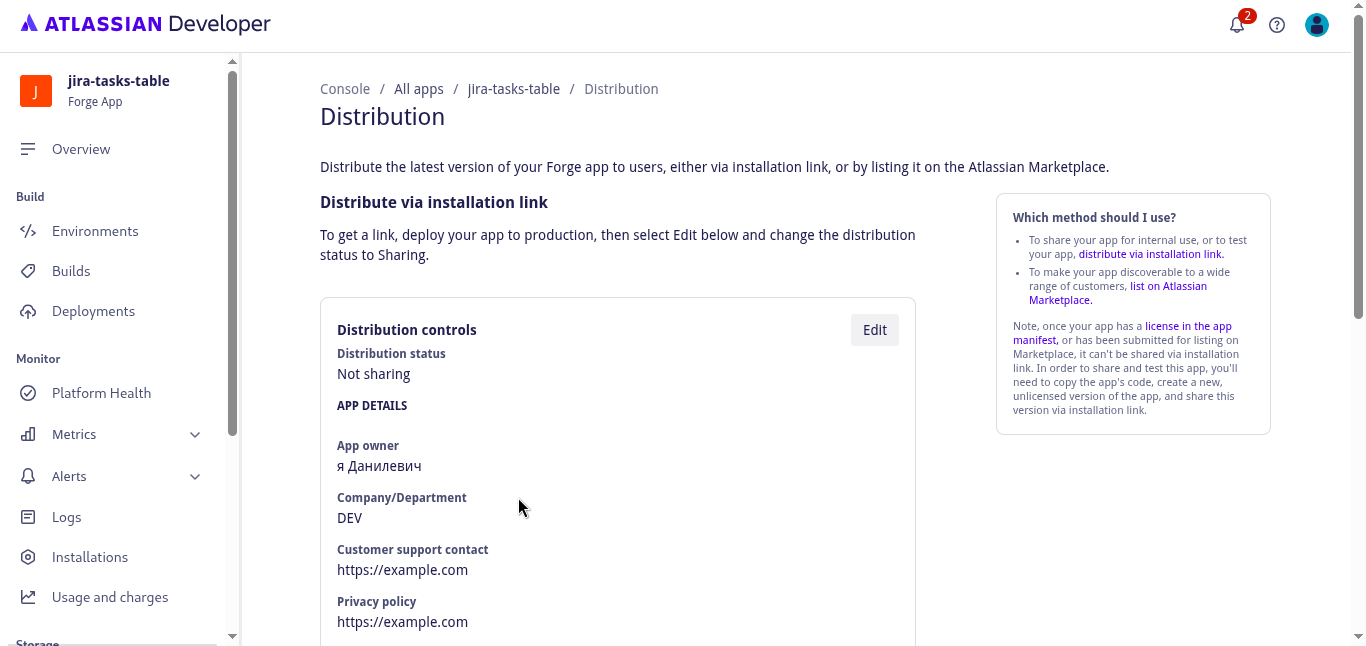
A new browser tab will open with the Distribution page for your app in the Atlassian Developer Console (this page controls how your app is shared and installed).
Step 4 – Enable sharing and fill in distribution details
In the Distribution controls panel, click Edit to start configuring how you want to distribute your app.
-
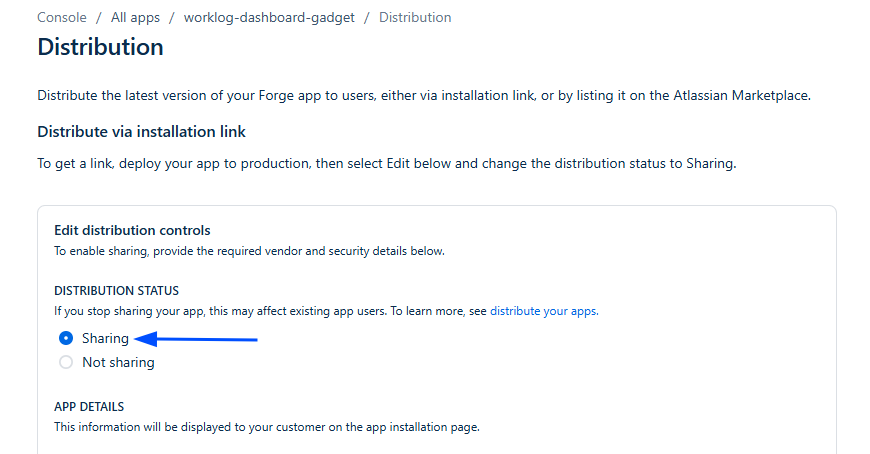
Under Distribution status, select Sharing.
-
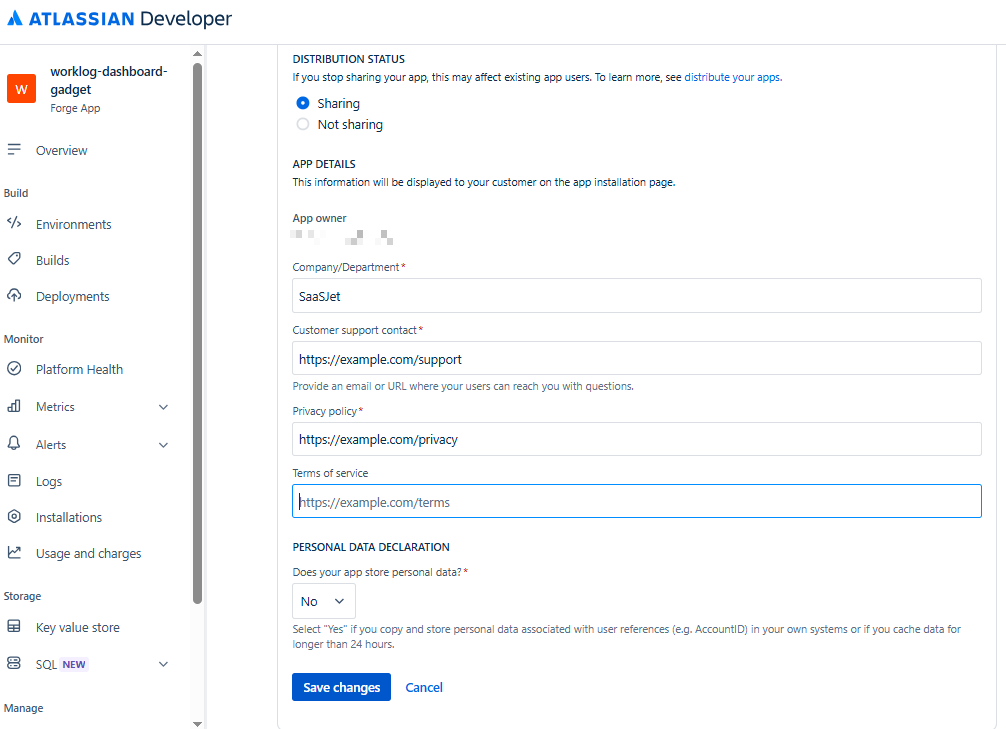
Fill in the required fields:
-
Company/Department – your company name, e.g.,
SaaSJet. -
Customer support contact – email or URL. If you don’t have a real one yet, use a placeholder, e.g.,
support@example.comorhttps://example.com/support. -
Privacy policy – URL, e.g.,
https://example.com/privacy.
-
-
Click Save changes.
Step 5 - Generate the installation link
-
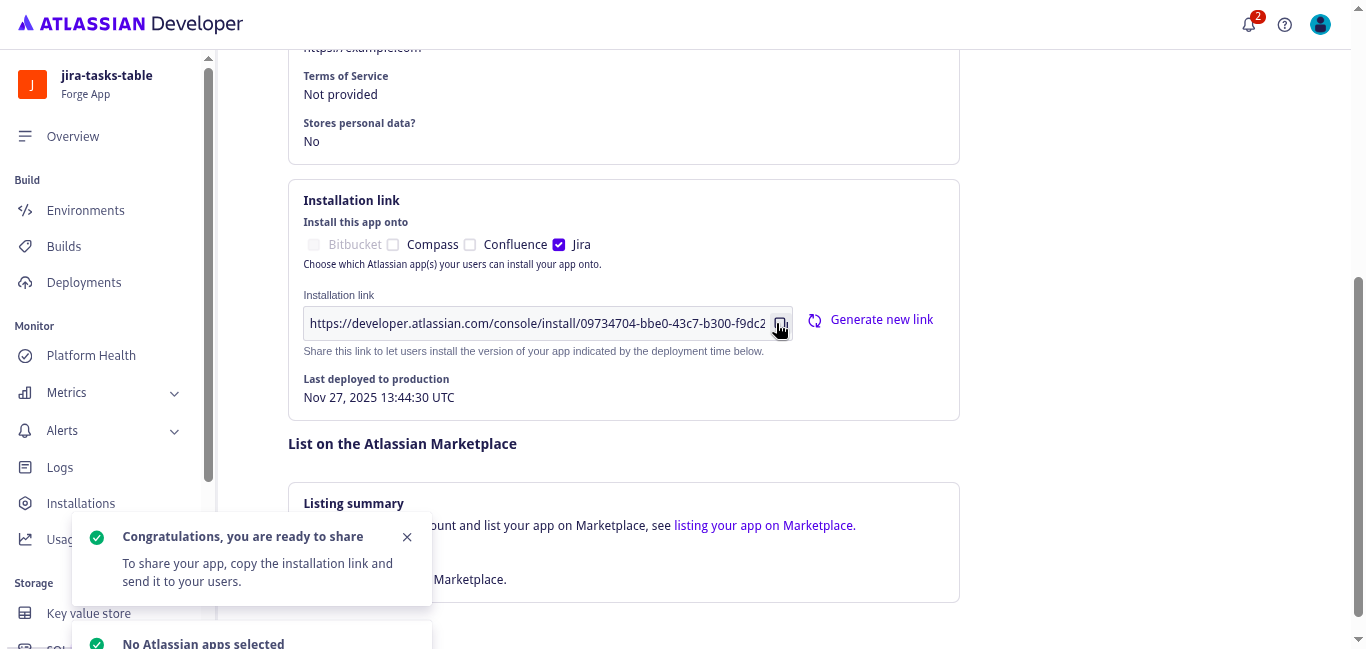
On the Distribution page, scroll to the Installation link section.
-
In Install this app onto, select Jira.
-
Copy the Installation link URL.
-
Share this link with a Jira administrator to install your custom app on the target Jira site.
Step 6 – Install the app using the link
To complete this step, you must be a Jira administrator.
-
Open the installation link in your browser while logged in to the Jira site where you want to install the app.
-
The app installation page will open. Review the information and permissions.
-
Click Get app.
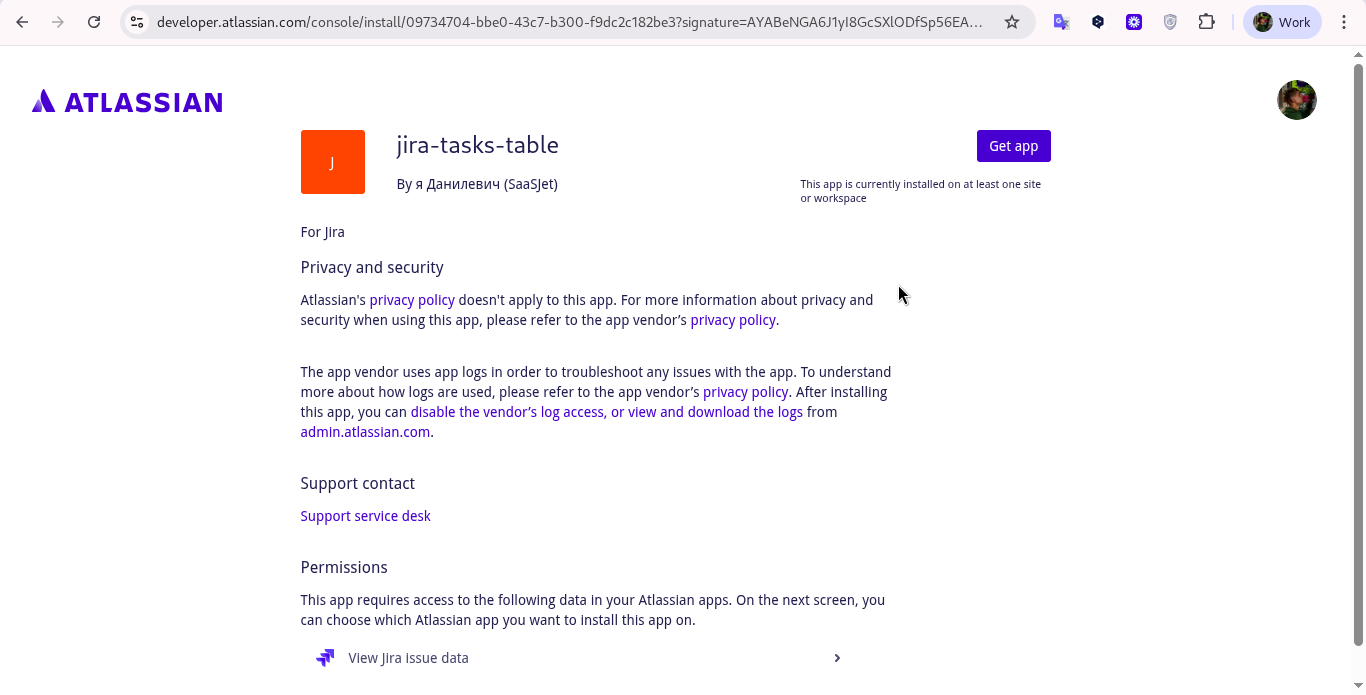
-
Choose the Jira site where you want to install the app, and complete the installation.
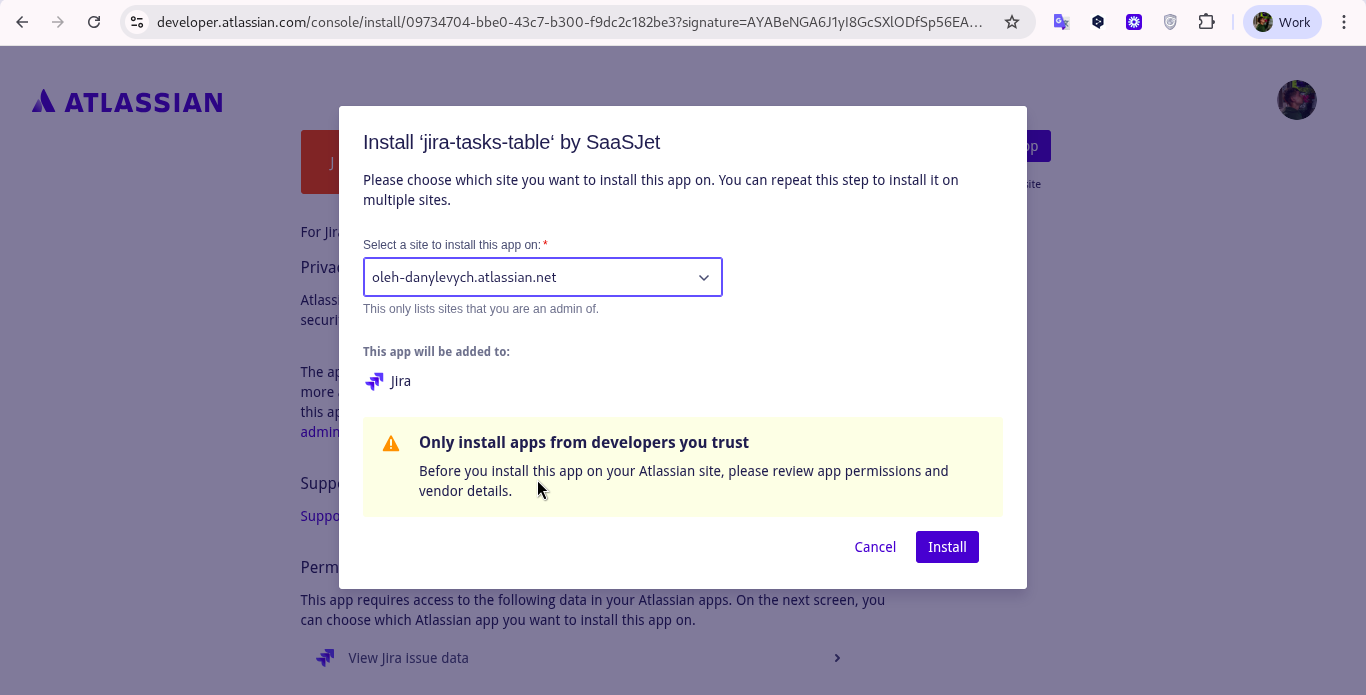
-
Then wait a few minutes until the installation succeeds, and the app appears in that Jira site.
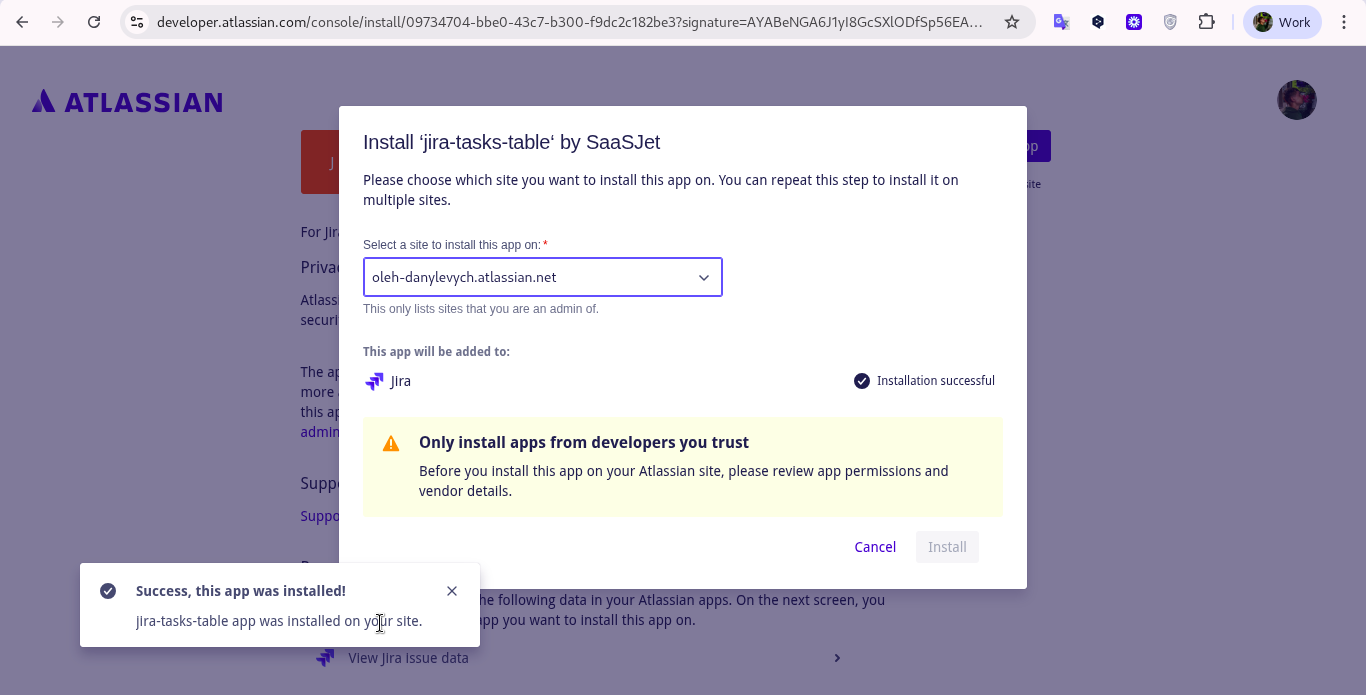
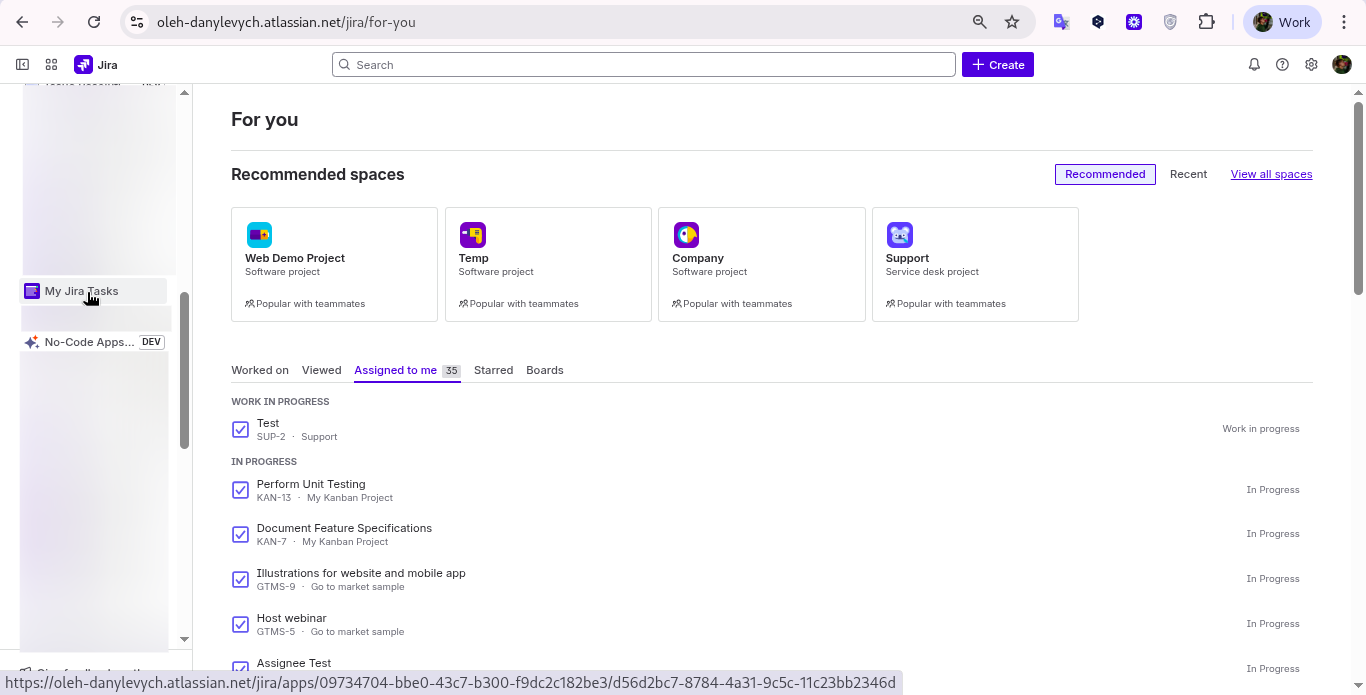
If you have any questions, feedback, or ideas, just contact SaaSJet Support or email us at support@saasjet.com. We’re always happy to help.
To find your custom app, read How to Access the Apps, Widgets, and Dashboards You’ve Built with AI Apps Builder.
Haven't used AI Apps Builder yet? You're welcome to try it then!
Have questions or want to see AI Apps Builder in action?
Feel free to meet with us — book a demo today!