
Form creators can now predefine answers for form fields, ensuring that users don’t need to select values manually. Follow these steps to configure this feature.
Step 1: Open the Smart Forms for Jira Add-on
-
Navigate to Jira and open Smart Forms for Jira.
-
Create a new form or edit an existing form where predefined answers are needed.
Step 2: Add a Form Element with a Default Response
-
Add Form Element of a desired type.
-
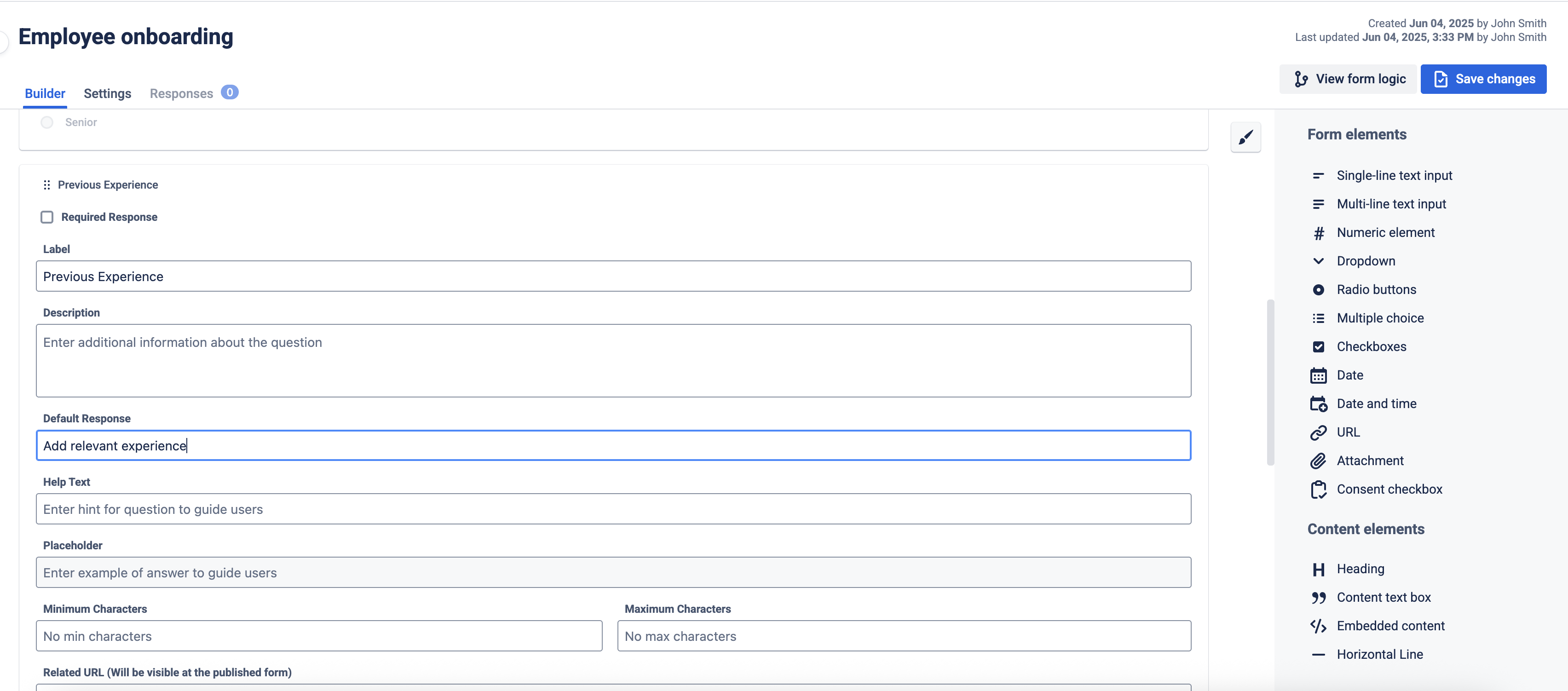
In the element settings, locate the "Default Response" option.
-
Enter the predefined value that should be automatically shown when the form is opened.
Step 3: Save the Form and share it
-
Click Save Form to apply the changes.
-
Attach the form to a Jira issue manually or set up automatic form attachment based on issue type.
-
Click on "Share Form" and generate a public link.
-
Send the link to external users—they will see pre-filled responses when they open the form.
Use Default Responses with "Create New Issue"
When using Smart Forms to create a new Jira issue, the predefined responses in the form will be automatically mapped to the corresponding issue fields.
📌 Example: If a form is set to create a new Jira issue for Feature Requests, the Priority field can be pre-filled as "Medium", ensuring consistency across all submissions.
Use Default Responses with "Update Existing Issue Fields"
✅ When a form is submitted with predefined values, Smart Forms can automatically update Jira issue fields based on the responses.
📌 Example: A support team updates a form with predefined categories for issue escalation. When the form is submitted, the "Escalation Level" field in Jira will be automatically updated to the selected value.