
SLA Time and Report for Jira Data Center

Integration with Slack | Data Center

To integrate your SLA Time and Report for Jira add-on with Slack, first of all, you need to create a webhook URL for your Slack. To do that, follow the steps below:

  1. Go to https://api.slack.com/apps and click the “Create an App” button.

DPxxa5n-Q1WabnQnzV_Dfuwc2qsrOBx0w_EK7GqQylLVrSE2DuP0I_CjrI3U2AV8JkL9MwYt6ASfEwCqZzk7wX7XWQnsax-PCEdWOAyKc6JEecJPvTQ51uKbu8l2d1z3A7h_TOnLF14eg4aftA

2. Choose the “From scratch option” and add all elements you need to the app manually.

wprvWkQ3o5mYQPdhB8j9X0zV4D_1asQ5rzwu4C5b-e1dtFIlHoQXaLj5sKnLlcLiAyrWE7ORP3kdgsF5YPEktkrfzAvhyR--2e3jrhTiUFPxc917p6OCbseJzkvfUCws8t1c3Afe1jQI1L7lzA

3. Type the App Name and select a workspace to develop your app in.

HPXagxp2Bbukvdr4KJUg9RFNmdA17GjvDYUxZCHx4ahDSbqxlw7WW_zCfKlIJ_gQBRwxLDU29lnY2WyQnN3iOUCPTXiovGJ1vkfkQ9wdj5p4vSe3qYIuIvmqqmkAHyB8LtbXf3Dx63pDkVeoPQ

4. Go to Incoming Webhooks to get the ability to post messages from the third-party add-ons into Slack.

Tlo9x6_GBRnx_SUVTyoVwnlIznDkraAbbDIUGmpJhxBhQIYrD6agdWsZiXfhql1qsRZGm6TlmhHTkPui7bV8HKnj00ucbLoaMMom9HRX8kDvOZQdWy5qUcRY1TY2LoLblu1D7A7NC7KiaHoOoA

5. Activate Incoming Webhooks with the toggle button.

Iw8KJCKedNnn1-tT99cobrCm-qzfvEzncr29rvxxzdDWrLIcfLxNi7TMq2SnFyiNfSNqPy5GwAZtN90brNJMoFW9249uyWEvnvMIF1yJfF5NySoO6Lz0Oms32moK60mSxDLz7YGu3DoGSxKSFw

6. Then click the “Add new webhook to Workspace” option.

z42i2xI0e1atZRXjilOxCXxYNalgGpRD4LTTskOKRlb-FIwVFA8e_udSEI4Y5r6R3qc8XhteVrDRjtSgw4-f9WXI7kFx14-9MVJFCsDlygUoivExK3Rn9sQ0nygXTWlFe4uhc0kCmGVH2eZRqA

7. Choose a Slack channel where the notifications will be posted, and click “Allow” button..

XCki5Kigc-qyEY4HFtOhWkH57avEJgtJ2UjAOeVPuLmIDjYsdQfDIse3lpXcZwctl9taw_gicbaCvFLL9H_wnicc0SYMLGNLGh4CljrT0Z4VuMPPxwiyAT3QqHXQDCII0jPnSW9JVSVKDzxVYQ

8. Click Copy to add this webhook to your workspace to activate it.

TEsHwTrQeueQFblCtR1UMPjKe0bOrRu7ecZtyrANi2dlfjFtI9Wxumy_mCiuhswgYtfP-5ugfKfTXg0JVN4RLe57-rCXKqx4Wjexym2TiMKZ74pT8vKQ6pf0ZrwTY3zgkkxS0G-rPL3gX0-s2Q

Now you can get the Slack notifications in a few simple steps:

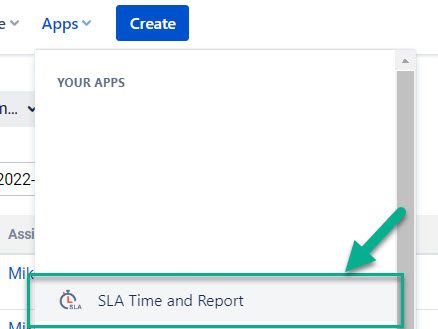
  1. Open SLA Time and Report add-on and go to the SLA Manager.
    sla choose the addon.jpg
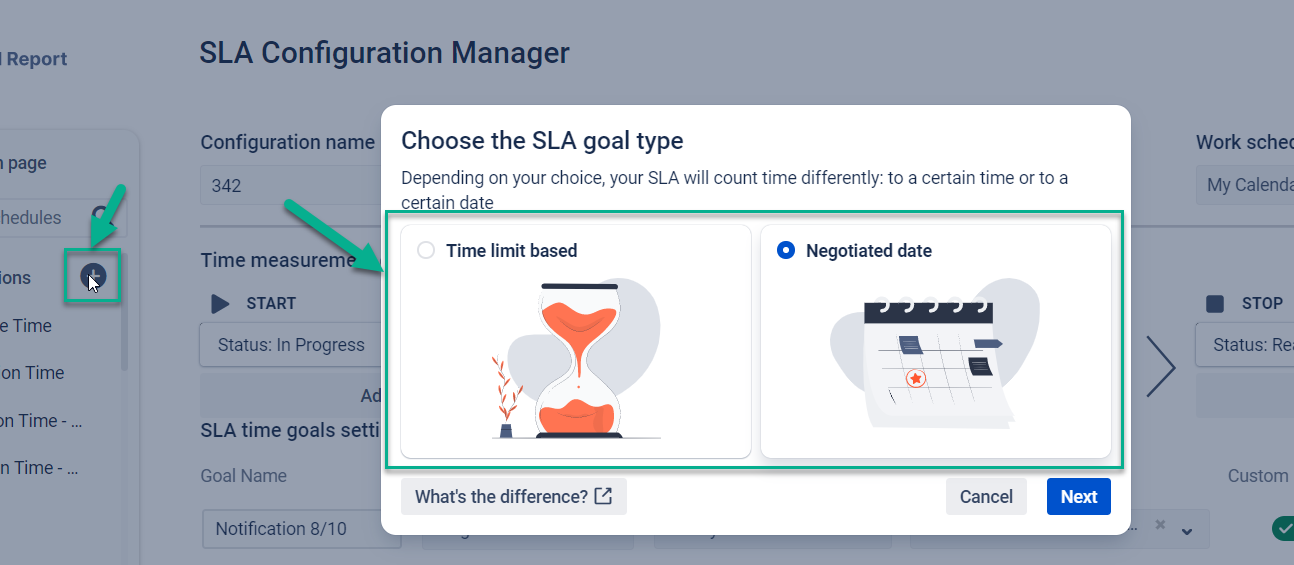
  2. Create a new SLA Configuration and choose the conditions you need.
    1 and 2.png
  3. Define time goals and choose the “Notify via Slack” option.
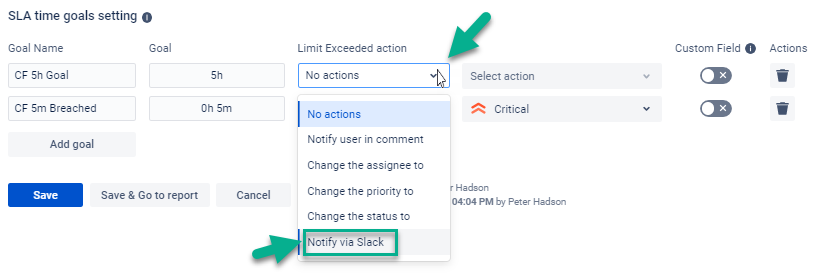
    image-20221202-140841.png


  4. Paste the webhook URL you have according to the tips from above.
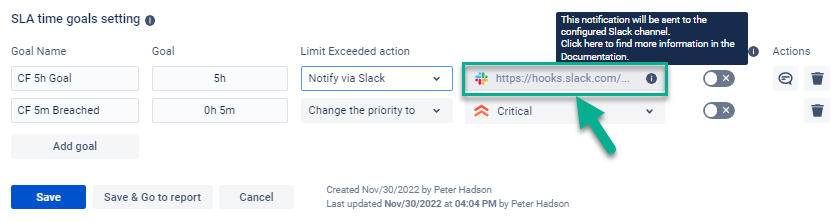
    image-20221202-141044.png


  5. Get notifications about the task in your Slack.

    slack message.jpg

Try SLA Time and Report for Jira add-on and important issues won't slip through from your attention
Questions? Just email us at support@saasjet.com.