
If you have SLAs you don't need, you can use the Disable/Enable SLA feature instead of deleting them. The button is located in SLA configurations in the upper-right corner.
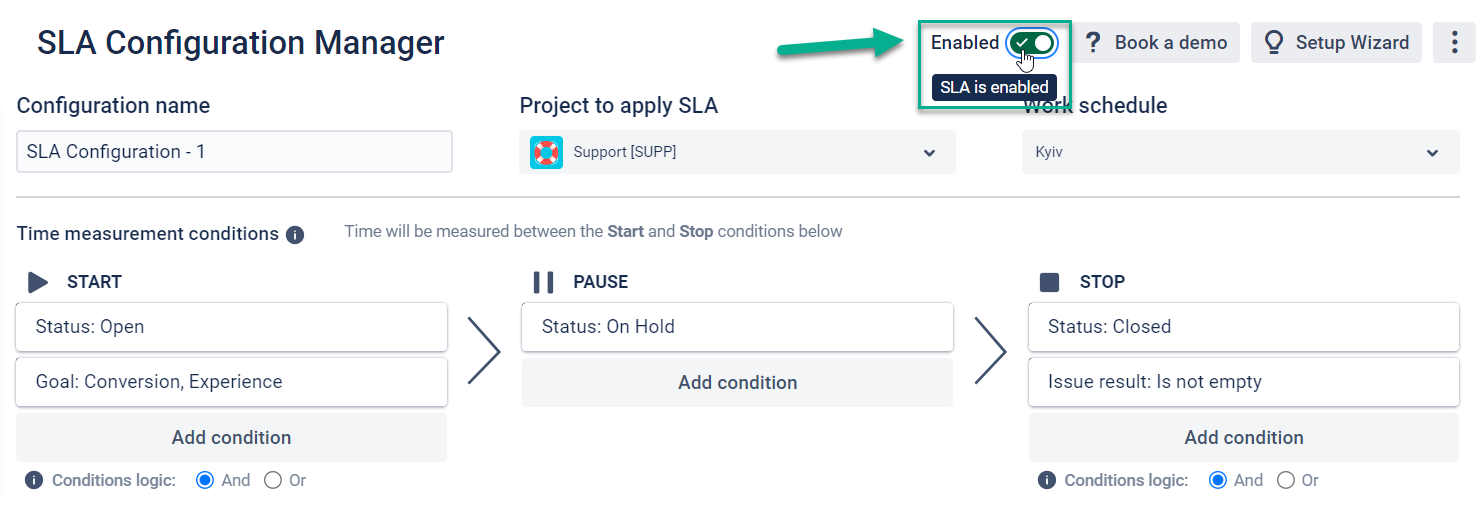
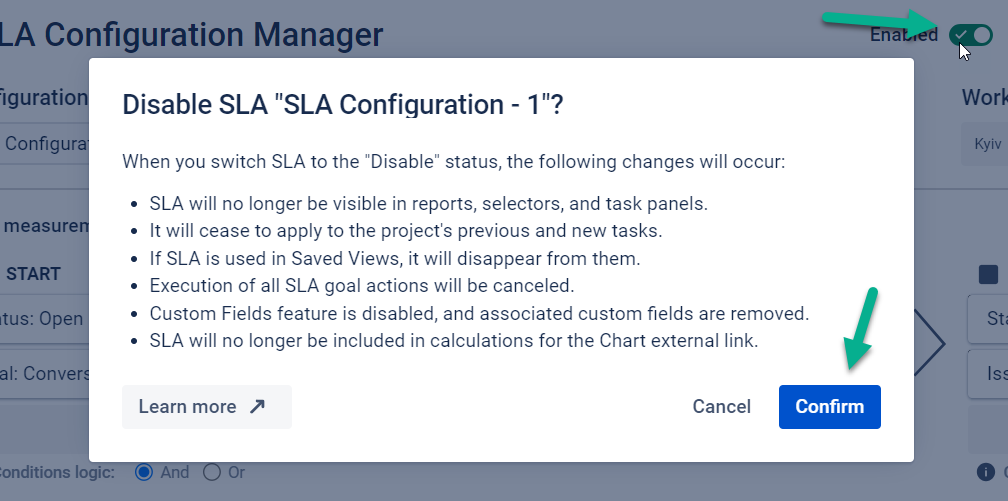
Note that when you try to Disable SLA, specific changes will occur, namely:
-
SLA will no longer be visible in reports, selectors, and task panels.
-
If SLA is used in Saved Views, it will disappear from them.
-
Custom fields are removed from the project, and the Custom Fields feature is disabled (if they are configured in SLA and this is a classic project), it is possible to turn it on again in the enable status.
-
Execution of all SLA goal actions will be canceled.
-
SLA will no longer be included in calculations for the Chart external link.
-
It will cease to apply to the project's previous and new tasks.
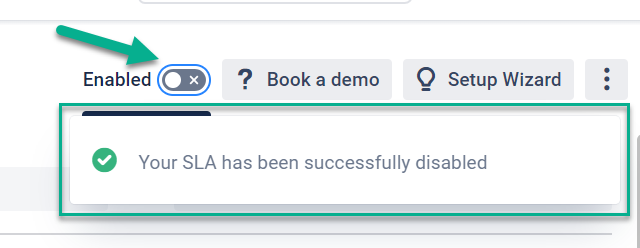
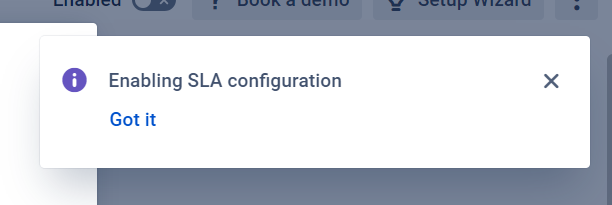
If the operation is successful, you will receive a corresponding message.
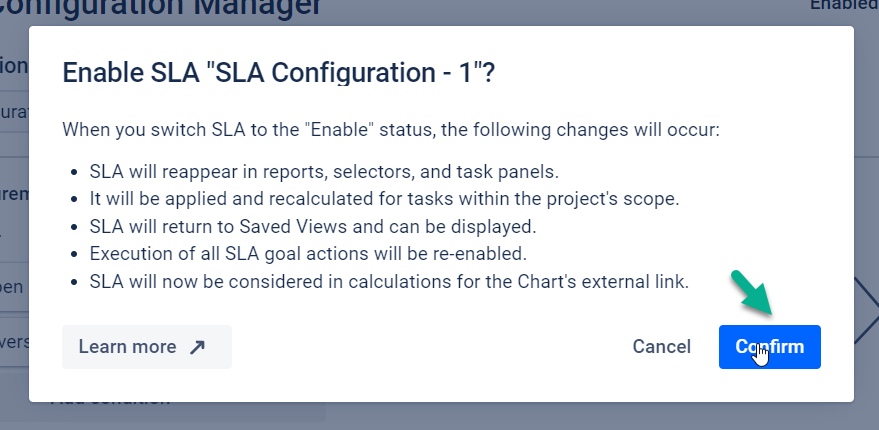
When returning SLA to Enable status:
-
SLA will reappear in reports, selectors, and task panels.
-
SLA will return to Saved Views and can be displayed.
-
Custom fields configured in SLA settings will be reinstated.
-
Execution of all SLA goal actions will be re-enabled.
-
SLA will now be considered in calculations for the Chart's external link.
-
It will be applied and recalculated for tasks within the project's scope.
Also, wait for the message about success.
Read about other possibilities of SLA settings in https://saasjet.atlassian.net/wiki/pages/createpage.action?spaceKey=STARFJ&title=Data%20Center%20%7C%20Set%20up%20your%20SLA