2026 year
Migrating from Data Center to Cloud
Issue History now supports migration of your app data from Data Center to Cloud using the Jira Cloud Migration Assistant (JCMA).
For detailed steps and requirements, follow our Migration Guide to ensure a smooth transition.
.png?cb=793e004342f92d7874ee501efd1da718)
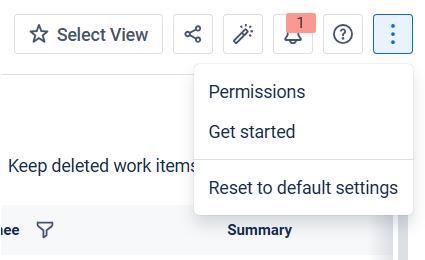
Reset to default setting
This feature lets you quickly return the app to its original state. Use it when your view becomes overloaded with filters, custom columns, or sorting rules, and you want a clean start.
2025 year
Advanced Excel export
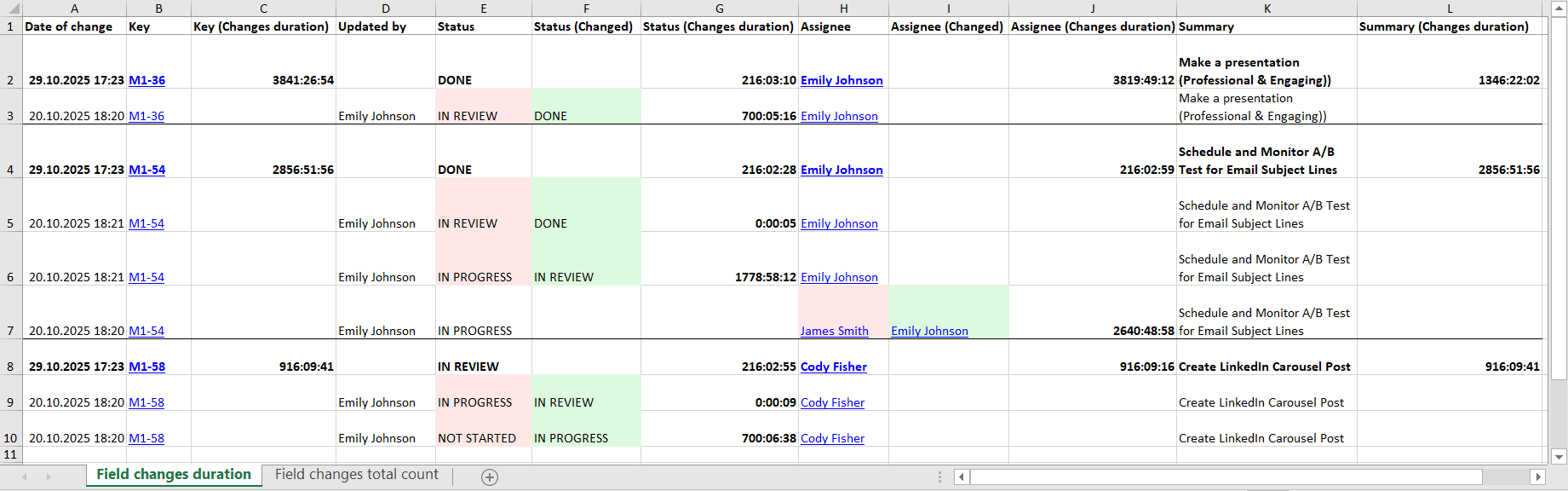
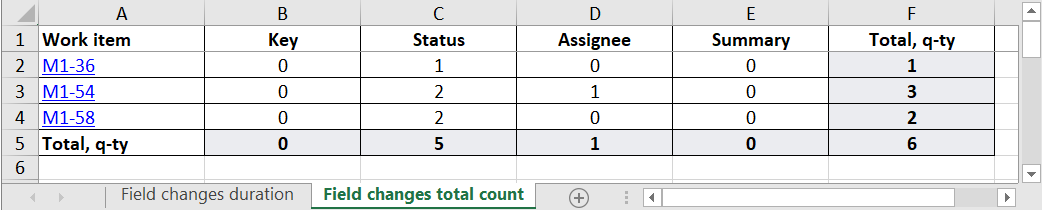
You can now export two new types of Excel reports:
-
Field changes duration report - automatically calculates the time difference between selected field updates in the report table.
-
Field changes total count report - automatically counts how many times each selected field was changed within the chosen period.
Navigator for the wide table
The navigator allows you to see where you are and quickly scroll to the desired field where the changes were.
.png?cb=632acf2df8401d594ddae78163f1fea3)
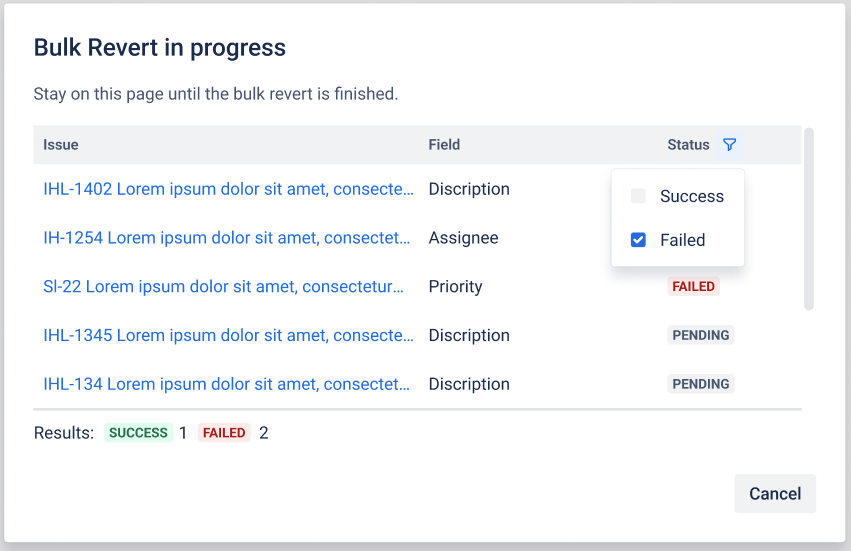
Bulk changes' rollback (revert) status filtering
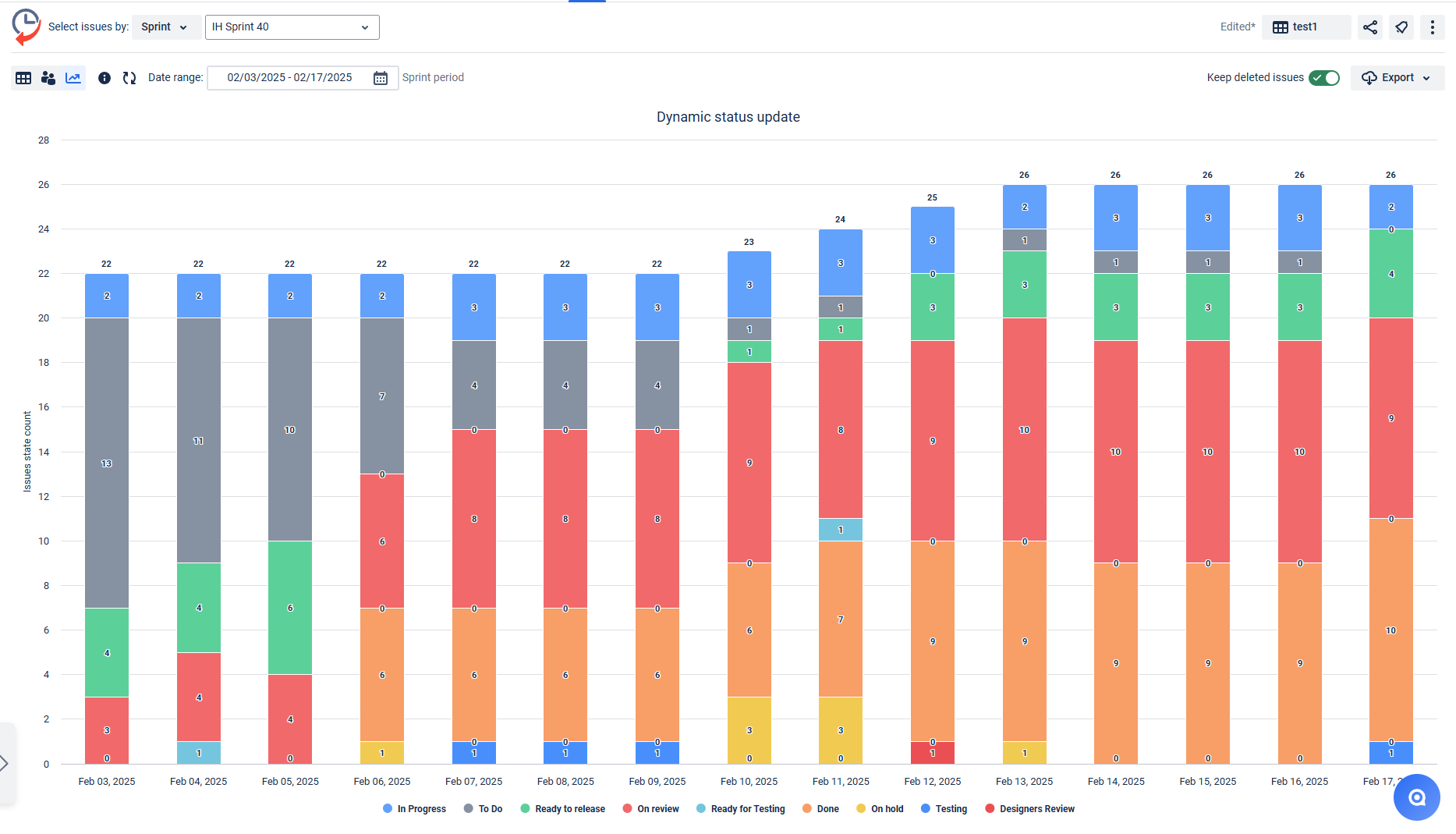
New color scheme for status change graphs
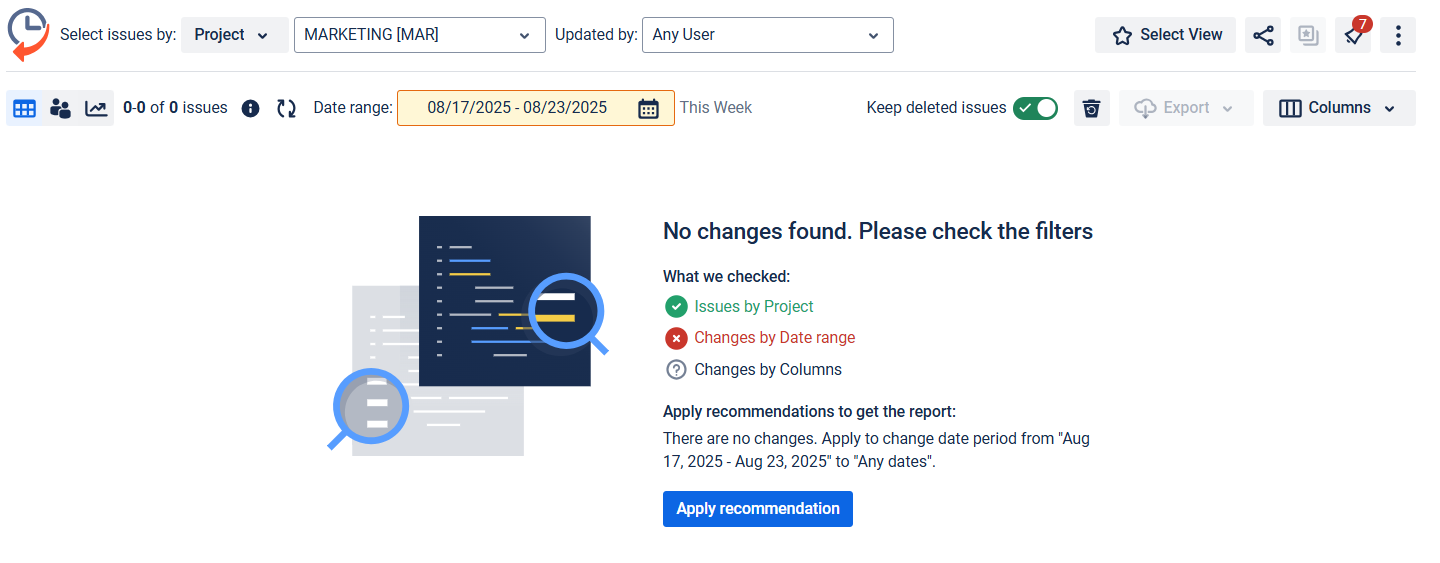
Empty State Troubleshooter
When no changes are found in your report, it usually means the filter conditions don’t match any data. That’s where the Empty State Troubleshooter comes in.
Enhanced table sorting
Now, you can move the columns in a Table view and instantly take the column from it.
Quick link to JQL in Issue History app
.png?cb=bbed14b5f049af8ee046caa99b1ee406)
Sorting of the columns on the Deleted issues page
Now you have the ability to sort columns on the Deleted issues page. You can now sort field values for tasks that have been deleted.
.png?cb=db8bb60a03e6fff4ea2966ad4868b95c)
Table View navigator
Navigate wide tables more quickly.
.png?cb=618baf1a91cf4d3234dd1366013bf28f)
Bulk Revert status filter
Use the new filter in Bulk Revert status window.
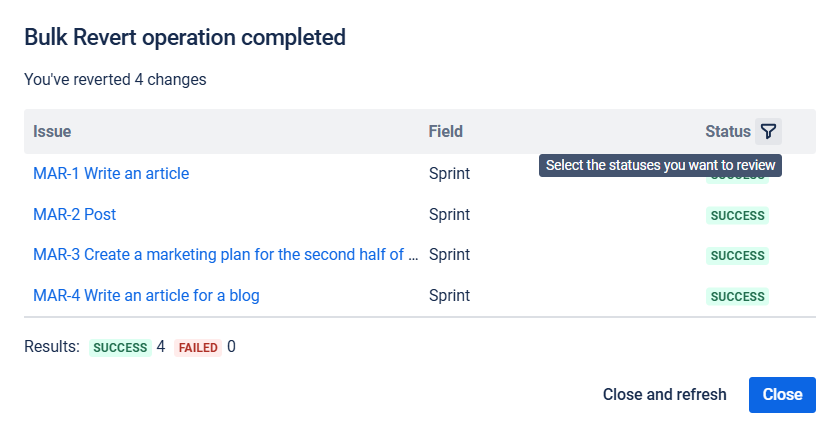
Chart color enhancements
Enjoy improved visuals with an updated chart color scheme.
Quick access to view all changes
Use quick access to view all changes related to the project. From the project page, users can quickly access the field change control page for the specific project. To do this, go to: Projects → Your project name → Activities (by Issue History).
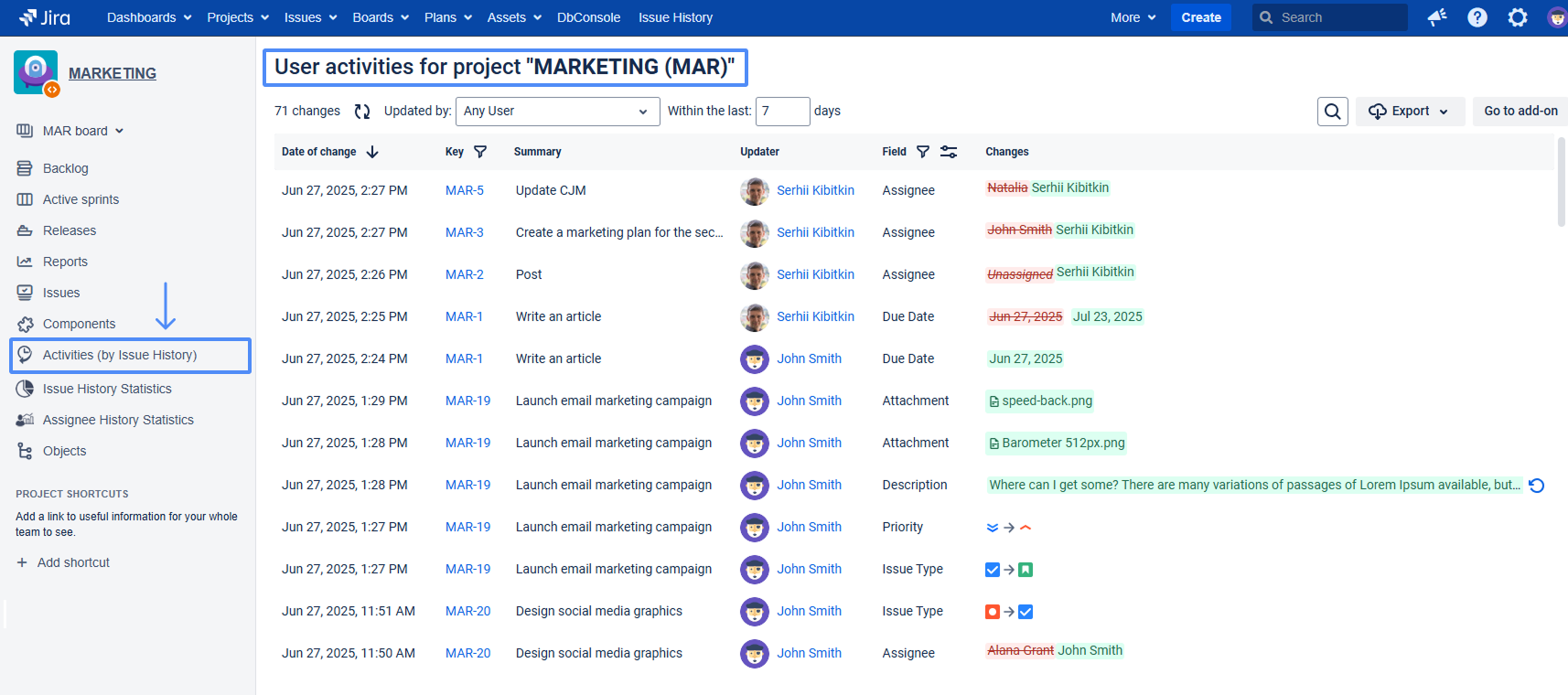
Also, you can use quick jump to view changes from section Issues → Search → Get changes (by Issue History). The JQL query for the search will be transferred to the Issue History app, allowing you to view all changes by field for this request separately.
Tracking comment changes
Now, you can track all updates made to comments in Jira, as the system doesn’t natively support comment history. Simply activate the “Tracking comment changes” feature to record comment updates.

Revert bulk changes
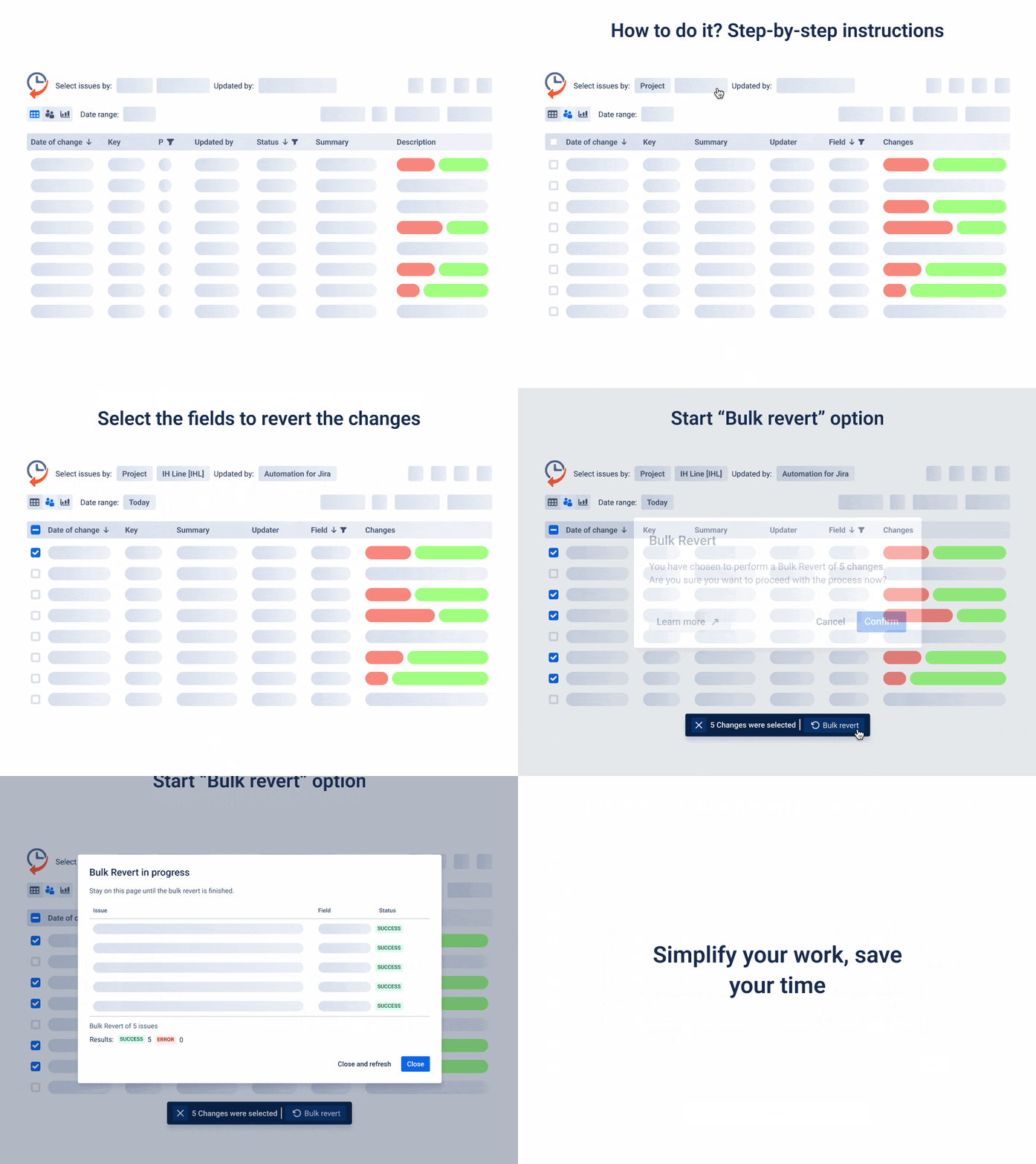
Rollback multiple changes with the bulk revert option
Bulk Revert operation helps you undo incorrect bulk changes made after automation or manual actions.
Project and JQL filters in Activities gadget
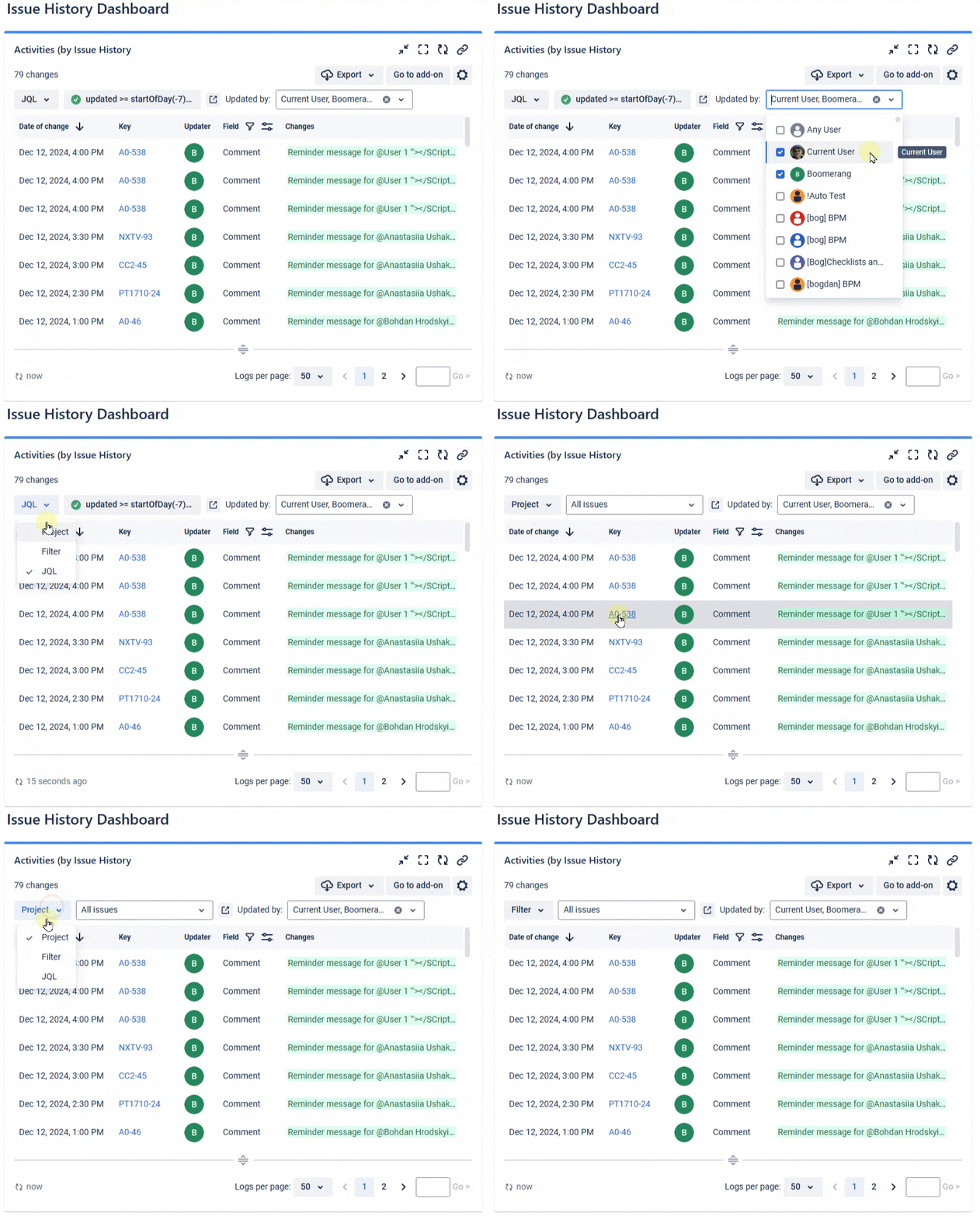
Activities Gadget by Issue History for Jira now lets you filter issues by project and JQL for more precise results.
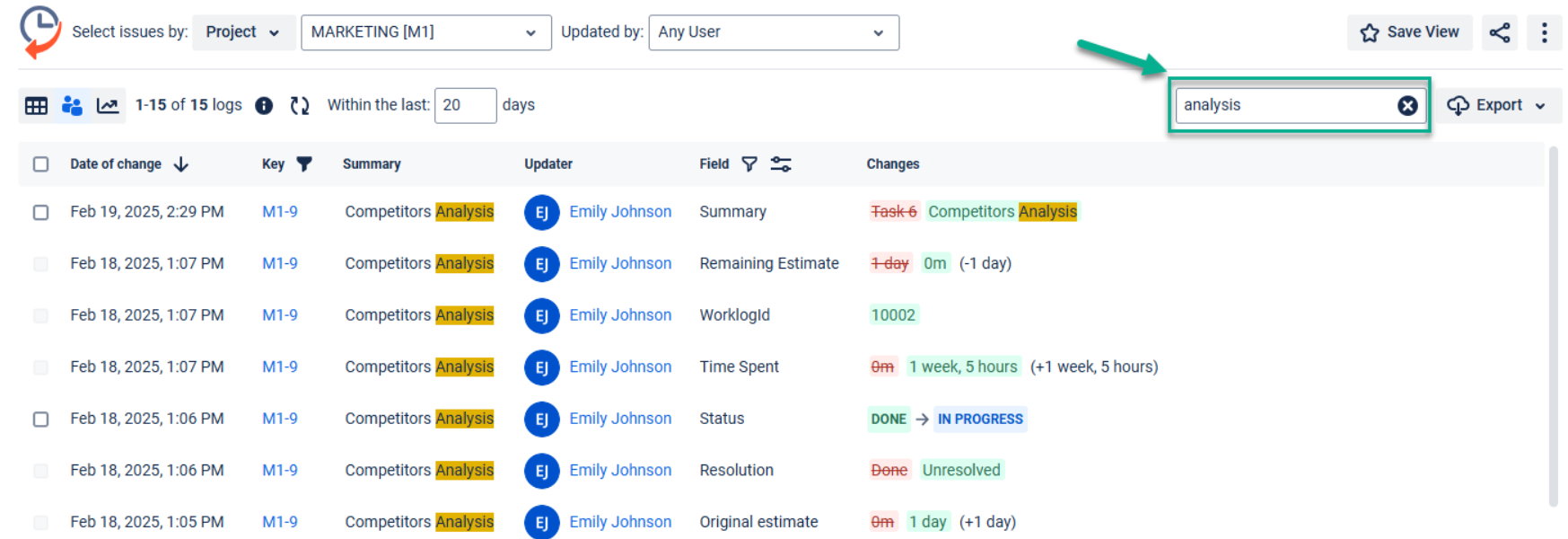
Keyword search in change results
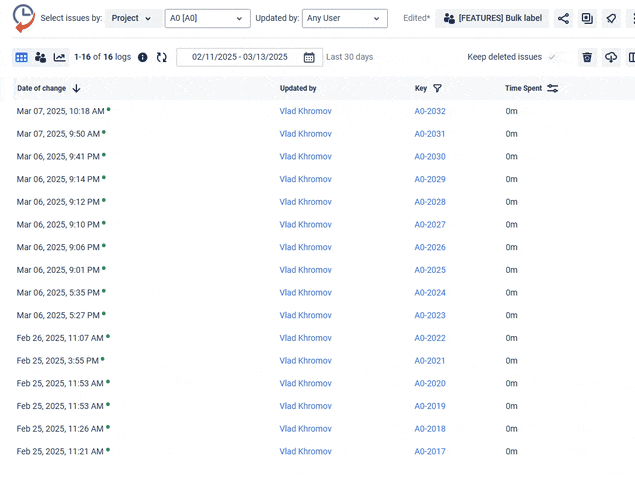
Now, you can search for changes by entering words or phrases into the search bar. The system will automatically process your input and display all relevant activities that match your search term.
Keyword search in change results
Now, you can search for changes by entering words or phrases into the search bar. The system will automatically process your input and display all relevant activities that match your search term. This feature is available in the Activity view, Activities gadget, and single-issue panel view.
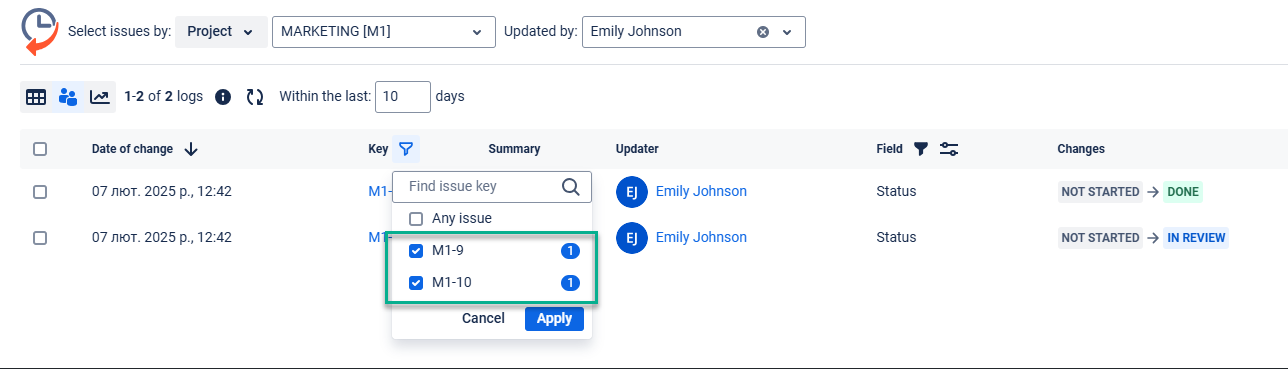
Key filtering
We've added issue key filtering to the Activities gadget, Issue History Panel view, and Activity view in Issue History for Jira. You can quickly filter specific issues by their keys, making tracking and analysis more efficient.
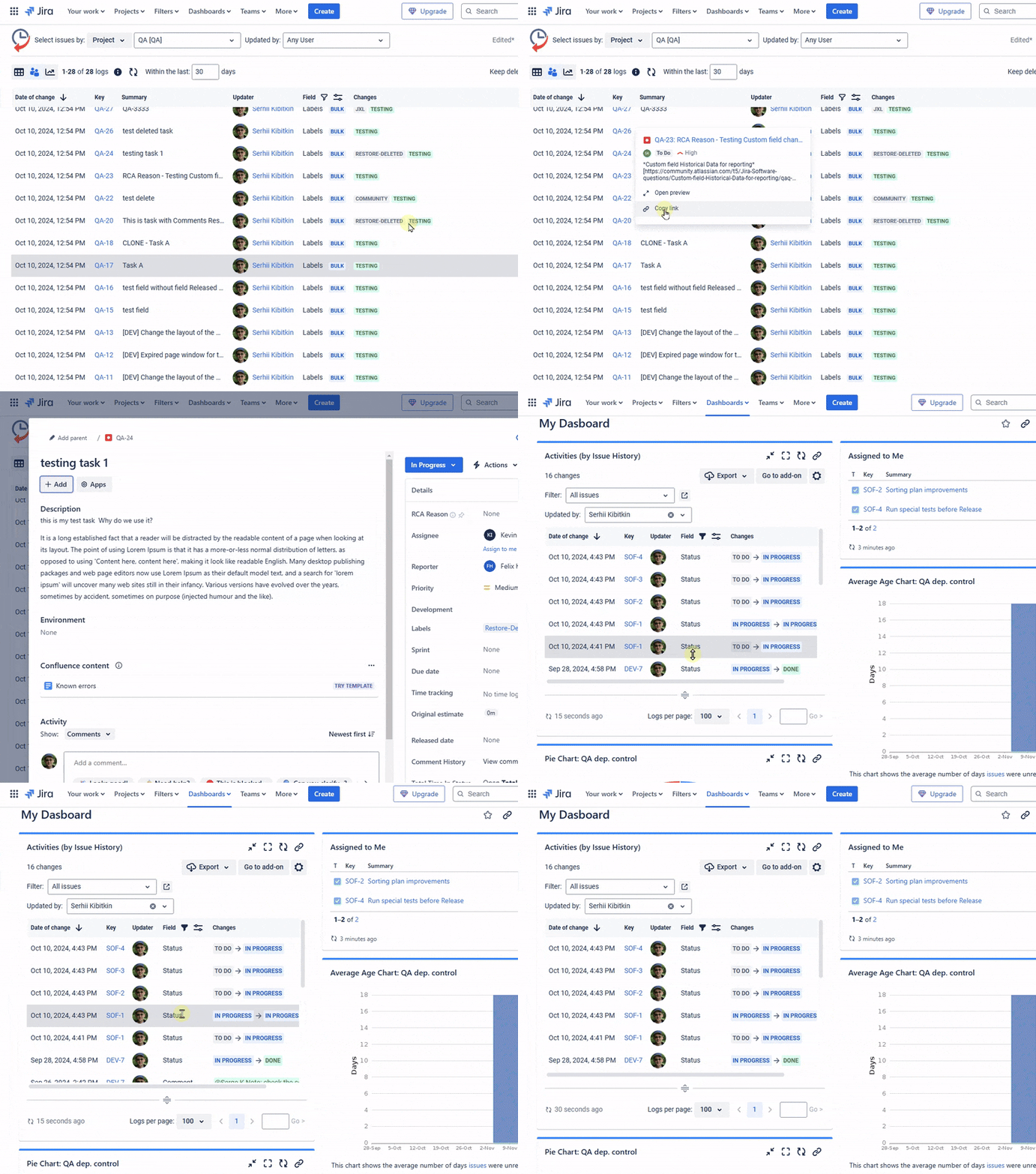
Detailed info on key hover
Place your mouse cursor on the task key to see detailed information about the task. Available for Activities gadget in Issue History for Jira.
Added the ability to dynamically change the height of your gadget using a marker. Just click on the marker and drag - the height of the gadget will change automatically.
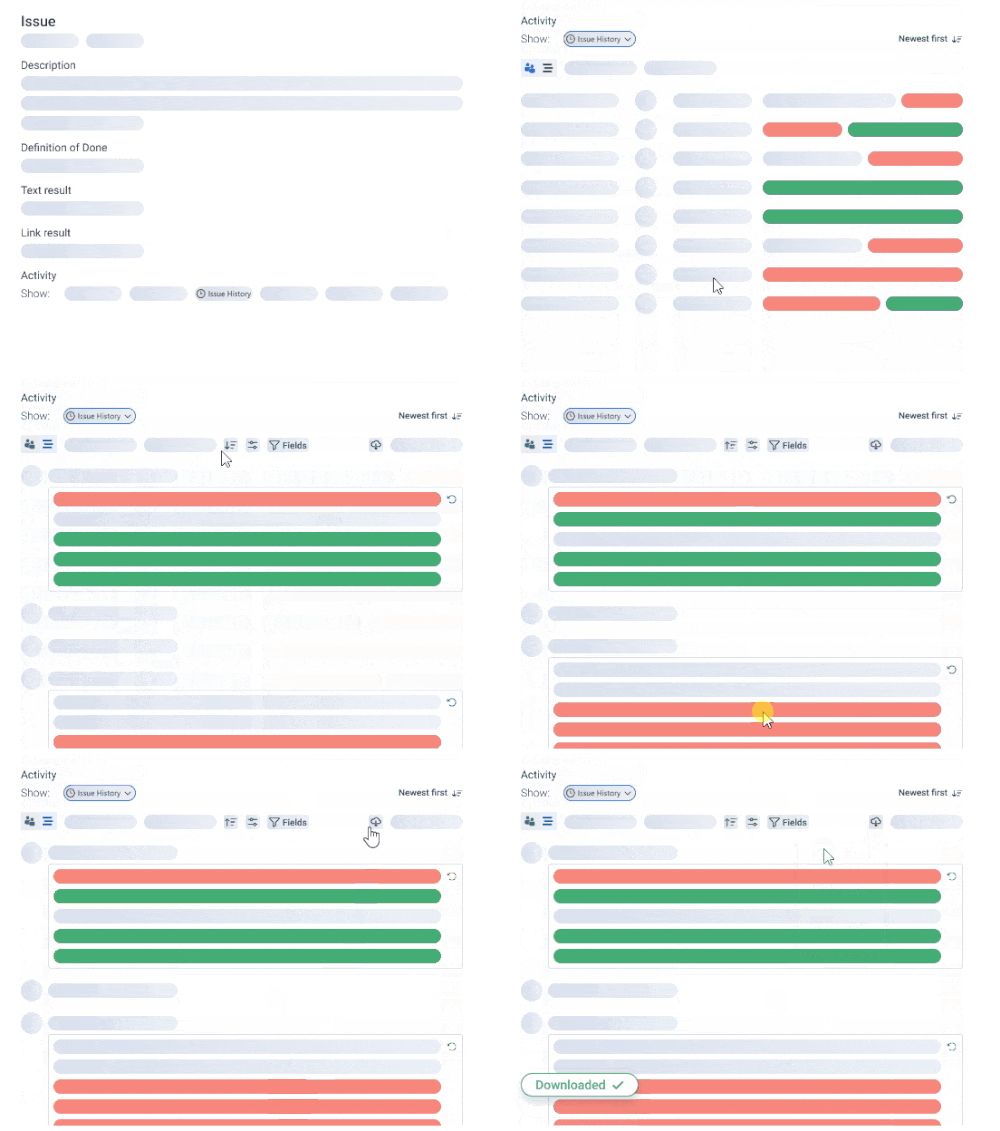
Stream mode for Issue History Panel view
Stream mode shows all changes in an issue, such as added, removed, or updated details. This feature makes tracking activity easier and is now available in the Issue History Panel View.
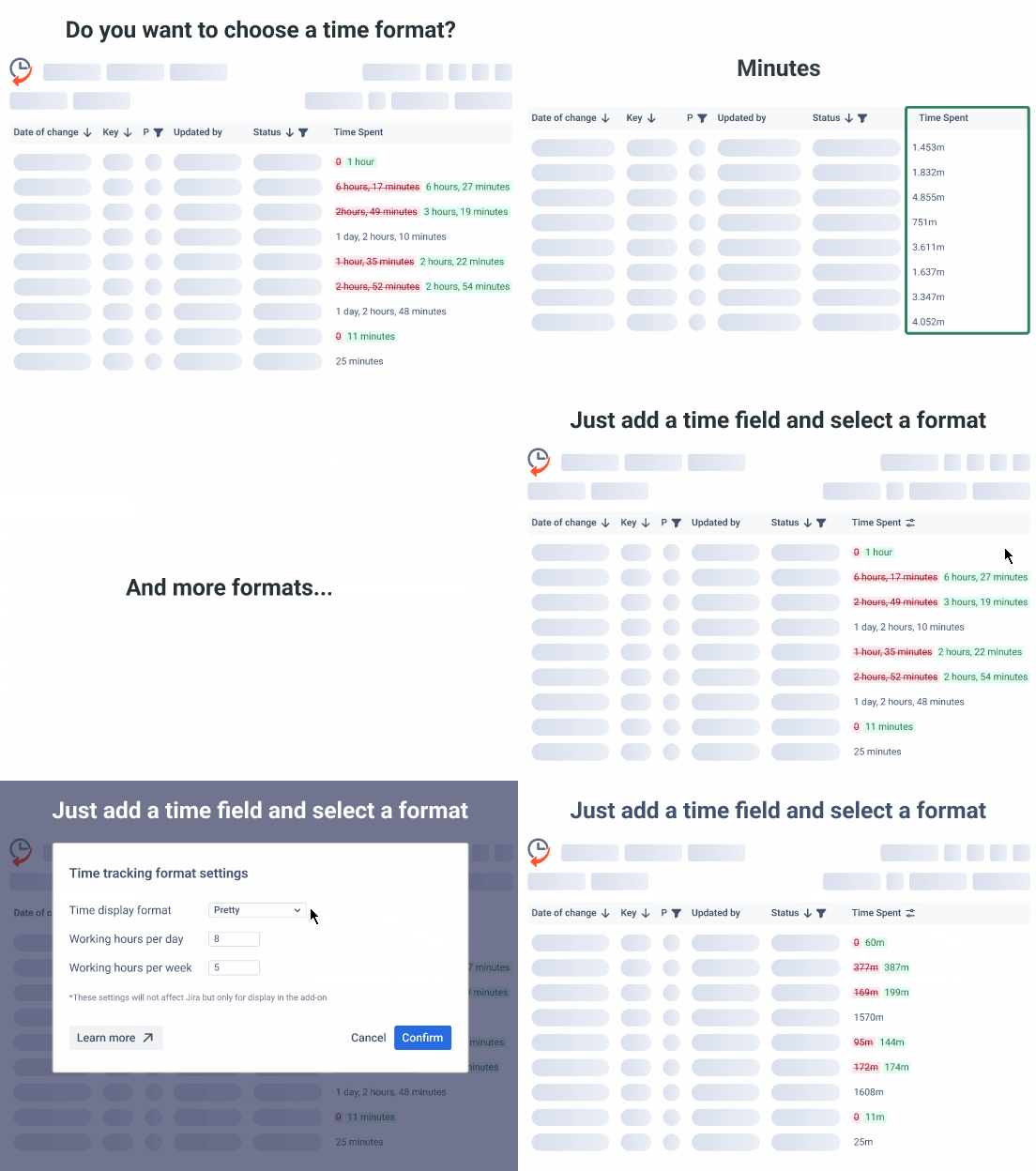
Improvements in time format choosing
Now, you can choose the format for all time fields to display time data (weeks, days, hours, minutes, etc.) as you need it.
It applies to all options with Issue History for Jira: main table/activity view, single issue history, and gadget.