
With Saved Views, you can create and keep your preferred filter setups for future use. Whenever needed, you can quickly switch to a saved view to see the exact same filtered information on your board.
This means you don’t have to rebuild your filter criteria every time. Simply save your commonly used filter settings once and access them instantly with just one click.
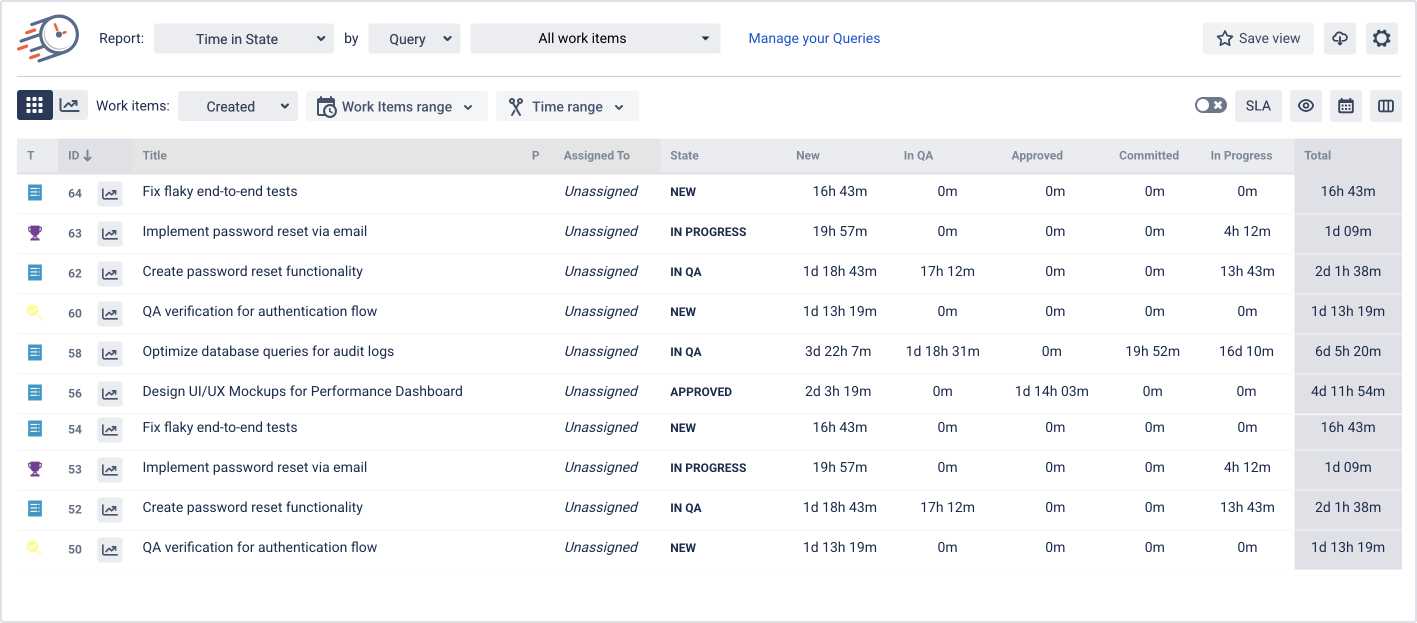
Step 1. Apply the filter
Open the board you want to work with, select a queue, and then configure the filters - for example, set a time range, choose which fields should be displayed, and adjust other view settings as needed.
.png?cb=1eac6199811959af4bd7f08960484906)
After selecting the filter values, click Apply.
The board will update and display only the items that match the selected conditions.
In this example, only contacts with selected filter will be shown.
Step 2. Save the view
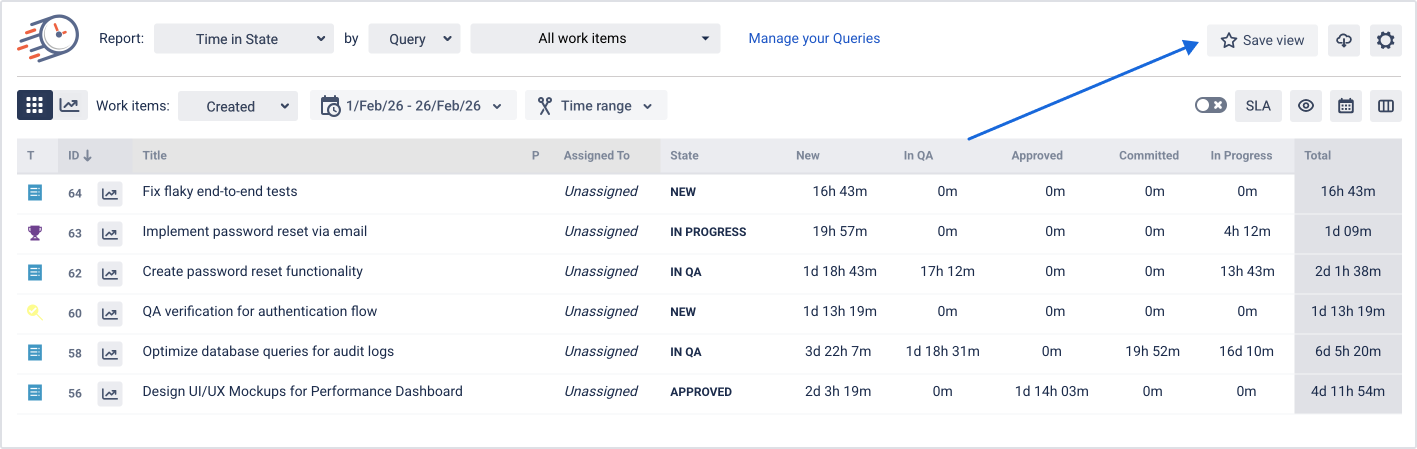
Once the board displays the filtered data you want to reuse later, you can save it as a view:
-
Click button Save view.
-
Enter a name for the view.
-
Optionally, choose whether to share this view with your organization.
-
Click Save.
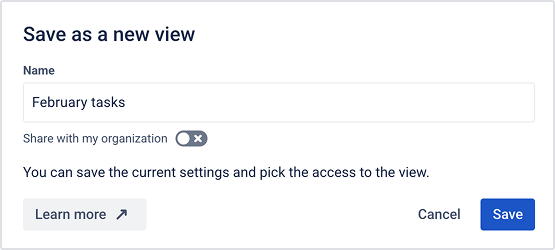
A confirmation message will appear indicating that the view has been successfully created.

Step 3. Use saved views
All saved views are available in the Saved Views list.
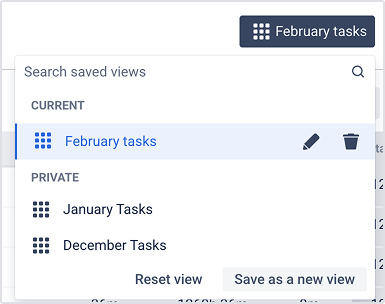
When you select a saved view:
-
all filters stored in that view are applied automatically,
-
the board updates to show the same filtered data as when the view was saved.
.png?cb=a88107dd63a730422f01b926e9e04d73)
Saved views can be applied at any time, regardless of the current filter state.
Managing saved views
You can manage your saved views directly from the views list:
-
edit a view by modifying its filters,
-
rename an existing view,
-
delete views that are no longer needed.
There is no limit to the number of saved views you can create.
If you need help or want to ask questions, please email SaaSJet Support at support@saasjet.atlassian.net
Haven't used this add-on yet? Try it now >>> Time in State for Azure DevOps