
Multiple-scheduler SLA type (Available in the Advanced plan)

Work-schedule SLA goals are available on the Advanced plan. An upgrade is required to configure this SLA type.
Work-schedule SLA goals are designed for teams that operate across different schedules, regions, or roles and require SLA tracking based on multiple working calendars within a single SLA configuration.
Instead of calculating SLA time using one shared working schedule, this SLA type allows you to apply different work schedules to different users or groups. The SLA timer is calculated dynamically, based on the calendar assigned to the person or team responsible for the issue at a given moment.
When to use work-schedule SLA
This SLA goal type is useful in scenarios such as:
Distributed teams working in different time zones
Support or delivery teams with regional business hours
Mixed teams where internal and external contributors follow different schedules
Projects where some roles work standard business hours while others follow custom or extended schedules
Work-schedule SLAs help ensure that SLA measurements remain fair and accurate, reflecting real working time rather than a single, generic calendar.
How the work-schedule SLA works
When a work-schedule SLA goal is selected:
SLA time is calculated based on the work schedule assigned to the current assignee or team
Each user or group can be linked to one specific work schedule
The SLA automatically adapts when responsibility changes, without requiring separate SLA goals or manual recalculation
This approach allows a single SLA configuration to cover multiple operational schedules while preserving consistent SLA logic.
Example
A ticket is assigned to a support agent in Canada.
The SLA starts and counts time according to the Canada work schedule.While the Canadian agent is working, SLA time is counted normally within their business hours.
Later, the ticket is reassigned to a support agent in Poland.
At that moment:The SLA switches to the Poland work schedule
Time outside the Polish agent’s working hours is not counted
The SLA is not breached, even if work started earlier in Canada
When the Polish agent starts working, the SLA continues counting based on their local business hours, as if counting from zero for that schedule.
This ensures that SLA time reflects actual working time for each assignee, rather than overlapping or penalizing teams working in different time zones.
How to configure a multi-schedule SLA goal
To configure an SLA that uses multiple work schedules, follow these steps.
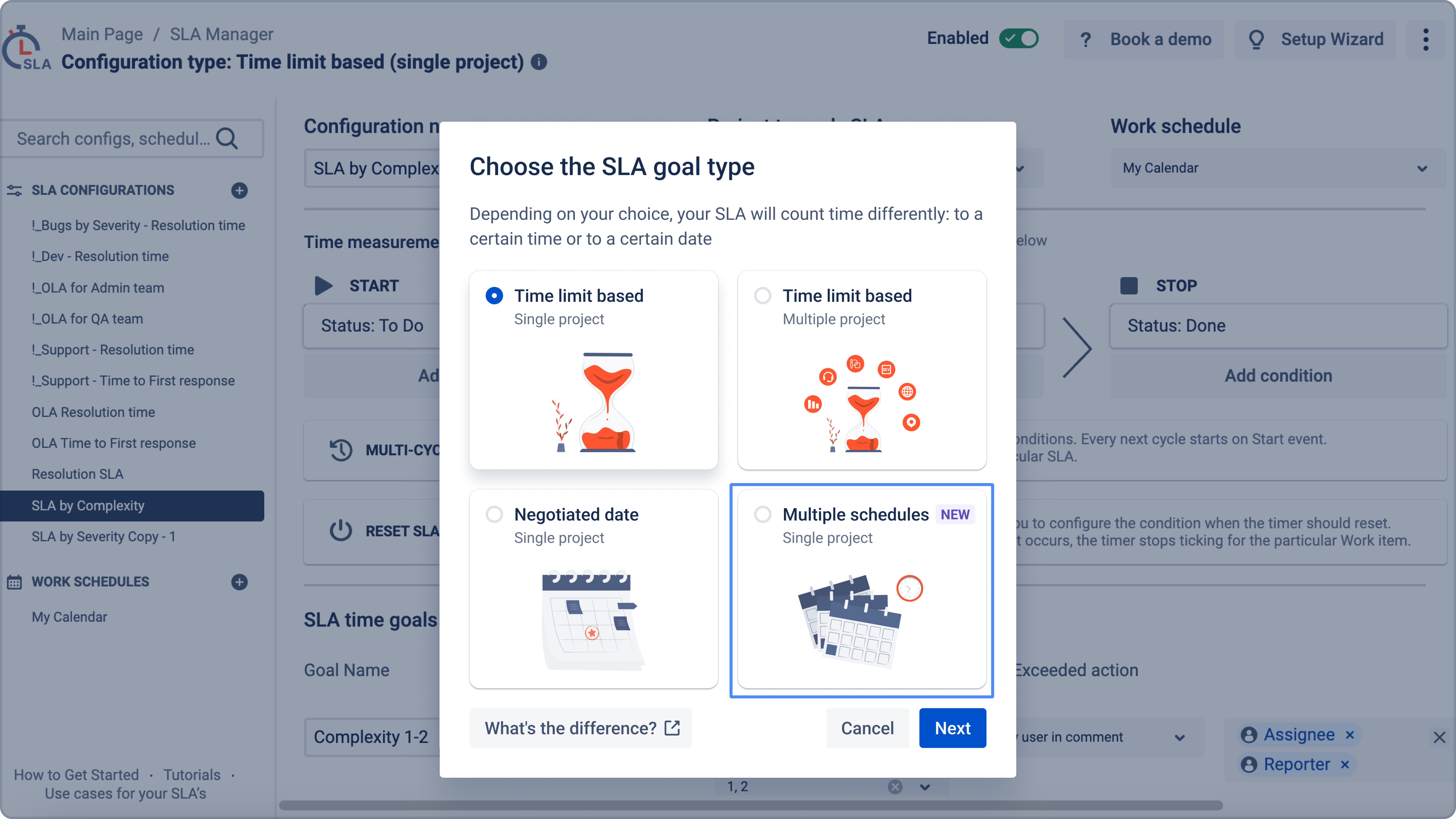
Step 1. Create a new SLA configuration
Go to SLA Configuration Manager
Click + Add SLA configuration
Select multi-schedule as the SLA goal type
Step 2. Select work schedules
In the Work schedule section:
Open the Work schedule selector
Choose one or more predefined work schedules
(for example, schedules for different regions or teams)
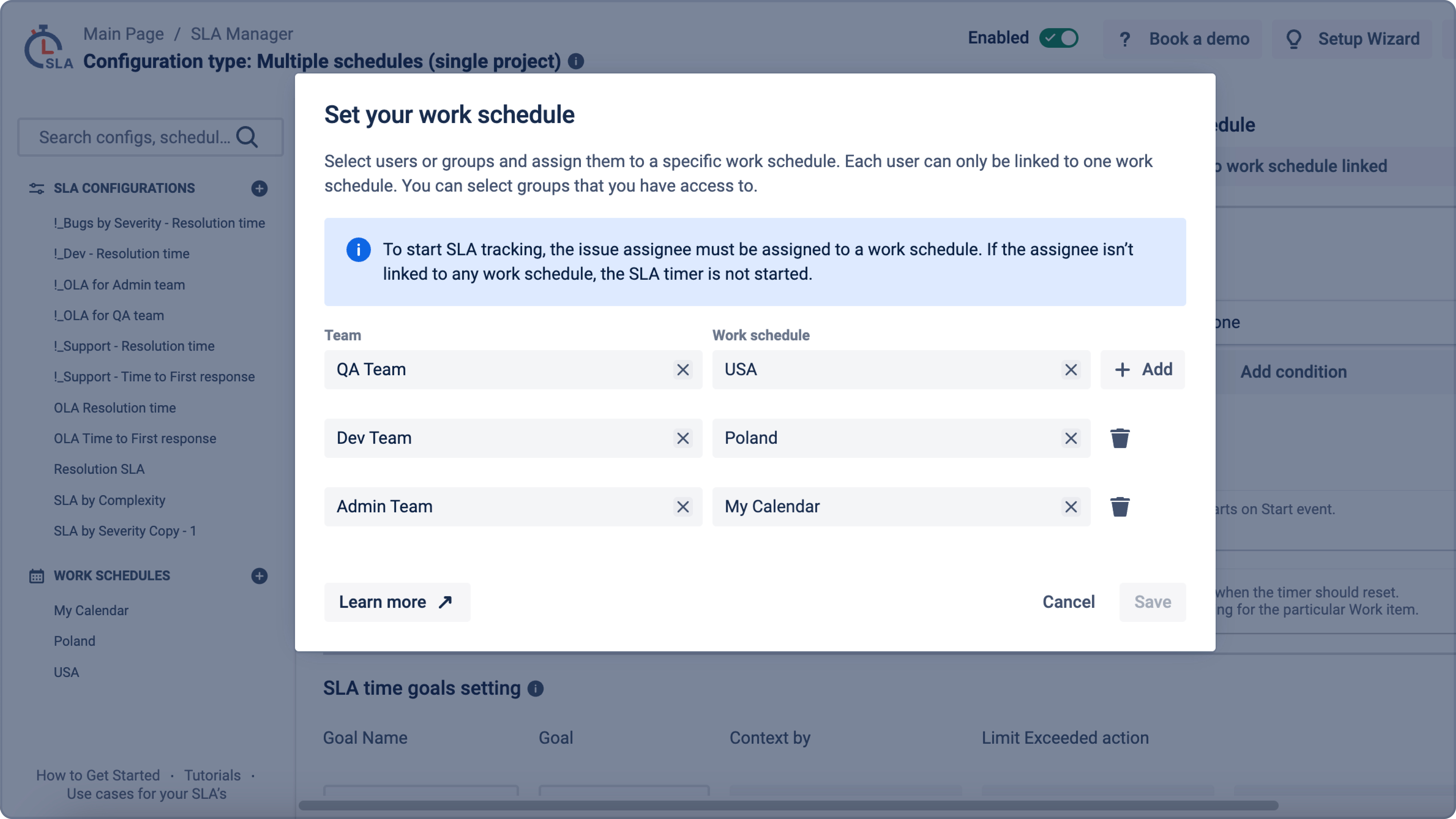
Step 3. Assign schedules to users or groups
Work schedules must be assigned in advance:
Each user or group is linked to one specific work schedule
SLA calculation automatically uses the schedule of the current user
When the assignee changes, the SLA switches to the new assignee’s calendar
No additional SLA goals or configurations are required.

Key behavior:
SLA time is calculated using the calendar of the active assignee
If the assignee is not linked to any work schedule, the SLA does not start
Time outside the assignee’s working hours is excluded
Reassigning an issue does not cause an SLA breach due to another team’s off-hours
One SLA goal can correctly cover multiple regions and time zones
Helpful resources & links