
Installing a monday.com app is quick and straightforward. Follow these detailed instructions to add any SaaSJet app - to your account.
1. Log in to your monday account
Sign in using the account associated with your workspace.
For installation, you must be an Admin or have permission to add apps.
If you're not an admin, monday.com will allow you to request installation from your administrator.
2. Open the monday.com Marketplace
-
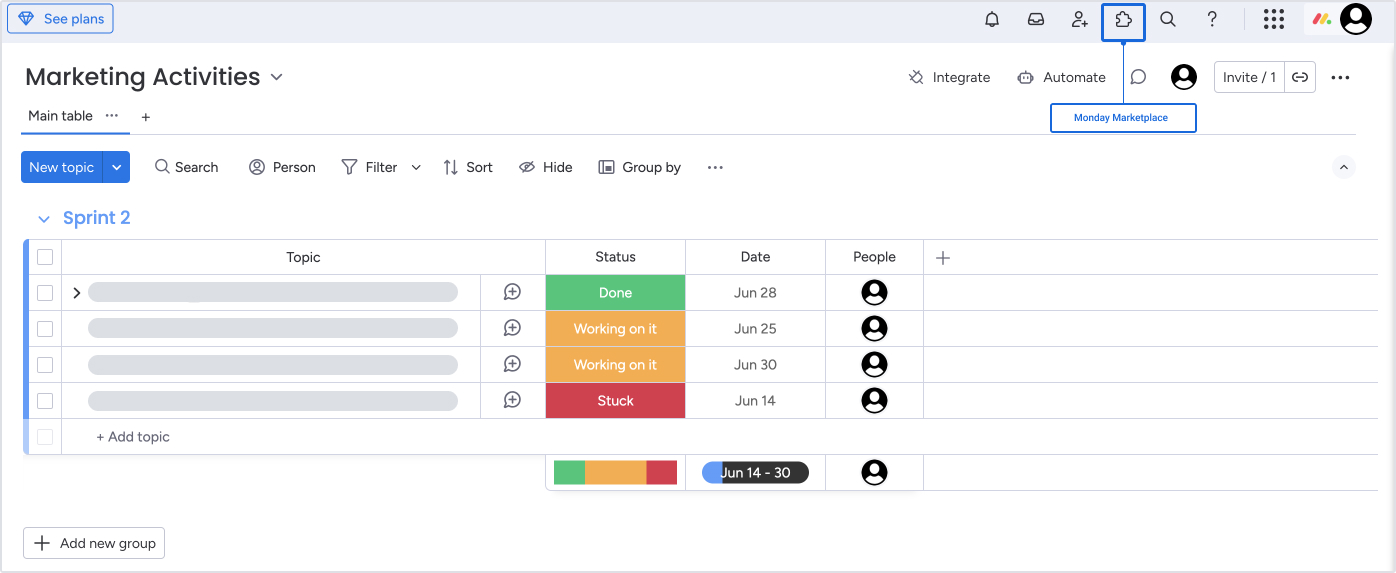
In the top-right corner of your screen, click the Apps icon (puzzle piece).
-
Select "Explore more apps" - this opens the official monday Marketplace.
The Marketplace includes all available apps you can install into your workspace.
3. Search for the app you want to install
Use the search bar to enter the name of the app, such as:
.jpg?cb=c0de815a9e14c8075886fa8340e07a01)
4. Open the app’s Marketplace page
Click on the app to open its page.
Here you will see:
-
A full app description
-
Key features
-
Screenshots or videos
-
User reviews
-
Pricing
-
Required permissions
Reviewing this helps you understand how the app will work inside your monday workspace.
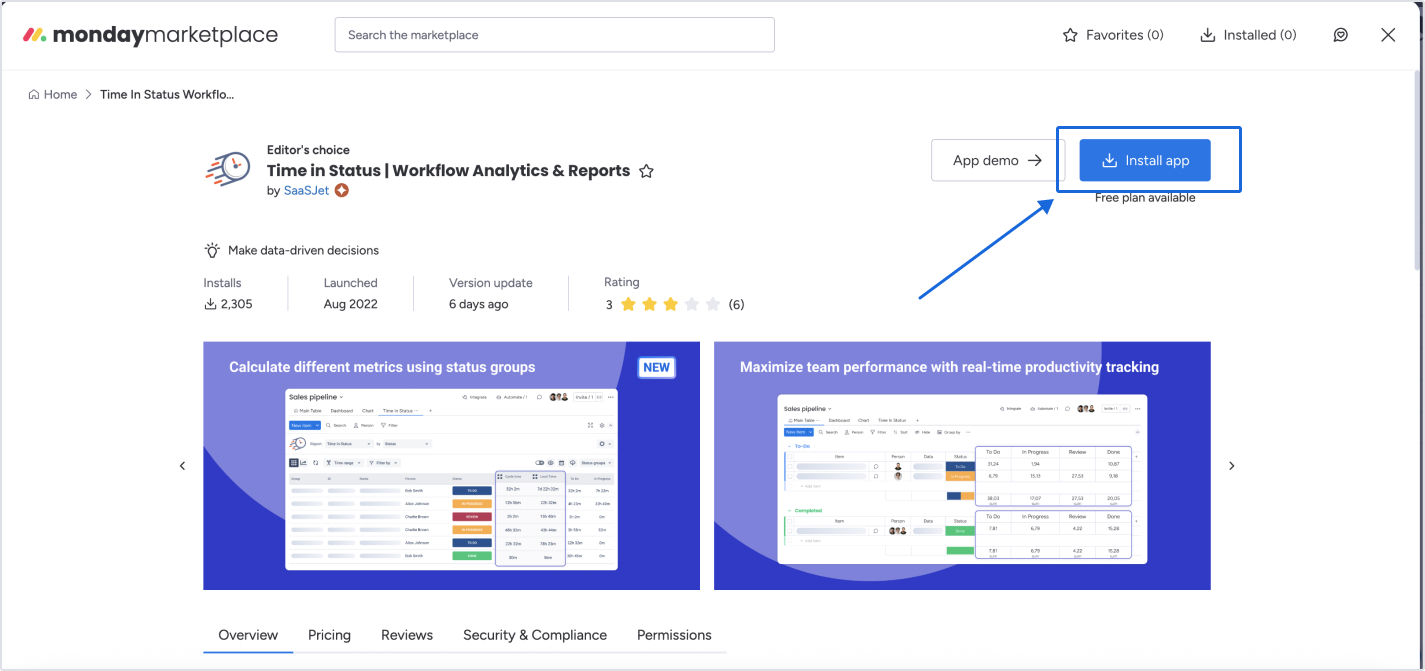
5. Click the "Install app" button
At the top-right of the page, click Install app.
-
If you’re an admin, installation continues immediately.
-
If you’re not an admin, you'll see an option to "Request to add" - this sends a message to your workspace admin.
6. Choose where to install the app
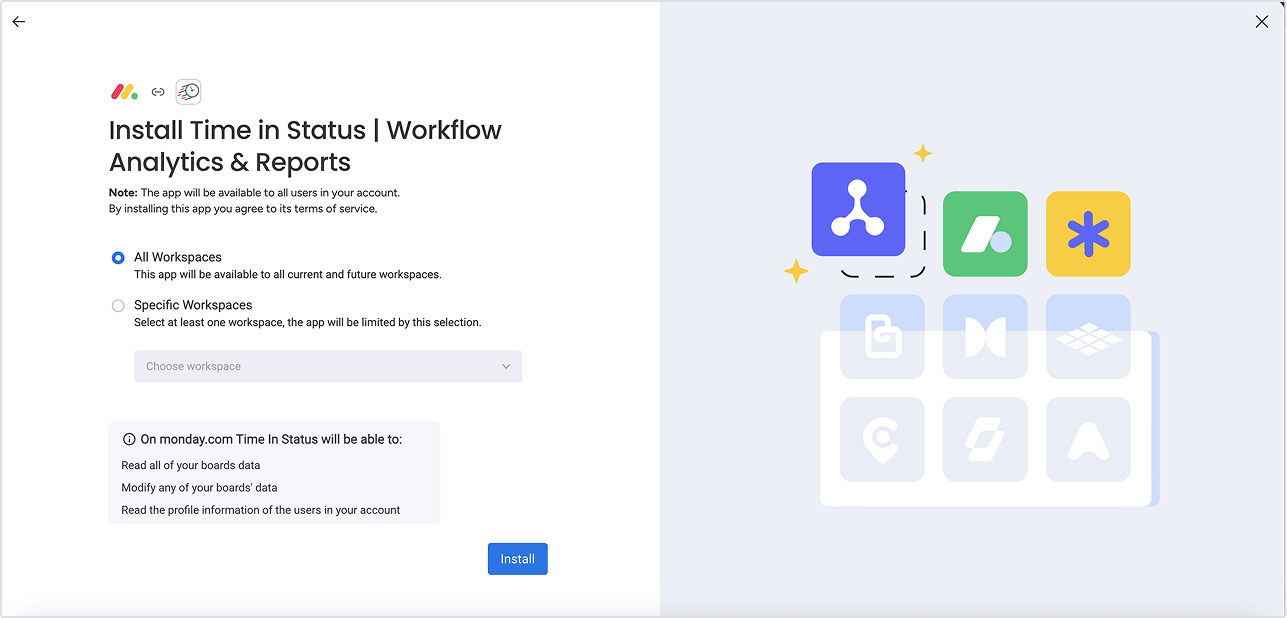
Monday will ask you to select the installation scope. You can choose to:
-
Install the app for all workspaces, or
-
Install it only for a specific workspace
Select the option that fits your setup and confirm.
7. Review and approve permissions
A pop-up will show the permissions the app needs to operate - for example:
-
Reading items or boards
-
Creating new items
-
Accessing certain workspace data
Read through the permissions and click Allow to continue.
This step ensures the app can run smoothly and integrate with your boards.
.jpg?cb=8cdabe94dea08766d607d4ef2d284bed)
8. Installation completes automatically
After permission approval, monday finishes the installation.
You’ll see a confirmation message.
Depending on the app type, you will now find it in:
-
Board views (e.g., Time in Status)
-
Item views
-
Dashboards
-
or Installed Apps under the Apps menu
The app is ready to use immediately.
If you need any help or have questions, please contact us via SaaSJet Support or email support@saasjet.atlassian.net
Haven't used our apps yet? Try it now! >>>