
Security Scanner View (PII & DLP) helps teams detect sensitive data in Jira work items and their change history. It scans current content and past changes to highlight potential risks in one clear view.
.webp?cb=6d0e54609275a1ea9e14765da53d398b)
This makes it easier for companies to reduce data exposure, stay compliant, and keep control over sensitive information stored in Jira.
Note: Security Scanner View is available during the trial period and included in the Advanced plan of Issue History for Jira app. After the trial ends, it is available only in the Advanced plan.
You can try the Advanced plan for 30 days free or upgrade at any time.
Sensitive Data Types and Severity Levels
Security Scanner View (PII & DLP) automatically scans Jira work items to find sensitive data, including:
|
Data type |
Severity |
Score |
|---|---|---|
|
Password |
🔴🔴🔴🔴🔴 |
5 (Critical) |
|
Credentials |
🔴🔴🔴🔴🔴 |
5 (Critical) |
|
Credit Card |
🔴🔴🔴🔴🔴 |
5 (Critical) |
|
Social Security Number |
🔴🔴🔴🔴🔴 |
5 (Critical) |
|
Document ID |
🔴🔴🔴🔴🔴 |
5 (Critical) |
|
AWS Client ID |
🔴🔴🔴🔴🔴 |
5 (Critical) |
|
AWS MWS Key |
🔴🔴🔴🔴🔴 |
5 (Critical) |
|
AWS Secret Access Key |
🔴🔴🔴🔴🔴 |
5 (Critical) |
|
Google API Key |
🔴🔴🔴🔴🔴 |
5 (Critical) |
|
Google OAuth Client ID |
🔴🔴🔴🔴🔴 |
5 (Critical) |
|
Google OAuth Access Token |
🔴🔴🔴🔴🔴 |
5 (Critical) |
|
GitHub Token |
🔴🔴🔴🔴🔴 |
5 (Critical) |
|
Generic API Key |
🔴🔴🔴🔴🔴 |
5 (Critical) |
|
Generic Secret |
🔴🔴🔴🔴🔴 |
5 (Critical) |
|
Stripe API Key |
🔴🔴🔴🔴🔴 |
5 (Critical) |
|
SendGrid API Key |
🔴🔴🔴🔴🔴 |
5 (Critical) |
|
Slack Token |
🔴🔴🔴🔴🔴 |
5 (Critical) |
|
Slack Webhook URL |
🔴🔴🔴🔴🔴 |
5 (Critical) |
|
Azure Storage Access Key |
🔴🔴🔴🔴🔴 |
5 (Critical) |
|
Mailgun API Key |
🔴🔴🔴🔴🔴 |
5 (Critical) |
|
Mailchimp API Key |
🔴🔴🔴🔴🔴 |
5 (Critical) |
|
Shopify Secrets |
🔴🔴🔴🔴🔴 |
5 (Critical) |
|
Shopify Partner API Access Token |
🔴🔴🔴🔴🔴 |
5 (Critical) |
|
Square Access Token |
🔴🔴🔴🔴🔴 |
5 (Critical) |
|
Square OAuth Secret |
🔴🔴🔴🔴🔴 |
5 (Critical) |
|
SSH Private Key |
🔴🔴🔴🔴🔴 |
5 (Critical) |
|
SSH Public Key |
🔴🔴🔴🔴🔴 |
5 (Critical) |
|
RSA Private Key |
🔴🔴🔴🔴🔴 |
5 (Critical) |
|
PKCS8 Private Key |
🔴🔴🔴🔴🔴 |
5 (Critical) |
|
PGP Private Key |
🔴🔴🔴🔴🔴 |
5 (Critical) |
|
EC Private Key |
🔴🔴🔴🔴🔴 |
5 (Critical) |
|
Password in URL |
🔴🔴🔴🔴🔴 |
5 (Critical) |
|
Phone Number |
🔴🔴🔴🔴 |
4 (High) |
|
Email Address |
🟡🟡🟡 |
3 (Medium) |
|
IP Address |
🟡🟡🟡 |
3 (Medium) |
|
Physical Address |
🟡🟡🟡 |
3 (Medium) |
|
Username / Login |
🟡🟡 |
2 (Low) |
|
ZIP Code |
🟡 |
1 (Minimal) |
Detected findings are displayed in a structured table, making it easy to review and prioritize work items that need attention.
How does it work?
-
Open the app in Jira and go to Security Scanner View.
-
Select what to scan using filters. You can filter work items by space, sprint, JQL, and more.
-
Set the date range to specify the time period to scan (current content and history within that range).
-
Review the generated report. It shows work items (Jira work items where sensitive data was detected), type of finding (category of detected sensitive data (for example, password or API key), security finding (detected sensitive data), severity score (indicates how much attention the finding may need).
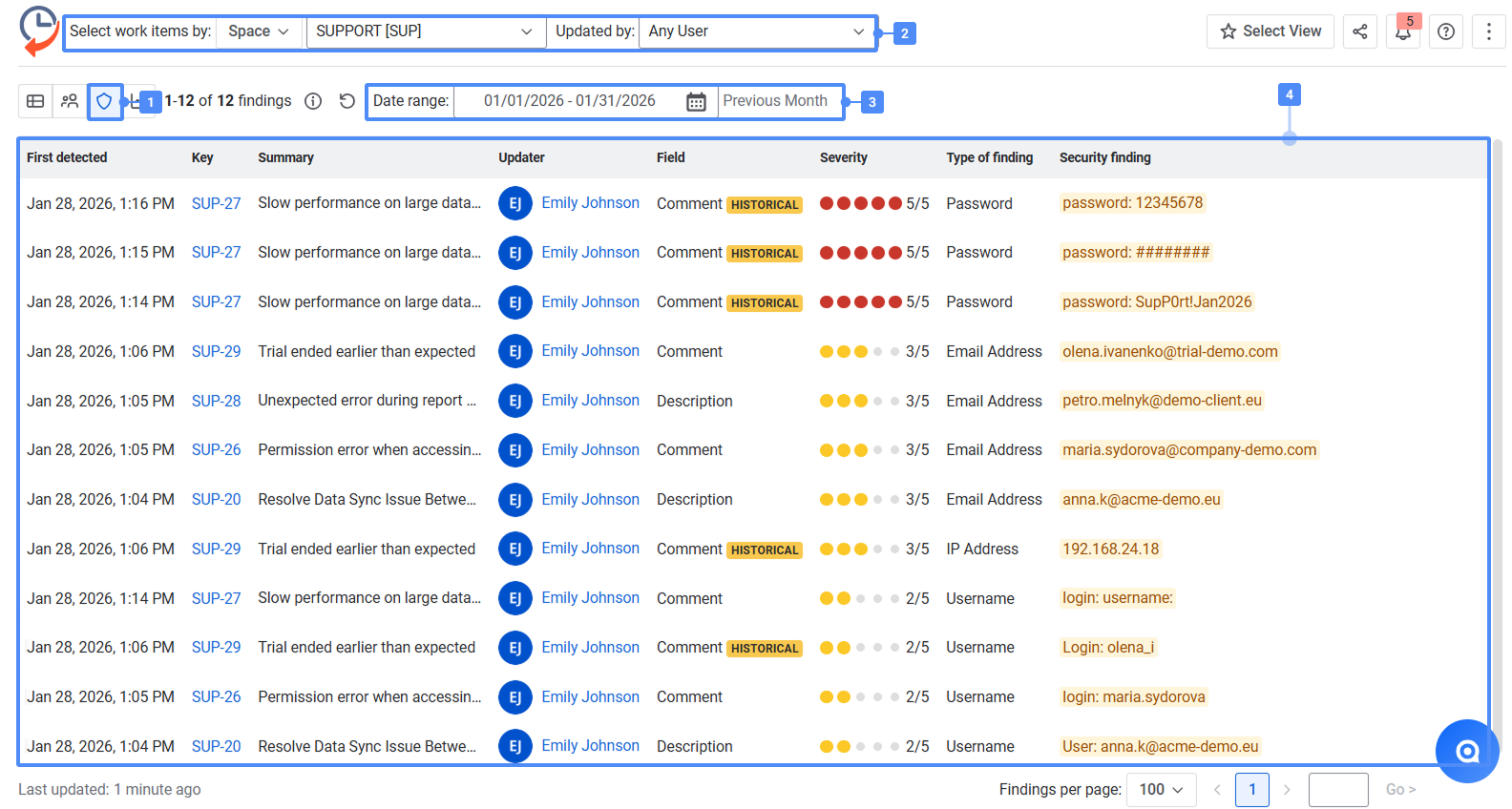
Security Scanner View helps users quickly see where sensitive data appears in Jira work items and their history. Instead of manually checking work items one by one, you can get a clear list of findings in one place.
Historical finding (not present in the current state of work item)
Historical mark in the Field column indicates that the security finding is no longer present in the current content. It means sensitive data (such as a password, API key, or card number) appeared in a past change, for example, in an earlier comment or description, and was later removed or updated.
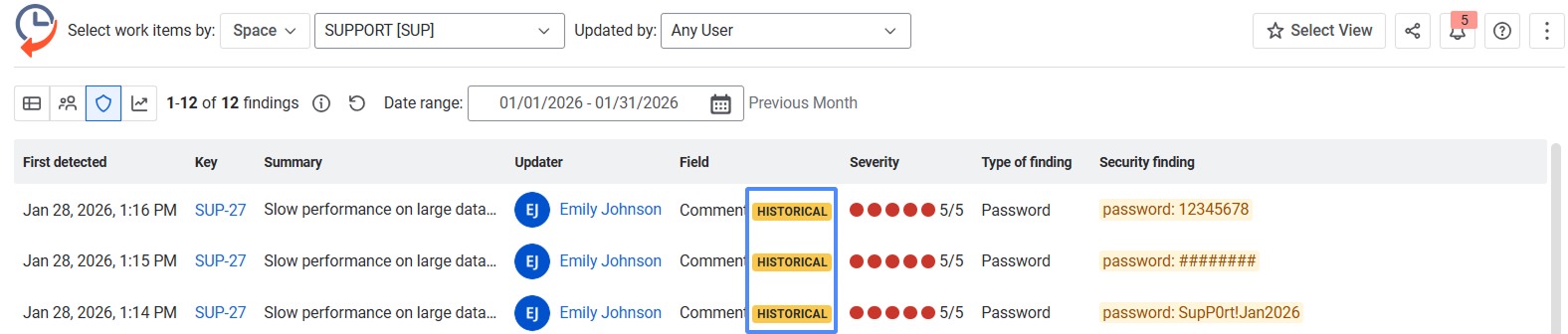
Why this matters:
-
Sensitive data may still exist in the work item history.
-
Historical exposure can be relevant for audits and compliance.
-
Teams can identify and address past data risks, not just current ones.
Hide sensitive Security Scanner results
Click the Hide sensitive data (eye) icon in the top-right corner of the table to mask all sensitive finding values, or use the eye icon next to an individual finding to hide or reveal only that specific value.
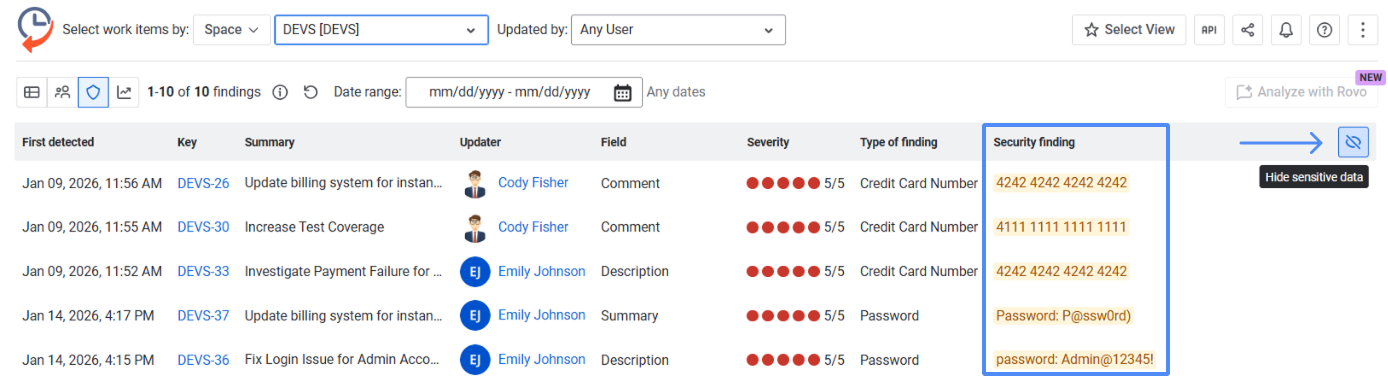
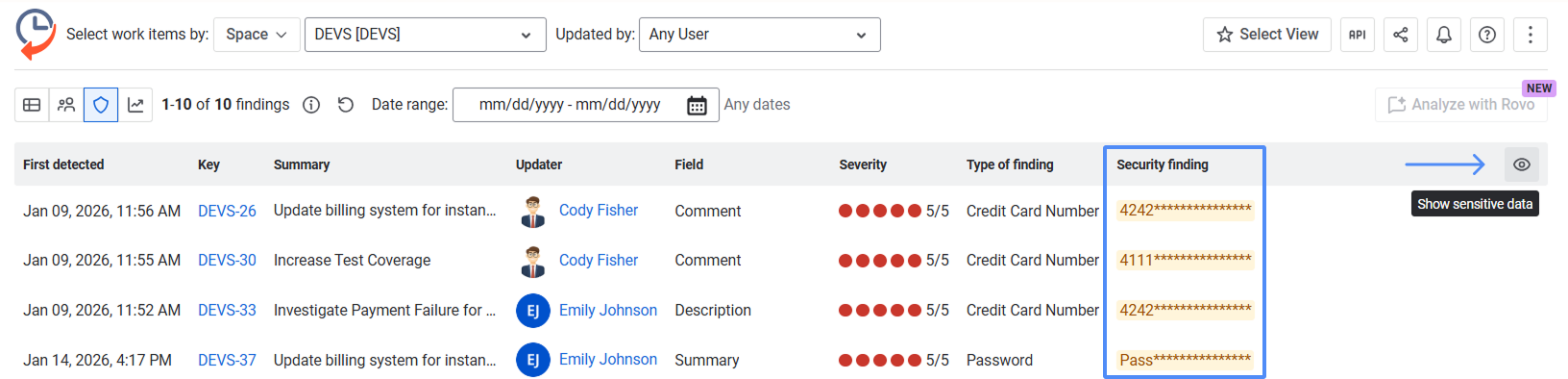
This feature helps prevent accidental exposure of sensitive information when reviewing findings, sharing your screen, or taking screenshots.
Analyze Security Scanner findings with Rovo
Issue History for Jira includes Analyze with Rovo functionality, which lets you use Atlassian Rovo to quickly analyze Security Scanner findings with AI. Rovo reviews detected findings, identifies potential false positives, and provides recommendations for further investigation.
Note: Atlassian Rovo must be available for your Jira instance. Rovo is an AI-powered assistant for Jira and is available for users on paid Jira Cloud plans.
How to analyze findings with Rovo:
-
Open the Security Scanner View and click Analyze with Rovo.

-
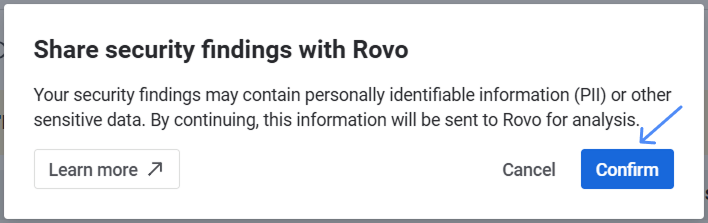
Review the modal window that appears, then click Confirm to send the selected security findings to Rovo for analysis.
-
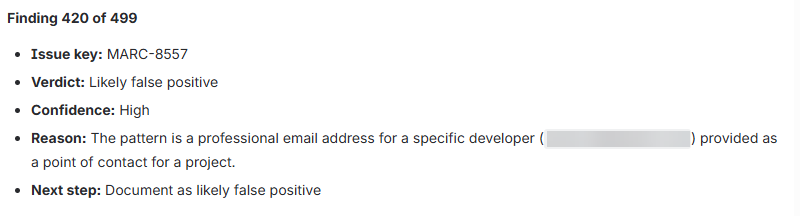
Rovo generates a report that includes:
-
An overall summary of the findings.
-
A verdict for each finding.
-
Confidence level, explanation, and recommended next steps.
-
For example:
If there are many security findings, Rovo may analyze them in multiple batches. After the first analysis is complete, click Continue analysis to send the remaining findings to Rovo. Repeat this process until all findings have been analyzed.

Who can access the Security Scanner View?
Access to the Security Scanner View is controlled at the group level in the app’s Permissions settings.
It is possible to define which user groups are allowed to view Security Scanner results and access sensitive data detection (PII & DLP findings)
For more details, see: Permissions for Working With Issue History
Questions & Answers
3. How Security Scanner in Issue History for Jira app gets the data?
Security Scanner in Issue History for Jira app reads Jira work item data at runtime directly from Jira.
-
Data is processed inside Atlassian Cloud infrastructure
-
Jira remains the single source of truth for all work item data
-
The app doesn't write data back into Jira databases
-
The app doesn't store, copy, or persist Jira work item data in an external database
.png?cb=f6750ade63d1fd5867829dc3b54dbd2c)
Issue History for Jira reads the full work item history on the fly, analyzes it, formats the results, and displays them to the user.
Haven't used Issue History for Jira app yet? 👉 Then you’re welcome to try it 🚀