
How Product Managers Use monday.com SLA Tracking to Control Task Deadlines
Product teams handle multiple requests – from critical bug fixes to minor design updates, and not every task is equally urgent when it comes to meeting task deadlines.
To bring structure and timing accuracy, teams use Time in Status to apply SLA by priority – helping them see exactly how long tasks spend in each status and whether they’re on track.
⚙️ Step 1: Automate SLA Tracking Based on Priority
Before starting, check that
Time in Status app activated on the board. You can read the full installation guide here.
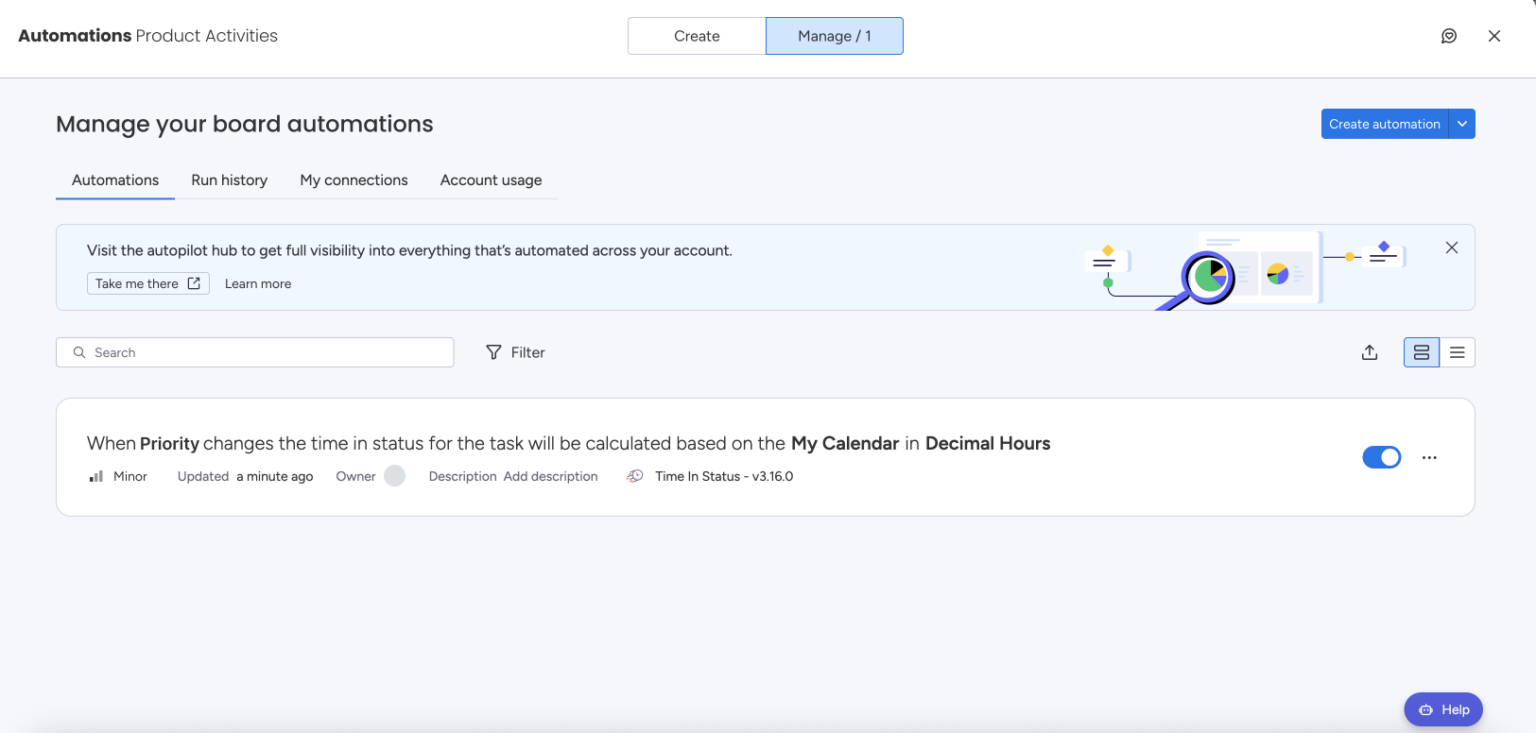
In monday.com, you can connect Time in Status with automations to ensure that every time a task’s priority changes, the app recalculates the timing automatically.
When the Priority column is updated, the time in status will be calculated based on your My Calendar settings – using Decimal Hours for precision.
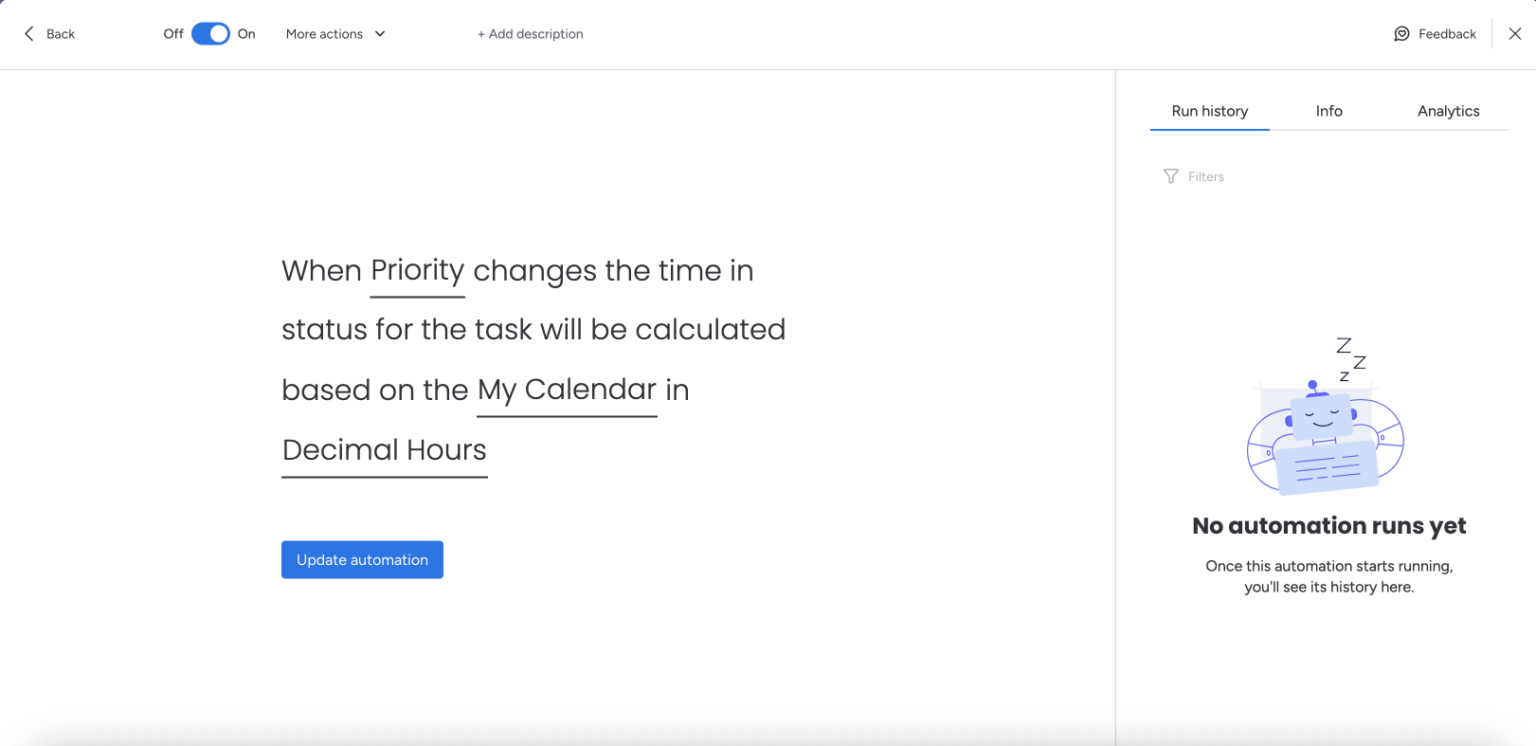
This ensures that timing reflects real working hours and not weekends or non-working periods. Once this automation runs, all changes will be visible in the Run history tab.
🧩 Step 2: Set SLA Rules for Each Priority
Now it’s time to define your Service Level Agreements (SLAs) directly in the Set SLA panel.
The team created three SLA tiers:
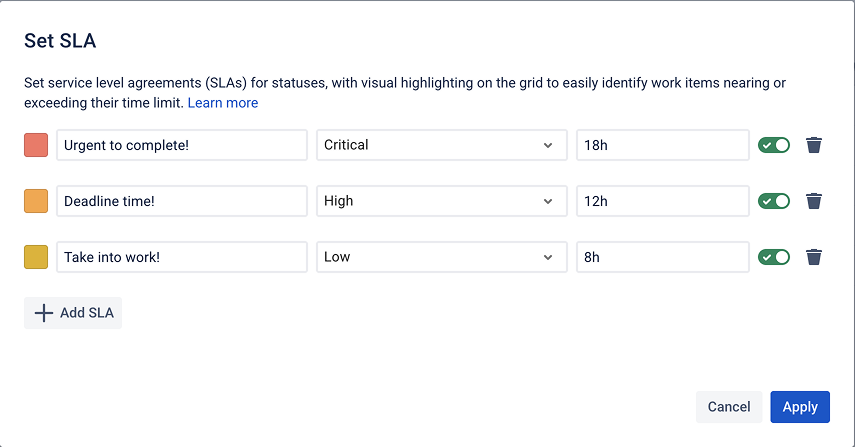
🟥 Urgent to complete! – for Critical tasks, with an 18-hour SLA.
🟧 Deadline time! – for High priority tasks, with a 12-hour SLA.
🟨 Take into work! – for Low priority tasks, with an 8-hour SLA.
These time limits appear visually on the grid, allowing teams to immediately spot items approaching or exceeding their time cap.
This step helps teams apply SLA tracking directly to their real workflows – no external timers or manual calculations needed.
📊 Step 3: Monitor Progress in the Product Activities Board
Once automation and SLA limits are set, the Product Activities board becomes the control center for time tracking.
Here, the Time in Status report shows exactly how long each task has been in its current phase.For example:
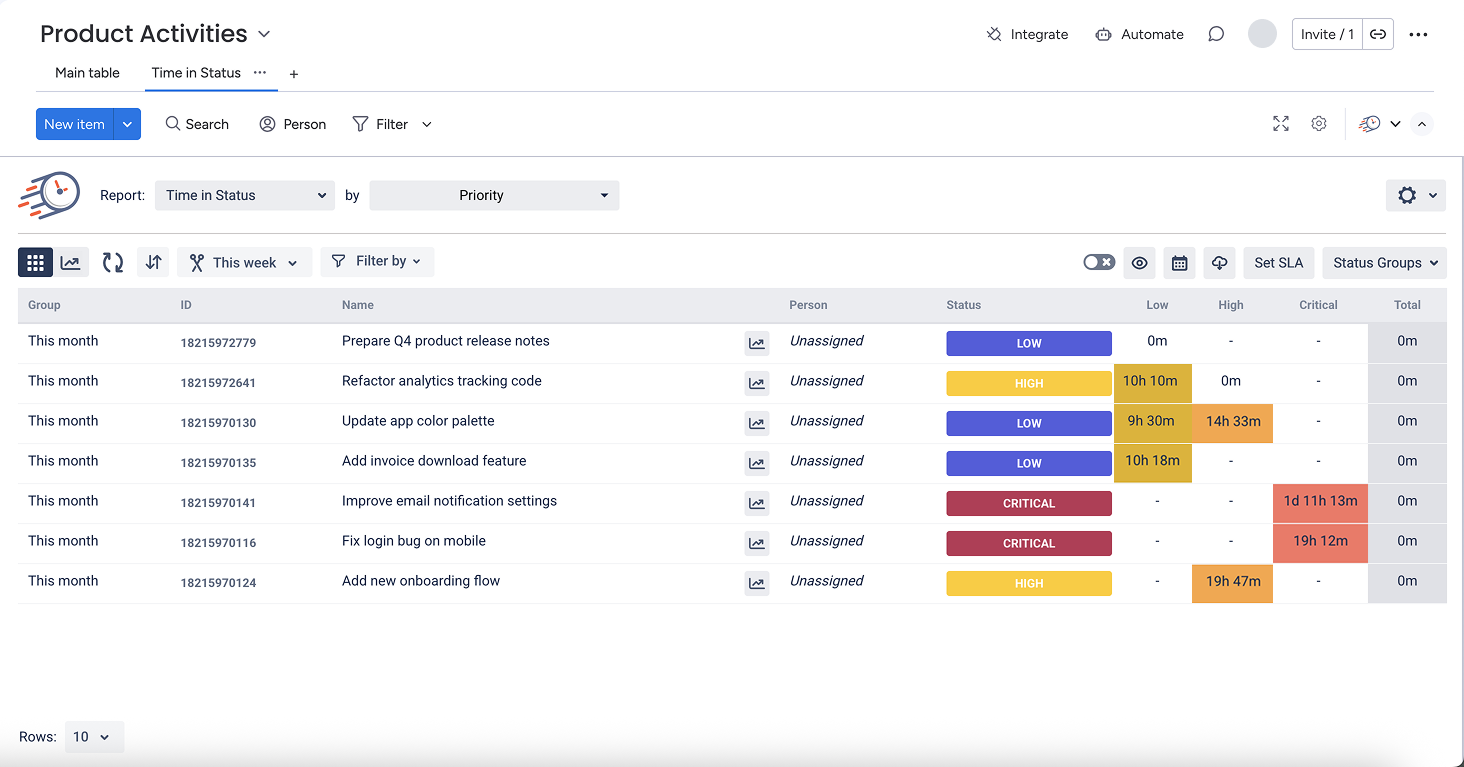
“Fix login bug on mobile” (Critical) has spent 1d 11h 13m – marked as Overdue.
“Add new onboarding flow” (High) – 19h 47m, close to the limit.
“Update app color palette” (Low) – 9h 30m, still within the deadline.
This live overview helps the product team instantly see which tasks need attention first.
💡 Step 4: Improve Workflow Control with Time in Status
With this setup, product managers can easily analyze:
Which priorities take the most time.
Which statuses cause the biggest delays (e.g., In Review or Waiting for Approval).
How often SLA deadlines are met or missed.
By using SLA tracking, teams can monitor performance trends and identify bottlenecks across projects. This data-driven approach not only improves visibility but also helps set more realistic task deadlines for upcoming sprints.
By combining SLA by priority with automation, teams gain full workflow control, ensuring nothing critical is forgotten or delayed.
🚀 Haven’t tried it yet? Get started today with the Time in Status app for monday.com.
Thanks to Time in Status, the product team can now:
✅ Track task timing based on priority
✅ Visually detect overdue work
✅ Improve scheduling accuracy
✅ Maintain consistent delivery speeds
This smart workflow helps balance priorities, increase transparency, improve workflows control, and reduce deadline stress.
With Time in Status, your team can finally turn into a real-time productivity dashboard – powered by data, not guesswork.

If you need help or want to ask questions, please contact SaaSJet Support or email us at support@saasjet.atlassian.net

Haven't used this add-on yet? Try it now >>> Time in Status app for monday.com