
Working with Large Data Volumes in Issue History for Jira
Large Jira environments generate significant amounts of data over time.
This page explains how Issue History for Jira processes, exports, and supports reporting with high-volume data, and answers common enterprise questions we receive.
Export & Reporting with Large Data Volumes
Issue History for Jira app exports change history, not just a list of work items.
This means:
Jira may show 10,000 work items
The export may contain many more rows
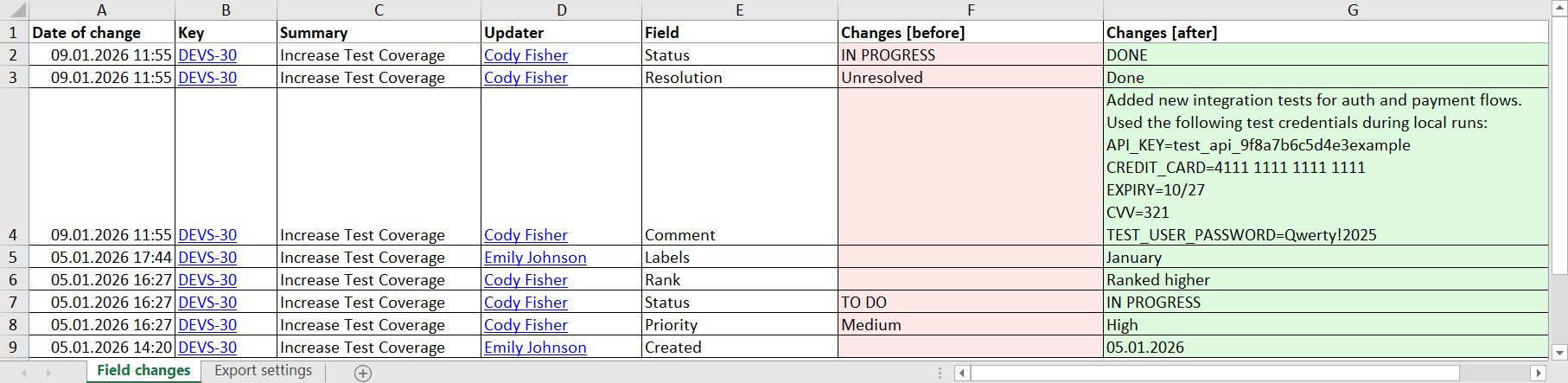
Each row represents one change event (field update, status change, etc.)

Note: Exports are change-based, not work item-based. One work item can produce dozens or hundreds of rows over time.
This approach ensures full audit accuracy and complete historical coverage.
Here is how one work item change data may look when being exported in Excel format:
Why This Matters for Enterprise Reporting
Enterprise teams use Issue History for Jira app’s export of data to:
Prove exactly what changed and when
Reconstruct timelines for audits and investigations
A single “work item = one row” export would lose critical audit information.
Change-based exports preserve every event.
What to Expect in Large Exports
When exporting large datasets, the total number of rows depends on:
Number of work items included
Length of the time range
How often fields were changed
Number of fields selected
For example:
10,000 work items × 20 changes = 200,000 rows
This is expected and correct behavior
Why Large Exports May Take Time
Large exports require:
Paging through Jira API responses
Processing each change event
Building a complete, consistent dataset
Best Practices for Large Exports
To work efficiently with large datasets:
Filter work items by space, date range, and updater
Start with smaller time windows, then expand
Reuse saved filters for repeatable reporting
.png?inst-v=d4b81bf3-9d55-442a-bbf1-2fd72a0118cd)
Issue History for Jira app processes data on the fly and does not pre-store or cache your Jira work item data.
Because of this:
Large exports may take more time to complete
Data is always retrieved directly from Jira at the moment of export
No historical data is duplicated or stored outside Atlassian systems
This approach is intentional and security-driven.
Pre-storing or pre-aggregating large datasets could improve speed, but it would also:
Increase data exposure risk
Introduce data residency concerns
Require external storage
By processing data in real time, Issue History for Jira ensures:
Up-to-date and accurate results
No external data storage
Alignment with enterprise security and compliance expectations
Questions & Answers Related to Export of Work Item History
If you need help or want to ask questions, please contact SaaSJet Support or email us at support@saasjet.atlassian.net

Haven't used this app yet? 👉 Then you’re welcome to try it 🚀