
Time in Status Data Export Throught API

The Time in Status data feed is moving to a new, more secure API-based flow.
With this update, your report data is generated when the link is called, instead of being served from the previous open datafeed setup. The returned data keeps the same JSON structure as the existing datafeed, so your downstream integration should require minimal changes. The main differences are the new link format and the new authorization step.

What’s changing
The new datafeed flow introduces:
a new generated datafeed link
a one-time authorization step before you start using the link
secure access using tokens
real-time report generation when the link is requested
This means your integration will use a new link and must authenticate before retrieving data.
How it works
Prerequisites
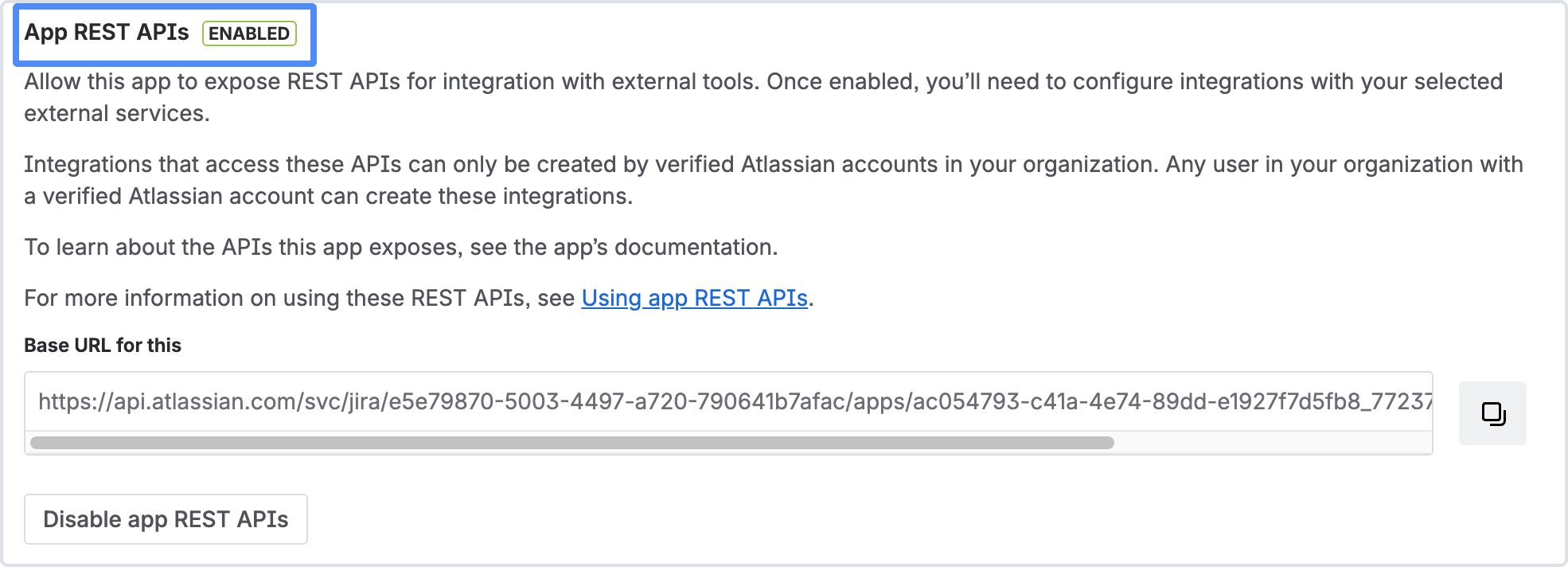
Go to Administration > Connected Apps > Time in Status and enable the REST API option.
1. Generate a new datafeed link
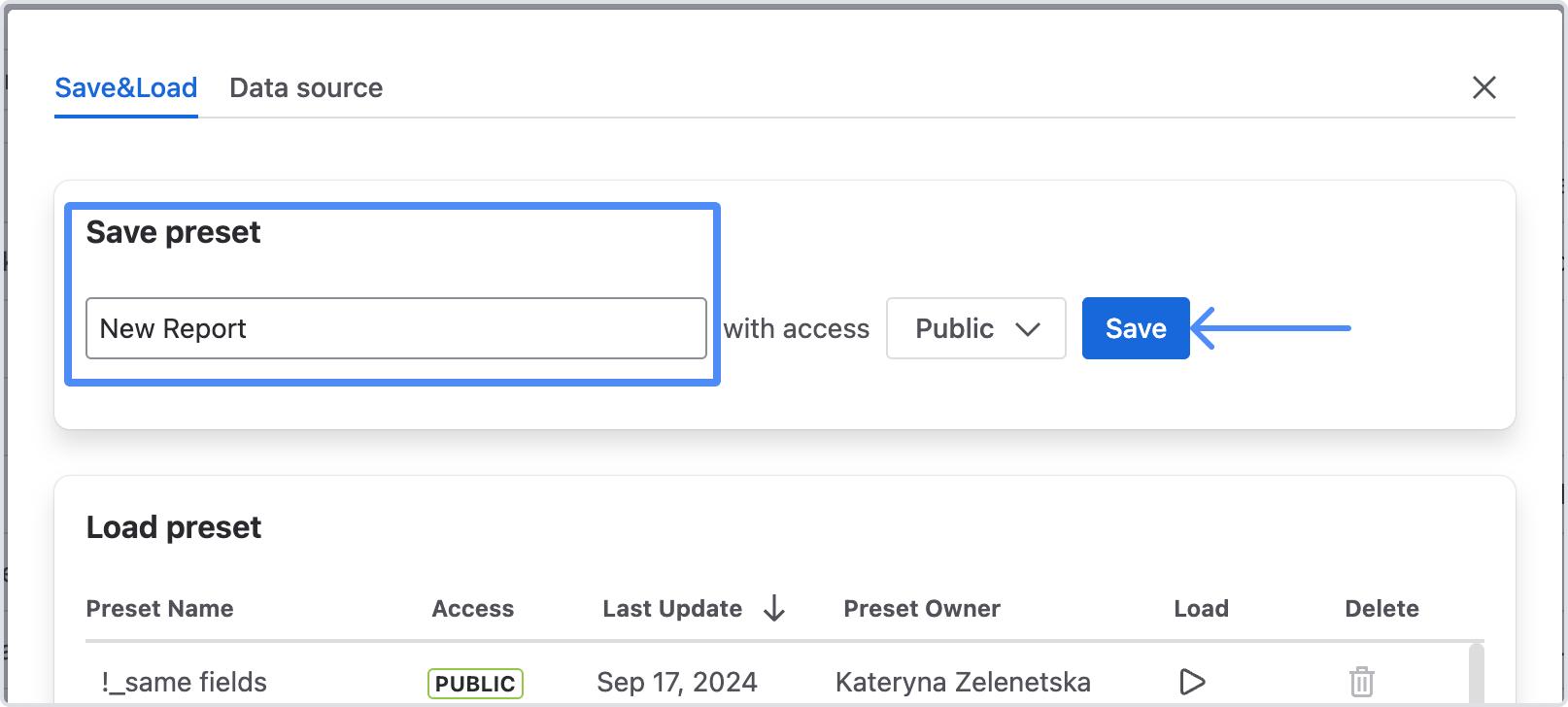
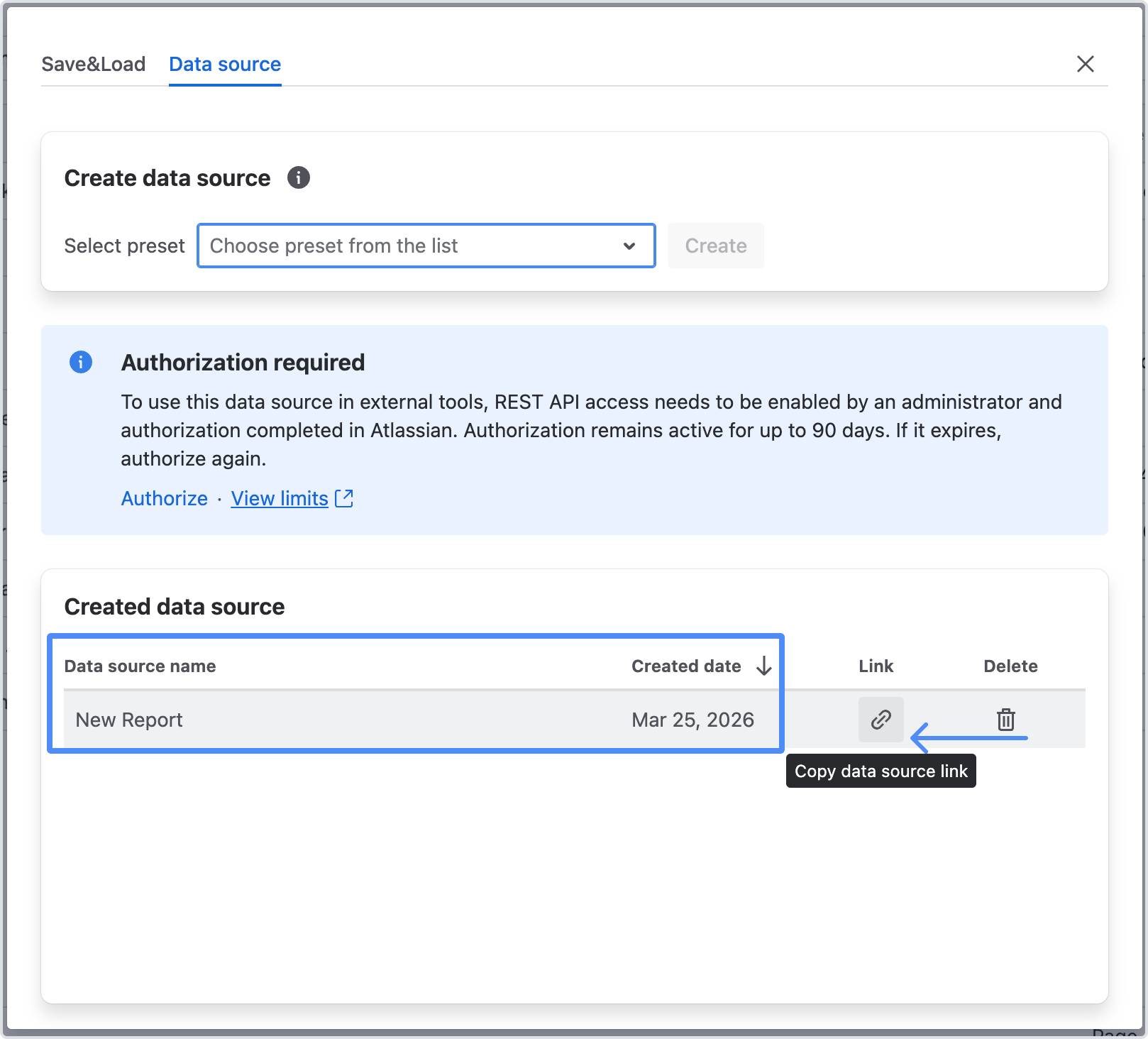
Open the datafeed window in Time in Status and generate a new link for your saved preset.
You will also see an action to start authorization.
2. Authorize access
Click the authorization action in the datafeed window.
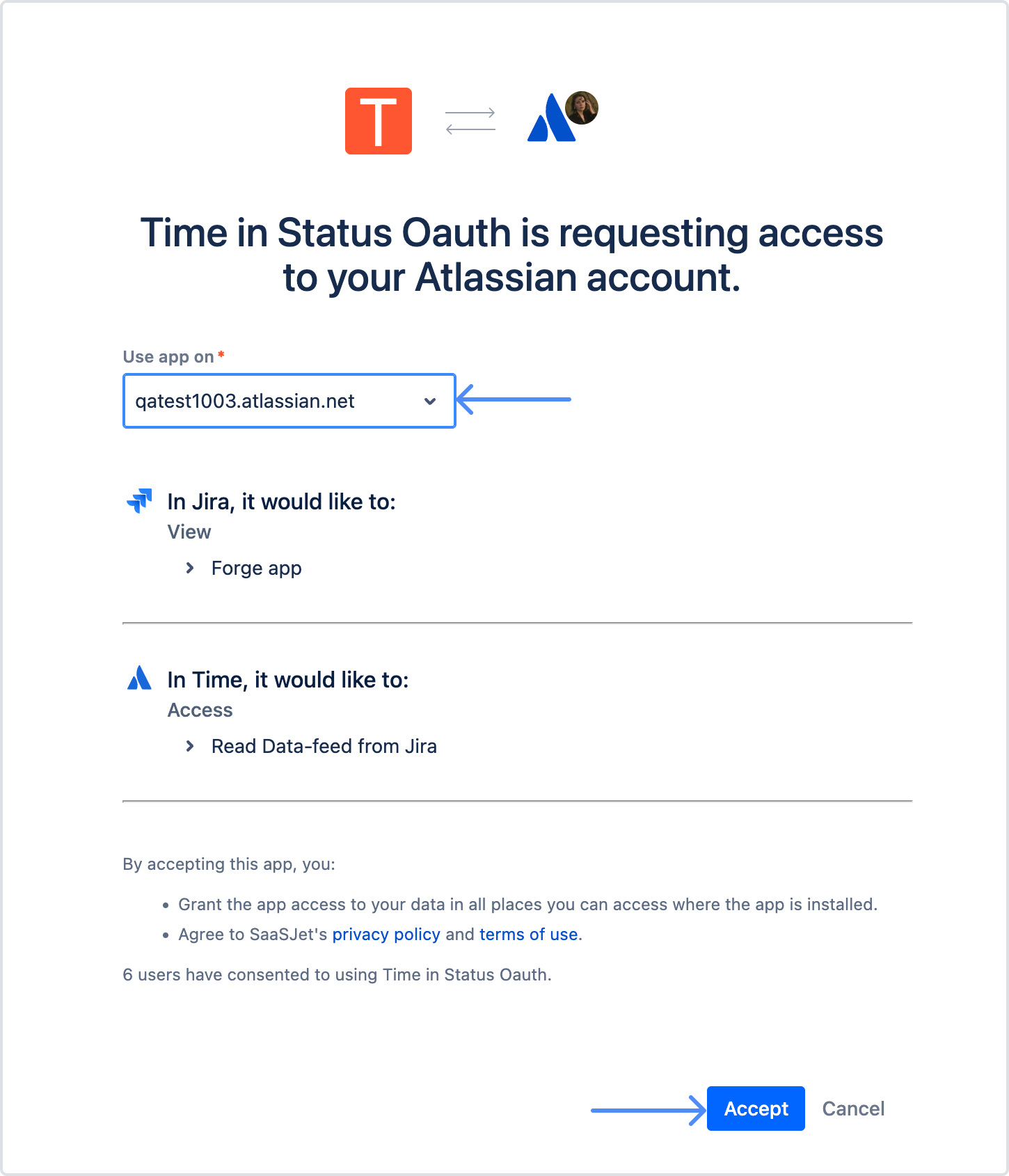
You will be redirected to the Atlassian consent screen, where you need to review the requested access and click Accept.
3. Get your authorization code
After consent is granted, you will be redirected back to the callback page.
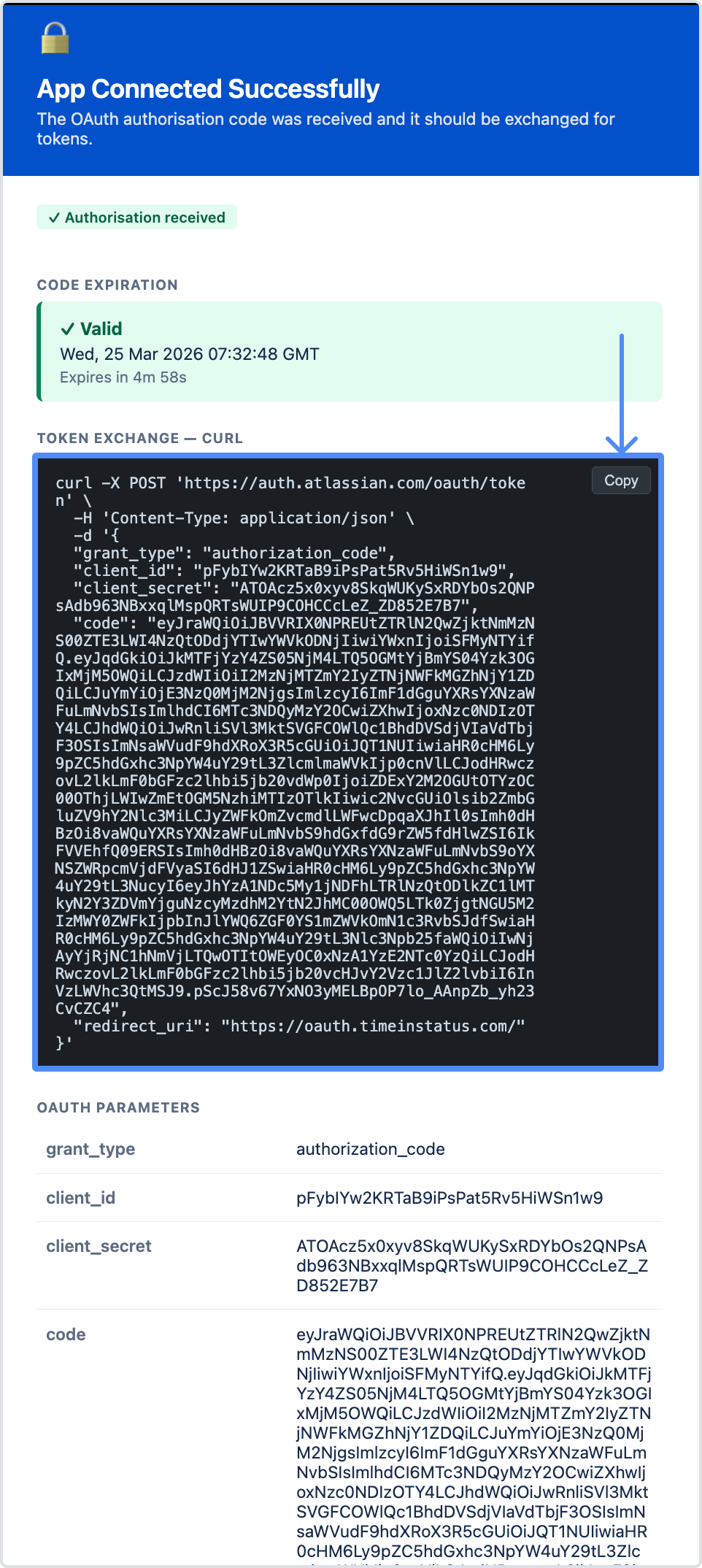
The system will display the authorization details you need for the next step.
After that, use the authorization code to request two tokens with an HTTP client such as Postman: an access token and a refresh token.
The code expires in 5 mins. Make sure you have received the access and refresh token within this timeframe. If not, return to step 1.
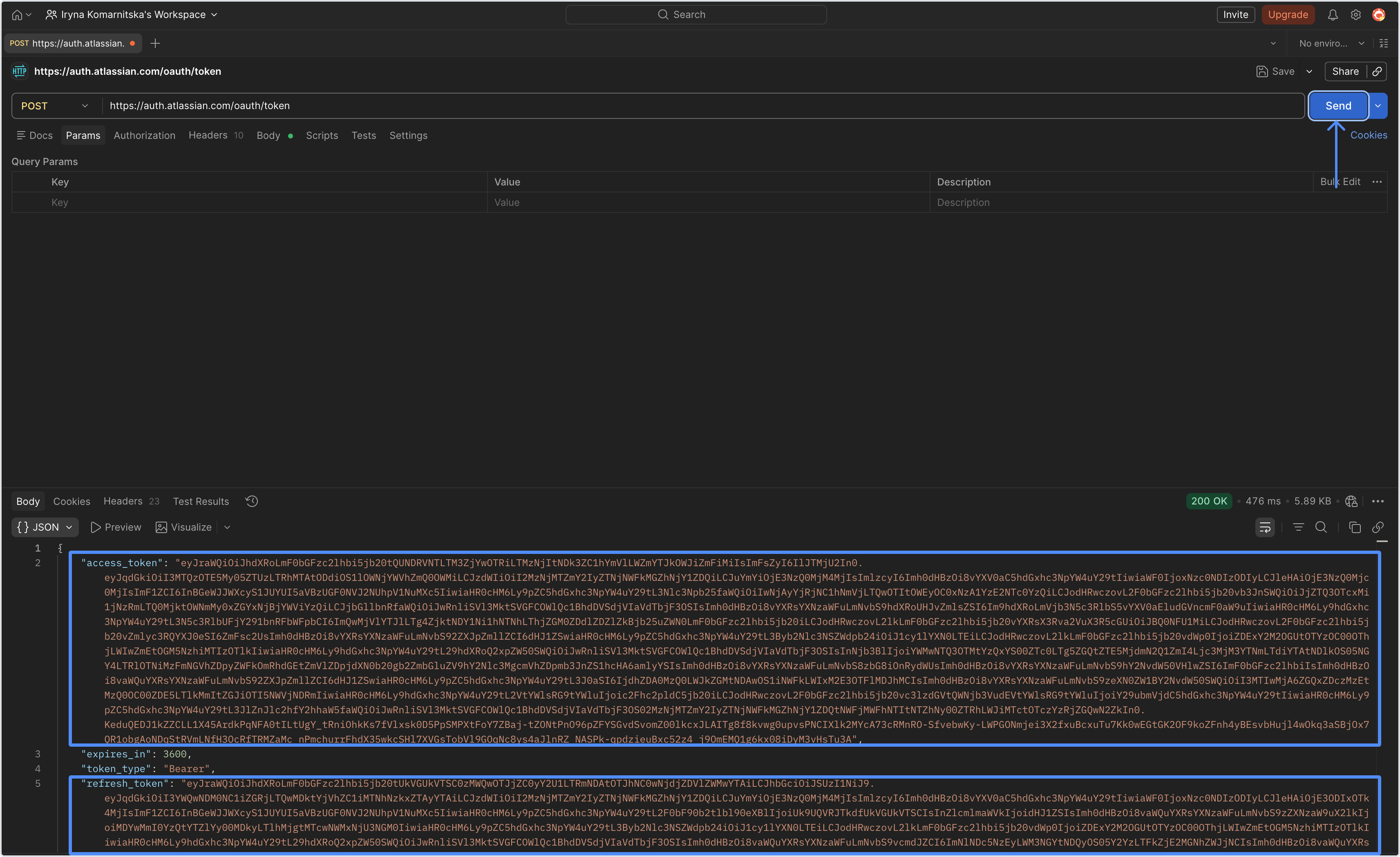
These tokens are used by your external system or integration to securely call the data feed.
Both tokens become active when you click the Approve button and have a limited validity period:
Access token: valid for 1 hour
Refresh token: valid for 90 days
Make sure to use the access token within 1 hour. If it expires before you apply it, return to step 1 and repeat the process.
The 90-day refresh token validity determines how long your data extract remains accessible. After 90 days, to access the report again, regenerate the link and repeat the process from step 1.
5. Use the token when requesting the data feed
When your integration calls the generated datafeed link with a valid access token, the report is calculated at that moment and returned as a JSON response.
Data retrieval is limited to 25 seconds to keep the process fast and stable. As a result, the data source can return up to approximately 1,000 work items, depending on their changelog history.
What the API returns
The new API returns report data as a JSON payload.
In general:
the report is built on demand
the returned JSON follows the same schema and structure as the existing datafeed
the generated link format is different from the old one
A generated link will follow this pattern:
https://<site-name>/gateway/api/svc/<product>/apps/<app-id>_<env-id>/<path>The request uses datafeedID as a parameter.
Permissions and visibility
Where Jira permission enforcement is supported, the data feed returns only the issues that the authorized user is allowed to view.
This helps ensure that users only receive data they already have access to in Jira.
Counts and report size
Because the report is generated dynamically during the API request, the final result may differ from the number shown when the link was created.

Error messages
The API may return the following errors:
400 Bad Request
Returned when the request is invalid or required data is missing.
Example causes:
the request is malformed
datafeedIDis missing or invalidthe request parameters are incorrect
413 Payload Too Large
Returned when the calculated report data exceeds 5 MB.
If this happens, narrow the report scope and try again.
500 Internal Server Error
Returned when an unexpected server-side error occurs.
If the issue continues, regenerate the link and retry. If that does not help, contact support.
Troubleshooting
1. I get less data than expected
Possible reasons:
the authorized user does not have permission to view all issues in Jira
the count shown during link creation was only an estimate
the report is too large or too broad for the new dynamic flow
2. The request fails because the payload is too large
Reduce the amount of data in the preset by:
narrowing the project scope
shortening the date range
applying additional filters
3. My old data feed link no longer works
Old generated data feeds are being retired. Generate a new data feed link and update your integration to use the new authorization flow.
4. I completed authorization, but the request still fails
Check that:
the preset is saved
the new data feed link is being used
the access token is valid
the token has not expired
your integration refreshes tokens when needed
If you need help or want to ask questions, please contact SaaSJet Support or email us at support@saasjet.atlassian.net

Haven't used this add-on yet? Try it now!