
How to install the app from Azure DevOps Marketplace?
How to install the app from Azure DevOps Marketplace?
Installing an app from the Azure DevOps Marketplace is simple, but requires that you have the right permissions in your organization. Follow the steps below to install Time in State for Azure DevOps (or any other SaaSJet extension).
✅ 1. Go to the Azure DevOps Marketplace
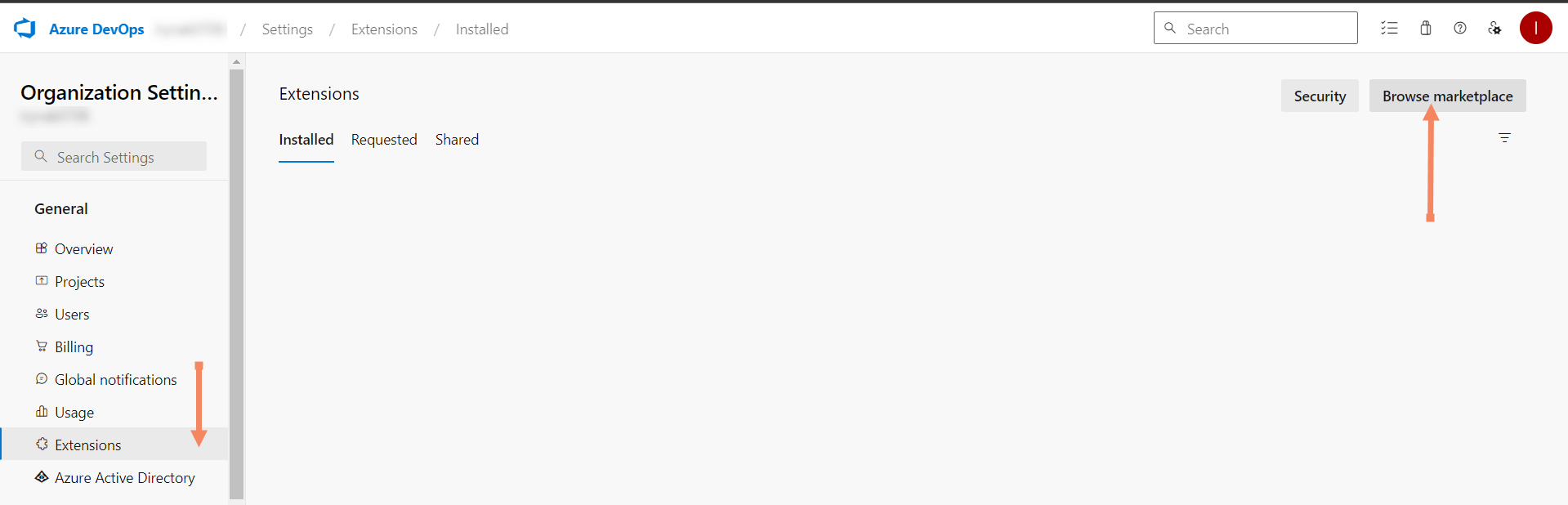
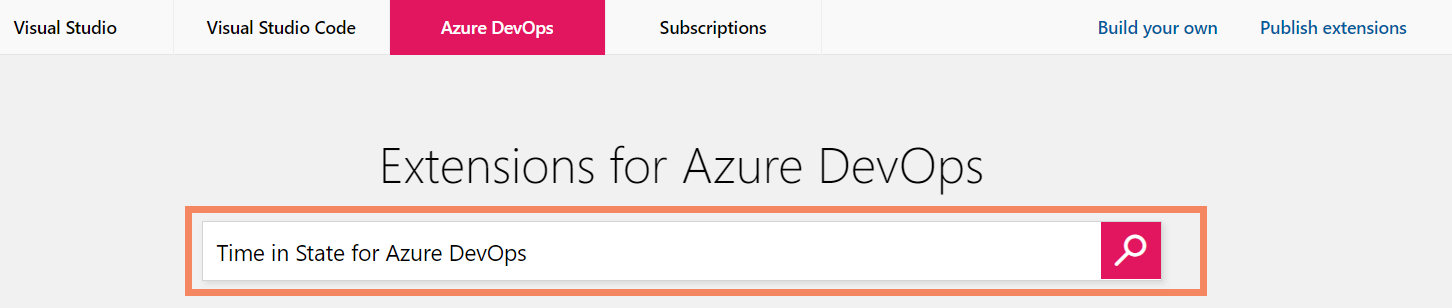
Use the search bar and type “Time in State for Azure DevOps” (or the name of the app you want to install).
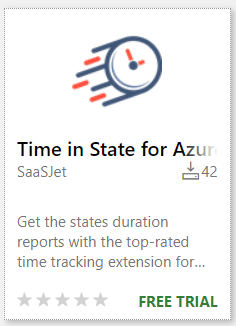
Open the extension page.
✅ 2. Click “Get it Free” or “Get”
On the extension page, press:
Get it Free (for free or trial plans)
Get (if your organization already has a subscription option)
You will be asked to sign in with your Microsoft account.
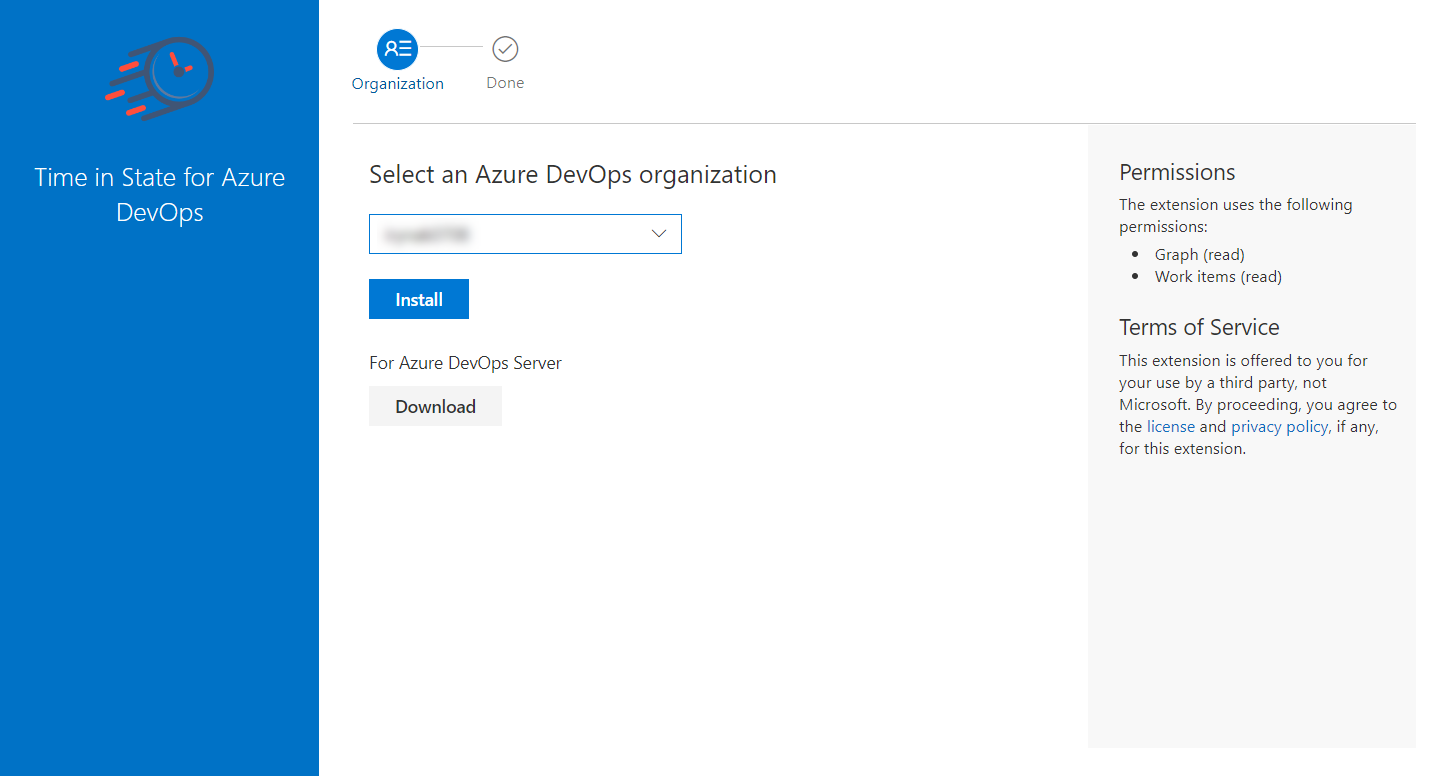
✅ 3. Choose your Azure DevOps Organization
A pop-up window will appear asking where you want to install the app.
Select your Azure DevOps organization from the dropdown list.
Click Install.
If you don’t see your organization, make sure:
You're signed in with the correct account.
You have the required permissions (Project Collection Administrator or Owner).
✅ 4. Wait for the installation to complete
Azure DevOps will install the extension automatically.
This usually takes 10–30 seconds.
When installation is successful, you will see a confirmation message.
🔐 Permission requirements
To install the extension, you must be:
Organization Owner, or
Project Collection Administrator, or
Have marketplace installation rights enabled
Regular project contributors cannot install extensions.
❗ If you cannot install the app
Check the following:
Your organization blocks marketplace extensions
Your account doesn’t have permission to install apps
The extension is disabled for your billing type
Your Azure tenant requires admin approval

If you need any help or have questions, please contact us via SaaSJet Support or email support@saasjet.atlassian.net

Haven't used this app yet? Try it now! >>>